
1. Introduction
The Extendtecc WiFi Extender is designed to expand the coverage of your existing wireless network, eliminating Wi-Fi dead zones and providing a stronger, more reliable signal throughout your home or office. This device operates on the 2.4GHz band, offering data transfer speeds of up to 300Mbps, suitable for streaming, browsing, and general internet use.
This manual provides detailed instructions for setting up, operating, and troubleshooting your Extendtecc WiFi Extender to ensure optimal performance.

Image 1.1: Illustration of the Extendtecc WiFi Extender extending Wi-Fi coverage throughout a home, eliminating dead zones.
2. Package Contents
Please verify that all items are present in your package:
- Extendtecc Wi-Fi Extender unit
- Power adapter
- Setup Guide (this document)
- Reset pin
3. Product Overview
The Extendtecc WiFi Extender is a compact device designed for easy integration into your home network. It features indicator lights for status monitoring and external antennas for enhanced signal transmission.

Image 3.1: Front view of the Extendtecc WiFi Extender, showing the indicator lights and the 'extend tecc' logo.
Indicator Lights:
- Extender: Indicates the status of the extender function.
- WiFi: Indicates wireless network activity.
- LAN: Indicates connection to a wired device via the Ethernet port.
- Power: Indicates the device is powered on.
Ports and Buttons:
- Ethernet Port: For connecting wired devices or for AP mode setup.
- Reset Button: Used to restore the device to factory default settings.

Image 3.2: Rear view of the Extendtecc WiFi Extender, displaying the power plug, MAC address label, and default login information (SSID: wifi_XXXX, Password: none, Default Settings: 192.168.168.1, Password: admin).
4. Setup Instructions
Follow these steps to set up your Extendtecc WiFi Extender:

Image 4.1: Visual representation of the three-step setup process for the Extendtecc Wi-Fi Range Extender.
- Plug in the device: Insert the Wi-Fi extender into a power outlet halfway between your main router and the area where you desire a stronger signal. Ensure the Power indicator light turns on.
- Connect to the extender: Using your computer, phone, or tablet, open your Wi-Fi settings and connect to the new network name (SSID) broadcast by the extender. This will typically appear as 'wifi_XXXX', where 'XXXX' are the last four digits of the extender's MAC address, found on the back of the device (refer to Image 3.2).
- On your Apple device, open Device Settings and select Wi-Fi, then in Networks, select "wifi-XXXX".
- On your Android device, open your Device Settings and select Network & Internet, then select Internet, and "wifi-XXXX".
- On your desktop or laptop computer, open the Wi-Fi or Network settings and select "wifi-XXXX" in the list of available networks.
- Follow setup instructions: Once connected to the extender's network, open a web browser. The extender's setup page should automatically appear. If not, manually navigate to http://192.168.168.1. Follow the on-screen prompts to pair the extender with your main Wi-Fi network. You will be asked to select your existing Wi-Fi network and enter its password. After successful configuration, the extender will reboot, and you can then connect your devices to the new extended network.
5. Operating Modes
The Extendtecc WiFi Extender primarily operates in Repeater Mode, which is its default function. In this mode, it wirelessly connects to your existing router's Wi-Fi network and re-broadcasts it, extending the signal range.
The device may also support Access Point (AP) Mode. In AP Mode, the extender connects to your router via an Ethernet cable and then broadcasts a new wireless network. This is useful for adding Wi-Fi capability to a wired network or creating a new Wi-Fi hotspot.
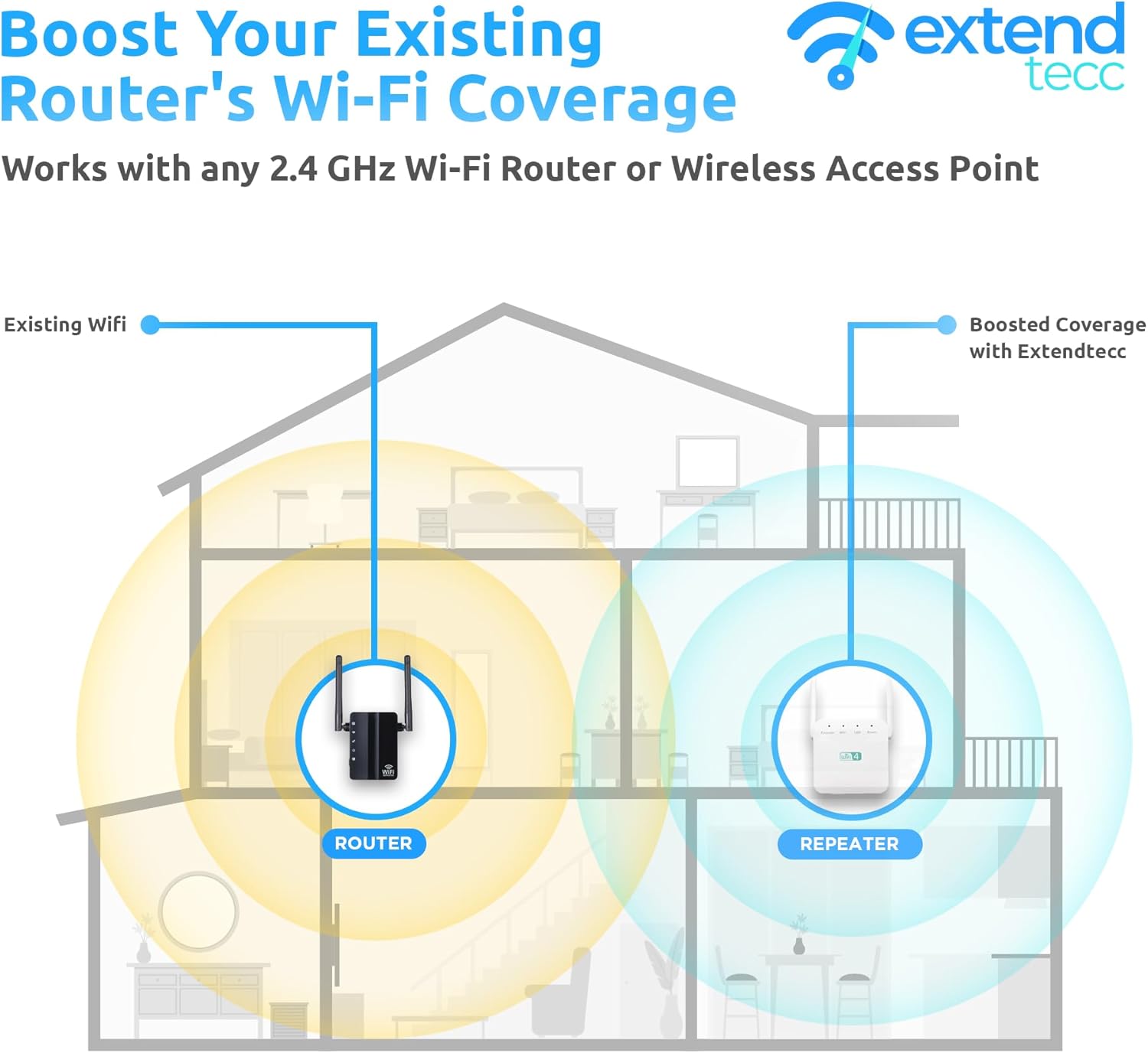
Image 5.1: Diagram showing a router's original Wi-Fi coverage (yellow) and the boosted coverage (blue) provided by the Extendtecc Repeater.
6. Troubleshooting
If you encounter issues with your Extendtecc WiFi Extender, please refer to the following common solutions:
- No Power: Ensure the extender is securely plugged into a working power outlet. Check if the Power indicator light is on.
- Cannot Connect to Extender's Wi-Fi: Verify that the extender is powered on. Refresh your device's Wi-Fi list and look for the 'wifi_XXXX' network. If it doesn't appear, try moving closer to the extender.
- No Internet After Connecting to Extender: This usually means the extender is not successfully connected to your main router. Re-run the setup process (Section 4). Ensure you select the correct main Wi-Fi network and enter its password accurately.
- Weak Signal from Extender: Try repositioning the extender. It should be placed roughly halfway between your router and the area needing coverage, within range of a strong signal from your main router. Avoid placing it near large metal objects, microwaves, or other sources of interference.
- Slow Speed: While the extender boosts coverage, the maximum speed is 300Mbps on the 2.4GHz band. Factors like distance, obstacles, and interference can affect actual speeds. Ensure your main router is providing a strong signal to the extender.
- Setup Page Not Appearing: After connecting to the extender's 'wifi_XXXX' network, open a web browser and manually type http://192.168.168.1 into the address bar. Clear your browser's cache or try a different browser if issues persist.
- Resetting the Extender: If all else fails, use the provided reset pin to press and hold the reset button on the extender for about 5-10 seconds until the lights flash. This will restore factory default settings, and you will need to re-perform the setup process.
7. Specifications
Below are the technical specifications for the Extendtecc WiFi Extender:

Image 7.1: Extendtecc WiFi Extender with dimensions (68mm x 58mm x 15mm) and key specifications.
| Model | 300Mbps (2.4GHz) |
| Wireless Communication Standard | 802.11a/b/g/n |
| Data Transfer Rate | Up to 300 Megabits Per Second (2.4GHz) |
| Frequency Band Class | Single-Band (2.4 GHz) |
| Rated Voltage | 110-240V |
| Power Supply | 5V 1A |
| Color | White |
| Item Weight | 3.73 ounces |
| Package Dimensions | 3.46 x 2.99 x 2.56 inches |

Image 7.2: The Extendtecc WiFi Extender emphasizing its 300 Mbps speed and 2.4 GHz network boost capability.
8. Maintenance
To ensure the longevity and optimal performance of your Extendtecc WiFi Extender, consider the following maintenance tips:
- Placement: Place the extender in a well-ventilated area, away from direct sunlight, heat sources, and moisture.
- Cleaning: Gently wipe the device with a soft, dry cloth. Do not use liquid cleaners or aerosols.
- Firmware Updates: Periodically check the manufacturer's website for any available firmware updates. Updating firmware can improve performance and security.
- Avoid Obstructions: Keep the area around the extender clear of large objects that could block the Wi-Fi signal.
9. Warranty and Support
For warranty information and technical support, please refer to the documentation included with your purchase or visit the official Extendtecc website. Keep your purchase receipt as proof of purchase for warranty claims.
If you require further assistance, please contact customer support through the channels provided by your retailer or the manufacturer.
10. Safety Information
Please read and follow these safety guidelines to prevent damage to the device or injury:
- Do not expose the device to water or moisture.
- Do not open or attempt to repair the device yourself. Refer all servicing to qualified personnel.
- Use only the power adapter supplied with the device.
- Ensure proper ventilation around the device to prevent overheating.
- Keep the device out of reach of children.