
vcloo 3-in-1 Wireless Charging Stand
vcloo 3-in-1 Wireless Charging Stand User Manual
Model: 3-in-1 Wireless Charging Stand
Introduction
The vcloo 3-in-1 Wireless Charging Stand is designed to simultaneously charge your mobile phone, Apple Watch, and AirPods, providing a convenient and clutter-free charging solution for your desktop or nightstand. This manual provides detailed instructions for setting up, operating, maintaining, and troubleshooting your charging stand to ensure optimal performance and longevity.

Image: The vcloo 3-in-1 Wireless Charging Stand in white, showcasing a smartphone, Apple Watch, and AirPods case simultaneously charging on its dedicated pads.
Product Structure and Components
Familiarize yourself with the different parts of your vcloo 3-in-1 Wireless Charging Stand:
- Wireless Charging Area for Phone: The main upright pad for smartphone charging.
- Wireless Charging Area for iWatch: The elevated circular pad for Apple Watch charging.
- Earphone Charging Connector: A small connector for AirPods or other compatible TWS Bluetooth headsets.
- Touch-sensitive Key: Controls the intelligent indicator light.
- LED Intelligent Light Ring: Provides charging status feedback.
- Type-C Port: Power input for the charging stand.
- Non-slip Mat: Located on the base to prevent movement.
- Heat Dissipation Holes: Vents on the bottom for cooling.

Image: An exploded view diagram of the charging stand, highlighting key components such as the phone charging area, iWatch charging area, earphone connector, Type-C port, non-slip mats, and heat dissipation holes.
Setup Instructions
- Unpack the Charger: Carefully remove the vcloo 3-in-1 Wireless Charging Stand from its packaging.
- Connect Power: Connect the provided USB Type-C cable to the Type-C port on the back of the charging stand.
- Power Adapter Requirement: Connect the other end of the USB cable to a QC2.0/3.0 Quick Charger Adapter (12V/2A or 9V/2.7A). Note: A dedicated adapter with 15W output is required and is not included with the wireless charger. Using an underpowered adapter may result in abnormal charging or no charging.
- Placement: Place the charging stand on a stable, flat surface, such as a desk or nightstand. Ensure the non-slip mat on the base is making full contact with the surface.
- Initial Power On: Once connected to a suitable power adapter, the LED intelligent light ring may illuminate briefly, indicating it is ready for use.
Operating Instructions
Charging Your Devices
- Charging a Smartphone: Place your Qi-enabled smartphone on the upright charging pad. Ensure the phone is centered on the pad for optimal charging. The stand supports both vertical and horizontal charging, allowing you to watch videos or make calls while charging.
- Charging an Apple Watch: Place your Apple Watch on the elevated circular pad. The watch will magnetically align and begin charging.
- Charging AirPods/Earbuds: Insert your AirPods or compatible TWS Bluetooth headset case onto the earphone charging connector.

Image: The charging stand demonstrating a smartphone charging in both vertical and horizontal orientations, alongside an Apple Watch and AirPods.

Image: A visual representation of the charging stand supporting both vertical and horizontal viewing modes for a smartphone while charging.
Intelligent Indicator Light
The LED intelligent light ring provides visual feedback on the charging status:
- Green Light (Always On): Indicates standby mode or that the phone is not currently charging.
- Blue Light (Breathing Effect): Indicates that your device is wirelessly charging.
- Blue and Green Light (Flashing): Indicates that a foreign object has been detected on the charging pad or that the phone is misaligned. Charging will automatically stop in this state.
You can touch the sensor switch light to turn the indicator light on or off according to your preference.

Image: A graphic illustrating the different states of the LED indicator light: green for standby, flashing blue/green for foreign object detection/misalignment, and breathing blue for active wireless charging.

Image: A detailed view of the charging stand's base, showing the blue LED light ring illuminated, with text descriptions of the light's meanings.
Important Charging Tips
- For fast charging, use a QC2.0/3.0 Quick Charger Adapter (12V/2A or 9V/2.7A).
- Remove any magnetic or metal attachments from your phone case that may interfere with wireless charging, such as metal cases, metal rings, credit cards, or magnetic pads. The charging distance is ≤5mm (0.2 inches).
- Ensure your device is properly aligned on the charging pad. Misalignment can lead to inefficient charging or prevent charging altogether.
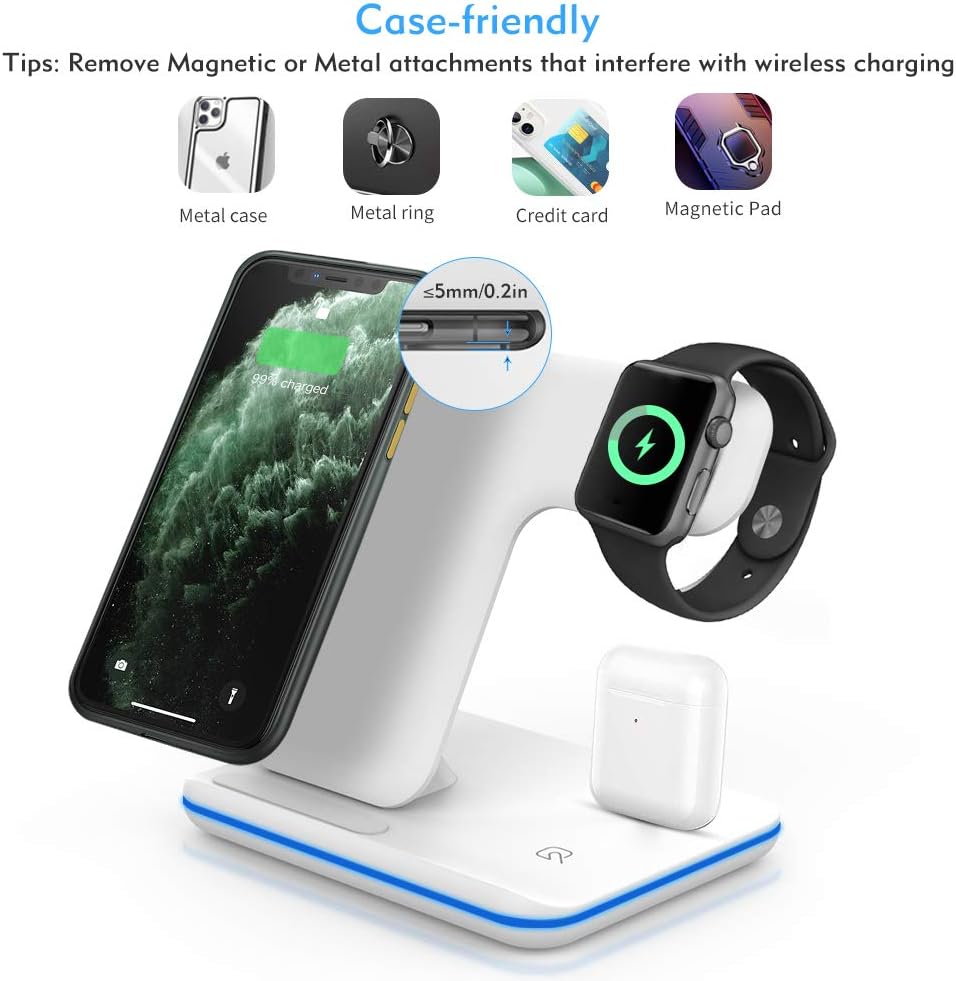
Image: A visual guide indicating items like metal cases, metal rings, credit cards, and magnetic pads that should be removed from a phone before placing it on the wireless charger.
Maintenance
- Cleaning: Disconnect the power before cleaning. Use a soft, dry cloth to wipe the surface of the charging stand. Do not use abrasive cleaners or solvents.
- Storage: When not in use for extended periods, store the charging stand in a cool, dry place away from direct sunlight and extreme temperatures.
- Avoid Liquids: Keep the charging stand away from water and other liquids.
- Ventilation: Ensure the heat dissipation holes on the bottom of the stand are not blocked to prevent overheating.

Image: A composite image highlighting the non-slip base, silicone pad, and cooling holes on the vcloo 3-in-1 Wireless Charging Stand, emphasizing its safety features.
Troubleshooting
If you encounter issues with your vcloo 3-in-1 Wireless Charging Stand, please refer to the following common problems and solutions:
| Problem | Possible Cause | Solution |
|---|---|---|
| Device not charging or charging slowly. |
|
|
| LED indicator light is flashing blue and green. | Foreign object detection or device misalignment. | Remove any objects from the charging surface and ensure your device is correctly placed. |
| Apple Watch or AirPods not charging. |
|
|
| Charger feels warm during use. | Normal operation, but excessive heat can indicate an issue. | Ensure proper ventilation and that the heat dissipation holes are not blocked. If excessively hot, disconnect power and contact support. |


Image: A series of four "FAQ" icons, representing common questions and answers related to the product's use and functionality.
Specifications
| Brand | vcloo |
| Model | 3-in-1 Wireless Charging Stand |
| Connectivity Technology | Wireless |
| Connector Type | USB Type-C (Input) |
| Input Power Requirement | QC2.0/3.0 Quick Charger Adapter (12V/2A or 9V/2.7A) - 15W output recommended |
| Special Features | Fast Charging, Charging Indicator, Multi-protection (over-current, over-voltage, temperature control), Anti-slip Design |
| Compatible Devices | Qi-enabled smartphones (iPhone 8/X/XR/XS/XS Max/11/11 Pro/11 Pro Max/12/SE, Samsung Galaxy S6/S7/S8/S9/S10/S20/Note series, Huawei P30 Pro/P40 Pro/Mate series, Xiaomi, OnePlus), Apple Watch Series 1/2/3/4/5/6/SE, AirPods 1/2/Pro, and some TWS Bluetooth headsets. |
| Included Components | Charging Stand (USB cable included, AC adapter not included) |
| Colour | White |
| Mounting Type | Tabletop Mount |
| Dimensions (Approx.) | 136mm (W) x 101mm (D) x 136mm (H) |
| Weight (Approx.) | 280 g |
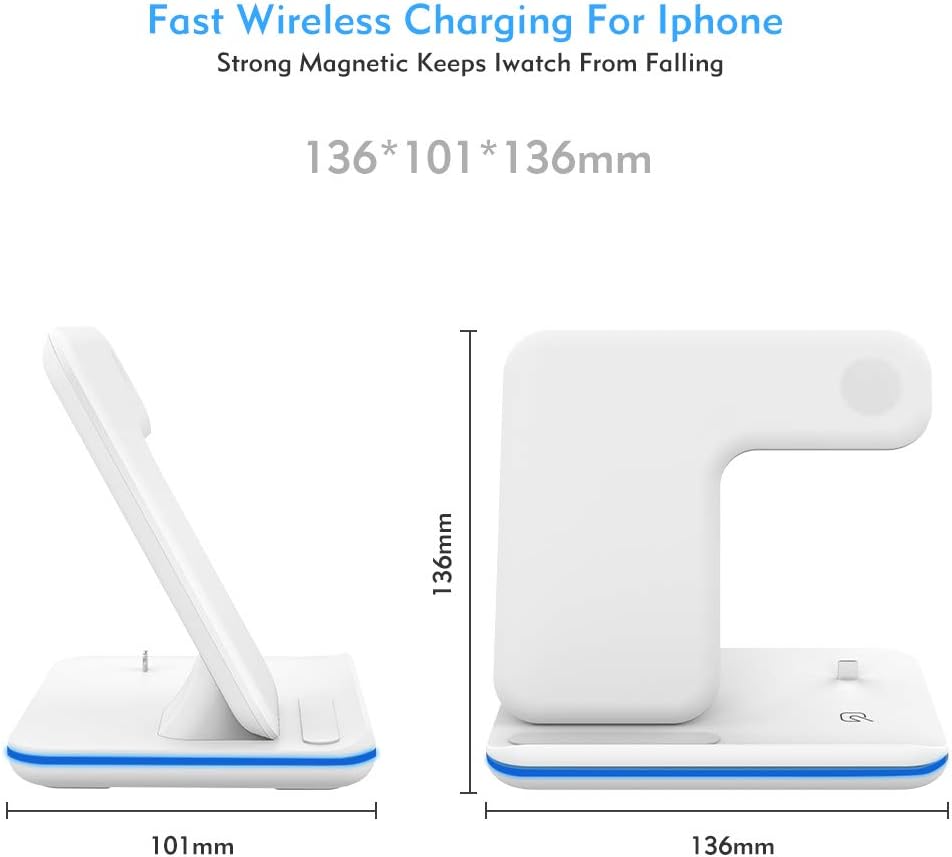
Image: A diagram illustrating the approximate dimensions of the vcloo 3-in-1 Wireless Charging Stand, showing its height, width, and depth.
Warranty and Support
For any product-related inquiries, technical support, or warranty claims, please contact vcloo customer service. Refer to your purchase documentation or the vcloo official website for specific contact details and warranty terms.
Important: Please retain your proof of purchase for warranty purposes.

Image: A group of customer service representatives wearing headsets, symbolizing available support for product inquiries.
Ask a question about this manual
Ask about setup, troubleshooting, compatibility, parts, safety, or missing instructions. Manuals+ will review the question and use this page’s manual context to help answer it.