
XINMENG MK-17
XINMENG MK-17 Mechanical Keyboard and Honeycomb Mouse Combo User Manual
Model: MK-17 | Brand: XINMENG
Introduction
This manual provides detailed instructions for the setup, operation, and maintenance of your XINMENG MK-17 Mechanical Keyboard and Honeycomb Mouse Combo. Please read this manual thoroughly before using the product to ensure optimal performance and longevity.
Package Contents
- 1 x XINMENG Mechanical Keyboard
- 1 x USB Type-C Cable (for keyboard)
- 1 x Keyboard English Manual
- 1 x Key Puller
- 1 x XINMENG Gaming Mouse
- 1 x Mouse English Manual
- 1 x Gaming Mousepad

Image: The complete XINMENG Mechanical Keyboard and Mouse Combo, including the keyboard, honeycomb mouse, gaming mousepad, and a sample blue mechanical switch.
Setup Instructions
1. Connecting the Keyboard
- Locate the USB Type-C port on the keyboard.
- Connect the provided USB Type-C cable to the keyboard.
- Plug the other end of the USB cable into an available USB port on your computer.
- The keyboard will be automatically recognized by your operating system.
2. Connecting the Mouse
- Locate the USB connector of the mouse cable.
- Plug the USB connector into an available USB port on your computer.
- The mouse will be automatically recognized by your operating system.
3. System Requirements
- PC/MAC with a USB port
- Operating Systems: Windows 7/8/10/Vista/XP, Mac OS (Note: Multimedia keys may not be fully functional on Mac OS)
Operating the Keyboard
RGB Backlight Control
The keyboard features 18 distinct RGB backlight modes. You can adjust the backlight brightness and breathing speed, and program user-defined backlight settings.
- Changing Modes: Use specific key combinations (refer to keyboard legends or included mini-manual for exact keys) to cycle through the 18 backlight modes.
- Brightness Adjustment: Adjust backlight brightness through dedicated keys or FN key combinations.
- Breathing Speed: Modify the speed of breathing effects using specific key combinations.
- User-Defined Backlight: The keyboard supports programmable backlight settings for personalized lighting.
Volume Wheel and Independent Function Keys
The keyboard includes a dedicated volume wheel and several independent function keys for quick access to system controls.
- Volume Wheel: Rotate the wheel to adjust the system volume. Pushing the wheel may mute/unmute.
- Independent Keys: Access functions such as shutdown, sleep, search, calculator, and mute directly.

Image: Detail of the keyboard's dedicated volume wheel and mute button, allowing for quick audio control.
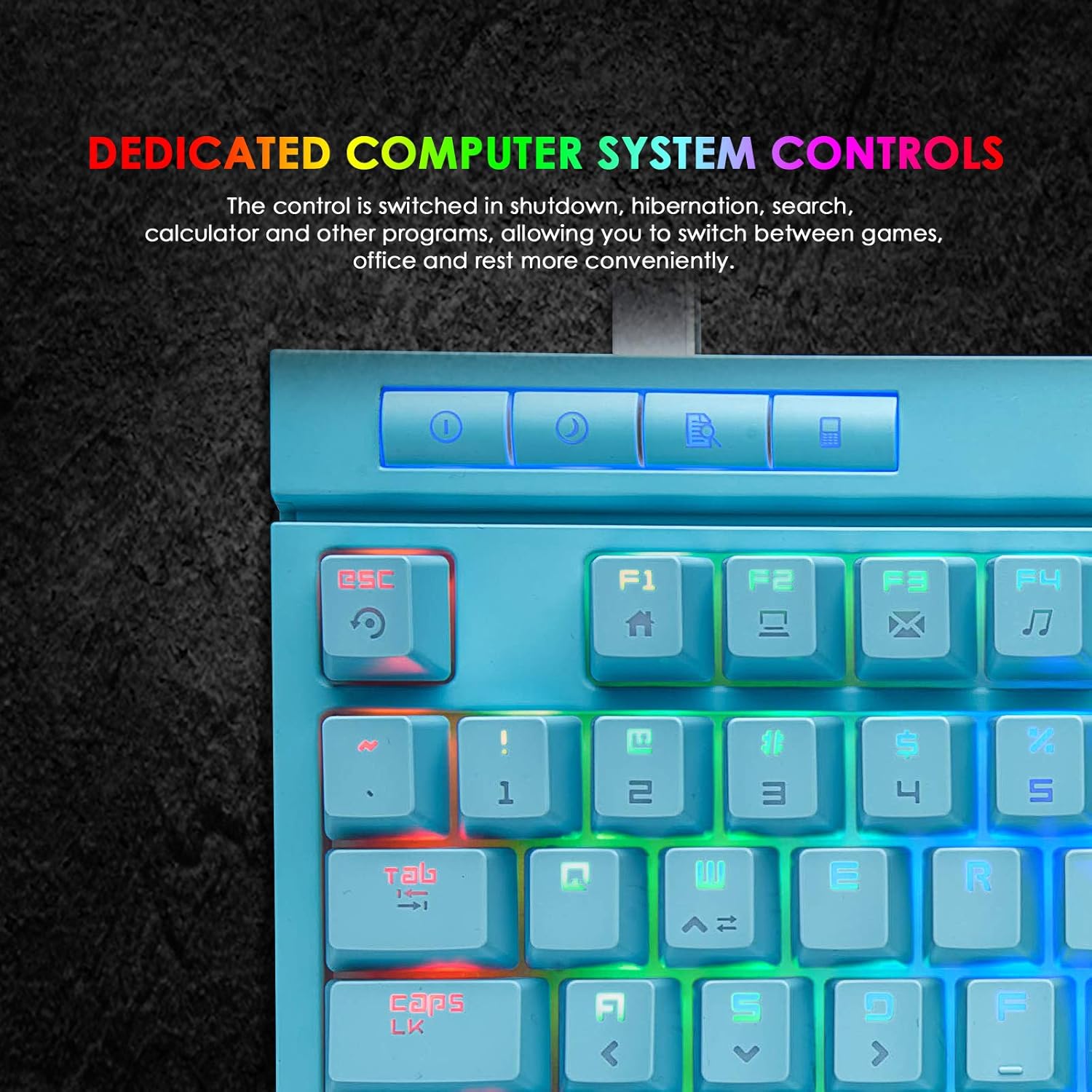
Image: Detail of the keyboard's dedicated system control keys for functions like shutdown, sleep, search, and calculator.
Multimedia Shortcuts and Anti-Ghosting
The keyboard supports multimedia shortcuts and features full anti-ghosting for accurate input.
- Multimedia Shortcuts: Use the FN key in combination with F1 through F8 for various multimedia functions.
- Anti-Ghosting: All keys feature anti-ghosting technology, ensuring that multiple simultaneous key presses are registered accurately.
- Win Lock Key: Press FN + Win to disable the Windows key, preventing accidental interruptions during gaming.
- Interchangeable Keys: The keyboard allows for interchangeable WASD and arrow keys.

Image: The keyboard highlighting multimedia function buttons (FN + F1-F8) and the full anti-ghosting capability.
Mechanical Switches
The keyboard is equipped with classic Blue Switches, known for their tactile feedback and audible click sound.
- Switch Type: Blue Switch
- Tactile Feedback: Provides a distinct bump sensation when a key is actuated.
- Audible Click: Produces a clear "click" sound upon actuation.
- Key Force: 60 ± 20g
- Stroke Travel: 2.2 ± 0.6mm
- Key Life: 50 million times

Image: A close-up view of the blue mechanical switches, illustrating their design and characteristics.
Operating the Mouse
DPI Adjustment
The gaming mouse features a high-precision optical sensor with adjustable DPI settings.
- DPI Levels: 6 adjustable DPI levels (800-1600-2400-3200-4800-6400).
- DPI Button: Press the dedicated DPI button on the mouse to cycle through the available DPI settings.
- Optical Sensor: Sunplus SPCP199 for accurate tracking.
Programmable Buttons and Design
The mouse is designed for gaming with programmable buttons and a lightweight honeycomb shell.
- Buttons: 6 programmable buttons (Left, Right, Scroll Wheel, DPI, Backward, Forward) + 1 bottom backlit switch button.
- Honeycomb Shell: The O-shaped perforated design reduces weight (69g ± 3g), improves heat dissipation, and extends service life.
- Ergonomic Design: Shaped to fit comfortably in the palm for extended use.
- Cable: Long braided paracord cable for flexible movement.

Image: The XINMENG lightweight RGB gaming mouse, showcasing its honeycomb shell, rainbow backlight, 6-level DPI, wide compatibility, plug & play functionality, and ergonomic design.
Gaming Mouse Pad
The included gaming mouse pad is designed to complement the mouse for optimal performance.
- Size: 12.6 x 9.4 inches (approximately 32 x 24 cm).
- Surface: Silk-processed cloth surface for smooth and precise mouse movements.
- Tracking: Advanced multi-layer surface with microscopic points for ultra-precise tracking.
- Base: Underside made of natural processed foam rubber for stability on various surfaces.
- Durability: Stitched edges prevent damage and curling.
- Maintenance: Waterproof, washable, and easy to clean.

Image: The XINMENG keyboard, honeycomb mouse, and gaming mousepad arranged on a desk, demonstrating the complete setup.
Maintenance
Keyboard Cleaning
- Disconnect the keyboard from your computer before cleaning.
- Use the provided key puller to carefully remove keycaps for deeper cleaning.
- Wipe the keycaps and keyboard surface with a soft, damp cloth. Avoid excessive moisture.
- Use compressed air to remove dust and debris from between the keys.
- Ensure the keyboard is completely dry before reconnecting it.
Mouse Cleaning
- Disconnect the mouse from your computer.
- Wipe the mouse surface with a soft, slightly damp cloth.
- Use a cotton swab or compressed air to clean the optical sensor area.
- Ensure the mouse is completely dry before reconnecting it.
Mouse Pad Cleaning
- The mouse pad is waterproof and washable.
- Hand wash with mild soap and water.
- Rinse thoroughly and air dry completely before use.
Troubleshooting
Keyboard Issues
- Keyboard not responding:
- Ensure the USB Type-C cable is securely connected to both the keyboard and the computer.
- Try plugging the keyboard into a different USB port on your computer.
- Restart your computer.
- Backlight not working or incorrect:
- Check if the backlight is turned off or set to the lowest brightness. Adjust using the dedicated keys or FN combinations.
- Cycle through different backlight modes to see if the issue persists.
- Keys not registering:
- Clean the affected keys to remove any debris.
- Ensure the keycaps are properly seated on the switches.
Mouse Issues
- Mouse not moving or tracking:
- Ensure the USB cable is securely connected to the computer.
- Try plugging the mouse into a different USB port.
- Clean the optical sensor on the underside of the mouse.
- Ensure you are using the mouse on a suitable surface, preferably the included mouse pad.
- DPI not changing:
- Press the DPI button firmly to cycle through settings.
- Ensure the mouse is properly connected and recognized by the system.
Specifications
Keyboard Specifications
| Keys Quantity | 87 Keys |
| Shaft Type | Blue Switch |
| Interface | USB Type-C Cable |
| Keyboard Size | 395 x 200 x 54 mm |
| Keyboard Weight | 1200g |
| System Requirements | PC/MAC with USB port, Windows 7/8/10/Vista/XP |
| Special Features | RGB Backlit, Volume Wheel, Independent Function Keys, Anti-Ghosting, Win Lock Key, Lightweight, Wrist Rest |
Mouse Specifications
| Optical Sensor | Sunplus SPCP199 |
| Number of Buttons | 6 Programmable Buttons + 1 Bottom Backlit Switch Button |
| DPI Levels | 800-1600-2400-3200-4800-6400 |
| Mouse Weight | 69g ± 3g |
| Mouse Size | 128.5 x 67 x 38 mm |
| Cable Length | 170cm |
| Compatible System | Windows 2000/XP/WIN 7/WIN8/WIN10 Vista 32bit, Mac OS or Latest |
| Hand Orientation | Right |
General Dimensions

Image: Diagram showing the dimensions of the XINMENG keyboard (360mm width, 170mm depth) and mouse (128.5mm length, 67mm width).
Warranty and Support
Warranty Information
Specific warranty details for the XINMENG MK-17 Mechanical Keyboard and Honeycomb Mouse Combo are typically provided at the point of purchase or within the product packaging. Please retain your proof of purchase for warranty claims. For detailed warranty terms and conditions, please contact your retailer or the manufacturer directly.
Customer Support
If you encounter any issues or have questions regarding your XINMENG product that are not covered in this manual, please contact XINMENG customer support or your product retailer for assistance. Contact information can usually be found on the manufacturer's official website or on the product packaging.