
Hricane HEP-669S
Hricane 61-Key Lighted Electronic Keyboard User Manual
Model: HEP-669S
Introduction
This manual provides comprehensive instructions for the Hricane 61-Key Lighted Electronic Keyboard, Model HEP-669S. Designed for beginners, adults, teens, and kids, this versatile instrument offers a rich set of features to enhance your musical journey. Please read this manual thoroughly before operating the keyboard to ensure proper use and maintenance.
Key features include 200 tones, 200 rhythms, 70 demo songs, a teaching mode with lighted keys, recording and programming capabilities, sustain and tremolo effects, dual speakers, and an LCD display. The keyboard also supports smart chords and dual keyboard playing for interactive sessions.

Image: The Hricane 61-Key Lighted Electronic Keyboard, showcasing its full layout, lighted keys, included microphone, USB cable, and power adapter. Note the music stand attached to the top.
Setup
Unpacking and Inspection
Carefully remove all components from the packaging. Verify that all items listed below are present and undamaged:
- Hricane 61-Key Electronic Keyboard
- Music Stand
- Microphone
- USB Power Cable
- Power Adapter (USB wall charger)
- Keyboard Note Stickers
- User Manual (this document)

Image: All included accessories for the Hricane keyboard, neatly arranged, including the microphone, USB cable, power adapter, music stand, and keyboard note stickers.
Powering the Keyboard
The keyboard can be powered in two ways:
- USB Power Adapter: Connect the USB power cable to the keyboard's USB port and the power adapter. Plug the adapter into a standard wall outlet.
- Batteries: Insert 4 AA batteries (not included) into the battery compartment located on the underside of the keyboard. Ensure correct polarity.
It is recommended to use the USB power adapter for extended play sessions. Batteries offer portability.
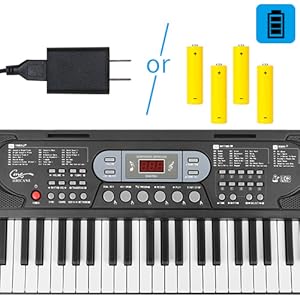
Image: Visual representation of the two power options for the keyboard: using the included USB power adapter or inserting four AA batteries.
Connecting Peripherals
The keyboard features various ports for external connections:
- USB Port (Type-C): For power supply and data transfer.
- Headphone/Speaker Jack (OUT): Connect headphones for private practice or external speakers for amplified sound.
- Audio In (AUX IN): Connect an external audio source (e.g., smartphone, tablet, MP3 player) to play along with your favorite music.
- Microphone Jack (MIC): Connect the included microphone for singing along while playing.
- USB Port (Type-A): For additional USB connectivity.

Image: A detailed view of the keyboard's rear panel, highlighting the various input/output ports including USB, headphone/speaker output, audio input, and microphone input.
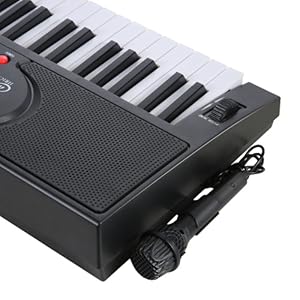
Image: A close-up of the microphone connected to its dedicated input jack on the side of the keyboard.
Operating Instructions
Control Panel Overview
The central control panel provides access to all keyboard functions. Familiarize yourself with the buttons and the LCD display.

Image: A detailed view of the keyboard's control panel, showing the LCD display, buttons for selecting tones, rhythms, and demo songs, along with other function controls.
Basic Functions
- Power: Press the POWER button to turn the keyboard on or off.
- Volume: Adjust the main volume using the VOLUME +/- buttons.
- Tempo: Adjust the playback speed of rhythms and demo songs using the TEMPO +/- buttons.
- Transposition: Use the TRANSPOSE +/- buttons to shift the pitch of the entire keyboard up or down.
Tones and Rhythms
The keyboard features 200 different tones (instrument sounds) and 200 rhythms (accompaniment styles).
- Selecting Tones: Press the TONE button, then use the number pad or +/- buttons to select a tone (000-199).
- Selecting Rhythms: Press the RHYTHM button, then use the number pad or +/- buttons to select a rhythm (000-199).
- Start/Stop Rhythm: Press START/STOP to begin or end rhythm playback.
- Rhythm Volume: Adjust the rhythm volume using the RHYTHM VOL +/- buttons.
Demo Songs
The keyboard includes 70 built-in demo songs.
- Play Single Demo: Press DEMO SONG and use the number pad to select a specific song.
- Play All Demos: Press DEMO ALL to cycle through all demo songs.
Teaching Mode (Lighted Keys)
The lighted keys feature assists beginners in learning to play.
- Activate Teaching Mode: Press the FOLLOW button. The keys will light up to guide you through the melody of a selected demo song.
- Adjust Teaching Speed: Use the TEMPO +/- buttons to adjust the speed of the teaching mode.
- Turn Off Lights: Press the LED ON/OFF button to disable the key lights if not needed.

Image: The keyboard displaying its teaching mode, where specific keys illuminate to guide the user in playing melodies.
Recording and Programming
Capture your performances or create custom rhythm patterns.
- Record: Press the RECORD button to start recording your playing. Press it again to stop.
- Play Recorded Content: Press the PLAY button to listen to your recorded performance.
- Programming: The keyboard allows for rhythm programming. Refer to the detailed instructions in the included paper manual for specific steps on programming custom rhythms.
Special Effects and Modes
- Sustain: Press the SUSTAIN button to make notes linger after the key is released.
- Tremolo: Press the TREMOLO button for a rapid, slight variation in pitch.
- Pitch Bend: Use the PITCH BEND wheel on the left side of the keyboard to smoothly change the pitch of notes while playing.
- Smart Chords:
- Single Finger Chord: Play a chord by pressing a single key in the lower section of the keyboard.
- Multi-Finger Chord: Play a chord by pressing multiple keys simultaneously.
- Dual Keyboard: Press the DUAL KEY button to split the keyboard into two sections, allowing two players or different instrument sounds for left and right hands.
- Metronome: Press the METRONOME button to activate a click track for timing practice.

Image: An annotated diagram illustrating the functions of key controls on the keyboard, including Pitch Bend, Sustain, Chord, Metronome, Dual Key, and Record/Program buttons.
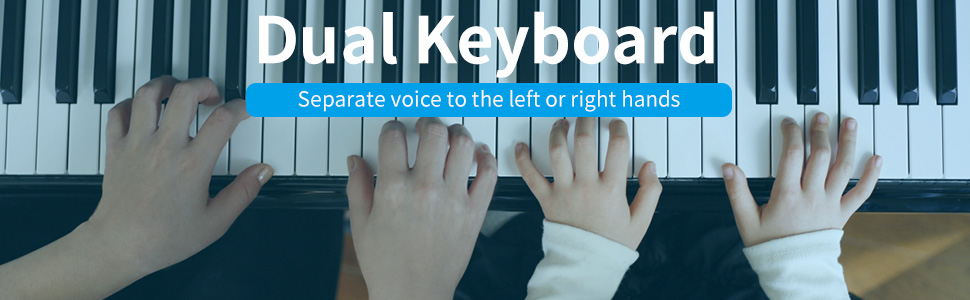
Image: A visual demonstration of the dual keyboard feature, showing two sets of hands playing simultaneously on different sections of the keyboard.
Maintenance
- Cleaning: Wipe the keyboard surface with a soft, dry cloth. For stubborn dirt, use a slightly damp cloth and then dry thoroughly. Avoid abrasive cleaners or solvents.
- Storage: Store the keyboard in a cool, dry place away from direct sunlight, extreme temperatures, and high humidity.
- Handling: Avoid dropping the keyboard or subjecting it to strong impacts. Do not place heavy objects on top of it.
- Battery Care: If using batteries, remove them if the keyboard will not be used for an extended period to prevent leakage.
Troubleshooting
| Problem | Possible Cause | Solution |
|---|---|---|
| Keyboard does not power on. | No power connection; low or dead batteries; power adapter malfunction. | Ensure power adapter is securely connected and plugged into a working outlet. If using batteries, replace with fresh ones. Try using the alternative power source. |
| No sound from speakers. | Volume too low; headphones connected; speaker malfunction. | Increase the main volume. Disconnect headphones if plugged in. Test with external speakers if available. |
| Keys do not light up in teaching mode. | Teaching mode not activated; LED lights turned off. | Ensure FOLLOW mode is active. Press LED ON/OFF to enable lights. |
| Distorted sound. | Volume too high; faulty connection; external interference. | Lower the volume. Check all cable connections. Move keyboard away from other electronic devices. |
| Microphone not working. | Microphone not properly connected; microphone faulty. | Ensure microphone is fully inserted into the MIC jack. Test with another microphone if available. |
Specifications
| Feature | Detail |
|---|---|
| Model Name | H669-BK (Product Model Number: HEP-669S) |
| Number of Keys | 61 |
| Tones | 200 |
| Rhythms | 200 |
| Demo Songs | 70 |
| Special Features | Lighted Keys, Teaching Mode, Recording, Programming, Sustain, Tremolo, Dual Speakers, LCD Display, Smart Chords, Dual Keyboard, Pitch Bend |
| Connectivity | USB (Type-C for power/data, Type-A), Headphone/Speaker Jack, Audio In (AUX), Microphone Jack |
| Power Source | USB Power Adapter (included), 4 x AA Batteries (not included) |
| Dimensions (L x W x H) | 30 x 9 x 2.3 inches (approx. 76.2 x 22.86 x 5.84 cm) |
| Item Weight | 5.5 pounds (approx. 2.5 kg) |
| Skill Level | Beginner |

Image: A close-up view of the keyboard keys, indicating their standard dimensions suitable for both adults and children.
Image: The Hricane keyboard shown with its overall dimensions, including length, width, and height, providing a clear understanding of its size.
Warranty and Support
Hricane products are designed for quality and reliability. For specific warranty information, please refer to the warranty card included with your product or visit the official Hricane website. Typically, a 12-month warranty is provided for manufacturing defects.
For technical support, troubleshooting assistance, or inquiries about replacement parts, please contact Hricane customer service through their official channels. You can often find contact information on the product packaging or the brand's official website.
Online Resources:
- Hricane Store on Amazon: Visit Hricane Store
Please retain your proof of purchase for warranty claims.
Ask a question about this manual
Ask about setup, troubleshooting, compatibility, parts, safety, or missing instructions. Manuals+ will review the question and use this page’s manual context to help answer it.