
Product Overview
This manual provides detailed instructions for the assembly, operation, and maintenance of your Unicview 140x60cm Gaming Desk. Please read this manual carefully before assembly and use to ensure proper function and safety.
Safety Instructions
- Ensure all components are present and undamaged before assembly.
- Assemble the desk on a soft, clean surface to prevent scratches.
- Do not overtighten screws during assembly to avoid damaging components.
- Keep small parts away from children.
- Do not exceed the maximum weight capacity of the desk.
- Ensure the desk is placed on a stable, level surface.
- Disconnect power to the RGB LED system before cleaning or maintenance.
Package Contents
Verify that all the following components are included in your package:
- Desktop Surface (may be in multiple sections)
- Desk Legs (Z-shaped steel frame)
- Support Beams/Crossbars
- Cable Management Tray
- Cable Grommets (2)
- Headphone Hook
- Cup Holder
- RGB LED Strip (pre-installed or separate)
- RGB Remote Control
- Assembly Hardware (screws, bolts, Allen wrench)
- Instruction Manual (this document)
Assembly Instructions
Follow these steps carefully for proper assembly. It is recommended to have two people for assembly.
Step 1: Prepare the Desktop Surface
Place the desktop surface(s) upside down on a soft, clean surface to prevent scratches. If your desktop comes in two sections, align them carefully.
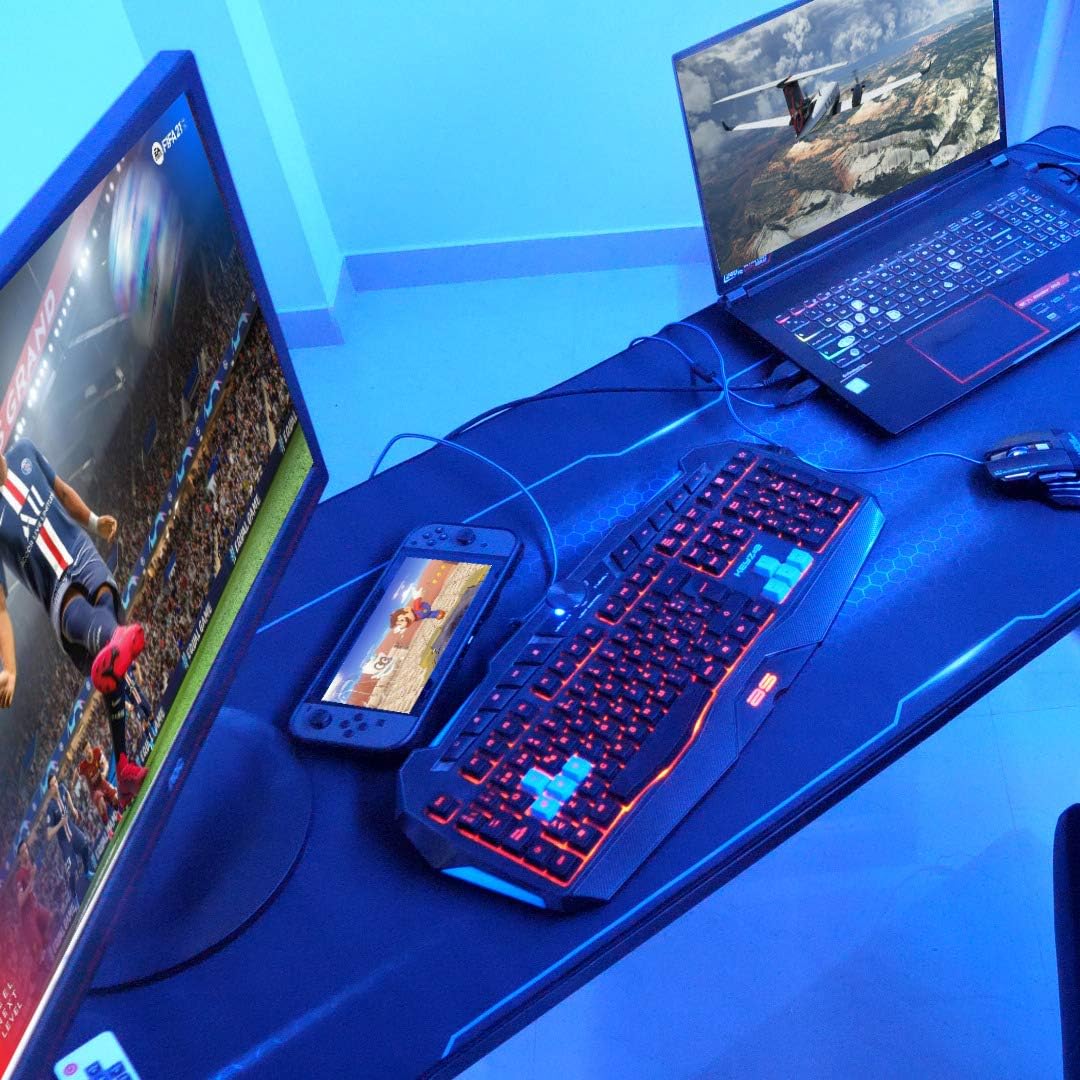
Image: Top view of the Unicview Gaming Desk, showing its overall dimensions of 140cm length and 60cm width. The surface appears to be a single piece with a central design.
Step 2: Attach the Support Frame
Attach the main support beams and crossbars to the underside of the desktop using the provided screws. Ensure all connections are secure but do not fully tighten yet.

Image: Close-up view of the reinforced structure underneath the desk, showing metal brackets and screws for stability.
Step 3: Install the Desk Legs
Attach the Z-shaped steel legs to the assembled support frame. Use the appropriate screws and ensure they are aligned correctly. Once all legs are attached, gently tighten all screws from Step 2 and Step 3.

Image: Detail of the Z-shaped steel legs, highlighting the robust construction and connection points to the desk frame.
Step 4: Attach Cable Management Tray
Mount the cable management tray to the underside of the desk, typically at the rear, using the designated screws. This helps organize power cords and other cables.

Image: View of the cable management tray installed underneath the desk, designed to neatly store and route cables.
Step 5: Install Cable Grommets
Insert the cable grommets into the pre-drilled holes on the desktop surface. These allow cables to pass through the desk cleanly.

Image: Close-up of a circular cable grommet installed on the desk surface, providing a tidy passage for cables.
Step 6: Attach Headphone Hook and Cup Holder
Secure the headphone hook and cup holder to the desired locations on the sides of the desk using the provided hardware. These accessories are designed for convenience.

Image: The headphone hook and cup holder accessories mounted on the side of the gaming desk.
Step 7: Connect RGB LED System
If your RGB LED system is not pre-installed, attach the LED strip to the designated area on the desk. Connect the LED strip to the power source, typically a USB port on your computer or a USB power adapter (not included).

Image: A composite image showing the headphone hook, cup holder, and a USB connection point for the RGB lighting system on the desk.
Step 8: Final Check
Carefully flip the desk upright. Ensure all screws are tightened and the desk is stable. Adjust the leveling feet if necessary to prevent wobbling.
Operating Instructions
RGB LED Lighting System
The Unicview Gaming Desk features an integrated RGB LED lighting system for customizable ambiance.
Power On/Off:
Connect the USB cable from the RGB LED strip to a powered USB port (e.g., on your computer or a USB wall adapter). The lights should illuminate.
Using the Remote Control:
Use the provided remote control to manage the RGB lighting. The remote allows you to:
- Turn the lights on or off.
- Change colors (various static colors available).
- Select different lighting modes (e.g., flashing, fading, strobing).
- Adjust brightness levels.
- Adjust speed for dynamic lighting modes.

Image: The remote control for the RGB LED lighting system, showing buttons for power, color selection, mode, speed, and brightness adjustments.
Cable Management
Utilize the integrated cable management tray and grommets to keep your workspace tidy and organized.
- Route power cables, display cables, and peripheral cables through the desktop grommets.
- Place excess cable length in the cable management tray located underneath the desk.
Maintenance
Cleaning:
Wipe the desk surface with a soft, damp cloth. Avoid abrasive cleaners or harsh chemicals that may damage the finish. For the steel frame, use a mild cleaner if necessary.
Regular Checks:
Periodically check all screws and bolts to ensure they remain tight. Retighten if necessary to maintain desk stability.
LED Care:
Ensure the RGB LED strip is free from dust. If cleaning is required, gently wipe with a dry, soft cloth. Do not immerse in water.
Troubleshooting
| Problem | Possible Cause | Solution |
|---|---|---|
| Desk is wobbly/unstable. | Screws are loose; uneven floor. | Ensure all assembly screws are fully tightened. Adjust the leveling feet at the bottom of the desk legs to compensate for uneven surfaces. |
| RGB LED lights are not working. | USB power not connected; remote control battery low; LED strip damaged. | Verify the USB cable is securely connected to a powered USB port. Check the remote control battery and replace if necessary. If the issue persists, contact customer support. |
| Parts are missing or damaged. | Manufacturing defect or shipping damage. | Do not proceed with assembly. Contact Unicview customer support immediately for assistance. |
Specifications
Detailed specifications for the Unicview Gaming Desk:

Image: Diagram illustrating the key dimensions of the gaming desk: 140cm length, 60cm width, and 73cm height.
| Feature | Detail |
|---|---|
| Model | Mesa Gaming |
| Brand | Unicview |
| Dimensions (L x W x H) | 140 cm x 60 cm x 73 cm (55.1 x 23.6 x 28.7 inches) |
| Weight | 24 Kilograms (approx. 52.9 lbs) |
| Material | Engineered Wood (Desktop), Alloy Steel (Frame) |
| Color | Black |
| Special Features | RGB LED System, Cable Management, Adjustable Feet, Headphone Hook, Cup Holder, Full Mouse Pad Surface |
Warranty and Support
Unicview is committed to providing excellent after-sales service. If you have any questions regarding assembly, operation, or require support for your Unicview Gaming Desk, please contact us:
Phone Support:
951 10 21 22
Availability:
Monday to Friday, 10:00 AM to 2:00 PM (CET)
Please retain your proof of purchase for warranty claims.