1. Introduction
This manual provides detailed instructions for the installation, operation, and maintenance of your Steelpro Autoestereo Axel Premium car stereo. Please read this manual thoroughly before using the product to ensure proper functionality and to prevent damage.
Package Contents:
- Steelpro Autoestereo Axel Premium Head Unit
- Remote Control
- Wiring Harness
- Mounting Hardware
- User Manual
2. Safety Information
To ensure safe operation, please observe the following precautions:
- Do not operate the unit in a manner that distracts you from driving. Always prioritize road safety.
- Avoid exposing the unit to moisture or extreme temperatures.
- Ensure proper wiring connections to prevent electrical shorts or damage. Consult a professional for installation if unsure.
- Do not attempt to disassemble or modify the unit. This may void the warranty and cause damage.
- Keep the volume at a level that allows you to hear outside traffic sounds.
3. Product Overview
The Steelpro Autoestereo Axel Premium is a 2 DIN car stereo featuring a 7-inch display, Bluetooth, USB, and auxiliary connectivity. It offers 100W x 4 power output and supports various multimedia functions.

Image 1: Front view of the Steelpro Autoestereo Axel Premium head unit, displaying the radio interface and accompanied by its remote control. The screen shows FM radio frequency 104.60 MHz.

Image 2: The main menu interface of the car stereo, illustrating available input sources and functions such as AUX-IN, Disc playback, Radio, AV-IN, Bluetooth Phone, Bluetooth Music, USB, Mobile Link, and Settings. It also highlights the dedicated subwoofer output and 100W x 4 maximum power.
4. Setup and Installation
This unit is designed for 2 DIN mounting. Professional installation is recommended for optimal performance and safety.
4.1 Wiring Connections
Ensure all wiring connections are secure and correctly matched to your vehicle's electrical system. Refer to the included wiring harness diagram for specific connections. Key connections include:
- Power: Connect the yellow wire to constant 12V, red wire to accessory 12V, and black wire to ground.
- Speakers: Connect speaker wires to the corresponding vehicle speakers (e.g., front left, front right, rear left, rear right).
- Antenna: Connect the radio antenna.
- Auxiliary Inputs/Outputs: RCA connections for external amplifiers (subwoofer output) or auxiliary audio/video sources.
- Reverse Camera Input: Connect the video signal from a reverse camera to the dedicated input.

Image 3: Rear view of the car stereo unit, illustrating the various RCA ports for audio/video input/output, the main wiring harness connector, and the physical dimensions of the device (10 cm height, 16 cm depth, 18 cm width).
4.2 Mounting
Install the unit into your vehicle's 2 DIN opening using the provided mounting brackets and screws. Ensure it is securely fastened to prevent movement during driving.
5. Operating Instructions
5.1 Power On/Off and Volume Control
- Power On: Press the VOL/MUTE knob to turn the unit on.
- Power Off: Press and hold the VOL/MUTE knob to turn the unit off.
- Volume Adjustment: Rotate the VOL/MUTE knob to increase or decrease the volume.
- Mute: Briefly press the VOL/MUTE knob to mute or unmute the audio.
5.2 Radio Operation (FM/AM)
From the main menu, select 'RADIO'.
- Band Selection: Tap the band icon to switch between FM1, FM2, FM3, and AM bands.
- Manual Tuning: Use the arrow icons to fine-tune the frequency.
- Automatic Scan: Press and hold the arrow icons to automatically scan for the next strong station.
- Preset Stations: Touch and hold a numbered preset button (e.g., 87.50, 90.10) to save the current station. Tap to recall a saved station.
Image 4: The car stereo's display in radio mode, showing the current frequency (104.60 MHz) and a row of preset buttons for quick station access.
5.3 Bluetooth Connectivity
From the main menu, select 'BT PHONE' or 'BT MUSIC'.
- Pairing: On your smartphone, search for Bluetooth devices and select 'Axel Premium' (or similar name). Enter '0000' if a PIN is required.
- Bluetooth Audio (A2DP): Once paired, you can stream audio from your phone to the car stereo. Control playback (play/pause, skip) from the unit or your phone.
- Bluetooth Hands-Free (HFP): Make and receive calls directly through the car stereo. The unit's microphone and your car's speakers will be used.

Image 5: The car stereo unit shown alongside a smartphone displaying an incoming call, illustrating the hands-free calling feature via Bluetooth connectivity.
5.4 USB and Auxiliary Input
From the main menu, select 'USB' or 'AUX-IN'.
- USB Playback: Insert a USB drive into the USB port. The unit will automatically detect and play compatible audio files (MP3, WMA).
- Auxiliary Input: Connect an external audio device (e.g., MP3 player) to the 3.5mm auxiliary input jack using an audio cable.

Image 6: A diagram illustrating the location of the USB and Auxiliary inputs on the car stereo, emphasizing their use for playing various media formats like MP3 and WMA.
5.5 Mirror Link Functionality
From the main menu, select 'MOBILE LINK'.
Mirror Link allows you to display your smartphone's screen on the car stereo's display. Connect your smartphone via USB and follow the on-screen prompts or app instructions to establish the connection. This feature enables navigation, video playback, and other smartphone functions to be viewed on the larger screen.
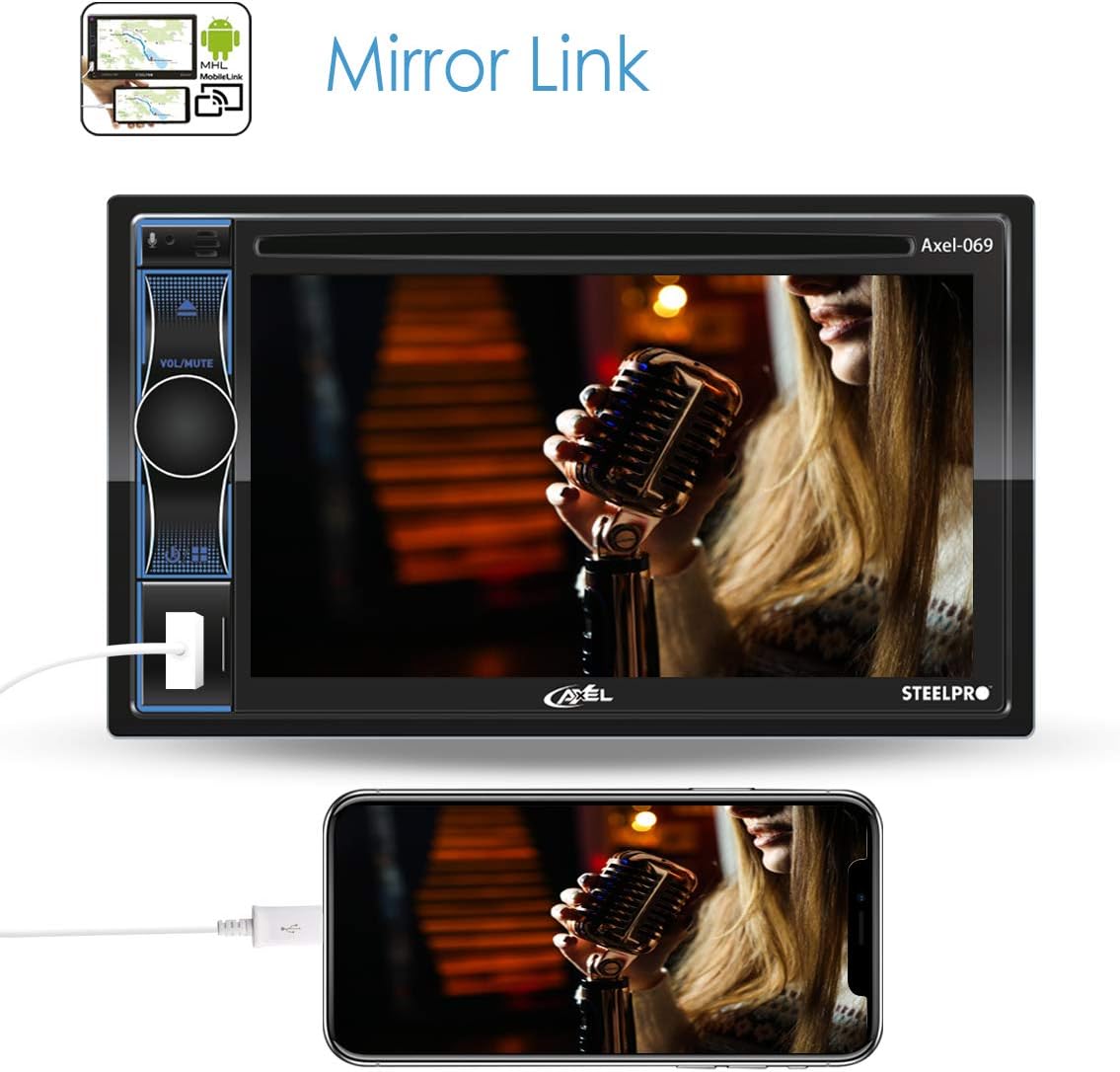
Image 7: The car stereo displaying a mirrored image from a connected smartphone, showcasing the Mirror Link functionality.
5.6 App Control and Customization
The unit supports control via a dedicated smartphone application, offering enhanced features such as:
- Main Menu Access: Navigate through the stereo's functions.
- Radio Control: Tune stations and manage presets.
- RGB Color Selection (Kameleon Feature): Customize the display's backlight color.
- Equalizer: Adjust audio settings with a multi-band equalizer for optimal sound.

Image 8: Multiple smartphone screenshots demonstrating the dedicated control app for the car stereo, featuring options for the main menu, FM radio tuning, RGB color customization, and a 7-band equalizer.
5.7 Voice Assistant Integration
Connect your smartphone to utilize voice assistants like Siri or Google Voice directly through the car stereo. This allows for hands-free commands for navigation, calls, and music playback.
5.8 Reverse Camera Display
When a compatible reverse camera is connected and the vehicle is shifted into reverse gear, the unit's display will automatically switch to the camera view, providing visual assistance for parking and maneuvering.
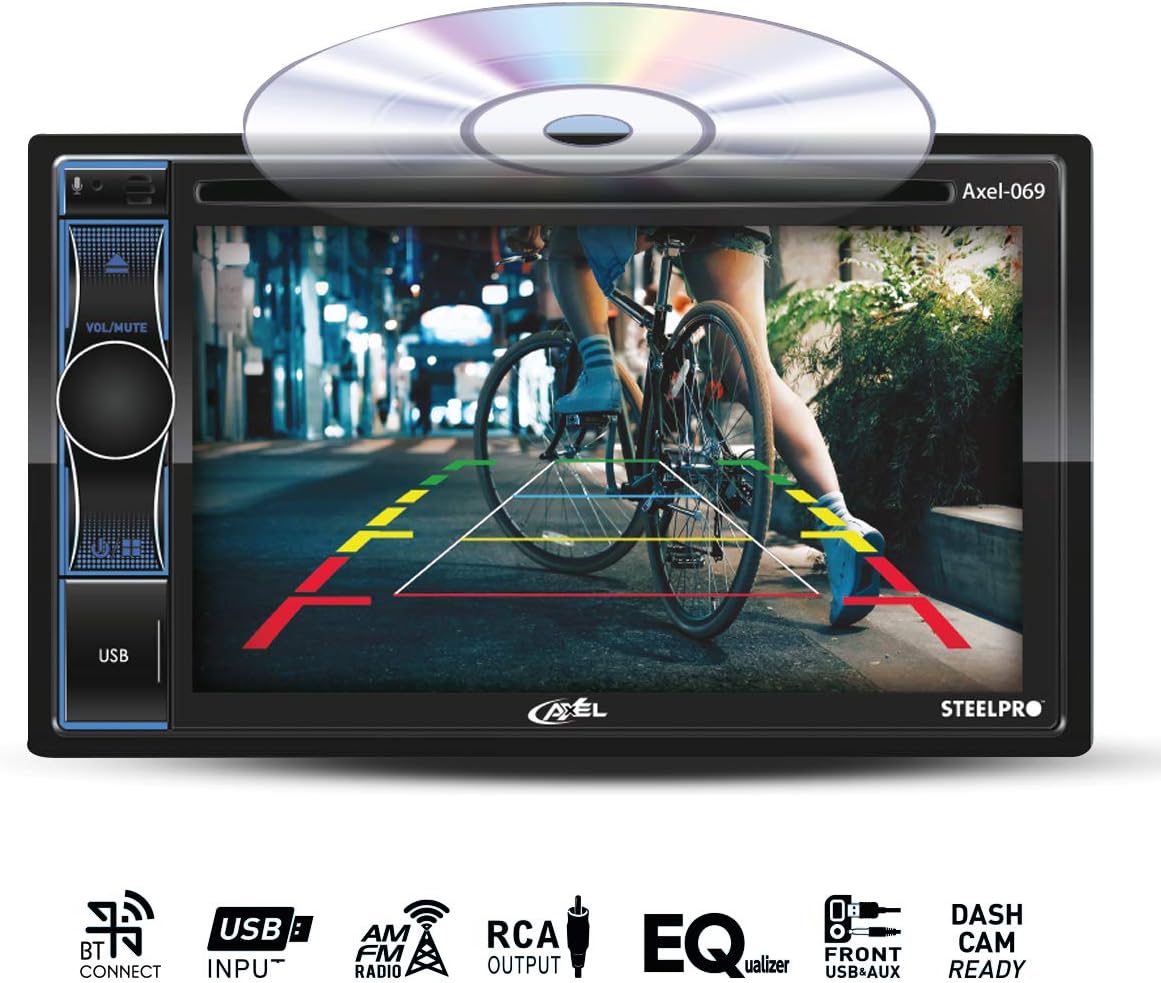
Image 9: The car stereo's screen displaying the view from a reverse camera, complete with colored parking guidelines to assist with maneuvering.
6. Maintenance
- Cleaning the Screen: Use a soft, lint-free cloth to gently wipe the display. For stubborn smudges, slightly dampen the cloth with water or a screen cleaner designed for electronics. Do not use abrasive cleaners.
- General Cleaning: Wipe the unit's exterior with a dry, soft cloth. Avoid using harsh chemicals or solvents.
- Preventing Damage: Do not expose the unit to direct sunlight for extended periods or to extreme temperatures.
7. Troubleshooting
If you encounter issues with your car stereo, refer to the following common problems and solutions:
- No Power:
- Check all power connections (constant 12V, accessory 12V, ground).
- Verify the vehicle's fuse and the unit's inline fuse are intact.
- No Sound:
- Ensure the volume is not muted or set too low.
- Check speaker connections.
- Verify the correct audio source is selected.
- Bluetooth Not Connecting:
- Ensure Bluetooth is enabled on both the stereo and your smartphone.
- Delete previous pairings on your phone and try pairing again.
- Move your phone closer to the unit.
- Mirror Link Not Working:
- Ensure your smartphone is compatible with Mirror Link.
- Use a high-quality USB cable.
- Check for any required apps on your smartphone for Mirror Link functionality.
- Display Issues:
- If the screen is blank, check power connections.
- If the image is distorted, check video input connections.
8. Specifications
| Feature | Specification |
|---|---|
| Brand | Steelpro |
| Model | Axel Premium |
| Power Output | 100W x 4 |
| Display Size | 7 Inches (visible diagonal) |
| Display Technology | LCD |
| Mounting Type | 2 DIN |
| Connectivity Technology | Bluetooth, RCA, USB, USB 2.0, Auxiliary Output |
| Compatible Devices | Smartphone |
| Audio Output Mode | Stereo |
| Audio Output Type | Speakers |
| Supported Media Types | MP3, WMA |
| Package Dimensions | 24.4 x 23.8 x 16 cm |
| Item Weight | 2.02 kg |
9. Warranty and Support
For warranty information and customer support, please refer to the documentation included with your purchase or visit the official Steelpro website. Keep your proof of purchase for warranty claims.


