
Introduction
This manual provides instructions for the Fintie Keyboard Case designed for the iPad 10.2 inch (9th, 8th, and 7th Generation). It covers product features, setup, operation, maintenance, and troubleshooting to ensure optimal use of your device.
Compatibility
This keyboard case is specifically designed for the following iPad models:
- iPad 9th Generation 10.2 inch (2021 Model: A2602, A2603, A2604, A2605)
- iPad 8th Generation 10.2 inch (2020 Model: A2270, A2428, A2429, A2430)
- iPad 7th Generation 10.2 inch (2019 Model: A2197, A2198, A2200)
Note: This product is not compatible with any other iPad models or devices. The iPad and Apple Pencil are not included.

Image: The Fintie Keyboard Case with text indicating compatibility for iPad 9th, 8th, and 7th Generation 10.2 inch models.
Package Contents
Please verify that all items are present in your package:
- 1 x Wireless Keyboard with Detachable Case
- 1 x Charging Cable (USB Cable)
- 1 x User Manual (this document)
Video: Unboxing and overview of the Fintie iPad 10.2 Inch Keyboard Case, showing the case, keyboard, and charging cable.
Product Features
The Fintie Keyboard Case offers several features to enhance your iPad experience:
- Detachable Wireless Bluetooth Keyboard: Converts your iPad into a functional laptop for convenient use.
- 7-Color Backlit Keyboard: Features 3 levels of brightness and 7 distinct backlight colors, along with hundreds of vibrant color-changing modes for comfortable typing in various lighting conditions.
- 135-Degree Magnetic Hinge: Allows for free angle adjustment, providing optimal viewing and typing experiences.
- Scissor Switch Design: Ensures a comfortable and responsive typing experience.
- iOS Shortcut Keys: Provides one-tap access to media controls and other functions.
- Integrated Pencil Holder: Conveniently stores your Apple Pencil or stylus.
- Auto Sleep/Wake Function: Automatically puts your iPad to sleep or wakes it up, helping to extend battery life.
- Precise Cutouts: Ensures full access to all ports, buttons, and features of your iPad.
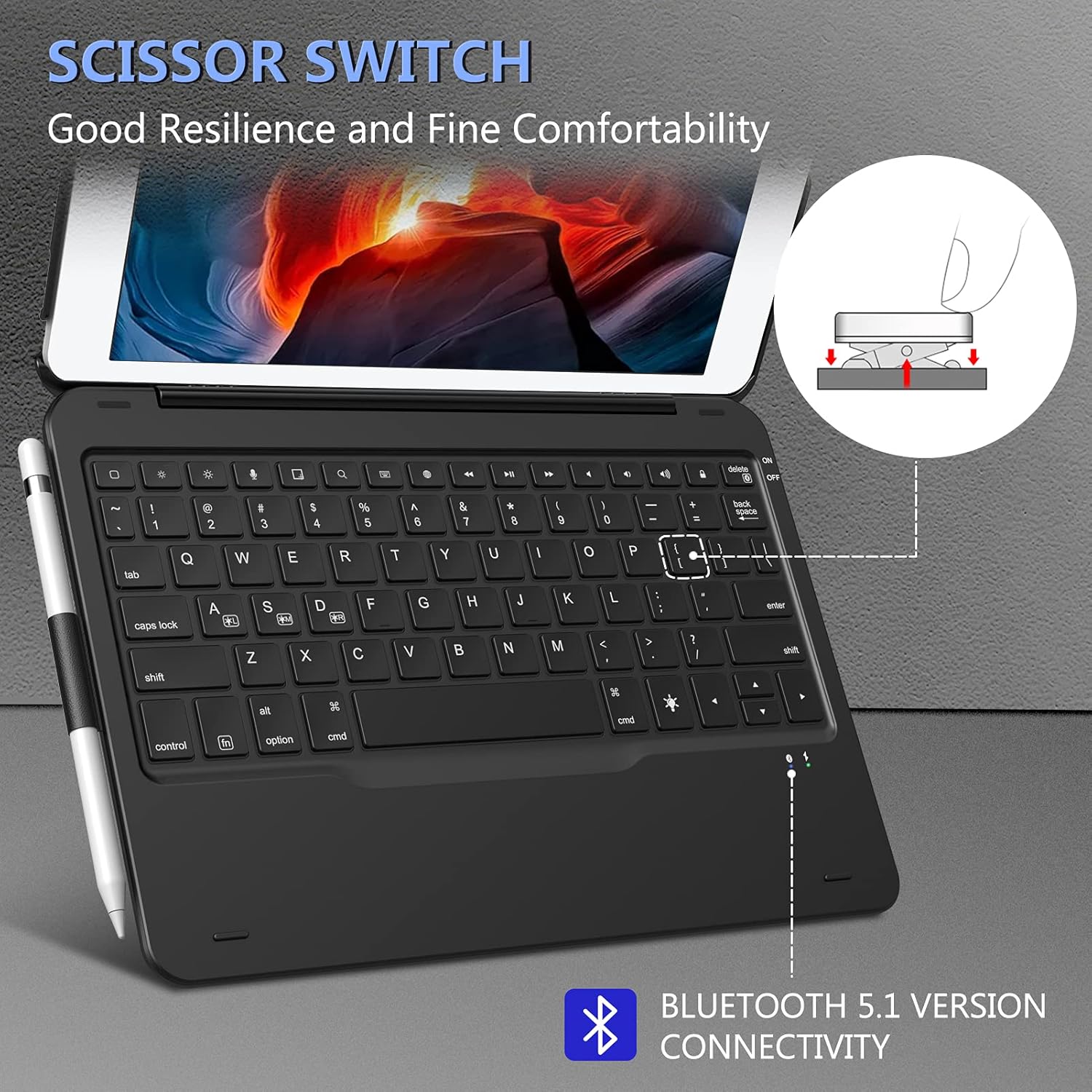
Image: Close-up of the keyboard highlighting the scissor switch design and Bluetooth 5.1 connectivity.

Image: Detailed view of the case showing precise cutouts for the iPad's camera, speakers, and charging port.
Setup Instructions
1. Charging the Keyboard
Before initial use, fully charge the keyboard. Connect the provided USB charging cable to the keyboard's charging port and a USB power adapter (not included). The charging indicator light will show the charging status.
2. Attaching Your iPad to the Case
Carefully place your iPad into the protective case. Ensure all edges are securely fitted and that the cutouts align with your iPad's ports and buttons.
3. Pairing the Keyboard via Bluetooth
- Turn on the keyboard by sliding the power switch to the "ON" position. The Bluetooth indicator light will flash.
- On your iPad, go to Settings > Bluetooth.
- Ensure Bluetooth is turned ON.
- The iPad will search for available devices. Select "Bluetooth Keyboard" (or similar name) from the list.
- If prompted, enter the pairing code displayed on your iPad using the keyboard, then press Enter.
- Once paired, the Bluetooth indicator light on the keyboard will stop flashing, and your iPad will show the keyboard as "Connected".
Note: The keyboard will automatically attempt to reconnect to the last paired device when turned on. If it fails to connect, repeat the pairing steps.
Operating Instructions
Using the Detachable Design
The keyboard is magnetically attached to the case, allowing it to be easily detached for tablet-only use or repositioned for optimal comfort.

Image: The keyboard magnetically detaching from the iPad case, illustrating the detachable design.
Adjusting Viewing Angles
The case features a 135-degree magnetic hinge, allowing you to adjust the iPad's screen to various viewing angles for typing, watching videos, or drawing.

Image: The iPad case adjusted to various angles, showcasing the 135-degree magnetic hinge.
Auto Sleep/Wake Function
The case supports the iPad's auto sleep/wake feature. Closing the case will put your iPad to sleep, and opening it will wake it up, conserving battery life.

Image: Visual representation of the auto sleep/wake function, showing the iPad screen turning off when the case is closed and on when opened.
Using iOS Shortcut Keys
The keyboard includes dedicated iOS shortcut keys for quick access to common functions. These may include:
- Home button
- Search
- Brightness adjustment
- Media playback controls (play/pause, next/previous track)
- Volume control (mute, volume up/down)
- Lock screen
Backlight Control
The keyboard features a 7-color backlight with adjustable brightness levels. To control the backlight:
- Press the Light Bulb key (often located near the spacebar or function keys) to cycle through the 7 different backlight colors.
- Press the Fn key + Light Bulb key to adjust the brightness level (3 levels available).
- Some models may offer additional modes or color-changing effects. Refer to the specific key legends on your keyboard.

Image: The keyboard displaying various backlight color options and controls for adjusting them.
Maintenance
To ensure the longevity and optimal performance of your Fintie Keyboard Case, follow these maintenance guidelines:
- Cleaning: Use a soft, lint-free cloth to gently wipe the keyboard and case. Avoid using harsh chemicals or abrasive cleaners.
- Battery Care: Charge the keyboard regularly, even if not in frequent use, to maintain battery health. Avoid fully depleting the battery for extended periods.
- Storage: When not in use, store the keyboard case in a cool, dry place away from direct sunlight and extreme temperatures.
- Avoid Liquids: Keep the keyboard away from liquids to prevent damage.
Troubleshooting
If you encounter issues with your Fintie Keyboard Case, refer to the following common solutions:
Keyboard Not Connecting to iPad
- Ensure the keyboard is charged and turned ON.
- Turn off and then turn on your iPad's Bluetooth.
- Forget the "Bluetooth Keyboard" device in your iPad's Bluetooth settings and re-pair it following the "Pairing the Keyboard via Bluetooth" steps.
- Restart your iPad and the keyboard.
- Ensure your iPad's software is up to date.
Keys Not Responding or Typing Incorrectly
- Check if the keyboard is properly connected via Bluetooth.
- Ensure the keyboard is sufficiently charged.
- Restart the keyboard and your iPad.
- Clean any debris from around the keys.
Backlight Not Working or Changing
- Ensure the keyboard is turned ON and charged.
- Press the Light Bulb key to activate or change the backlight.
- Use the Fn + Light Bulb key combination to adjust brightness.
Auto Sleep/Wake Not Functioning
- Ensure your iPad is correctly seated in the case.
- Check your iPad's settings: Go to Settings > Display & Brightness and ensure "Lock/Unlock" (or "Cover Lock/Unlock") is enabled.
Specifications
| Feature | Detail |
|---|---|
| Brand | FINTIE |
| Compatible Devices | iPad 10.2 inch (9th/8th/7th Generation) |
| Connectivity Technology | Bluetooth |
| Keyboard Description | Scissor Switch |
| Special Feature | Magnetic, Detachable, Backlit, Auto Sleep/Wake |
| Keyboard Backlighting Color Support | RGB (7 colors, multiple modes) |
| Material | Plastic |
| Item Weight | 1.58 pounds |
| Package Dimensions | 11.39 x 8.39 x 1.1 inches |
Warranty and Support
For warranty information and customer support, please refer to the documentation included with your purchase or visit the official FINTIE website. Keep your purchase receipt as proof of purchase for any warranty claims.
If you require further assistance, please contact FINTIE customer service.