
Introduction
This manual provides detailed instructions for the installation, operation, and maintenance of your CUSP Android Car Stereo Radio GPS Navigation System, Model CV-1301. Please read this manual thoroughly before using the product to ensure proper functionality and safety.
Product Features
- Operating System: Android 9
- Processor: Six Core Rockchip PX6 CPU (1.8GHz + 1.4GHz, 6 Core)
- Memory: 4GB RAM + 64GB ROM
- Display: 13.6-inch IPS HD 2K Capacitive Touch Screen
- Resolution: 1920x1080
- Video Support: 4K Video Playback
- Connectivity: Built-in WiFi, Bluetooth 5.0, USB, RCA
- Navigation: Built-in GPS with support for online and offline maps (e.g., Google Maps, Igo, Waze)
- Smartphone Integration: Wired and Wireless Apple CarPlay, Wired Android Auto
- Audio Features: NXP6686 Radio Chip, DSP with TDA 7850 Amplifier, Subwoofer output
- Control: Voice Control, Split Screen Functionality
- Applications: Pre-installed Google, YouTube, Play Store for app downloads
What's in the Box
Please verify that all components are present before proceeding with installation:
- CUSP Android Car Stereo Head Unit (Model CV-1301)
- Mounting Brackets (for 1 DIN & 2 DIN)
- Mounting Screws
- Audio Cable
- Power Cable
- USB Cables (2 ports)
- GPS Antenna
- AUX Line
- Video Cable
- RCA Cables
- Subwoofer Connector
- Connections for Aftermarket Amplifier
- Rear Camera Connection
- DVR Connection
- TPMS Connection

Image: Overview of included components for the CUSP Android Car Stereo system, showing the main unit, various cables (audio, power, USB, AUX, video), GPS antenna, mounting brackets, and screws.
Setup and Installation
Professional installation is recommended for this product. Incorrect installation may damage the device or your vehicle's electrical system. Ensure the vehicle's battery is disconnected before beginning installation.
General Installation Steps:
- Preparation: Disconnect the vehicle's negative battery terminal. Remove the factory radio or head unit from the dashboard.
- Mounting: Use the provided brackets and screws to secure the CUSP head unit into the dashboard opening. Ensure a snug fit.
- Wiring Connections:
- Power: Connect the power cable to the vehicle's wiring harness. Ensure correct connections for constant power, accessory power, and ground.
- Audio: Connect the audio output cables (RCA) to your vehicle's amplifier or speakers.
- GPS Antenna: Mount the GPS antenna in a location with a clear view of the sky, typically on the dashboard or under the windshield. Connect it to the head unit.
- USB: Connect the USB cables for external devices or data transfer.
- AUX/Video: Connect AUX and video input/output cables as needed for external sources or displays.
- Optional Connections: Connect the rear camera, DVR, or TPMS if these accessories are being installed.
- Testing: Reconnect the vehicle's battery. Turn on the ignition and power on the head unit to test basic functions (power, audio, display).
- Final Assembly: Securely reassemble the dashboard components.

Image: Rear view of the CUSP head unit displaying various ports for power, audio, video, and data connections, alongside a diagram of included cables.
Operating Instructions
Power On/Off
Press and hold the power button (usually located on the front panel or screen) to turn the unit on or off. A short press may mute/unmute audio.
Navigation
The unit comes with built-in GPS. Access the navigation application from the main menu. You can use pre-installed maps or download others from the Play Store. Ensure the GPS antenna is properly connected for optimal signal reception.
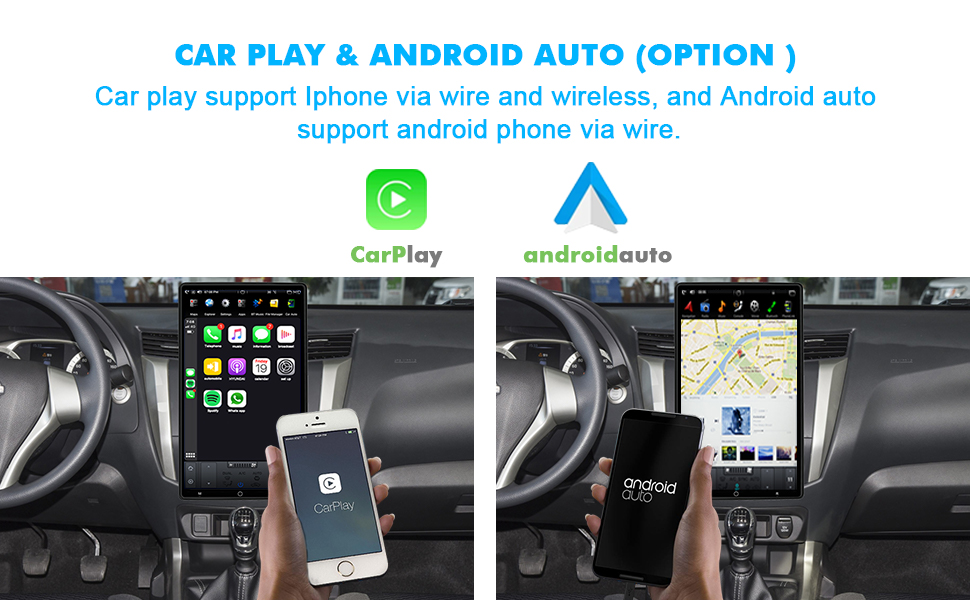
Image: The CUSP car stereo screen showing a detailed GPS navigation map interface.
Radio Function
Select the "Radio" application from the main menu. You can scan for stations, save presets, and switch between FM and AM bands. The NXP6686 radio chip provides enhanced sensitivity.
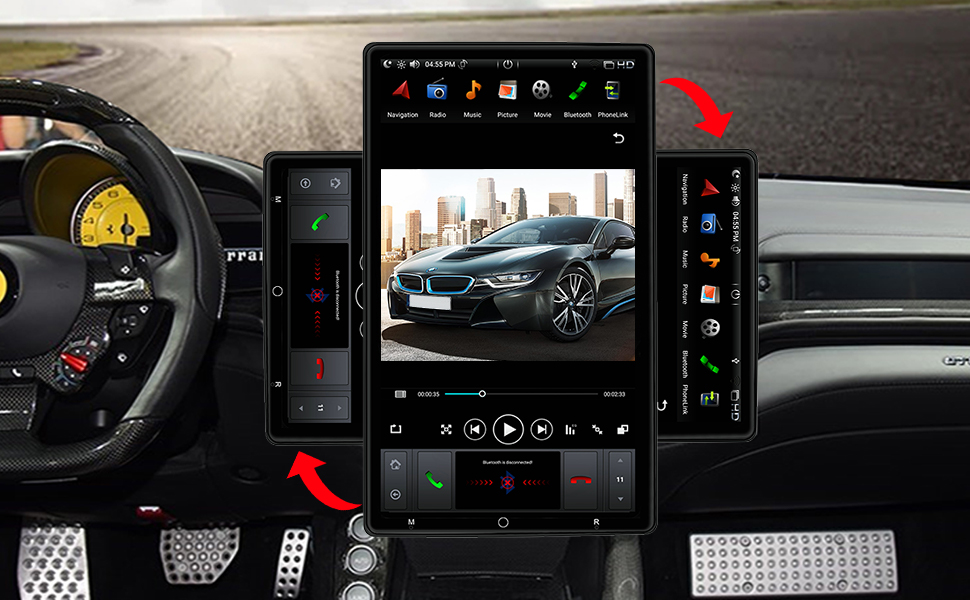
Image: The CUSP car stereo screen showing the radio tuning interface with frequency display and station presets.
Bluetooth Connectivity
Pair your mobile phone via Bluetooth 5.0 for hands-free calling and audio streaming. Go to "Settings" > "Bluetooth" on the head unit to enable Bluetooth and search for devices. Select your phone from the list and confirm the pairing code.
- Hands-Free Calling: Access your phonebook, dial numbers, and manage calls directly from the head unit.
- Bluetooth Music: Stream audio from your paired device to the car stereo.
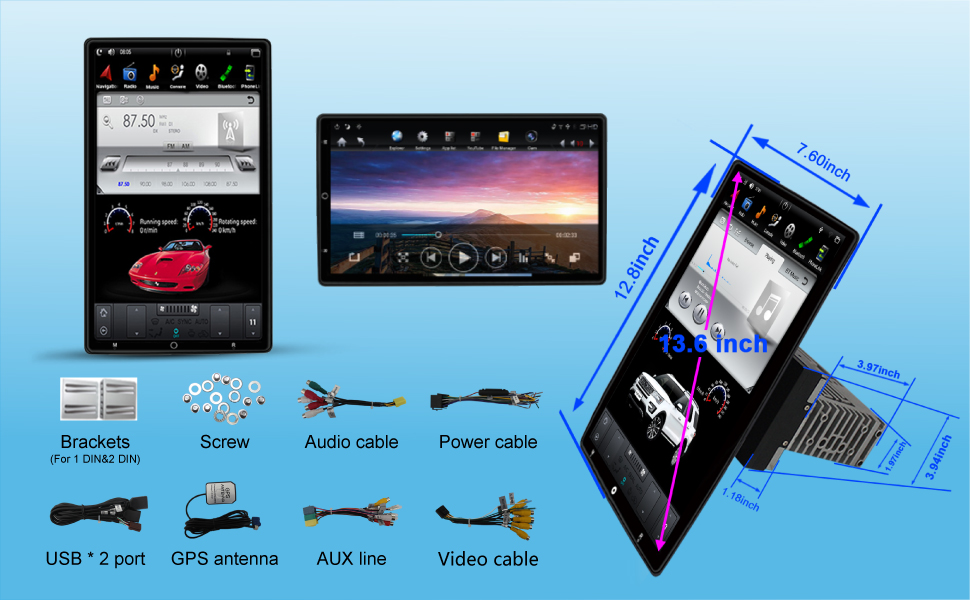
Image: The CUSP car stereo screen showing the Bluetooth interface with options for phone calls and music streaming, alongside a person using a phone.
CarPlay & Android Auto
Connect your iPhone for Apple CarPlay (wired or wireless) or Android phone for Android Auto (wired) to access compatible apps, navigation, and media directly on the head unit's screen.
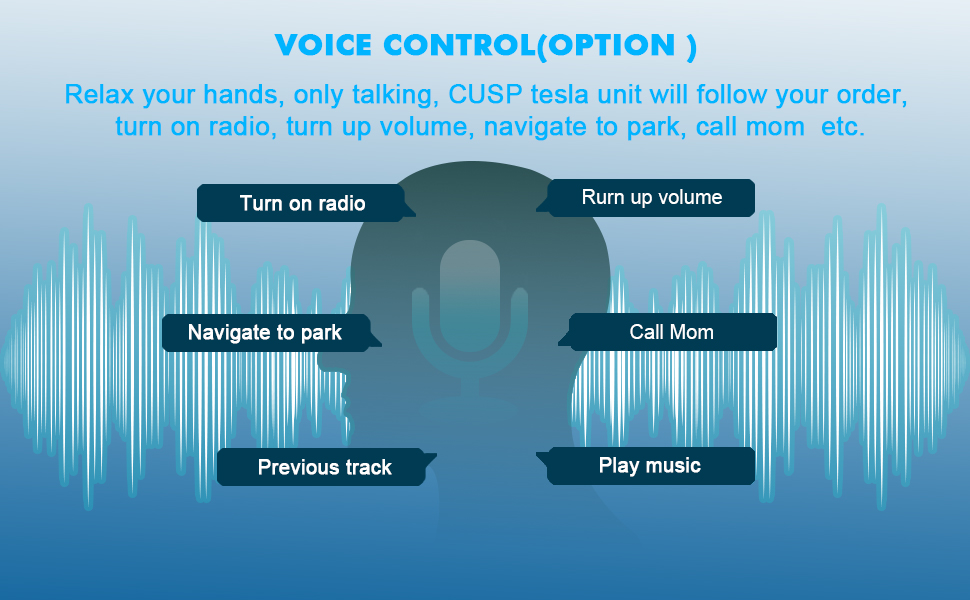
Image: The CUSP car stereo screen displaying both Apple CarPlay and Android Auto interfaces, demonstrating smartphone integration.
Voice Control
Utilize the voice control feature to manage various functions hands-free. Activate voice control and issue commands such as "Turn on radio," "Turn up volume," "Navigate to [destination]," or "Call [contact name]."
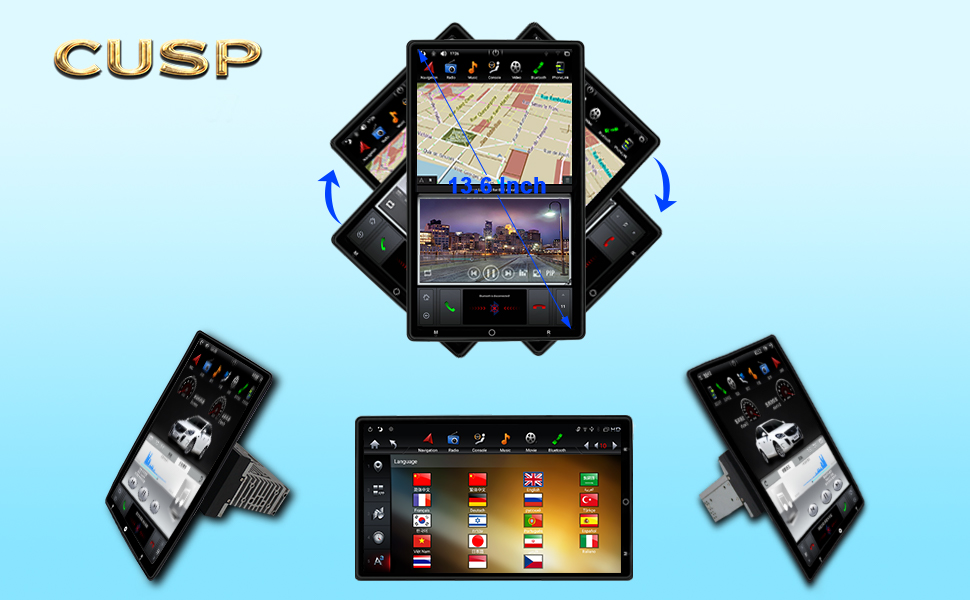
Image: A graphic illustrating the voice control capabilities of the CUSP car stereo, showing various commands like "Turn on radio" and "Navigate to park."
Display Rotation
The 13.6-inch screen supports electronic rotation, allowing you to adjust its orientation for optimal viewing. Refer to the on-screen controls or physical buttons for rotation options.

Image: The CUSP car stereo head unit demonstrating its 13.6-inch screen's electronic rotation capability, showing various screen orientations.
Maintenance
- Screen Cleaning: Use a soft, lint-free cloth to gently wipe the screen. For stubborn smudges, slightly dampen the cloth with water or a screen-safe cleaner. Avoid abrasive materials or harsh chemicals.
- Software Updates: Periodically check for software updates to ensure optimal performance and access to new features. Updates can typically be found in the system settings or on the manufacturer's website.
- General Care: Keep the unit free from dust and debris. Avoid exposing it to extreme temperatures or direct sunlight for prolonged periods.
Troubleshooting
| Problem | Possible Cause | Solution |
|---|---|---|
| Unit does not power on. | No power connection; Blown fuse; Incorrect wiring. | Check power cable connections. Inspect vehicle fuses. Verify wiring according to installation instructions. |
| No audio output. | Volume too low; Mute activated; Incorrect speaker wiring; Amplifier issue. | Increase volume. Check if unit is muted. Verify speaker connections. Ensure external amplifier (if used) is powered and connected correctly. |
| GPS signal lost or inaccurate. | GPS antenna obstructed or disconnected; Poor satellite reception. | Ensure GPS antenna has a clear view of the sky. Check antenna connection to the head unit. Move to an open area. |
| Bluetooth device cannot connect. | Bluetooth not enabled; Device not in pairing mode; Interference. | Ensure Bluetooth is enabled on both the head unit and your device. Put your device in pairing mode. Try pairing in a different location to avoid interference. |
| Touch screen unresponsive. | System freeze; Screen calibration issue. | Restart the unit. If issue persists, perform a system reset (refer to settings for reset option). |
Specifications
- Model Number: CV-1301
- Operating System: Android 9
- Processor: Six Core Rockchip PX6 CPU
- RAM: 4GB
- ROM: 64GB
- Display Size: 13.6 Inches
- Resolution: 1920 x 1080
- Connectivity: Bluetooth 5.0, RCA, USB, Wi-Fi
- Audio Output Mode: Stereo
- Special Features: RDS, CarPlay, Android Auto, Voice Control, DSP, Electronic Rotation Screen
- Item Weight: 7.83 pounds (approx. 3.55 kg)
- Package Dimensions: 15.15 x 9.3 x 9.1 inches (approx. 38.5 x 23.6 x 23.1 cm)
Warranty and Support
CUSP provides the following warranty and support for this product:
- Manufacturer's Warranty: Limited 1-Year Warranty for defective items.
- Accessories Warranty: 3-month Warranty for included accessories.
- Technical Support: Lifetime professional technical support.
- Software Updates: Continued software updates provided free of charge.
For technical assistance or warranty claims, please contact CUSP customer support. Refer to the product packaging or the official CUSP website for contact information.