
TESSAN JW401
TESSAN Tower Surge Protector Power Strip User Manual
Model: JW401
Introduction
Thank you for choosing the TESSAN Tower Surge Protector Power Strip. This device is designed to provide a versatile and safe power solution for your home, office, or dorm. With multiple AC outlets and USB charging ports, it helps organize your space and protect your electronic devices from power surges.

Image: The TESSAN Tower Surge Protector, showcasing its compact design, multiple outlets, and the included 15-foot flat extension cord with a wall-hugging plug.
Safety Information
Please read all safety instructions carefully before using this product. Failure to follow these instructions may result in electric shock, fire, or serious injury.
- Do not exceed the maximum power rating of 125V.
- This product is designed for indoor use only. Do not expose to moisture or use in wet environments.
- Do not disassemble, modify, or attempt to repair the unit. Refer all servicing to qualified personnel.
- Keep away from heat sources, direct sunlight, and flammable materials.
- Ensure the power cord is fully inserted into the wall outlet.
- Do not bundle the power cord tightly when in use, as this can cause overheating.
- Avoid placing heavy objects on the power strip or cord.
- Unplug the power strip from the wall outlet when not in use for extended periods.
Product Features
The TESSAN Tower Surge Protector is equipped with several features to enhance your charging experience:
- 12-in-1 Power Solution: Features 8 standard AC outlets and 4 USB ports (3 USB-A, 1 USB-C) to power and charge up to 12 devices simultaneously.
- Extended Reach Flat Cord: A 15-foot long, ultra-flat (0.14-inch) extension cord allows for flexible placement and can easily run under carpets or along walls without creating a tripping hazard.
- Smart USB Charging: The USB-A ports deliver up to 2.4A, and the USB-C port provides up to 3A, intelligently detecting connected devices to deliver optimal charging speeds.
- Advanced Surge Protection: Built-in overload, short-circuit, and over-current protection safeguards your valuable electronics from power fluctuations and surges. A reliable on/off switch provides additional safety.
- Space-Saving Tower Design: The vertical, compact design minimizes desk clutter, while the stable base with four rubber feet prevents slipping and sliding.
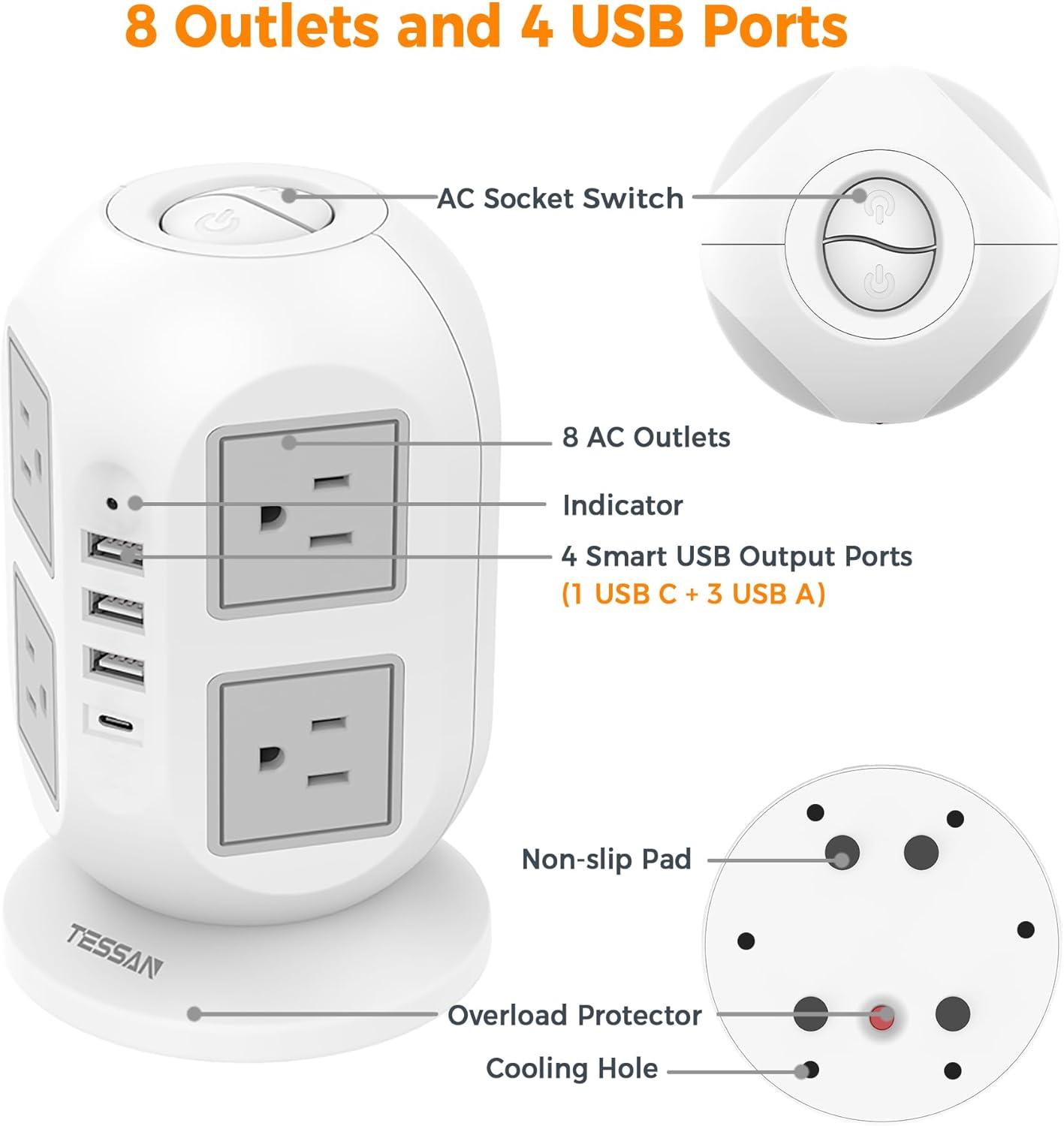
Image: Detailed diagram highlighting the components of the TESSAN Tower Surge Protector, including the AC sockets, USB ports, indicator light, non-slip base, overload protector, and cooling holes.
Package Contents
- 1 x TESSAN Tower Surge Protector Power Strip (Model: JW401)
- 1 x User Manual
Setup
- Unpack: Carefully remove the TESSAN Tower Surge Protector from its packaging.
- Placement: Choose a stable, dry, and well-ventilated location for the power strip. Ensure it is away from direct sunlight, heat sources, and water. The compact tower design allows it to fit neatly on desks or floors.
- Plug In: Insert the flat plug of the 15-foot extension cord into a standard 125V wall outlet. The flat design allows it to sit flush against the wall, making it ideal for behind furniture.
- Power On: Press the main power switch located on the top of the tower to activate the outlets and USB ports. The indicator light will illuminate.

Image: Illustration demonstrating the space-saving flat plug and the extensive reach of the 15-foot flat extension cord, ideal for flexible placement.
Operating Instructions
- Connecting AC Devices: Plug your electronic devices (e.g., laptops, monitors, lamps) into any of the 8 AC outlets located on the sides of the tower. The vertical design ensures that even bulky adapters do not block adjacent outlets.
- Connecting USB Devices: Connect your USB-powered devices (e.g., smartphones, tablets, smartwatches, headphones) to the 3 USB-A ports or the 1 USB-C port. The smart charging technology will automatically detect your device and deliver the optimal charging current.
- Using the Power Switch: The power strip features a main on/off switch on the top. Press it to turn all connected outlets and USB ports on or off. This allows you to easily cut power to all devices, saving energy and providing an extra layer of safety.

Image: The TESSAN Tower Surge Protector in use, demonstrating its capability to charge multiple devices like a laptop, smartphone, and tablet simultaneously via its AC and USB ports.

Image: Visual comparison illustrating how the TESSAN tower design helps create a neat desktop by eliminating cable clutter, contrasting with a traditional power strip. It also shows how the flat plug avoids blocking adjacent wall outlets.
Maintenance
- Cleaning: Disconnect the power strip from the wall outlet before cleaning. Use a soft, dry cloth to wipe the surface. Do not use liquid cleaners or aerosols.
- Storage: When not in use for extended periods, unplug the power strip and store it in a cool, dry place away from direct sunlight and moisture.
- Cord Care: Regularly inspect the power cord for any signs of damage, such as fraying or cuts. If damaged, discontinue use immediately and contact customer support.
Troubleshooting
| Problem | Possible Cause | Solution |
|---|---|---|
| No power to outlets/USB ports. |
|
|
| USB ports not charging. |
|
|
| Power strip feels warm. |
|
|

Image: The TESSAN Tower Surge Protector positioned on a table, with a dramatic background of a city skyline and lightning, visually representing its superior surge protection capabilities.
Specifications
| Attribute | Detail |
|---|---|
| Model Number | JW401 |
| Product Dimensions | 4.3 x 4.3 x 6.5 inches |
| Item Weight | 1.65 pounds |
| AC Outlets | 8 |
| USB-A Ports | 3 (2.4A Max per port) |
| USB-C Port | 1 (3A Max) |
| Voltage | 125V |
| Cord Length | 15 feet |
| Special Feature | On/Off Switch, Surge Protection |
| Manufacturer | TESSAN |
| Country of Origin | China |
Warranty and Support
TESSAN products are designed and manufactured to the highest quality standards. For warranty information, technical support, or any questions regarding your product, please refer to the contact information provided on the product packaging or visit the official TESSAN website.
Please retain your purchase receipt as proof of purchase for warranty claims.