
Lockly PGD728FYSN
Lockly Secure Plus Smart Deadbolt Instruction Manual
Model: PGD728FYSN
Brand: Lockly
1. Product Overview
The Lockly Secure Plus Smart Deadbolt is an advanced security solution designed for offices, rental properties, and residential use. This versatile smart lock offers multiple convenient and secure ways to access your property, ensuring peace of mind.

Image: Front view of the Lockly Secure Plus Smart Deadbolt, highlighting its sleek design and digital interface.
Key Features:
- Multiple Access Methods: Unlock using the 3D biometric fingerprint reader, patented PIN Genie digital keypad, smartphone app, or a traditional physical key.
- Peek-Proof Digital Keypad: The PIN Genie keypad features four virtual buttons with three numbers each. The numbers dynamically shuffle after every use, making it impossible for onlookers to guess your code.
- Fast Biometric Fingerprint Sensor: Gain quick entry with fingerprint recognition in less than 0.3 seconds, with the lock opening in under 0.5 seconds. Stores up to 99 unique fingerprints.
- Smartphone App Control: Lock and unlock your door remotely using the Lockly App, available for Android and iOS devices.
- Programmable Auto-Locking: Customize the auto-lock feature to automatically secure your door after a set period.
- eKeys & Offline Access Codes: Grant temporary or permanent access to trusted individuals via eKeys or generate offline access codes that do not require internet connectivity.
- Real-Time Monitoring & Alerts: (Requires optional Wi-Fi hub) Monitor the lock's status and receive real-time alerts on your smartphone.
- Durable Construction: Made from zinc with a satin nickel finish, designed for high security and reliability.
2. Setup and Installation
2.1 Pre-Installation Checklist
- Ensure your door fits standard dimensions: 1 3/8" - 2" (35mm - 50mm) thickness.
- Verify door preparation: 2 1/8" (54mm) diameter face hole & 1" (25mm) diameter latch hole.
- Confirm the deadbolt is a single cylinder type.
- Gather necessary tools: typically a Phillips head screwdriver.
- Unpack all components: Smart lock assembly, 4 AA batteries, 2 backup keys.
2.2 Mechanical Installation
The Lockly Secure Plus is designed for easy DIY installation with common household tools. It is reversible and works with both left and right swinging doors. For detailed visual instructions, it is recommended to refer to the official Lockly installation video by scanning the QR code provided in your product packaging or visiting the Lockly support website.

Image: Technical specifications and dimensions for door compatibility, illustrating how the lock fits into a door.
2.3 App Setup and Pairing
- Download the Lockly App from your device's app store (available for Android and iOS).
- Create a Lockly account or log in if you already have one.
- Follow the in-app instructions to pair your Lockly Secure Plus Smart Deadbolt via Bluetooth. This typically involves activating the lock's pairing mode and selecting it within the app.
- During setup, you will be prompted to set up your initial access codes and register fingerprints.
3. Operating Your Lockly Secure Plus
3.1 Unlocking Methods
- Fingerprint Recognition:
Place your registered finger on the 3D biometric fingerprint sensor. The lock will unlock rapidly. The sensor is located on the side of the lock for convenient access.

Image: A hand demonstrating the use of the fingerprint sensor for unlocking.

Image: Detailed view of a finger activating the biometric fingerprint sensor.
- PIN Genie Digital Keypad:
Touch the screen to activate the keypad. Enter your access code. The numbers on the keypad will shuffle after each use, preventing others from observing your code. This patented technology enhances security.

Image: The unique PIN Genie keypad with its dynamic number display.

Image: A user interacting with the digital keypad to enter an access code.
- Smartphone App:
Open the Lockly App on your smartphone. From the control screen, you can lock or unlock your door with a tap. This is convenient for remote access (with optional Wi-Fi hub) or when approaching your door.

Image: The Lockly mobile application interface showing the lock/unlock function.
- Physical Key:
In case of battery depletion or other issues, use the provided physical backup keys to unlock the deadbolt manually.

Image: Manual unlocking of the deadbolt using a physical key.
3.2 Access Management
- eKeys & eBadges:
Through the Lockly App, you can generate and send eKeys or eBadges to family, friends, or visitors. These can be set with specific access schedules and can be revoked at any time.
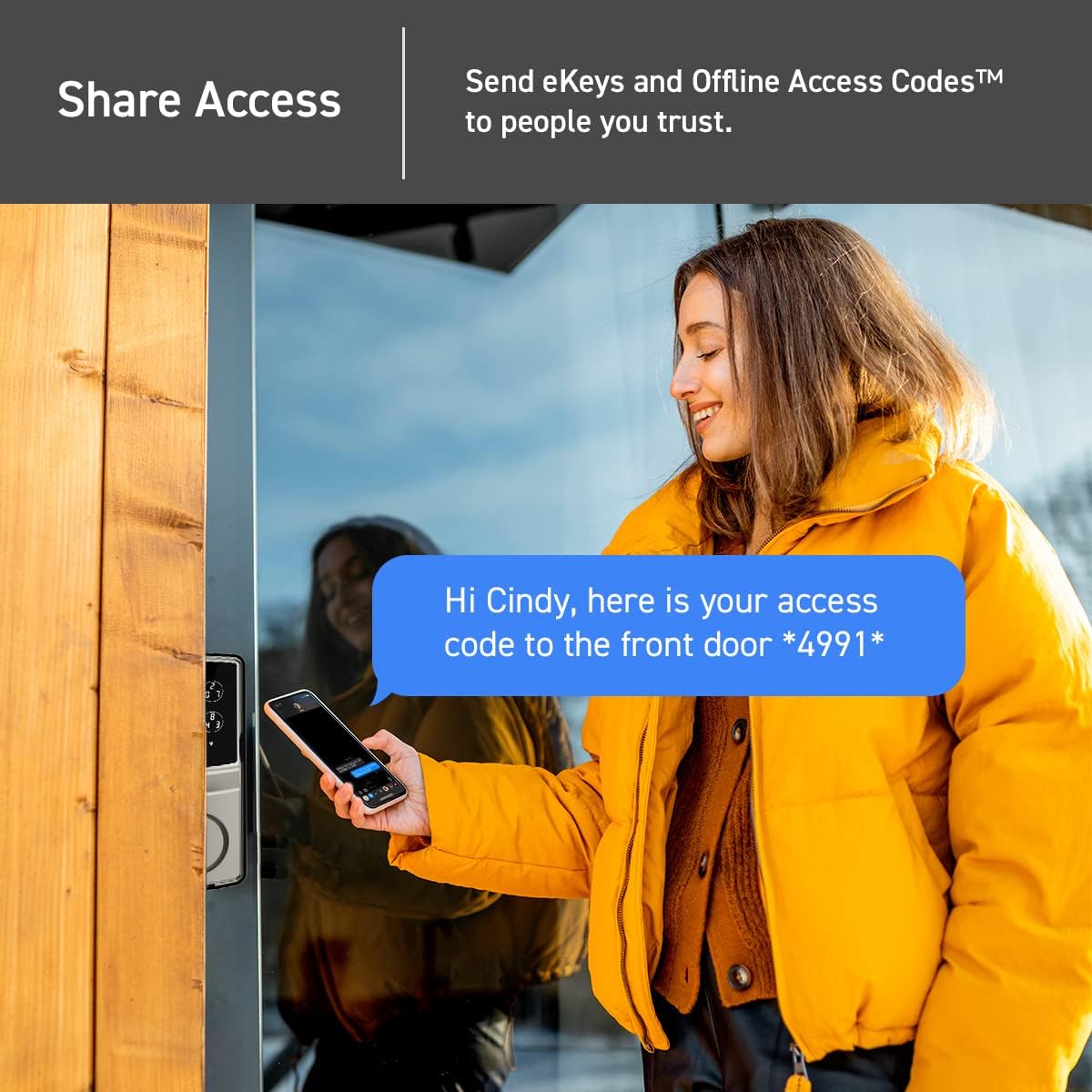
Image: Sharing access codes to trusted individuals via the Lockly app.

Image: The Lockly app interface for managing property access and user permissions.
- Offline Access Codes:
Create unique offline access codes that can be used without Wi-Fi or internet connection. This is ideal for guests or service providers who may not have smartphone access or internet.
3.3 Security Features
- Programmable Auto-Locking:
Set the lock to automatically engage after a specified period, ensuring your door is always secured even if you forget to lock it manually.
- Real-Time Monitoring & Alerts (Optional Wi-Fi Hub Required):
With the optional Lockly Secure Link Wi-Fi Hub, you can monitor the open/closed status of your lock from anywhere and receive instant alerts on your smartphone for any activity.

Image: The optional Secure Link Wi-Fi Hub, which augments the smart lock with Wi-Fi connectivity.

Image: Real-time monitoring and alerts on a smartphone, showing a notification for lock activity.
- Remote Control (Optional Wi-Fi Hub Required):
With the Wi-Fi hub, you can remotely lock or unlock your door from anywhere in the world using the Lockly App.

Image: Remote control functionality via the Lockly app, allowing users to lock/unlock from anywhere.
- Voice Assistant Integration (Optional Wi-Fi Hub Required):
Control and check your lock status using voice commands with Amazon Alexa or Google Assistant when connected via the optional Wi-Fi hub.

Image: Integration with Amazon Alexa and Google Assistant for voice control of the smart lock.
- Event History:
The Lockly App provides a detailed log of all lock and unlock events, including who accessed the door and when.

Image: The Lockly app displaying a history log of all lock and unlock events.
4. Maintenance
4.1 Battery Replacement
The Lockly Secure Plus operates on 4 AA alkaline batteries (included). Battery life typically lasts for several months. The Lockly App will notify you when battery levels are low. To replace batteries, follow the instructions in your installation guide to access the battery compartment on the interior assembly.
4.2 Rekeying
The lock is rekey-ready, meaning you can replace the key cylinder without needing to change the entire lock assembly. This can be done with a standard rekey kit by a qualified locksmith or by following specific instructions from Lockly support.
4.3 Cleaning
To clean the lock's exterior, use a soft, damp cloth. Avoid abrasive cleaners or solvents that could damage the satin nickel finish or the digital keypad. Ensure the keypad and fingerprint sensor are free of dirt or smudges for optimal performance.
5. Troubleshooting
- Lock Not Responding:
Check the battery level. Replace batteries if low. Ensure the lock is properly installed and all cables are securely connected.
- Fingerprint Sensor Not Working:
Ensure your finger is clean and dry. Try re-registering your fingerprint through the Lockly App. Clean the sensor surface with a soft cloth.
- Keypad Issues:
Ensure the keypad surface is clean. If numbers are not appearing or responding, check battery levels. If you are locked out, use the physical backup key or the override code provided on the card that came with your lock.
- App Connectivity Problems:
Ensure Bluetooth is enabled on your smartphone. If using the Wi-Fi hub, ensure it is powered on and connected to your home network. Restart the app or your phone if issues persist.
- Lockout Situation:
Always keep your physical backup keys in a safe, accessible location outside the property. The override code card is crucial for resetting the system if you are locked out and cannot use other methods.
For more complex issues or if troubleshooting steps do not resolve the problem, please contact Lockly customer support.
6. Specifications
| Attribute | Detail |
|---|---|
| Brand | Lockly |
| Model Name | Lockly Secure Plus |
| Part Number | PGD728FYSN |
| Lock Type | Smart Deadbolt |
| Special Features | Auto-Lock, Left Fingerprint, One-Touch Lock, Passcode Unlock, Waterproof (IPX4 certified) |
| Material | Zinc |
| Finish Type | Satin Nickel |
| Color | Satin Nickel |
| Item Dimensions (L x W x H) | 7.4 x 3.15 x 4.5 inches |
| Item Weight | 3.6 Pounds |
| Power Source | 4 AA Alkaline Batteries (included) |
| Connectivity Protocol | Bluetooth (Wi-Fi with optional hub) |
| Controller Type | Android, iOS |
| Recommended Uses | Office management, rental property management, residential use |
| Door Thickness Compatibility | 1 3/8" - 2" (35mm - 50mm) |
| UPC | 810055600489 |
7. Warranty and Support
7.1 Warranty Information
The Lockly Secure Plus Smart Deadbolt comes with a limited 5-year mechanical and finish warranty, and a 2-year electronics warranty. This warranty covers defects in materials and workmanship under normal use. Please retain your proof of purchase for warranty claims.
7.2 Technical Support
Lockly provides lifetime technical support for all its products. If you encounter any issues or have questions regarding the installation, operation, or maintenance of your Lockly Secure Plus, you can reach out to their support team via phone, email, or live chat. Refer to the Lockly official website for contact details.
8. Important Notes
- No official product videos were found in the provided data for embedding. Please refer to the manufacturer's website for any available video tutorials.
- Always keep your physical backup keys in a secure location outside your home.
- Regularly check battery levels to ensure uninterrupted operation.
- For optimal security, change your access codes periodically and ensure only authorized individuals have access to your eKeys or offline codes.
Related documentsPGD728FYSN


Ask a question about this manual
Ask about setup, troubleshooting, compatibility, parts, safety, or missing instructions. Manuals+ will review the question and use this page’s manual context to help answer it.