
Introduction
The DGG YK600 is a versatile 60% compact mechanical keyboard designed for both gaming and office use. It features dual wired (USB Type-C) and wireless (2.4G) connectivity, Gateron Blue mechanical switches, and customizable RGB backlighting. This manual provides instructions for setup, operation, and maintenance to ensure optimal performance of your keyboard.
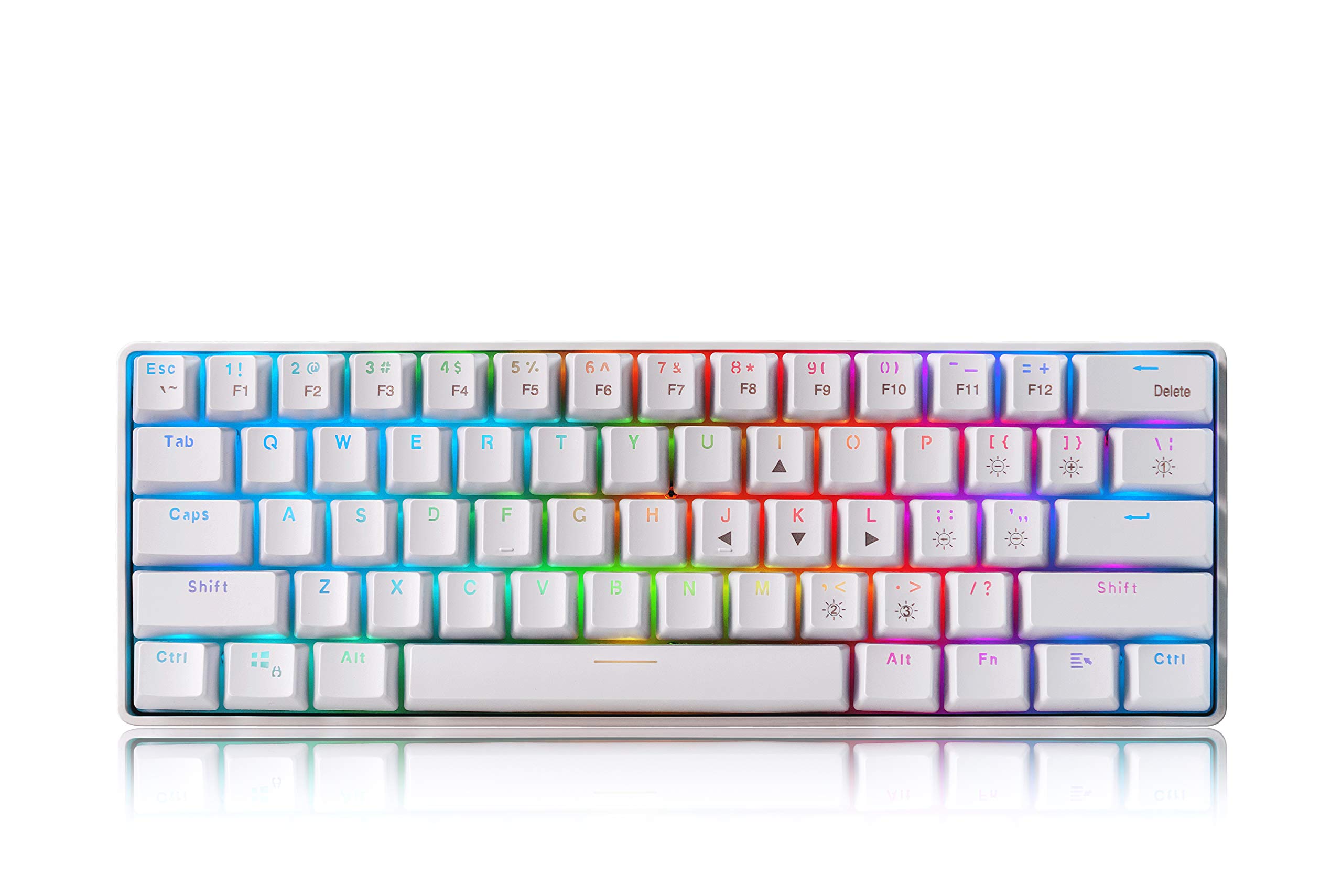
Image: The DGG YK600 RGB 60% Compact Mechanical Keyboard, showcasing its compact layout and vibrant RGB backlighting.
What's in the Box
Please check the package contents upon unboxing:
- DGG YK600 RGB 60% Compact Mechanical Keyboard
- USB Type-C Cable
- User Manual (this document)
Product Overview
The DGG YK600 keyboard offers several key features:
- Wireless/Wired Dual Mode Connection: Supports USB Type-C wired connection and 2.4G wireless mode with an 1850mA rechargeable battery, offering up to 10 hours of use. Compatible with Windows, MacOS, and Android systems.
- 61 Compact Responsive Keys: A 60% layout with 61 keys, designed for space-saving and portability, while supporting all keys without conflict.
- Gateron Blue Switches: Provides a tactile and audible click feedback, known for quick and responsive keystrokes for typing and gaming.
- Ergonomic Design: Features an 8-degree ergonomic angle to reduce wrist and arm strain during extended use.
- 19 RGB Backlit Modes: Offers 19 RGB backlight modes, 9 monochrome modes, and 1 full-color backlight, with adjustable brightness and speed.

Image: A visual summary of the DGG YK600's key features, including its ABS keycaps, Gateron Blue switches, RGB lighting, and ergonomic design.
Setup
Charging the Keyboard
Connect the keyboard to a USB power source (e.g., computer USB port, USB wall adapter) using the provided USB Type-C cable. The keyboard has an 1850mA rechargeable battery. An indicator light will typically show charging status and turn off or change color when fully charged.
Wired Connection
To use the keyboard in wired mode:
- Ensure the keyboard's mode switch (if present) is set to wired mode.
- Connect one end of the USB Type-C cable to the keyboard and the other end to an available USB port on your computer.
- The keyboard will be recognized automatically by your operating system.
Wireless Connection (2.4G)
To use the keyboard in 2.4G wireless mode:
- Locate the 2.4G USB receiver (usually stored in a compartment on the keyboard or included separately).
- Plug the 2.4G USB receiver into an available USB port on your device (computer, laptop, TV, etc.).
- Ensure the keyboard's mode switch is set to wireless mode.
- The keyboard should connect automatically. If not, press the designated pairing key combination (refer to specific keyboard markings if available, otherwise, it should pair automatically).
Operating Instructions
Basic Key Functions
The DGG YK600 features a 61-key layout. Due to its compact size, many functions are accessed via the Function (Fn) key combined with other keys. Refer to the keycap legends for specific Fn key combinations for multimedia controls, arrow keys, and other secondary functions.
Gateron Blue Switches
The keyboard is equipped with Gateron Blue mechanical switches. These switches are characterized by a distinct tactile bump and an audible click sound upon actuation, providing clear feedback for each keystroke.

Image: A close-up view of the DGG YK600 keyboard with several keycaps removed, showing the Gateron Blue mechanical switches underneath.
RGB Backlight Control
The DGG YK600 offers 19 RGB backlight modes, 9 monochrome backlight modes, and 1 full-color backlight mode. You can customize the lighting effects:
- Change Backlight Mode: Press Fn + \ to cycle through the various RGB lighting effects.
- Adjust Brightness: Use Fn + [key] (refer to keyboard legends for specific keys, often arrow keys or dedicated brightness keys) to increase or decrease backlight brightness.
- Adjust Speed: Use Fn + [key] (refer to keyboard legends) to change the speed of dynamic lighting effects.

Image: The DGG YK600 keyboard illuminated with RGB backlighting, highlighting its various light effects.
Ergonomic Design
The keyboard is designed with an 8-degree ergonomic angle. This design aims to align the operator's palm and forearm naturally, reducing discomfort and fatigue during prolonged typing sessions.

Image: A user typing on the DGG YK600 keyboard, demonstrating the ergonomic angle that promotes a comfortable hand and wrist position.
Compatibility
The DGG YK600 keyboard is compatible with Windows, MacOS, and Android operating systems, offering broad device support.
Maintenance
Proper maintenance helps extend the lifespan of your keyboard:
- Cleaning: Regularly dust between the keycaps using compressed air or a soft brush. For surface cleaning, use a soft, dry, lint-free cloth. Avoid abrasive cleaners or solvents.
- Spills: In case of liquid spills, immediately disconnect the keyboard from power. Gently blot away excess liquid and allow the keyboard to dry completely before reconnecting. Do not attempt to use the keyboard while wet.
- Storage: Store the keyboard in a cool, dry place away from direct sunlight and extreme temperatures.
- Keycap Removal: If removing keycaps for cleaning, use a keycap puller to avoid damaging the switches. Reinstall keycaps carefully, ensuring they are properly aligned.
Troubleshooting
If you encounter issues with your DGG YK600 keyboard, refer to the following common solutions:
- Keyboard Not Responding:
- In wired mode, ensure the USB Type-C cable is securely connected to both the keyboard and the computer. Try a different USB port.
- In wireless mode, ensure the 2.4G USB receiver is properly inserted into a USB port and the keyboard's mode switch is set to wireless.
- Check the battery level. If low, charge the keyboard using the provided USB Type-C cable.
- Keys Not Registering or Skipping:
- Ensure the keyboard is fully charged. Low battery can affect performance.
- Try reconnecting the USB cable or 2.4G receiver.
- Test the keyboard on a different computer or device to determine if the issue is with the keyboard or the host device.
- Clean around the affected keys to ensure no debris is obstructing the switch mechanism.
- Backlight Not Working or Incorrect:
- Ensure the backlight is not turned off or set to minimum brightness. Use Fn + \ to cycle through modes and other Fn key combinations to adjust brightness.
- If a specific key's backlight is not working, it may indicate a hardware issue.
- Wireless Connection Issues:
- Ensure the 2.4G USB receiver is within range and not obstructed by metal objects.
- Avoid using the receiver near other wireless devices that may cause interference.
- Re-pair the keyboard with the receiver if necessary (refer to specific pairing instructions if provided with the product, otherwise, a simple power cycle often helps).
Specifications
| Brand | DGG |
| Model Number | 402051011 |
| Connectivity Technology | USB (Wired), 2.4G (Wireless) |
| Keyboard Description | Mechanical |
| Switch Type | Gateron Blue (Tactile) |
| Number of Keys | 61 |
| Backlighting | RGB (19 modes, 9 monochrome, 1 full color) |
| Battery Capacity | 1850mA Rechargeable |
| Compatible Operating Systems | Windows, MacOS, Android |
| Recommended Uses | Gaming, Office |
| UPC | 760636715937 |
Warranty and Support
For detailed warranty information, technical support, or service inquiries, please refer to the official DGG website or contact their customer service department. Keep your purchase receipt as proof of purchase for warranty claims.
