
1. Introduction
Thank you for choosing the Ultimaxx 72mm 2.2X Telephoto Lens Attachment. This manual provides essential information for the safe and effective use of your new lens. Please read it thoroughly before use and retain it for future reference.
This telephoto conversion lens is designed to extend the focal length of your existing camera lens by 2.2 times, allowing you to capture distant subjects with enhanced detail. It features multi-coated glass for improved image quality and reduced reflections.
2. Product Overview
2.1. Key Features
- 2.2X Magnification: Increases the optical zoom of your primary lens by 2.2 times.
- 72mm Thread Compatibility: Designed to attach to any camera lens with a 72mm filter thread.
- High Definition Multi-Coated Glass: Reduces glare, reflections, and enhances image clarity and color fidelity.
- Durable Construction: Built for reliable performance.
- Included Accessories: Comes with a protective pouch, front lens cap, and rear lens cap for storage and protection.
2.2. Package Contents
- Ultimaxx 72mm 2.2X Telephoto Lens Attachment
- Front Lens Cap
- Rear Lens Cap
- Protective Lens Pouch

Image 2.1: Ultimaxx 2.2X Telephoto Lens shown alongside a visual comparison of a normal view and a 2.2x magnified view of a landscape. The lens itself is black with "Ultimaxx Studio Series HD 2.2x AF Telephoto Lens" printed on it.
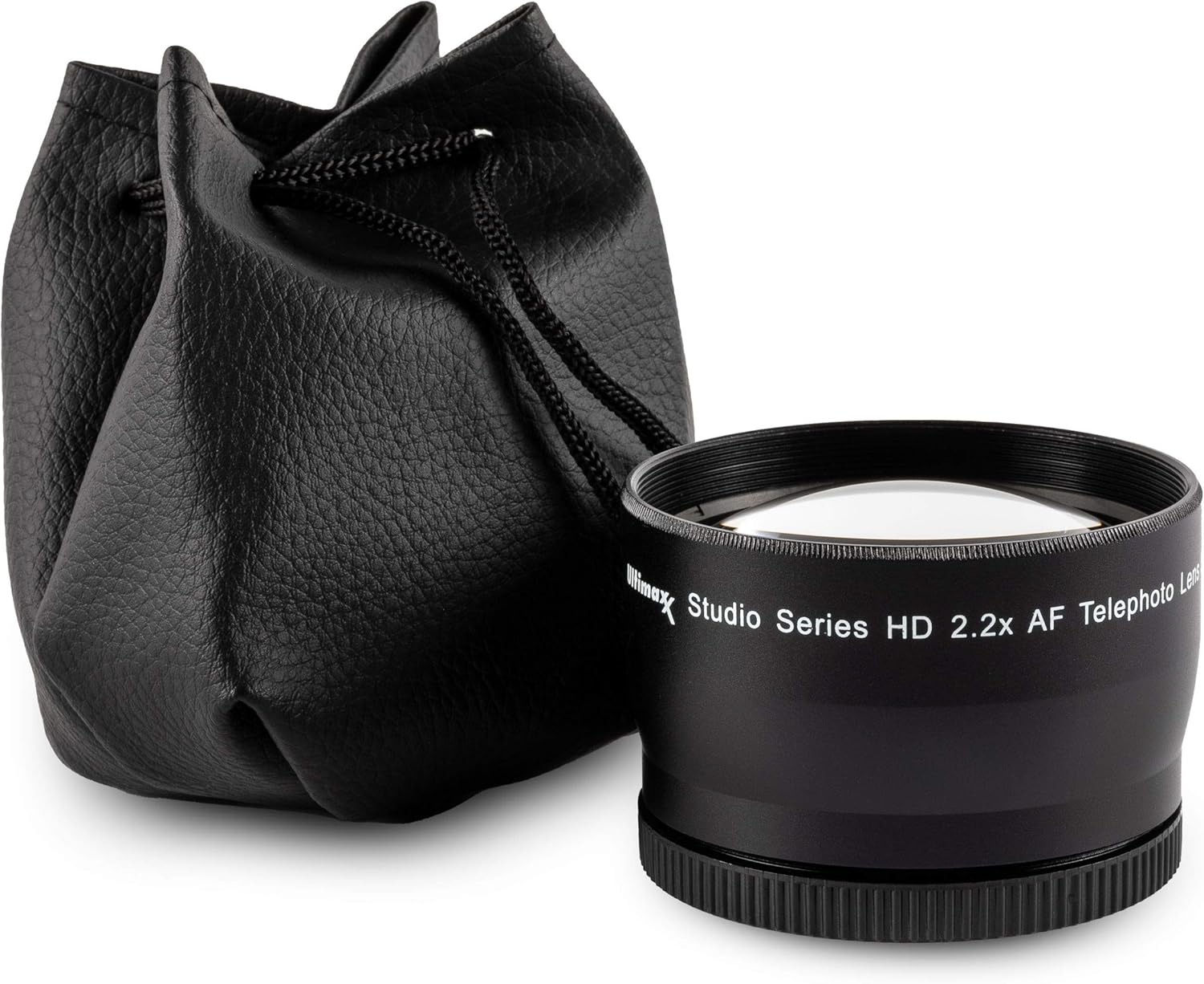
Image 2.2: The Ultimaxx 2.2X Telephoto Lens placed next to its black protective drawstring pouch. The lens is black with white lettering.
3. Setup and Installation
The Ultimaxx 2.2X Telephoto Lens Attachment is designed for easy installation onto your existing camera lens. Ensure your primary camera lens has a 72mm filter thread for direct compatibility. If your primary lens has a different filter thread size, you will need a step-up or step-down ring (sold separately) to match the 72mm thread of this telephoto lens.
3.1. Attaching the Telephoto Lens
- Prepare Your Primary Lens: Remove any existing filter or lens cap from the front of your camera's primary lens.
- Align the Threads: Carefully align the 72mm male thread of the Ultimaxx telephoto lens with the 72mm female filter thread on your primary camera lens.
- Screw On: Gently rotate the telephoto lens clockwise until it is securely fastened. Do not overtighten.
- Verify Attachment: Ensure the telephoto lens is firmly attached and does not wobble.
Note: Always handle lenses by their barrels and avoid touching the glass elements to prevent smudges or scratches.

Image 3.1: Front view of the Ultimaxx 2.2X Telephoto Lens securely attached to the front of a camera's primary lens. The camera body is partially visible in the background.
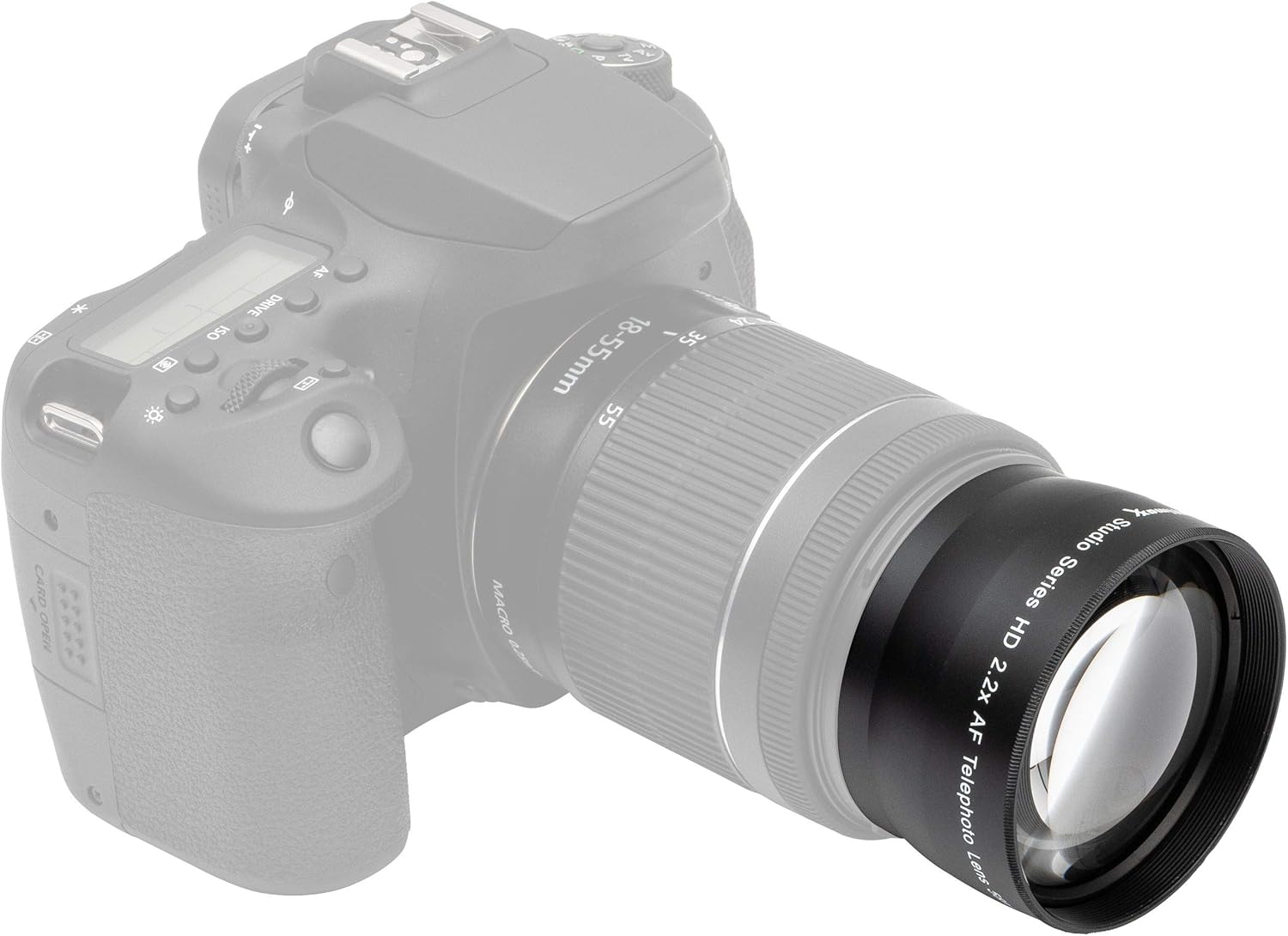
Image 3.2: Side view of the Ultimaxx 2.2X Telephoto Lens attached to a camera's primary lens, which is mounted on a DSLR camera body. This illustrates the added length to the lens setup.
4. Operating Instructions
Once the Ultimaxx 2.2X Telephoto Lens Attachment is securely mounted, your camera system is ready for telephoto photography.
4.1. Photography with the Telephoto Lens
- Magnification: The telephoto lens will multiply the focal length of your primary lens by 2.2. For example, a 50mm primary lens will behave like a 110mm lens (50mm x 2.2).
- Focusing: This telephoto attachment is designed to work with your camera's autofocus system. However, depending on your camera model and primary lens, you may experience slower autofocus performance or hunting in certain conditions. If autofocus struggles, switch your camera and lens to manual focus (MF) mode and adjust focus manually.
- Aperture: The aperture of your primary lens will remain the effective aperture of the system. The telephoto attachment does not change the maximum aperture of your primary lens.
- Stability: Due to the increased focal length and potential added weight, using a tripod or monopod is recommended for optimal sharpness, especially in lower light conditions or when using slower shutter speeds.
- Lighting: The multi-coated glass helps maintain image quality by reducing internal reflections and flare, but always be mindful of strong light sources directly entering the lens.
5. Maintenance and Care
Proper care and maintenance will ensure the longevity and optimal performance of your Ultimaxx 2.2X Telephoto Lens Attachment.
5.1. Cleaning the Lens
- Remove Dust: Use a blower brush or a can of compressed air (specifically for optics) to gently remove any loose dust or debris from the lens surfaces.
- Wipe Smudges: For fingerprints or smudges, use a clean, soft microfiber lens cloth. If necessary, apply a small amount of lens cleaning solution specifically designed for optical glass onto the cloth (never directly onto the lens) and gently wipe in a circular motion from the center outwards.
- Avoid Harsh Chemicals: Do not use abrasive cloths, paper towels, or harsh cleaning chemicals, as these can scratch the lens coatings.
5.2. Storage
- Use Lens Caps: Always attach the front and rear lens caps when the telephoto lens is not in use to protect the glass elements from dust and scratches.
- Protective Pouch: Store the lens in its included protective pouch for added protection during transport or when not attached to your camera.
- Environment: Store the lens in a cool, dry place, away from direct sunlight, extreme temperatures, and high humidity.

Image 5.1: The Ultimaxx 2.2X Telephoto Lens with its black front lens cap securely in place, demonstrating proper storage configuration.
6. Troubleshooting
If you encounter issues while using your Ultimaxx 2.2X Telephoto Lens Attachment, refer to the following common problems and solutions:
- Problem: Lens does not attach securely.
- Solution: Ensure your primary camera lens has a 72mm filter thread. If not, you will need a compatible step-up or step-down ring. Check for any debris in the threads of either lens.
- Problem: Autofocus is slow or not working correctly.
- Solution: While the lens is designed for autofocus, some camera/lens combinations may struggle with the added weight or optical characteristics. Try switching your camera and primary lens to manual focus (MF) mode and focus manually. Ensure there is sufficient light on your subject.
- Problem: Images appear soft or blurry.
- Solution: Ensure the telephoto lens is securely attached and clean. Check your camera's focus settings. For telephoto shots, camera shake is more pronounced; consider using a faster shutter speed, increasing ISO, or using a tripod/monopod for stability.
- Problem: Vignetting (dark corners) in images.
- Solution: Vignetting can occur with some wide-angle primary lenses when a telephoto converter is attached. Try zooming in slightly with your primary lens if it's a zoom lens, or crop the image in post-processing.
7. Specifications
| Model Number | UM-TP2272 |
| Magnification | 2.2X |
| Filter Thread Size | 72mm (for attachment to primary lens) |
| Lens Type | Telephoto Conversion Lens |
| Optical Design | Multi-Coated Glass Elements |
| Compatible Mountings | Nikon Z (and other brands with 72mm thread) |
| Item Weight | 1.01 pounds (approx. 458 grams) |
| Package Dimensions | 4.13 x 3.74 x 3.62 inches |
8. Warranty and Support
8.1. Warranty Information
Ultimaxx products are manufactured to high-quality standards. This product comes with a Limited Lifetime Warranty against manufacturing defects. Please retain your proof of purchase for warranty claims. The warranty does not cover damage caused by misuse, accident, unauthorized modification, or normal wear and tear.
8.2. Customer Support
For technical assistance, troubleshooting, or warranty inquiries, please visit the official Ultimaxx website or contact their customer support directly. Contact information can typically be found on the product packaging or the Ultimaxx brand store page.
You can visit the Ultimaxx Store for more information: Ultimaxx Store on Amazon