
1. Product Overview
The SUMNEW F040 Fingerprint Cabinet Lock provides a smart biometric solution for securing wooden furniture such as cabinets, drawers, and wardrobes. It offers quick, keyless access using advanced fingerprint technology and features an automatic locking mechanism for enhanced security.
Key Features:
- Quick Unlock: Advanced fingerprint technology with 0.5-second reaction time. No keys, cards, app, or Bluetooth connection required.
- Auto Lock: The lock tongue automatically extends after a period of unlocking to prevent accidental unlocking.
- Privacy Protection: Enhances the safety of personal items and documents.
- Emergency Charge: Supports USB cable emergency charging in case of low battery. (Micro cable and AAA batteries not included).
- Wide Application: Suitable for various wooden furniture including wardrobes, drawers, cabinets, and storage boxes.
- Easy Installation: Designed for straightforward DIY installation on appropriate furniture thickness.

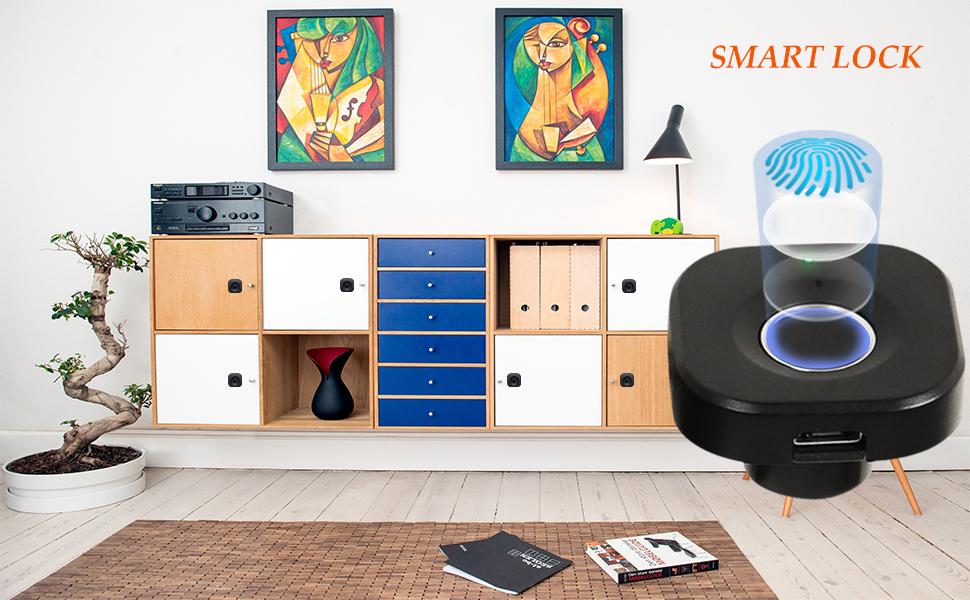
This image displays the main components of the SUMNEW F040 Fingerprint Cabinet Lock, including the fingerprint sensor panel and the lock mechanism, ready for installation.
This image highlights the core benefits of the SUMNEW F040 lock, such as its quick unlock speed, low power consumption, long standby time, and automatic locking feature, powered by 3 AAA batteries (not included).
2. Installation Guide
Before installing the lock, ensure you have recorded your fingerprints. The lock is in an initial state where any fingerprint can unlock it until personal fingerprints are enrolled.
Installation Steps:
- Step 1: Secure Part A. Fix Part A (the lock box) in the proper place on the cabinet side or upper edge of the drawer using two large silver screws.
- Step 2: Install Fingerprint Panel. Drill a 15 mm diameter round hole in the desired position on the outside board of the drawer/cabinet. Insert the fingerprint panel into this hole, ensuring the prompt lamp is facing upwards.
- Step 3: Connect Wiring. On the other end of the board, pass the wire through the metal gasket. Use two small yellow screws to fix the gasket and the fingerprint panel. Connect this line correctly to the lock box.
- Step 4: Secure Lock Box. Use two large silver screws to secure the lock box in place. The screw length should be chosen according to the board thickness.
- Step 5: Final Check. Verify that the distance is appropriate and the lock functions normally.

This image illustrates the various steps for installing the SUMNEW F040 Fingerprint Cabinet Lock, including securing the lock box, drilling for the fingerprint panel, and connecting the components. It shows different installation methods for various furniture types.
This official video from SumnewTech provides a comprehensive guide on how to install and use the Fingerprint Cabinet Lock, covering the physical setup and initial operation.
3. Operating Instructions
Fingerprint Enrollment:
The lock can store up to 20 unique fingerprints. To enroll a new fingerprint:
- Enter Setup Mode: Insert the needle (provided) into the setting hole on the fingerprint panel. Hold until the blue light appears, then release.
- Scan Fingerprint: Place the finger you wish to enroll on the sensor. The green light will flash. Lift and place the same finger five times from different angles. Each successful scan will be indicated by a green light.
- Confirmation: After five successful scans, a long green light (2 seconds) indicates successful enrollment. The lock will then return to normal operation mode.
- Multiple Fingerprints: To enroll additional fingerprints, repeat the steps above.
This official video from SumnewTech demonstrates the step-by-step process for enrolling new fingerprints into the standard version of the lock, ensuring proper setup for secure access.
Fingerprint Deletion:
To delete all enrolled fingerprints:
- Enter Deletion Mode: Insert the needle into the setting hole. Hold continuously until the blue light turns red (approximately 3 seconds).
- Confirmation: Release the needle when the red light appears. All fingerprints are now deleted, and the lock will revert to its initial state (any fingerprint can unlock).
Unlocking and Locking:
- Unlocking: Simply place an enrolled finger on the sensor. The lock will open in approximately 0.5 seconds.
- Automatic Locking: The lock features an auto-lock function. After unlocking, the lock tongue will automatically pop up after a short period to re-secure the furniture.
4. Maintenance
Battery Replacement:
The lock is powered by 3 AAA batteries (not included). When the battery is low, the lock will indicate this with a red light flicker prompt.
- To Replace: Open the battery compartment, remove old batteries, and insert new AAA batteries, ensuring correct polarity.
Emergency Power:
If the batteries run out completely and you cannot unlock the cabinet, you can use a power bank for emergency power.
- Emergency Unlock: Connect a Micro USB cable from a power bank to the emergency charging port on the fingerprint panel. This will provide temporary power to unlock the device.
5. Troubleshooting
Common Issues and Solutions:
- Issue: All fingerprints can unlock the device.
Reason: The lock is still in its original state, and no personal fingerprints have been enrolled.
Solution: Enroll your personal fingerprints correctly by following the "Fingerprint Enrollment" instructions in Section 3.
- Issue: Fingerprint identification is slow.
Reason: The fingerprint may not have been recorded clearly or completely during enrollment.
Solution: Re-enroll the same finger, ensuring to scan it from different angles to capture a more comprehensive print. Refer to "Fingerprint Enrollment" in Section 3.
- Issue: Lock is out of battery and cannot unlock.
Reason: Batteries are depleted.
Solution: Use a power bank to temporarily power the lock via the Micro USB port and unlock it. Then, replace the AAA batteries. Refer to "Emergency Power" in Section 4.
6. Product Specifications
| Feature | Detail |
|---|---|
| Brand | SUMNEW |
| Model Name | Fingerprint Cabinet Drawer |
| Part Number | F040 Fingerprint Cabinet Drawer Lock |
| Lock Type | Biometric |
| Special Feature | Auto-Lock, Fingerprint |
| Material | Acrylonitrile Butadiene Styrene |
| Color | Black |
| Item Dimensions (L x W x H) | 1.26 x 1.26 x 12.6 inches |
| Item Weight | 9.5 ounces (270 Grams) |
| Power Source | 3 AAA batteries (not included) |
| Fingerprint Capacity | Up to 20 fingerprints |
| Connectivity Protocol | Bluetooth (Note: This model is "Standard", Bluetooth variant is separate) |
| Included Components | Lock, panel, screws, USB key (for emergency power), user manual |

This image provides a detailed view of the lock's dimensions and various parts, including the indicator light, USB port, and the main lock body, aiding in proper installation and understanding of the product's physical attributes.
7. Warranty and Support
SUMNEW is committed to product quality and customer satisfaction. We provide high-quality after-sales service 24 hours a day.
For further assistance, please refer to the contact information provided in your product packaging or visit the official SUMNEW store online.
Online Store: Visit the SUMNEW Store