
Sunlux XL3610
SUNLUX XL3610 Square Code (2D) USB Handheld Wired Barcode Reader User Manual
Model: XL3610
Introduction
This manual provides comprehensive instructions for the setup, operation, and maintenance of your SUNLUX XL3610 Square Code (2D) USB Handheld Wired Barcode Reader. Please read this manual carefully before using the device to ensure proper functionality and to prevent damage.
Setup
Follow these steps to set up your SUNLUX XL3610 barcode reader:
- Unpack the Device: Carefully remove the barcode reader and its USB cable from the packaging.
- Connect to Computer: Insert the USB connector of the barcode reader's cable into an available USB port on your computer. The operating system will typically detect and install the necessary drivers automatically.
- Power On: The device is powered via the USB connection. Once connected, it should be ready for use.
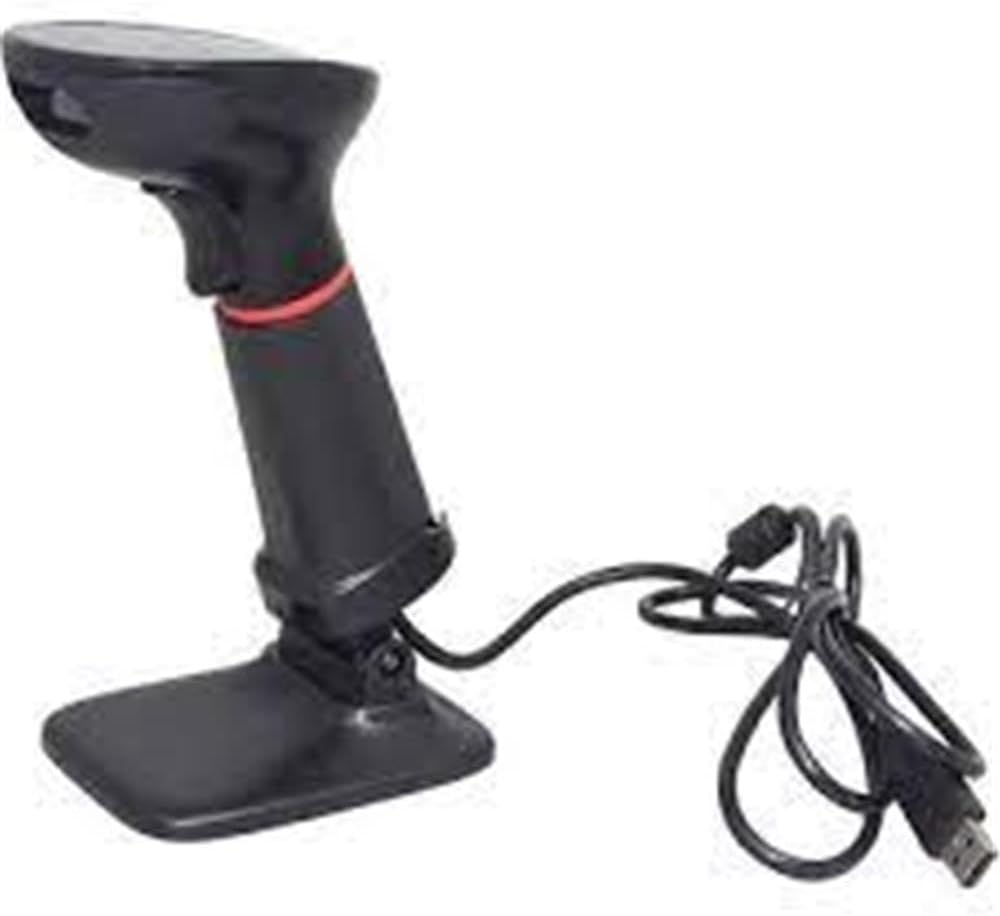
Image: The SUNLUX XL3610 barcode reader shown with its stand and connected USB cable, ready for setup.
Operating Instructions
The SUNLUX XL3610 is designed for easy and efficient barcode scanning. Here’s how to operate it:
- Scanning a Barcode:
Point the scanner's window at the barcode you wish to read. Ensure the entire barcode is within the scanner's field of view. Press the trigger button located on the handle. A successful scan will typically be indicated by an audible beep and/or a visual indicator (e.g., LED light). The scanned data will be transmitted to your computer as keyboard input.
- Supported Barcodes:
This device supports both 1D (linear) and 2D (matrix) barcodes, including QR codes, Data Matrix, PDF417, and standard 1D codes like EAN, UPC, Code 39, etc.
- Optimal Scanning Distance:
For best results, hold the scanner at an appropriate distance from the barcode, typically between 5 cm and 20 cm, depending on the barcode size and type.
Maintenance
Proper maintenance will extend the life of your barcode reader:
- Cleaning:
Use a soft, dry, lint-free cloth to clean the scanner's window and exterior. Do not use abrasive cleaners, solvents, or excessive moisture, as these can damage the device.
- Storage:
When not in use, store the scanner in a cool, dry place, away from direct sunlight and extreme temperatures. Avoid dropping or subjecting the device to strong impacts.
- Cable Care:
Do not bend or twist the USB cable excessively. Avoid placing heavy objects on the cable, which could cause damage.
Troubleshooting
If you encounter issues with your SUNLUX XL3610, refer to the following common problems and solutions:
| Problem | Possible Cause | Solution |
|---|---|---|
| Scanner not responding / No power | USB cable not properly connected or faulty USB port. | Ensure the USB cable is securely plugged into both the scanner and the computer. Try a different USB port. |
| Barcode not reading | Barcode damaged, poor print quality, incorrect scanning angle, or out of range. | Check the barcode for damage. Adjust the scanning angle and distance. Ensure the barcode type is supported. |
| Scanned data is incorrect or incomplete | Partial scan, software configuration issue. | Ensure the entire barcode is scanned. Check your application's input settings. |
If the problem persists after trying these solutions, please contact customer support.
Specifications
- Model: XL3610
- Type: Square Code (2D) USB Handheld Wired Barcode Reader
- Connectivity: USB Wired
- Supported Barcodes: 1D and 2D (e.g., QR Code, Data Matrix, PDF417, EAN, UPC, Code 39)
- Date First Available: 22 Jan. 2025
- ASIN: B08R29QYS7
- Manufacturer Reference: 850.10.10.0015
Warranty and Support
For information regarding warranty coverage, technical support, or service, please refer to the warranty card included with your product or visit the official Sunlux website. You may also contact your point of purchase for assistance.
Contact Information: Please refer to the packaging or the official Sunlux website for the most current contact details for customer support.
Related documentsXL3610

Ask a question about this manual
Ask about setup, troubleshooting, compatibility, parts, safety, or missing instructions. Manuals+ will review the question and use this page’s manual context to help answer it.