
1. Product Overview
The Uelkdef Lightning to USB Cable is an Apple MFi Certified charging and data syncing cable designed for a wide range of Apple devices. This cable ensures reliable and efficient power delivery and high-speed data transfer, built with durable and environmentally friendly materials for long-lasting performance.

Image 1.1: The Uelkdef Lightning to USB Cable alongside its retail packaging, showcasing the cable's design and the product box.
2. Key Features
- Apple MFi Certified: Ensures full compatibility and safe charging with Apple devices.
- Durable Construction: Made with environmentally friendly TPE materials and tested to withstand over 7000 bends, ensuring longevity.
- Fast Charging: Supports up to 2.4A for rapid charging of compatible devices.
- High-Speed Data Syncing: Achieves data transfer speeds of up to 480Mbps.
- Advanced Internal Structure: Features braided copper stratum with tinfoil to prevent interference and purity oxygen-free copper for optimal performance.
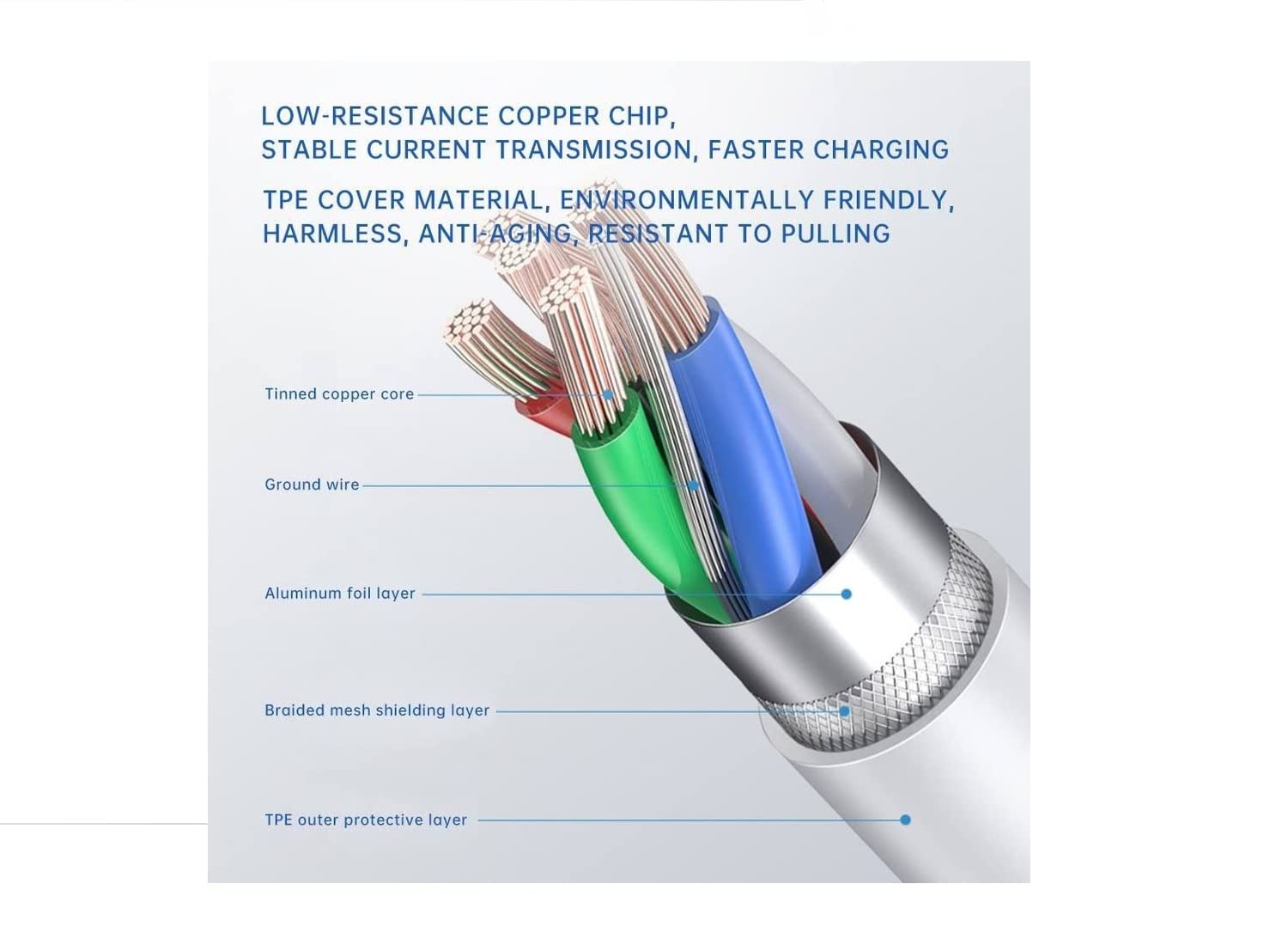
Image 2.1: A cross-section view illustrating the internal components of the cable, including tinned copper core, ground wire, aluminum foil layer, braided mesh shielding layer, and TPE outer protective layer.

Image 2.2: Visual representation of the cable's performance metrics: 2.4A safe high-speed charging, 480Mbps fast data transfer, and a bend lifespan exceeding 10,000 times.
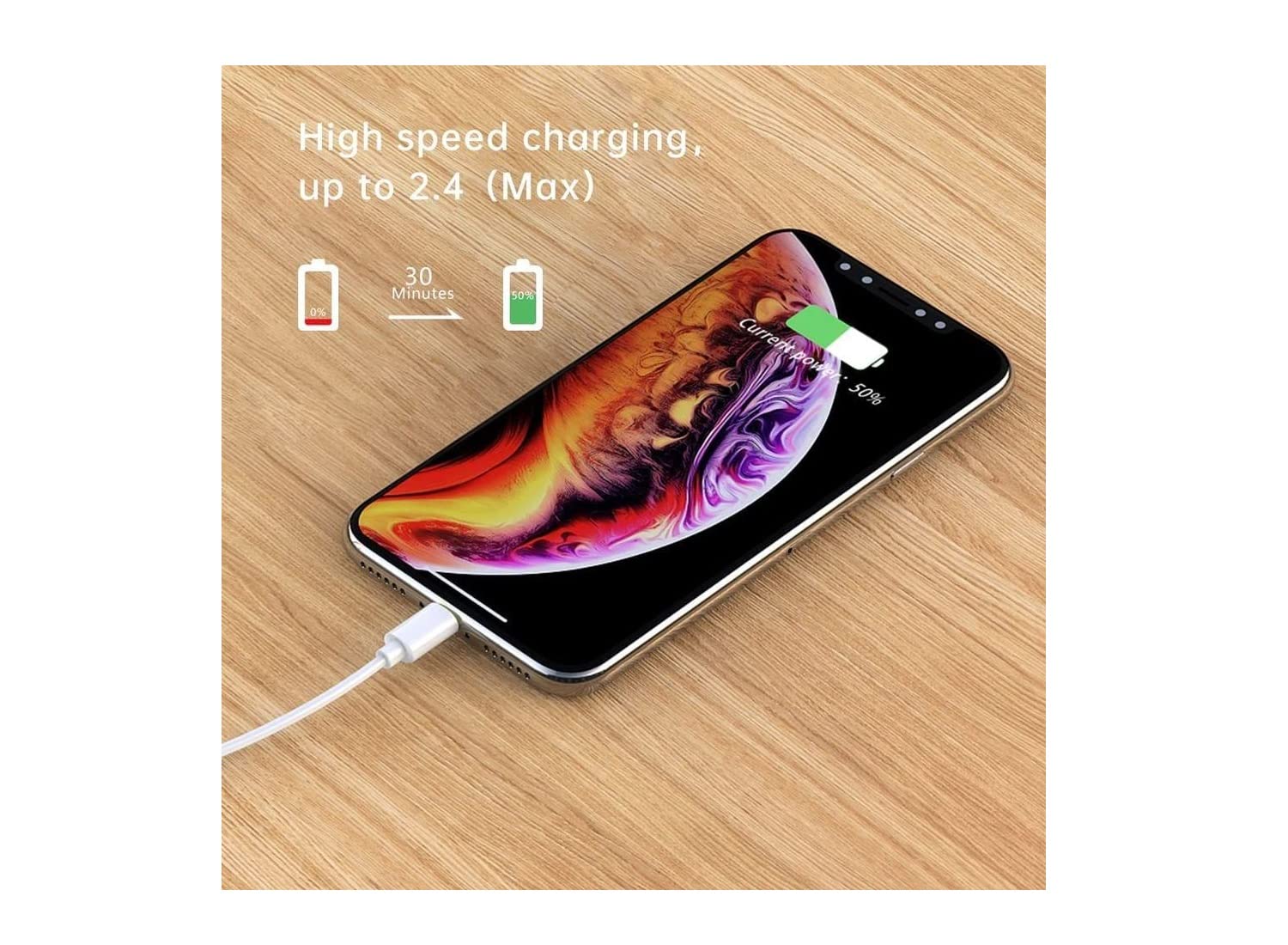
Image 2.3: An iPhone connected to the cable, demonstrating its high-speed charging capability, reaching 50% charge in approximately 30 minutes.
3. Setup Instructions
Setting up your Uelkdef Lightning to USB Cable is straightforward. Follow these steps to begin charging or syncing your device:
- Connect to Power Source: Insert the USB-A end of the cable into a compatible USB wall adapter, power bank, or computer USB port.
- Connect to Device: Insert the Lightning connector end of the cable into the charging port of your Apple iPhone, iPad, or iPod.
- Verify Connection: Ensure both ends are securely connected. Your device should indicate that it is charging or connected for data transfer.
4. Operating Instructions
4.1. Charging Your Device
Once connected as per the setup instructions, your Apple device will automatically begin charging. The cable supports fast charging for compatible devices when paired with an appropriate power adapter.
4.2. Data Syncing
To sync data between your Apple device and a computer:
- Connect the USB-A end of the cable to a USB port on your computer.
- Connect the Lightning end to your Apple device.
- Your computer should recognize the device. You can then use iTunes/Finder or other software to transfer files, back up your device, or update its software.

Image 4.1: The cable in various usage scenarios, including charging during gaming, while reading, and in an office environment, highlighting its versatility.
5. Compatible Devices
This Lightning to USB cable is designed for broad compatibility with Apple devices that feature a Lightning port.
5.1. Compatible Models
- iPhones: iPhone Xs Max, X, 8, 8 Plus, 7, 7 Plus, 6s Plus, 6s, 6 Plus, 6, 5s, 5c, 5
- iPads: iPad Pro, iPad Air, Air 2, iPad mini, mini 2, mini 4, iPad 4th gen
- iPods: iPod Touch 5th gen, iPod nano 7th gen
5.2. Non-Compatible Models
- iPhone 4/4S
- iPad 2/3
- iPod Nano 6
- iPod Touch 4 or earlier versions

Image 5.1: The Lightning cable shown with a range of compatible Apple devices, including iPhones and iPads, demonstrating its broad compatibility.
6. Product Specifications
| Brand | Uelkdef |
| Model Number | OEI* |
| Connector Type | USB 2.0 A type to Lightning (8 pin) |
| Cable Type | Lightning |
| Length | 2M / 6.6 feet |
| Diameter | 2.8mm |
| Color | White |
| Special Feature | Fast Charging, MFi Certified |
| Product Dimensions | 79.2 x 0.11 x 0.98 inches; 0.32 ounces |
7. Care and Maintenance
To ensure the longevity and optimal performance of your Uelkdef Lightning to USB Cable, please follow these maintenance guidelines:
- Avoid Extreme Bending: While durable, avoid sharp or excessive bends, especially near the connectors, to prevent internal wire damage.
- Store Properly: When not in use, coil the cable loosely. Avoid tightly wrapping or knotting the cable.
- Keep Clean: Periodically wipe the cable and connectors with a dry, soft cloth to remove dust and debris. Do not use liquid cleaners.
- Protect Connectors: Avoid pulling the cable by the cord itself; always grasp the connector head when plugging or unplugging.
- Avoid Moisture: Keep the cable away from water and high humidity to prevent damage to electronic components.
8. Troubleshooting
If you encounter issues with your Uelkdef Lightning to USB Cable, try the following troubleshooting steps:
- Device Not Charging:
- Ensure both ends of the cable are securely plugged into the power source and your device.
- Try a different USB wall adapter or computer USB port.
- Test the cable with a different Apple device, if available, to determine if the issue is with the cable or the device.
- Clean the Lightning port on your device and the cable's connector for any lint or debris.
- Slow Charging:
- Ensure you are using a power adapter that provides sufficient output (e.g., 2.4A for faster charging).
- Avoid using the device heavily while charging.
- Check for background apps consuming power.
- Data Syncing Issues:
- Ensure your computer's operating system and iTunes/Finder are up to date.
- Try connecting to a different USB port on your computer.
- Restart both your device and computer.
9. Safety Information
Please read and follow these safety precautions to prevent damage to the cable, your device, or personal injury:
- Do not expose the cable to extreme temperatures, direct sunlight, or open flames.
- Do not attempt to disassemble or modify the cable.
- Keep out of reach of children and pets.
- If the cable appears damaged (frayed, bent pins, exposed wires), discontinue use immediately.
- Use only with compatible and certified power adapters.
10. Warranty and Support
Specific warranty details for the Uelkdef Lightning to USB Cable are not provided in the product information. For warranty claims or technical support, please contact the seller or manufacturer directly through the platform where the product was purchased.
For general inquiries or further assistance, please refer to the contact information provided by Uelkdef or your retailer.