Product Overview
The KuWFi 4G LTE Modem Router (Model: KF-CPF903-CP2-US) is designed to provide high-speed internet access for home and office environments. This portable device supports 4G LTE Cat4 wireless connectivity and features dual external antennas for enhanced signal reception. It allows multiple users (10-20 simultaneously) to connect and share the network, making it suitable for various applications including outdoor video camera projects.

Figure 1: Front view of the KuWFi 4G LTE Modem Router, showing its compact design, dual external antennas, and a small LCD display.
Package Contents
- KuWFi 4G LTE Modem Router (Model: KF-CPF903-CP2-US)
- 12V 1A Power Supply
- User Manual (this document)
- (Optional, depending on specific package) Ethernet Cable
Setup Instructions
1. SIM Card Installation
The router requires a compatible SIM card for 4G LTE internet access. Ensure the SIM card is activated by your service provider and has its PIN code disabled before insertion, if applicable. The router is compatible with SIM cards in US/CA/MX, supporting 4G FDD-LTE bands B2/B4/B5/B12/B17.
- Locate the SIM card slot on the router.
- Carefully insert the activated SIM card into the slot until it clicks into place.

Figure 2: Illustration of the SIM card slot on the router, indicating where to insert the SIM card.
2. Power Connection
Connect the provided 12V 1A power supply to the router's power input port and then plug it into a standard electrical outlet. The router will power on automatically.
3. Initial Network Connection
You can connect to the router via Wi-Fi or Ethernet.
- Wi-Fi Connection:
- On your device (computer, smartphone, tablet), search for available Wi-Fi networks.
- Locate the network named "4G-CPE-XXXX" (where XXXX is a unique identifier for your device).
- Connect to this network using the default password: 1234567890.
- Ethernet Connection:
- Connect one end of an Ethernet cable to the LAN port on the router.
- Connect the other end of the Ethernet cable to your computer's Ethernet port.

Figure 3: Two primary methods for connecting to the router: via Ethernet cable or by inserting a SIM card.
Operating Instructions
1. Accessing the Web User Interface (WebUI)
To configure advanced settings, you need to access the router's WebUI.
- Ensure your device is connected to the router (via Wi-Fi or Ethernet).
- Open a web browser (e.g., Chrome, Firefox, Edge).
- In the address bar, type 192.168.199.1 and press Enter.
- At the login prompt, enter the default credentials:
- Username: admin
- Password: admin
- Click "Login" to access the router's settings page.
Video 1: A demonstration of how to access the router's WebUI, connect to Wi-Fi, and configure APN settings.
2. APN Settings (If Internet Access Fails)
The router should automatically recognize your SIM card's APN. If you cannot connect to the internet, you may need to manually configure the APN settings.
- In the WebUI, navigate to Network Settings > APN.
- If the current APN is incorrect or blank, click "Add New".
- Enter the correct APN information provided by your mobile network operator.
- Click "Apply" to save the settings.
3. Wi-Fi Settings
You can customize your Wi-Fi network name (SSID) and password.
- In the WebUI, navigate to Wi-Fi Settings > Basic Settings.
- Modify the "Network Name (SSID)" and "Pass Phrase" fields as desired.
- Ensure "Security Mode" is set to WPA2-PSK(AES) for optimal security.
- Click "Apply" to save changes.
4. LCD Display Information
The 1.44-inch LCD display provides real-time status information.
| Numbered | Item | Numbered | Item |
|---|---|---|---|
| 1 | Signal Strength | 6 | SSID |
| 2 | Operator | 7 | Password |
| 3 | Ethernet Network Status | 8 | Operator (repeated) |
| 4 | WiFi Users | 9 | Traffic Statistics |
| 5 | Received Messages | 10 | Current Connection Time |

Figure 4: Detailed view of the LCD display and its corresponding information points.
Maintenance
1. Cleaning
Regularly clean the exterior of the router with a soft, dry cloth. Avoid using liquid cleaners or abrasive materials.
2. Firmware Updates
Periodically check the manufacturer's website for firmware updates. Firmware updates can improve performance, add new features, and fix bugs. Instructions for updating firmware are typically provided with the update file.
- In the WebUI, navigate to Update.
- Follow the on-screen instructions to browse for and apply the firmware update file.
3. Resetting to Factory Settings
If you experience persistent issues or wish to clear all custom settings, you can perform a factory reset.
- Software Reset: In the WebUI, navigate to Device Settings > Reset and click the "Reset" button.
- Hardware Reset: With the router powered on, use a paperclip or similar pointed object to press and hold the "RST" button (usually located near the SIM slot or on the back) for approximately 5-10 seconds until the lights flash. Release the button and wait for the router to restart.
Troubleshooting
- No Internet Connection:
- Ensure the SIM card is correctly inserted and activated.
- Verify that the SIM card's PIN code is disabled.
- Manually configure APN settings via the WebUI if automatic recognition fails.
- Check if your SIM card supports roaming service if you are in a different region.
- Confirm that your SIM card is not an IoT card or a Virtual SIM card, as these may not be supported.
- In rural areas with unstable signals, try managing the settings page to lock to a 4G or 3G network to improve stability.
- Ensure your account with the service provider is active and not suspended due to data usage limits.
- Weak Wi-Fi Signal:
- Ensure the external antennas are properly attached and oriented.
- Position the router in a central location, away from obstructions and other electronic devices that may cause interference.
- The router features dual external antennas for stronger signal and stable performance.

Figure 5: The router's external dual antennas enhance both 2.4G WiFi and 4G LTE signal strength.
- Slow Internet Speed:
- Check the signal strength indicator on the router's LCD or WebUI.
- Ensure you are within the coverage area of your mobile network operator.
- Limit the number of connected devices (supports 10-20 users simultaneously).
- The router supports up to 150 Mbps download and 50 Mbps upload speeds on 4G LTE, and 300 Mbps wireless transmission speed.

Figure 6: The router provides ultra-speed connectivity, supporting CAT4 for faster performance.
- Router Not Responding:
- Perform a restart of the device via the WebUI (Device Settings > Restart) or by unplugging and re-plugging the power adapter.
Specifications
| Feature | Detail |
|---|---|
| Model Name | CPF903-CP2 |
| Item Model Number | KF-CPF903-CP2-US |
| Brand | KuWFi |
| Connectivity Technology | Wireless Wi-Fi |
| Wireless Communication Standard | 802.11b, 802.11g, 802.11n |
| 4G FDD-LTE Frequency Bands | B2/B4/B5/B12/B17 (US/CA/MX compatible) |
| Max Download Speed | Up to 150 Mbps |
| Max Upload Speed | Up to 50 Mbps |
| Wireless Transmission Speed | 300 Mbps |
| Antennas | 2 x High Performance External Antennas |
| LAN Ports | 1 |
| SIM Card Slot | 1 |
| Power Supply | 12V 1A |
| Operating Temperature | -10 ℃ ~ 40 ℃ |
| Storage Temperature | -40 ℃ ~ 70 ℃ |
| Special Feature | WPS |
| Max Station Number (Connected Users) | 10-20 |
| LCD Display | 1.44 inch, displays signal strength, operator, Wi-Fi users, traffic, etc. |
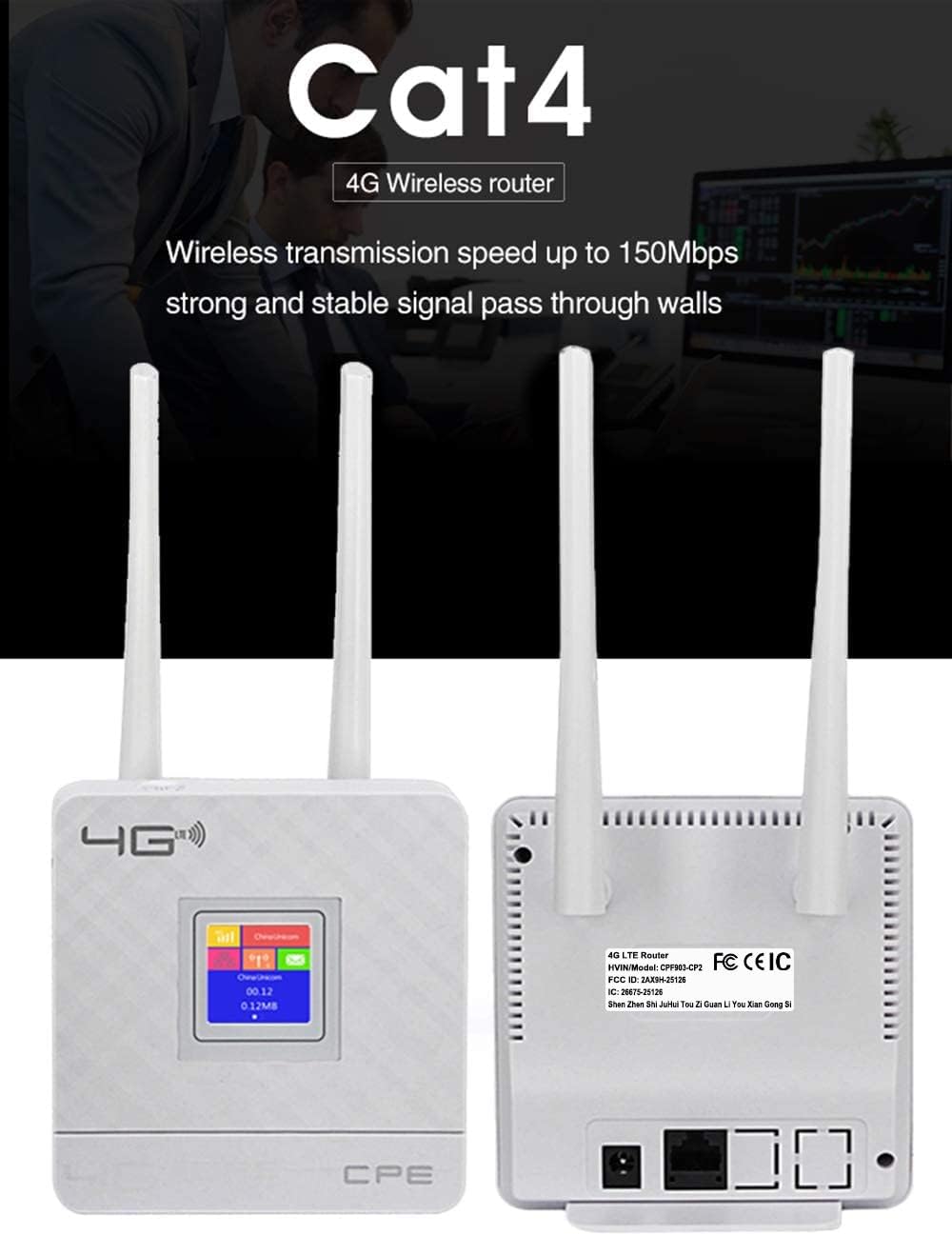
Figure 7: Front and rear views of the router, showing ports and antennas.
Warranty and Support
KuWFi provides a 3-year quality service warranty for this product. For technical support or warranty claims, please contact KuWFi customer service through their official channels or the retailer where the product was purchased.
Additional resources and FAQs can be found on the KuWFi Store page.


