
Introduction
The Xtrike Me GM-512 is a high-performance wired optical gaming mouse designed for precision and comfort. It features 7 programmable buttons, adjustable DPI settings, and an RGB backlight with transition effects. This manual provides essential information for setting up, operating, maintaining, and troubleshooting your GM-512 gaming mouse.

Figure 1: Xtrike Me GM-512 Gaming Mouse. This image displays the top-front view of the mouse, highlighting its ergonomic design, honeycomb pattern, and vibrant RGB lighting.
Key Features:
- 7 Programmable Buttons: Customize your gaming experience with versatile button assignments.
- Adjustable DPI: Cycle through 800/1600/2400/3200/4800/6400 DPI settings for optimal precision.
- RGB Backlight: Enjoy dynamic lighting effects with various transition schemes.
- Optical Sensor: Reliable and accurate tracking for gaming and general use.
- Durable Design: Built for longevity with a switching capacity of up to 3 million clicks.
- USB 2.0 Interface: Standard wired connectivity for stable performance.
Setup
Follow these steps to set up your Xtrike Me GM-512 gaming mouse:
- Unpack the Mouse: Carefully remove the GM-512 mouse from its packaging.
- Connect to Computer: Locate an available USB port on your computer. Insert the USB connector of the GM-512 mouse firmly into the USB port.
- Driver Installation: The mouse is plug-and-play. Your operating system (Windows 7 or newer) will automatically detect and install the necessary drivers. No additional software installation is typically required for basic functionality.
- Test Functionality: Once connected, the RGB backlight will illuminate. Move the mouse and click the buttons to ensure it is functioning correctly.
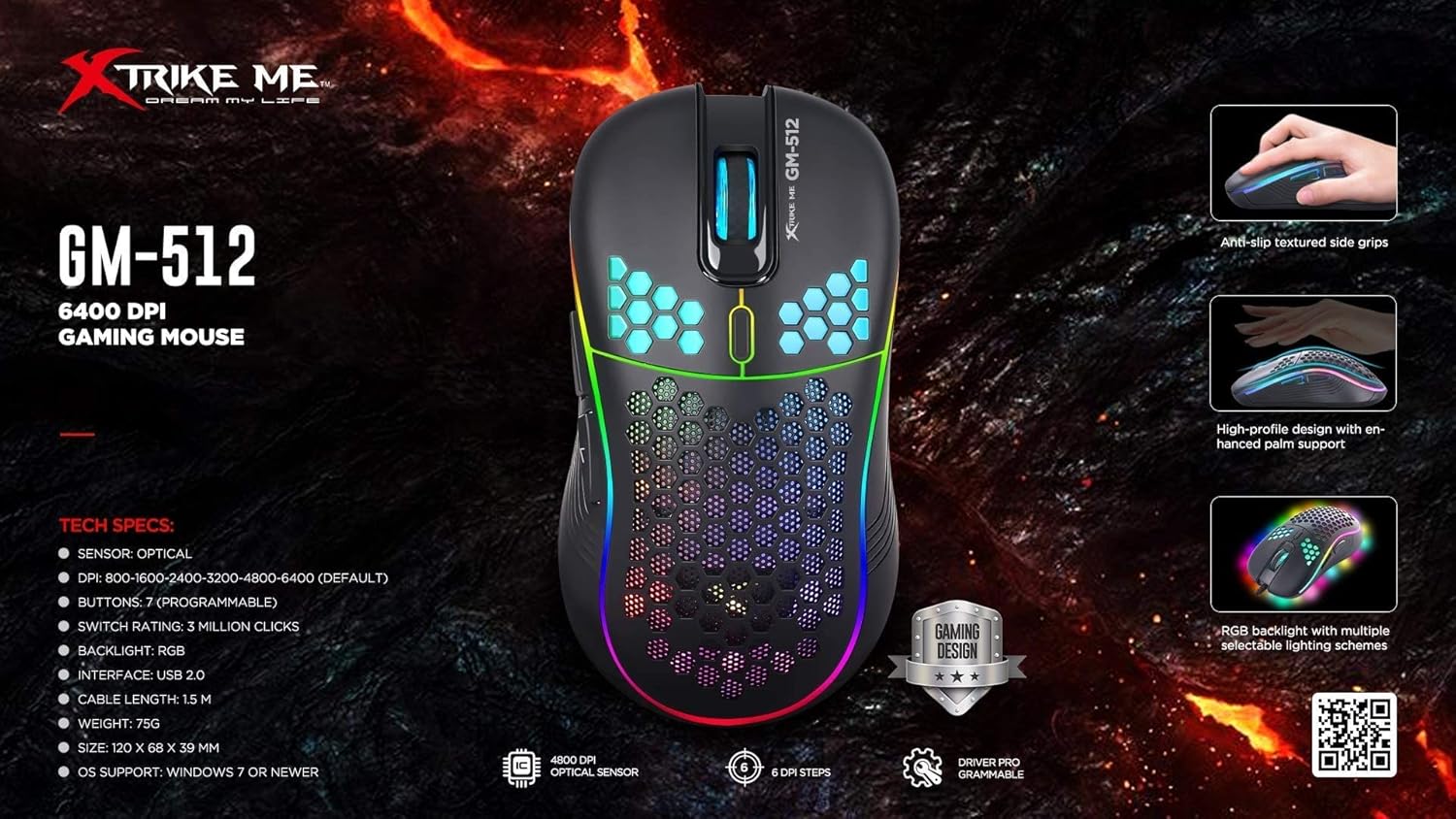
Figure 2: GM-512 Gaming Mouse Feature Overview. This image highlights key technical specifications and design elements such as anti-slip textured side grips, high-profile design for palm support, and RGB backlight schemes.
Operating Instructions
The Xtrike Me GM-512 mouse features 7 buttons and adjustable DPI settings for enhanced control.
Button Functions:
- Left Click Button: Standard primary click function.
- Right Click Button: Standard secondary click function.
- Scroll Wheel (Middle Button): Scroll up/down, and click for middle button function.
- DPI Switch Button: Located below the scroll wheel. Press to cycle through DPI settings.
- Forward Button (Side): Typically used for navigating forward in web browsers or file explorers.
- Backward Button (Side): Typically used for navigating backward in web browsers or file explorers.
- Seventh Button: Function may vary or be programmable depending on software.

Figure 3: Side View of GM-512 Mouse. This image shows the left side of the mouse, highlighting the two side buttons (forward and backward) and the RGB light strip along the edge.
DPI Adjustment:
The DPI (Dots Per Inch) button allows you to instantly change the mouse's sensitivity. Press the DPI button to cycle through the following settings:
- 800 DPI
- 1600 DPI
- 2400 DPI
- 3200 DPI
- 4800 DPI
- 6400 DPI (Default)
Each DPI setting may be indicated by a change in the RGB lighting color or pattern, allowing for quick visual confirmation.

Figure 4: Top View of GM-512 Mouse. This image provides a top-down angled view, clearly showing the left and right click buttons, the scroll wheel, and the DPI switch button located just behind the scroll wheel.
RGB Backlight:
The mouse features an RGB backlight with transition effects. The lighting is automatic and typically cycles through various colors and patterns. Specific controls for the RGB lighting may be available through dedicated software if provided by the manufacturer (check the Xtrike Me website for driver downloads).
Maintenance
Proper maintenance ensures the longevity and optimal performance of your GM-512 gaming mouse.
- Cleaning: Use a soft, dry cloth to wipe the surface of the mouse. For stubborn dirt, slightly dampen the cloth with water or a mild cleaning solution. Avoid using harsh chemicals or abrasive materials.
- Sensor Cleaning: Occasionally, dust or debris may accumulate around the optical sensor on the underside of the mouse. Use a cotton swab or compressed air to gently clean the sensor area.
- Cable Care: Avoid sharply bending or twisting the USB cable. Store the mouse in a way that prevents the cable from being crimped or damaged.
- Storage: When not in use, store the mouse in a clean, dry environment away from extreme temperatures.
Troubleshooting
If you encounter issues with your Xtrike Me GM-512 mouse, refer to the following troubleshooting tips:
| Problem | Possible Solution |
|---|---|
| Mouse is not responding. |
|
| Cursor movement is erratic or jumpy. |
|
| RGB backlight is not working. |
|
| Buttons are not responding or double-clicking. |
|
Specifications
Detailed technical specifications for the Xtrike Me GM-512 Gaming Mouse:
| Feature | Detail |
|---|---|
| Model Number | GM-512 (Item Model Number: XDXT512) |
| Sensor Type | Optical |
| DPI Settings | 800 / 1600 / 2400 / 3200 / 4800 / 6400 |
| Number of Buttons | 7 |
| Switching Capacity | Up to 3 million clicks |
| Backlight | RGB with transition effect |
| Connectivity | Wired USB 2.0 |
| Compatible Operating Systems | Windows 7 and newer |
| Compatible Devices | Personal Computer, Laptop |
| Hand Orientation | Right |
| Product Dimensions | 20 x 13.6 x 5.6 cm |
| Item Weight | 75 Grams |
| Power Source | Corded Electric (USB powered) |
| Batteries Required | No |
Warranty and Support
For warranty information and technical support, please refer to the documentation included with your purchase or visit the official Xtrike Me website. Keep your proof of purchase for any warranty claims.