
1. Introduction
This manual provides detailed instructions for the setup, operation, maintenance, and troubleshooting of your HP S4000 Wireless Optical Mouse. Please read this manual thoroughly before using the device to ensure optimal performance and longevity.
2. Setup
2.1 Unpacking
Carefully remove the HP S4000 Wireless Optical Mouse and its accessories from the packaging. Ensure all components are present:
- HP S4000 Wireless Optical Mouse
- USB Receiver
- AAA Batteries (2x)

Image: The HP S4000 Wireless Mouse packaging box, showing the mouse and its key features.
2.2 Battery Installation
- Locate the battery compartment on the underside of the mouse.
- Slide open the battery compartment cover.
- Insert two AAA batteries, ensuring correct polarity (+/-).
- Close the battery compartment cover securely.
2.3 USB Receiver Connection
- The USB receiver is typically stored inside the battery compartment for convenience. Remove it.
- Plug the USB receiver into an available USB port on your computer (PC or Laptop).
- Your operating system should automatically detect and install the necessary drivers. This may take a few moments.
2.4 Powering On
Locate the On/Off switch on the underside of the mouse. Slide the switch to the "On" position. The mouse is now ready for use.
3. Operation
3.1 Basic Functions
- Left Click: Primary selection and activation.
- Right Click: Opens contextual menus.
- Scroll Wheel: Scrolls content vertically. Can also be clicked for middle-click functionality (application dependent).

Image: Top view of the HP S4000 Wireless Mouse, highlighting the left/right buttons, scroll wheel, and DPI button.
3.2 DPI Adjustment
The HP S4000 mouse features a DPI (Dots Per Inch) adjustment button located just below the scroll wheel. Press this button to cycle through different sensitivity settings (800, 1200, 1600 DPI). This allows you to adjust cursor speed to your preference or task requirements.
3.3 Power Management
To conserve battery life, always switch the mouse to the "Off" position when not in use for extended periods. The mouse also features an automatic sleep mode to save power during short periods of inactivity.
4. Maintenance
4.1 Cleaning
To clean your mouse, use a soft, dry, lint-free cloth. For stubborn dirt, slightly dampen the cloth with water or a mild cleaning solution. Avoid using harsh chemicals, abrasives, or spraying liquids directly onto the mouse.
4.2 Battery Replacement
When the mouse performance degrades or stops responding, it is likely time to replace the batteries. Follow the battery installation steps (Section 2.2) to replace the two AAA batteries. Dispose of old batteries responsibly according to local regulations.
5. Troubleshooting
| Problem | Possible Cause | Solution |
|---|---|---|
| Mouse not responding | Low or dead batteries; USB receiver not connected; Mouse is off. | Replace batteries; Ensure USB receiver is firmly plugged in; Turn the mouse On. |
| Erratic cursor movement | Dirty optical sensor; Interference; Mouse used on unsuitable surface. | Clean the optical sensor; Move mouse closer to receiver; Use on a mouse pad or opaque surface. |
| Lag or delay | Distance from receiver; Interference from other wireless devices. | Reduce distance between mouse and receiver; Minimize other 2.4Ghz devices nearby. |
| DPI button not changing sensitivity | Temporary software glitch. | Restart your computer or unplug/replug the USB receiver. |
6. Specifications
- Model: S4000
- Connectivity: 2.4Ghz Wireless (USB Receiver)
- Movement Detection: Optical
- DPI Settings: 800 / 1200 / 1600 DPI
- Buttons: 4 (Left, Right, Scroll Wheel Click, DPI Button)
- Hand Orientation: Ambidextrous
- Dimensions: 11.5 x 6.1 x 3.2 cm (approx. 4.5 x 2.4 x 1.3 inches)
- Weight: 65 g (approx. 2.3 oz)
- Batteries: 2 x AAA (included)
- Compatible Operating Systems: Windows XP, Linux (and newer versions of Windows/macOS typically compatible)
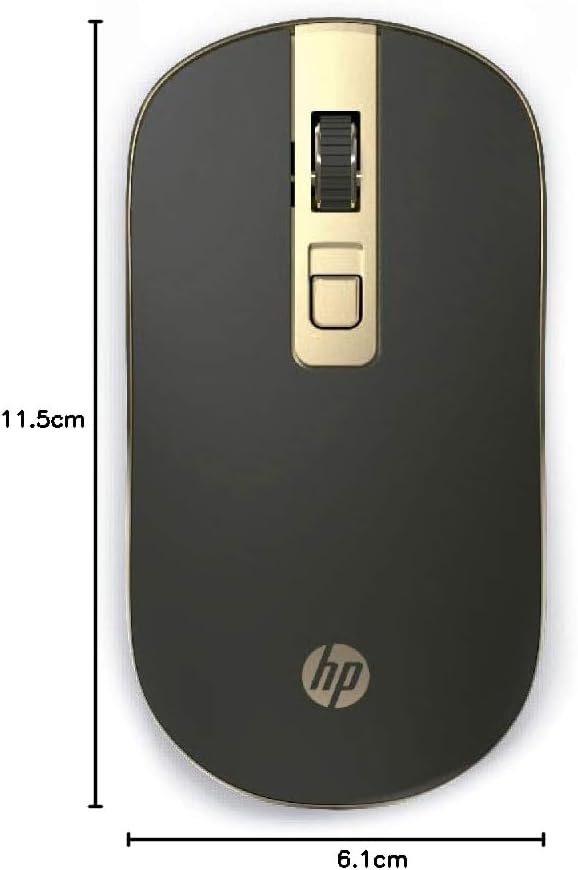
Image: The HP S4000 Wireless Mouse displaying its approximate length (11.5 cm) and width (6.1 cm).
7. Warranty and Support
7.1 Warranty Information
HP products are covered by a limited warranty. The specific terms and duration of your warranty may vary by region and product. Please refer to the warranty card included with your purchase or visit the official HP website for detailed warranty information.
7.2 Customer Support
For technical assistance, product inquiries, or warranty claims, please contact HP Customer Support. You can find contact information, support resources, and FAQs on the official HP website: