
Introduction
This manual provides detailed instructions for the Hesley Smart Kitchen Scale, model KIT-001J. This versatile digital scale offers three primary functions: a nutrition scale, a coffee scale, and a general digital kitchen scale. It integrates with a mobile application to enhance its capabilities, allowing for precise measurements and nutritional tracking.
Please read this manual thoroughly before using the device to ensure proper operation and to maximize its features.
Package Contents
Verify that all items are present in the package:
- 1x Hesley Smart Kitchen Scale (Model KIT-001J)
- 2x AAA Batteries
- 1x User Manual
Key Features
- Multi-Functionality: Operates as a nutrition scale, coffee scale, and digital kitchen scale.
- App Control: Connects to a mobile application for extended features and data tracking.
- Accurate Measurements: Equipped with a high-sensitivity platinum sensor for precise weighing.
- Multiple Units: Supports various measuring units including lb:oz, fl'oz, ml, g, and kg.
- Nutritional Calculator: The companion app calculates nutritional data such as fat, protein, and calories.
- Coffee Timer: Integrated timer function for precise coffee brewing.
- Automatic Shut-off: Conserves battery power.
- Tare Function: Allows for zeroing out the weight of containers.
- Low Battery Indicator: Notifies when batteries need replacement.
- Overload Indicator: Warns if the maximum weight capacity is exceeded.
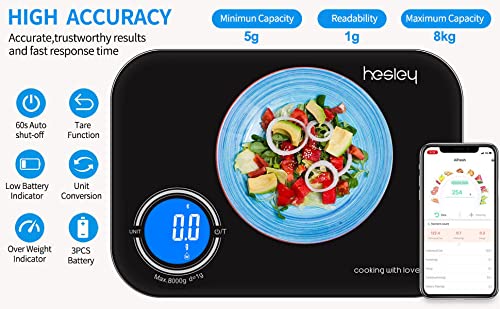
Image Description: This image displays the Hesley Smart Kitchen Scale with callouts for its high accuracy features. It shows a minimum capacity of 5g, readability of 1g, and a maximum capacity of 8kg. Other features highlighted include 60s auto shut-off, tare function, low battery indicator, unit conversion, and overload indicator. The scale is shown with a plate of salad on it, and a smartphone displaying the AiFresh app interface.
Setup
1. Battery Installation
- Locate the battery compartment on the underside of the scale.
- Open the battery compartment cover.
- Insert the two AAA batteries, ensuring correct polarity (+/-).
- Close the battery compartment cover securely.
2. App Download and Connection
The Hesley Smart Kitchen Scale connects with the AiFresh mobile application for advanced features. Follow these steps to download and connect the app:
- Scan the QR code provided in the manual or on the product packaging, or search for "AiFresh" in your device's app store.
- Download and install the AiFresh application.
- Ensure Bluetooth is enabled on your smartphone.
- Open the AiFresh app and follow the on-screen instructions to pair your Hesley Smart Kitchen Scale.

Image Description: This image shows the Hesley Smart Kitchen Scale next to a smartphone displaying the AiFresh app interface. Below the scale, two QR codes are visible, labeled "Google Play Store" and "Apple APP Store," indicating where to download the AiFresh application. A text description explains that the app provides in-depth food weight analyses and can be downloaded from the App Store or Google Play Store.
Download the AiFresh app here: Google Play Store | Apple App Store
Operating Instructions
1. Basic Weighing
- Power On: Place the scale on a flat, stable surface. Press the "ON/OFF/TARE" button to turn on the scale. The display will show "0.0".
- Place Container (Optional): If using a container, place it on the center of the scale.
- Tare Function: If a container is used, press the "ON/OFF/TARE" button again to zero out the weight of the container. The display will reset to "0.0".
- Add Item: Place the item to be weighed into the container or directly onto the scale. The weight will be displayed.
- Power Off: Press and hold the "ON/OFF/TARE" button to turn off the scale, or it will automatically shut off after 60 seconds of inactivity.

Image Description: This image illustrates the four-step process for basic weighing and using the tare function on the Hesley Smart Kitchen Scale. Step 1 shows powering on the scale. Step 2 shows placing an empty container on the scale. Step 3 shows pressing the "Tare/on" button to reset the reading to zero. Step 4 shows placing food into the container for weighing.
2. Unit Conversion
To switch between weighing units (lb:oz, fl'oz, ml, g, kg), press the "UNIT" button. The display will cycle through the available units.

Image Description: This image shows the Hesley Smart Kitchen Scale with five circular icons above it, representing the different units it can measure: pounds (lb), ounces (oz), kilograms (kg), grams (g), and milliliters (ml). This visually demonstrates the scale's multi-unit capability.
3. Nutritional Tracking with App
When connected to the AiFresh app, the scale can provide detailed nutritional information:
- Ensure the scale is paired with the AiFresh app via Bluetooth.
- Weigh your food item on the scale as described in "Basic Weighing".
- In the AiFresh app, select the food item from the database or manually input it.
- The app will automatically calculate and display nutritional data such as calories, protein, fat, carbohydrates, and other nutrients based on the weighed amount.

Image Description: This image displays the Hesley Smart Kitchen Scale alongside a smartphone running the AiFresh app. The app screen shows a "Nutrient count" section with various nutritional elements like calories, protein, fat, carbohydrates, and dietary fiber, along with icons representing 24 different food data points such as Vitamin A, C, E, Magnesium, Iron, Zinc, Copper, Potassium, Sodium, and Cholesterol. This illustrates the app's capability to track comprehensive nutritional information.
4. Coffee Scale with Timer
The scale features a dedicated function for coffee brewing:
- Place your coffee brewing equipment (e.g., pour-over dripper, mug) on the scale.
- Use the Tare function to zero out the weight.
- Add coffee grounds and note the weight.
- Start the timer function within the AiFresh app or manually if available on the scale (refer to app instructions for timer usage).
- Pour water and monitor the weight and time for precise brewing.
Maintenance
- Cleaning: Wipe the scale surface with a soft, damp cloth. Do not immerse the scale in water or use abrasive cleaners.
- Storage: Store the scale in a cool, dry place. Avoid placing heavy objects on the scale when not in use.
- Battery Replacement: Replace batteries when the low battery indicator appears on the display.
Troubleshooting
| Problem | Possible Cause | Solution |
|---|---|---|
| Scale does not turn on. | Dead or incorrectly installed batteries. | Check battery polarity. Replace batteries if necessary. |
| Inaccurate readings. | Unstable surface; scale overloaded; calibration issue. | Place scale on a flat, stable surface. Ensure weight does not exceed maximum capacity (8kg). Re-tare the scale before weighing. |
| "Lo" or "Err" displayed. | Low battery or overload. | Replace batteries. Remove excess weight from the scale. |
| App not connecting to scale. | Bluetooth off; app not open; scale not powered on. | Ensure Bluetooth is enabled on your device. Open the AiFresh app. Turn on the scale. Try re-pairing the device in the app settings. |
Specifications
| Feature | Detail |
|---|---|
| Brand | Hesley |
| Model Number | KIT-001J |
| Color | Black |
| Recommended Uses | Food, Kitchen |
| Special Features | Smart, Timer |
| Display Type | LED |
| Material | Plastic |
| Item Weight | 430 Grams |
| Weigh Scale Type | Counter Scale |
| Power Source | Battery Powered |
| Batteries Required | 2 AAA batteries (included) |
| Maximum Capacity | 8000g (8kg) |
| Readability | 1g |
Warranty and Support
For warranty information or technical support, please refer to the contact details provided with your purchase documentation or visit the official Hesley website. Keep your purchase receipt as proof of purchase for warranty claims.