
1. Introduction
The Cubilux Lightning to 3.5mm TRS Microphone Adapter with Headphone Jack is designed to connect external 3.5mm TRS lavalier microphones and 3.5mm headphones to compatible Apple devices with a Lightning port. This adapter facilitates audio input from a microphone and simultaneous audio output for monitoring, enhancing your recording and communication experience.
2. Compatibility
This adapter is compatible with a wide range of Apple devices featuring a Lightning connector:
- iPhone Models: iPhone 14 Pro Max, 14 Pro, 14 Plus, 14, 13 Pro Max, 13 Pro, 13, 13 Mini, 12 Pro Max, 12 Pro, 12, 12 Mini, SE 2, 11 Pro Max, 11, Xr, Xs Max, Xs, X, 8/8 Plus, 7/7 Plus, SE 1, 6S/6S Plus, 6/6 Plus, 5S, 5C, 5, 4S, 4.
- iPad Models: iPad 10.2” 9th/8th/7th Gen, 9.7” 6th/5th/4th Gen, iPad Air 10.5” 3rd Gen, 9.7” 2nd/1st Gen, iPad Mini 7.9” 5th/4th/3rd/2nd/1st Gen.
Important Note:
This adapter is NOT compatible with iPhone 15 or newer models, iPad Pro (2018 and later), iPad Air (2020 and later), iPad Mini (2021 and later), and iPad (2022 and later). These newer devices utilize USB-C connectors, which are different from the Lightning connector used by this adapter. Please verify your device's connector type before use.

Figure 1: Visual comparison of Lightning and USB-C interfaces for device compatibility.
3. Setup & Connection
- Connect the Adapter: Plug the Lightning connector of the Cubilux adapter firmly into the Lightning port of your compatible iPhone or iPad.
- Connect Microphone: Insert your 3.5mm TRS lavalier microphone into the microphone input jack on the adapter (typically marked with a microphone icon).
- Connect Headphones: Plug your 3.5mm headphones into the headphone output jack on the adapter (typically marked with a headphone icon) for audio monitoring.
- TRRS Microphone (if applicable): If your microphone has a TRRS (4-pole) plug, you must use the included TRRS to TRS adapter to ensure proper functionality with the Cubilux adapter.
- PC/Gaming Headsets: For PC or gaming headsets with separate 3.5mm audio and microphone plugs, connect the microphone plug to the adapter's microphone jack and the audio plug to the adapter's headphone jack.

Figure 2: Connecting a TRS lavalier microphone and headphones to the adapter. Note the use of the included adapter for TRRS microphones.

Figure 3: Connecting a PC/Gaming Headset with separate audio and microphone plugs to the adapter.
4. Operating Instructions
Once the adapter and your audio devices are connected:
- Device Recognition: Your Apple device should automatically recognize the Cubilux adapter. No additional drivers are typically required.
- Recording Audio: Open a professional recording application on your device (e.g., GarageBand on iOS). Select the external microphone as your input source within the app settings, if necessary.
- Real-Time Monitoring: Utilize the connected headphones to monitor your audio input and playback in real-time. This allows you to adjust your microphone placement, recording levels, and performance for optimal results.

Figure 4: Monitoring real-time playback using an iPad with GarageBand and the Cubilux adapter.
5. Important Notes & Restrictions
To ensure proper functionality and avoid damage, please observe the following:
- This adapter is designed exclusively for 3.5mm TRS lavalier microphones.
- It is NOT compatible with:
- Line-level audio input.
- Condenser microphones.
- Dynamic microphones.
- XLR microphones.
- Any microphone that requires phantom power supply.
- Microphone recording through this adapter does not support stereo input; it is designed for mono microphone input.

Figure 5: Visual guide to compatible and incompatible microphone types.
6. Troubleshooting
If you encounter issues, refer to the table below for common problems and solutions:
| Issue | Possible Reason | Solution/Note |
|---|---|---|
| No sound recorded | Usage is Line-In (Not Supported) | This adapter does not support line-level audio input. Ensure you are using a compatible microphone. |
| No sound recorded | Usage is Powered Microphone (Not Supported) | The adapter does not provide phantom power. Use a microphone that does not require external power. |
| No sound recorded | Usage is TRRS (4-Pole) Microphone | Use the included TRRS to TRS converter to adapt your microphone for compatibility. |
| Low recording volume | Low Sensitivity Microphone (e.g., < -42dB) | The adapter has a gain limit. Consider using a microphone with higher sensitivity for better recording levels. |

Figure 6: Troubleshooting guide for common adapter issues.
7. Specifications
| Feature | Detail |
|---|---|
| Brand | Cubilux |
| Model Number | E02-06GY |
| Connector Type | Lightning |
| Number of Ports | 2 (1x 3.5mm Microphone, 1x 3.5mm Headphone) |
| Compatible Devices | Cellular Phones, Headphones, PC |
| Specific Uses | Microphone, Monitor |
| Color | Grey |
| Finish | Metallic |
| Item Weight | 11 Grams |
| Power Plug Type | No Plug |
| MFi Certified | Yes |
| Cable Material | Oxygen-Free Copper (OFC) wire, Braided Cable |
| Case Material | Aluminum Alloy |
| UPC | 722367131615 |
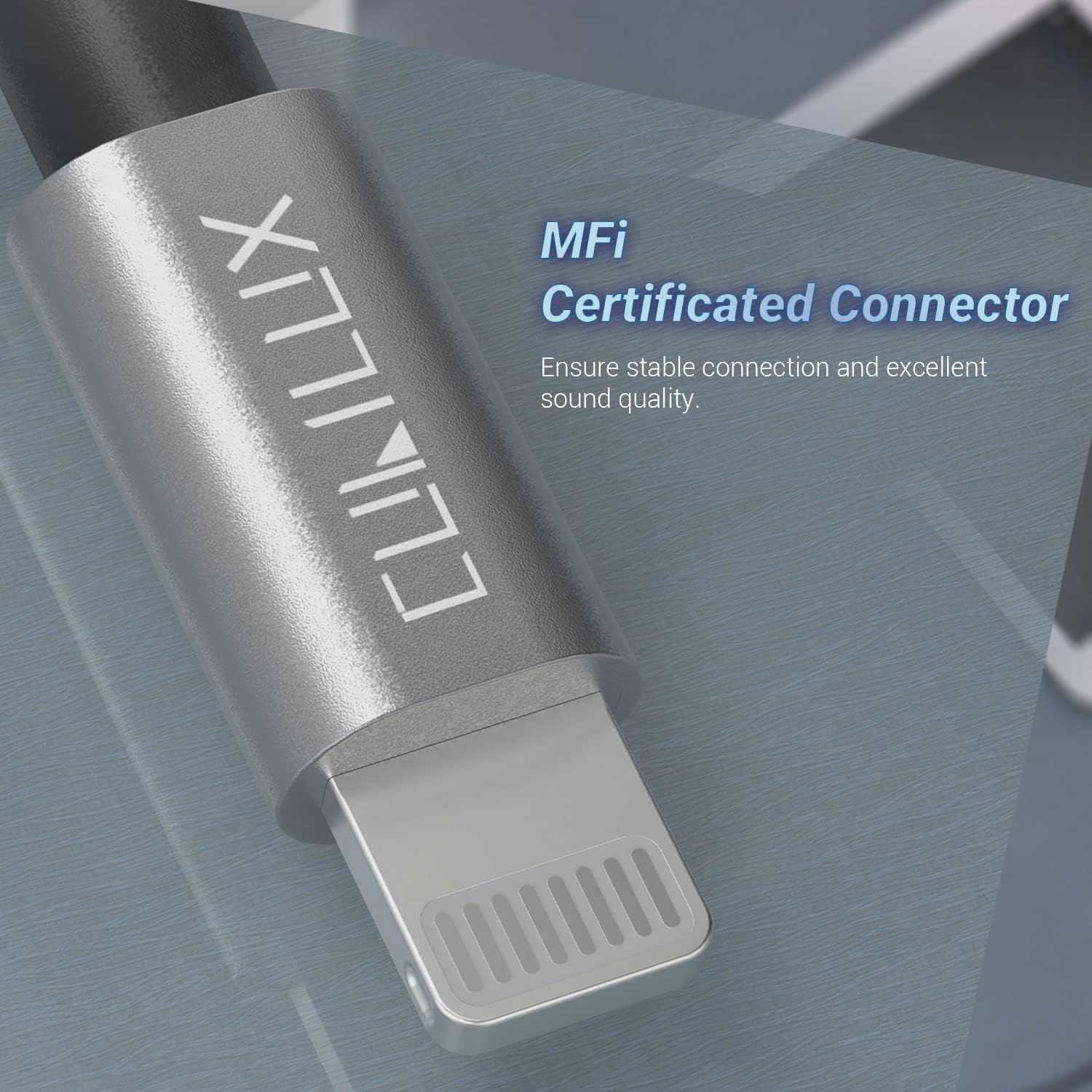
Figure 7: MFi Certificated Lightning Connector and durable braided cable.
8. Maintenance
To ensure the longevity and optimal performance of your Cubilux adapter:
- Keep the adapter clean and free from dust and debris. Use a soft, dry cloth for cleaning.
- Avoid exposing the adapter to extreme temperatures, moisture, or direct sunlight.
- Do not bend or twist the cable excessively, as this can damage the internal wiring.
- Store the adapter in a safe place when not in use to prevent physical damage.
9. Warranty & Support
This product comes with a Limited Warranty. For specific warranty terms, conditions, and duration, please refer to the documentation included with your purchase or visit the official Cubilux website.
For technical support, troubleshooting assistance, or any inquiries regarding your Cubilux product, please contact Cubilux customer service through their official website or the retailer where the product was purchased.