
HP 320K
HP 320K Keyboard User Manual
Model: 320K | Brand: HP
1. Introduction
Thank you for choosing the HP 320K Keyboard. This wired keyboard is designed for comfort and ease of use, providing a reliable input solution for your computing needs. This manual provides essential information on setting up, operating, maintaining, and troubleshooting your keyboard to ensure optimal performance.
2. Safety Information
- Do not expose the keyboard to liquids or excessive moisture.
- Avoid dropping or subjecting the keyboard to strong impacts.
- Do not attempt to disassemble or repair the keyboard yourself. Refer to qualified service personnel.
- Keep the keyboard away from extreme temperatures.
3. Package Contents
Please check the package for the following items:
- HP 320K Keyboard
- USB Cable (integrated)
- User Manual (this document)
4. Product Overview
The HP 320K Keyboard features a standard 104-key layout with quiet keys and an adjustable slope for ergonomic comfort. It connects via a USB cable, ensuring a stable and reliable connection.

Figure 4.1: Top-down view of the HP 320K Keyboard, showing the full QWERTY layout, numeric keypad, and function keys, with the integrated USB cable.
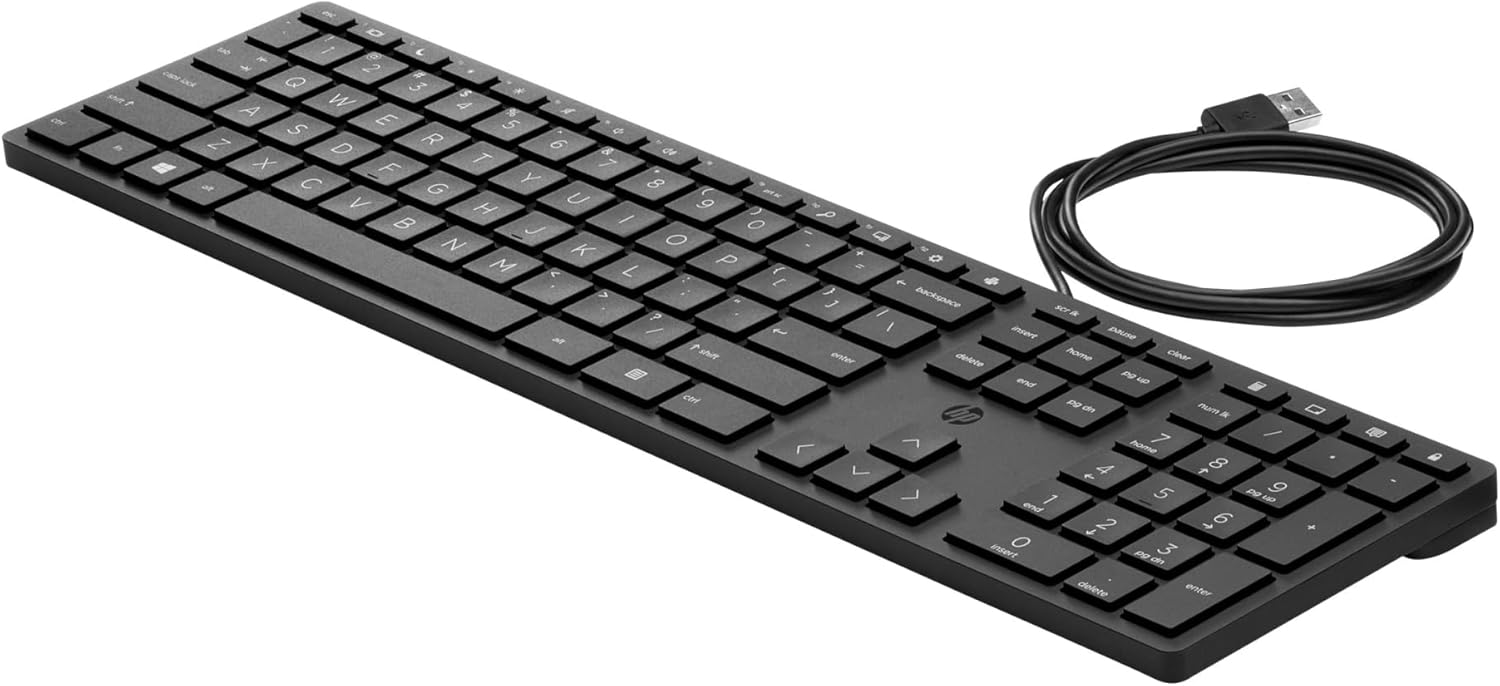
Figure 4.2: Angled view of the HP 320K Keyboard, showcasing its ergonomic design and the integrated USB cable.
5. Setup
Setting up your HP 320K Keyboard is straightforward:
- Unpack the keyboard from its packaging.
- Locate an available USB port on your computer (PC or Mac compatible).
- Plug the USB connector of the keyboard into the USB port.
- Your operating system should automatically detect and install the necessary drivers. No additional software is typically required.
- The keyboard is now ready for use.
6. Operating
The HP 320K Keyboard functions as a standard full-size keyboard. Key features include:
- Standard QWERTY Layout: Familiar key arrangement for typing.
- Numeric Keypad: Dedicated number pad for data entry.
- Function Keys (F1-F12): Perform various system functions, often in combination with the 'Fn' key.
- Adjustable Slope: Flip out the feet on the underside of the keyboard to adjust the typing angle for comfort.
7. Maintenance
To keep your HP 320K Keyboard in optimal condition:
- Cleaning: Use a soft, lint-free cloth slightly dampened with water or a mild cleaning solution to wipe the surface of the keyboard. Avoid harsh chemicals.
- Dust Removal: Use compressed air to remove dust and debris from between the keys.
- Storage: When not in use, store the keyboard in a clean, dry environment.
8. Troubleshooting
Keyboard Not Responding
- Check USB Connection: Ensure the USB cable is securely plugged into a working USB port on your computer. Try a different USB port.
- Restart Computer: Sometimes a simple restart can resolve connectivity issues.
- Test on Another Computer: If possible, connect the keyboard to another computer to determine if the issue is with the keyboard or your computer's setup.
- Driver Check (Windows): Go to Device Manager, expand 'Keyboards', and check for any error indicators. You might try 'Update driver' or 'Uninstall device' and then restart your computer to reinstall.
Keys Not Working
- Clean Keys: Ensure no debris is lodged under the non-functioning keys. Use compressed air.
- Software Interference: Check if any recently installed software or system settings are interfering with keyboard input.
9. Specifications
| Feature | Detail |
|---|---|
| Brand | HP |
| Model Series | 320K Keyboard |
| Item Model Number | 320K |
| Connectivity Technology | USB (Wired) |
| Keyboard Description | Standard Wired Keyboard with Quiet Keys and Adjustable Slope |
| Number of Keys | 104 |
| Compatible Devices | Mac, PC (with available USB port) |
| Operating System Compatibility | Windows 10 (and compatible OS versions) |
| Item Weight | 1.26 pounds |
| Product Dimensions (LxWxH) | 17.5 x 5.8 x 1 inches |
| Power Source | USB Power |
| Special Feature | Mechanical, Wear Resistant |
10. Warranty and Support
For warranty information and technical support, please refer to the official HP website or contact HP customer service. Keep your purchase receipt as proof of purchase for warranty claims.
HP Support Website: www.hp.com/support