
1. Product Overview
The EarMen TR-Amp is a high-performance portable USB Digital-to-Analog Converter (DAC), preamplifier, and headphone amplifier. It is designed to deliver superior audio quality from various digital sources, supporting high-resolution audio formats including PCM, DoP, DXD, DSD64/128, and MQA. Its compact design makes it suitable for both desktop and portable use.

Figure 1: Top view of the EarMen TR-Amp, showcasing the brand logo and sleek red finish.
2. Setup and Connections
2.1 Package Contents
- EarMen TR-Amp Unit
- USB-C to USB-C Cable (for data and charging)
- User Manual (this document)
Note: A USB power adapter for charging is not included. Use a standard 5V USB charger.
2.2 Charging the TR-Amp
The TR-Amp features a built-in rechargeable Lithium Polymer battery. Before first use, fully charge the device.
- Connect the supplied USB-C cable to the "CHRG" USB-C port on the rear of the TR-Amp.
- Connect the other end of the USB-C cable to a 5V USB power adapter or a powered USB port on a computer.
- The LED indicator on the front panel will illuminate during charging. It will change color or turn off when charging is complete (refer to LED indicator section for details).
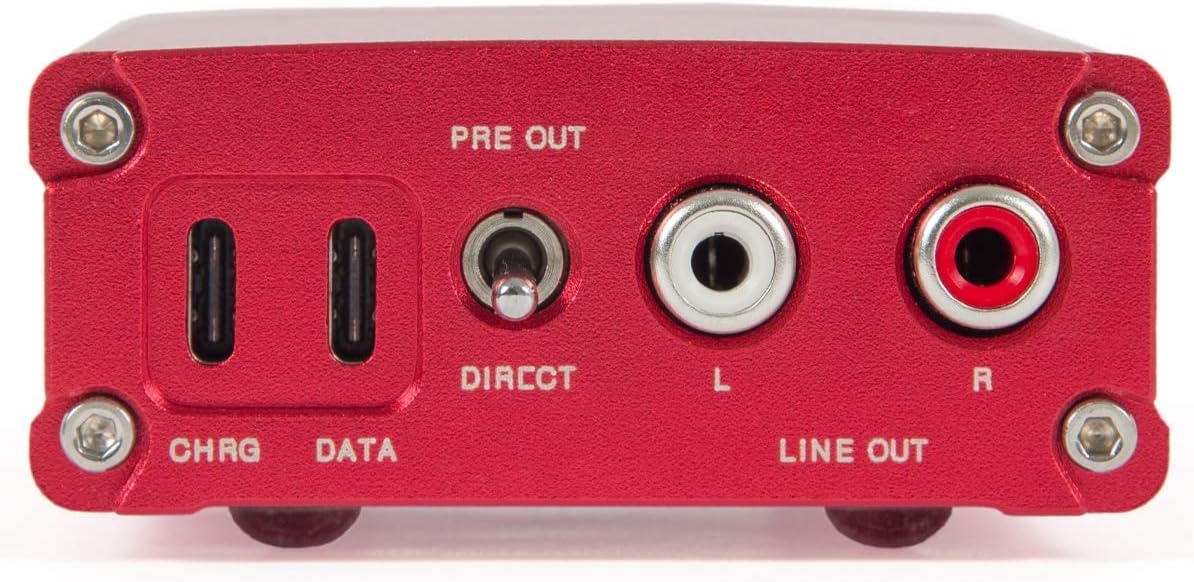
Figure 2: Rear panel of the TR-Amp, showing the "CHRG" (charging) and "DATA" (data transfer) USB-C ports, along with Line Out connections.
A full charge typically provides several hours of playback, depending on usage and volume levels. The device does not have a dedicated charge status indicator beyond the low charge warning, so monitor charging time.
2.3 Connecting to a Source Device
The TR-Amp is compatible with iPhones, Android devices, MacOS, and Windows computers.
- Connect the supplied USB-C cable to the "DATA" USB-C port on the rear of the TR-Amp.
- Connect the other end of the USB-C cable to your source device (e.g., smartphone, tablet, computer).
- Ensure your source device's audio output is set to the TR-Amp. For Windows, you may need to install specific drivers (available on the EarMen website). MacOS and Linux typically do not require additional drivers.

Figure 3: The TR-Amp connected via USB-C to a smartphone, illustrating its portable use with digital audio sources.
For optimal performance, use high-quality USB-C to USB-C cables. If your device uses a different port (e.g., USB-A, Lightning), use a compatible adapter or cable.
3. Operation
3.1 Power On/Off and Volume Control
The TR-Amp is powered on and off using the volume knob located on the front panel.
- To power on: Rotate the volume knob clockwise until you hear a click. The LED indicator will light up.
- To power off: Rotate the volume knob counter-clockwise until you hear a click and the LED indicator turns off.
- Volume adjustment: Once powered on, rotate the knob clockwise to increase volume and counter-clockwise to decrease volume. Start with a low volume setting before playing audio.

Figure 4: Front panel of the TR-Amp, showing the 3.5mm and 6.3mm headphone outputs, and the combined power/volume knob.
3.2 Headphone Output
The TR-Amp provides two headphone outputs:
- 3.5mm (1/8 inch) Headphone Jack: For standard headphones and in-ear monitors.
- 6.3mm (1/4 inch) Headphone Jack: For larger, audiophile-grade headphones.
Connect your headphones to the appropriate jack. The TR-Amp's powerful amplifier can drive a wide range of headphones.
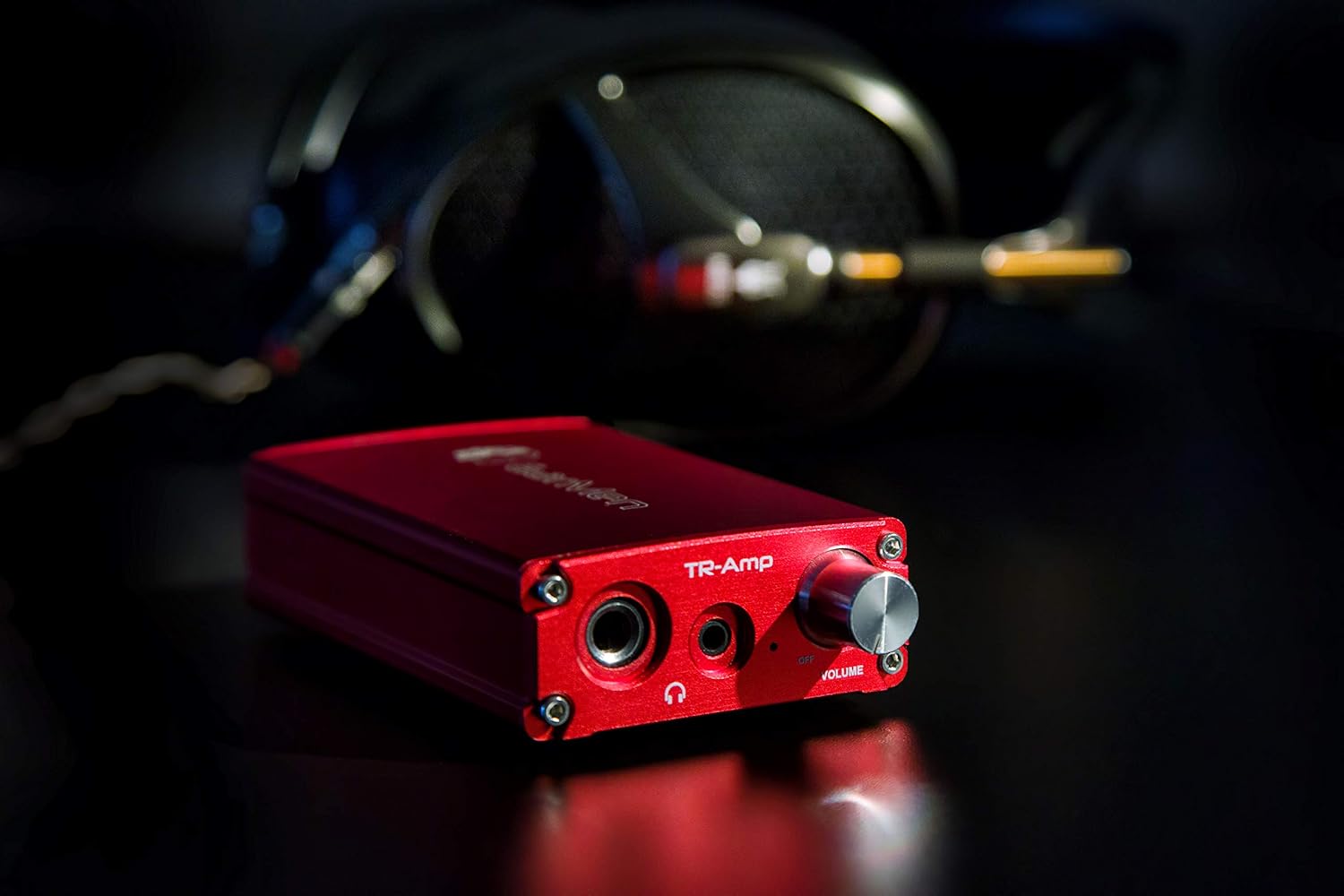
Figure 5: The TR-Amp positioned with headphones in the background, illustrating its primary function as a headphone amplifier.
3.3 Line Out Functionality
The rear panel features RCA Line Out connections for connecting the TR-Amp to an external amplifier or powered speakers. There are two modes:
- Direct Mode: Provides a fixed, unattenuated line-level output (2.1V). This mode bypasses the volume control of the TR-Amp and is ideal when connecting to a preamplifier or integrated amplifier with its own volume control.
- Preout Mode: Provides a variable line-level output (up to 3.4V) controlled by the TR-Amp's volume knob. This mode is suitable for connecting directly to a power amplifier or powered speakers.
Use the toggle switch labeled "DIRECT" on the rear panel to select between Direct and Preout modes. Ensure the TR-Amp's volume is set appropriately when using Preout mode to avoid sudden loud sounds.
3.4 MQA Playback
The TR-Amp features an integrated hardware Master Quality Authenticated (MQA) renderer. When playing MQA audio files, the TR-Amp will automatically unfold the extra information from the signal, providing a high-resolution audio experience. The LED indicator will change color to signify MQA playback (refer to LED indicator section for details).
4. Maintenance and Care
- Cleaning: Use a soft, dry cloth to clean the exterior of the TR-Amp. Avoid using harsh chemicals, solvents, or abrasive materials.
- Storage: Store the device in a cool, dry place away from direct sunlight and extreme temperatures.
- Battery Care: To prolong battery life, avoid fully discharging the battery frequently. If storing for an extended period, charge the battery to approximately 50% and recharge every few months.
- Handling: Handle the TR-Amp with care. Avoid dropping it or subjecting it to strong impacts.
5. Troubleshooting
5.1 No Sound Output
- Ensure the TR-Amp is powered on and the volume is turned up.
- Verify that your headphones or external amplifier are properly connected.
- Check the USB data connection to your source device.
- Confirm that the TR-Amp is selected as the audio output device on your computer or smartphone.
- If using Line Out, ensure the correct mode (Direct/Preout) is selected and the connected amplifier is powered on and set to the correct input.
5.2 Device Not Recognized by Computer/Smartphone
- Ensure the USB cable is connected to the "DATA" port on the TR-Amp.
- Try a different USB-C cable or USB port on your source device.
- Restart your computer or smartphone.
- For Windows users, download and install the latest drivers from the EarMen official website.
5.3 Charging Issues
- Ensure the USB cable is connected to the "CHRG" port on the TR-Amp.
- Verify that the USB power adapter or computer USB port is providing power.
- Try a different USB-C cable or power adapter.
- If the device has been completely discharged for a long time, it may take a few minutes for the charging indicator to appear.
5.4 Poor Audio Quality / Distortion
- Check the source audio file quality.
- Ensure all cables are securely connected.
- Reduce the volume level on both the TR-Amp and your source device to prevent clipping.
- Test with different headphones or speakers to rule out external equipment issues.
6. Technical Specifications
| Input | USB-C |
| Headphone Output | 3.5mm and 6.3mm |
| Headphone Amp THD+N | <0.005% |
| Headphone Amp SNR | >114dB |
| Headphone Amp Power Output | 400mW@2.5V into 16Ω, 350mW@3.4V into 32Ω |
| Line Out Direct Mode THD+N | <0.005% |
| Line Out Direct Mode SNR | >114dB |
| Line Out Direct Mode Output | 2.1V |
| Line Out Preout Mode THD+N | <0.007% |
| Line Out Preout Mode SNR | >114dB |
| Line Out Preout Mode Output | 3.4V |
| Audio Formats Supported | PCM 32bit/384kHz, DoP, DXD 384/352.8kHz, DSD64/128, MQA 384kHz |
| Battery | 3700mAh Lithium Polymer |
| Dimensions (L x W x H) | 5.08" x 2.6" x 1.18" (129mm x 66mm x 30mm approx.) |
| Weight | 8.5 ounces (241g approx.) |
| DAC Chip | ES9038Q2M SABRE 32 Reference DAC |
| Headphone Amp Chip | TPA6120 |
7. Warranty and Support
7.1 Warranty Information
For detailed warranty terms and conditions, please refer to the official EarMen website or contact your authorized dealer. Keep your proof of purchase for warranty claims.
7.2 Customer Support
If you encounter any issues not covered in this manual or require further assistance, please contact EarMen customer support through their official website. Provide your product model and a detailed description of the issue for efficient support.
Official EarMen Website: www.earmen.com
