
Introduction
This manual provides comprehensive instructions for the Vivitar Podcast and Social Media Microphone MIC918. This high-quality condenser microphone is designed for clear audio capture for various applications, including podcasting, live streaming, gaming, voice-overs, and vocal recording. It features a simple plug-and-play USB connection, integrated volume control, and a stable tripod stand for optimal positioning.
Safety Information
- Do not expose the microphone to water or excessive moisture.
- Avoid extreme temperatures or direct sunlight.
- Do not attempt to disassemble or modify the microphone. This will void the warranty.
- Keep the microphone away from strong magnetic fields.
- Use only a soft, dry cloth for cleaning.
Product Overview
Package Contents
- Vivitar MIC918 Microphone Unit
- Tripod Stand
- Integrated USB Connection Cable
Microphone Components
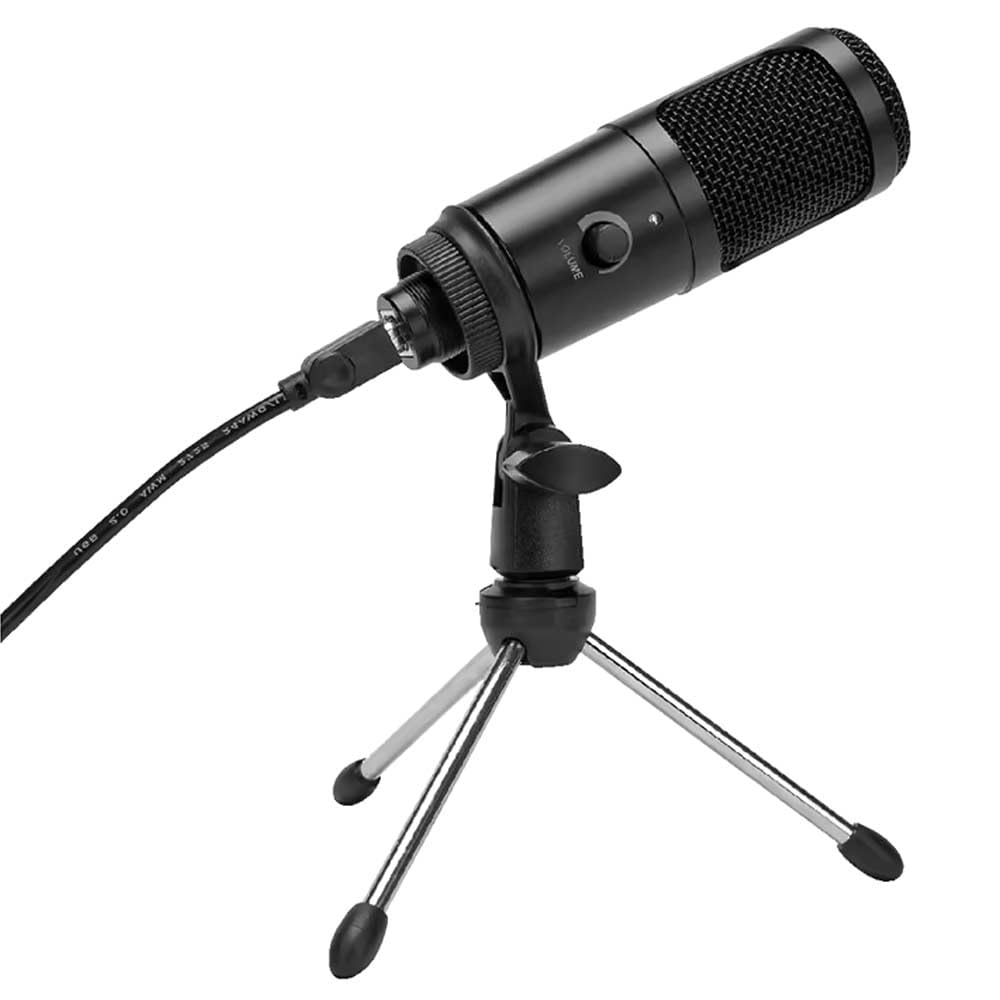
Figure 1: Vivitar MIC918 Microphone unit attached to its tripod stand, showing the integrated USB cable.

Figure 2: Side view of the Vivitar MIC918 Microphone, highlighting the volume control knob and the Vivitar brand logo.
The microphone unit features a durable metal construction. The front side includes a volume control knob for easy audio level adjustments. The microphone is designed with a unidirectional polar pattern to focus on sound directly in front of it, reducing background noise.
Setup
Connecting the Microphone
- Assemble the Stand: If not already assembled, unfold the tripod stand and ensure it is stable on a flat surface. Securely attach the microphone unit to the stand's mounting point. The rotating shaft ring allows for angle adjustment.
- Connect to Device: Plug the integrated USB cable from the microphone into an available USB port on your computer, laptop, or compatible gaming console.
- Plug and Play: The Vivitar MIC918 is a plug-and-play device. Your operating system (Windows, macOS, etc.) should automatically detect and install the necessary drivers. No additional software installation is typically required.
- Select as Input Device: After connecting, navigate to your device's sound settings or the audio settings within your recording/streaming software. Select the "Vivitar MIC918" or similar USB audio device as your primary input (microphone) device.
Operating
Adjusting Volume
The microphone features a built-in volume control knob located on its side (refer to Figure 2). Rotate this knob clockwise to increase the microphone's input sensitivity (volume) and counter-clockwise to decrease it. Adjust this to achieve the desired recording level without distortion.
Positioning the Microphone
For optimal audio capture, position the microphone directly in front of the sound source (e.g., your mouth for speaking or singing). The tilting tripod stand allows you to adjust the microphone's angle to best suit your needs. Due to its unidirectional polar pattern, the microphone is most sensitive to sounds coming from the front and less sensitive to sounds from the sides or rear, helping to minimize ambient noise.
Maintenance
- Cleaning: Use a soft, dry, lint-free cloth to wipe the microphone's exterior. Do not use liquid cleaners, aerosols, or solvents.
- Storage: When not in use, store the microphone in a clean, dry place, away from dust and extreme temperatures.
- Handling: Handle the microphone with care. Avoid dropping it or subjecting it to strong impacts.
Troubleshooting
| Problem | Possible Cause | Solution |
|---|---|---|
| No sound output from microphone. | Microphone not properly connected. Incorrect input device selected. Microphone volume too low. | Ensure USB cable is securely plugged into both the microphone and the device. Verify that "Vivitar MIC918" is selected as the input device in your system's sound settings or recording software. Increase the volume using the knob on the microphone and check system input levels. |
| Poor sound quality (e.g., muffled, too quiet, background noise). | Incorrect microphone positioning. High ambient noise. Input level too high or too low. | Position the microphone closer to the sound source and ensure it's facing directly towards it. Record in a quieter environment. Adjust the microphone's volume knob and system input levels to an optimal range, avoiding clipping or being too faint. |
| Microphone not recognized by computer. | Faulty USB port or cable. System driver issue. | Try connecting the microphone to a different USB port on your computer. Restart your computer. If the issue persists, check your operating system's device manager for any driver conflicts or updates. |
Specifications
| Feature | Specification |
|---|---|
| Brand | Vivitar |
| Model Number | MIC918 |
| Connectivity | USB (Plug and Play) |
| Microphone Type | Condenser |
| Polar Pattern | Unidirectional |
| Signal-to-Noise Ratio | 78 dB |
| Enclosure Material | Metal |
| Item Weight | 0.95 Pounds (approx. 0.43 kg) |
| Item Dimensions (L x W x H) | 8.86 x 5.36 x 2.49 inches (approx. 22.5 x 13.6 x 6.3 cm) |
| Power Source | Corded Electric (via USB) |
| Compatible Devices | Computers, Laptops, Gaming Consoles |
Warranty Information
The Vivitar Podcast and Social Media Microphone MIC918 comes with a 3-Year USA Warranty. For specific terms, conditions, and to register your product, please refer to the official Vivitar website or contact their customer support directly. Keep your proof of purchase for warranty claims.
Customer Support
For further assistance, technical support, or inquiries regarding your Vivitar MIC918 microphone, please visit the official Vivitar website or contact their customer service department. Contact information can typically be found on the Vivitar website under the 'Support' or 'Contact Us' sections.