
1. Product Overview
The TCTEC Digital Voice Recorder, model V16-(1)-(2), is a compact and portable audio recording device designed for various applications, including lectures, meetings, and interviews. It features a discreet pen design, voice-activated recording, and ample storage capacity for extended use.

Image 1.1: The TCTEC Digital Voice Recorder, designed as a functional pen, shown alongside a visual representation of sound waves, highlighting its primary function.
Package Contents:
- TCTEC Digital Voice Recorder (Pen)
- USB Charging/Data Transfer Cable
- User Manual (this document)
- Earphones (for direct playback)
- Ink Refills (if applicable for pen function)

Image 1.2: A view of the TCTEC Digital Voice Recorder pen, partially disassembled, revealing its internal structure and components.
2. Key Features
This digital voice recorder incorporates several features to enhance its functionality and user experience:
- 16GB Internal Storage: Provides capacity for approximately 260 hours of audio recordings.
- Voice Activated Recording (VAR 4.0): Automatically starts recording when sound is detected and pauses during silence, conserving memory and battery.
- One-Button Operation: Simplified controls for recording and saving.
- High-Quality Audio: 192kbps PCM recording system with digital filtering and sensitivity adjustment for clear audio capture.
- MP3 Playback: Functions as an MP3 player, allowing direct playback of recordings or music via headphones.
- USB Connectivity: Easy file transfer to Mac/PC and charging via USB cable.
- Durable Construction: Crafted from zinc alloy for a lightweight yet robust design.
- Discreet Design: Integrated into a functional pen for unobtrusive use.
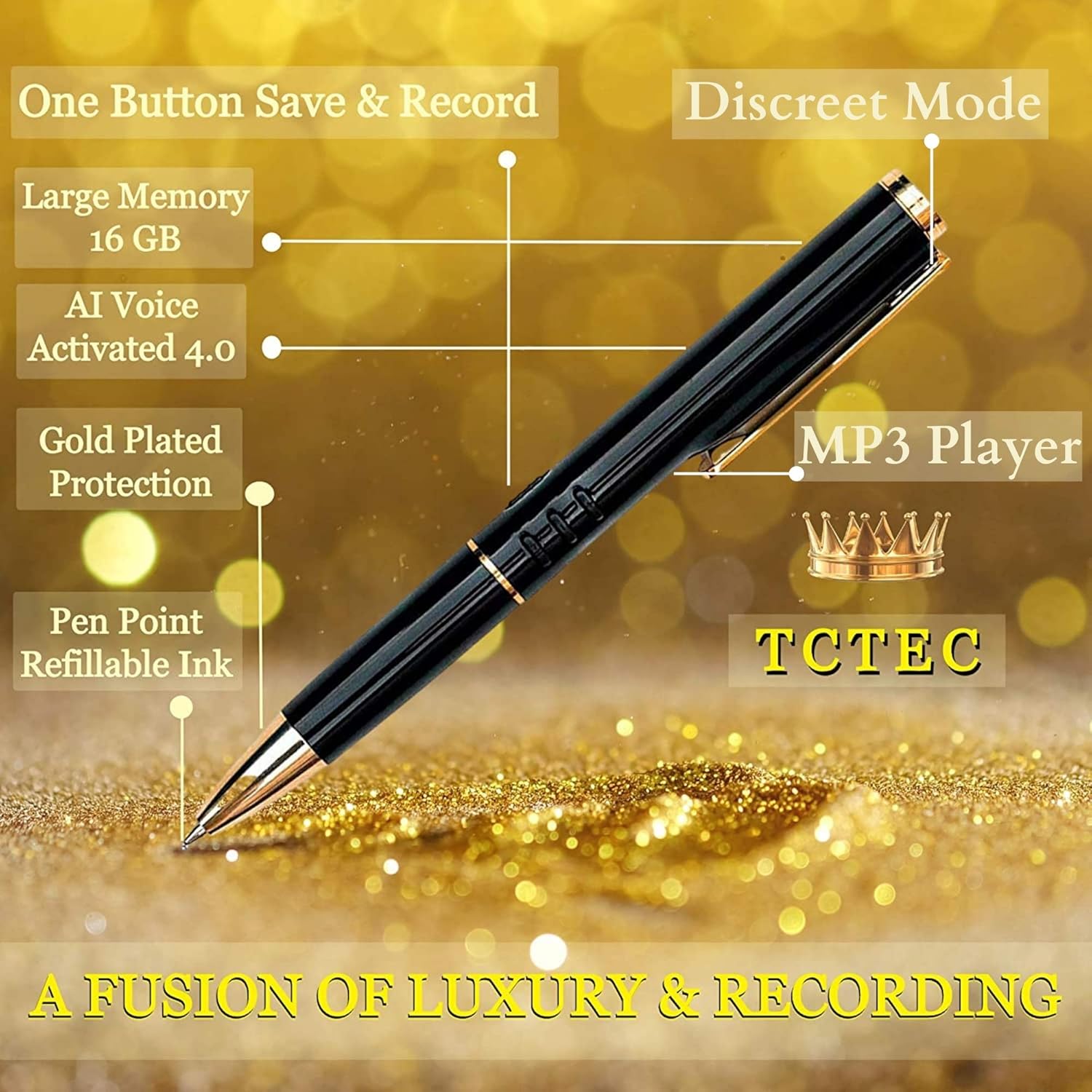
Image 2.1: The TCTEC Digital Voice Recorder pen, with visual callouts indicating its key features such as 16GB memory, AI Voice Activated 4.0, and MP3 player functionality.
3. Setup
3.1 Initial Charging
Before first use, fully charge the device. Connect the recorder to a computer's USB port or a USB wall adapter using the provided USB cable. The indicator light will show charging status and turn off or change color when fully charged.
3.2 Powering On/Off
- To Power On: Slide the power switch to the 'ON' position.
- To Power Off: Slide the power switch to the 'OFF' position. The device will automatically save any active recording before powering down.
3.3 Setting Date and Time (Optional)
For accurate timestamping of recordings, connect the device to a computer. A file named 'Time.txt' or similar may be present. Open this file and adjust the date and time format as specified in the file or accompanying software instructions, then save and safely eject the device.
4. Operating Instructions
4.1 Recording Audio
- Ensure the device is sufficiently charged.
- Slide the recording switch to the 'REC' position to begin recording. The indicator light may flash or remain steady to confirm recording is active.
- For voice-activated recording, ensure the VAR feature is enabled (refer to specific model instructions if a dedicated switch or setting exists). The device will automatically start recording when sound is detected and pause during silence.
- To stop recording and save the file, slide the recording switch to the 'SAVE' position or 'OFF' position. The recording will be saved automatically.

Image 4.1: A hand demonstrating the simple one-button operation of the TCTEC Digital Voice Recorder pen, indicating the 'REC' (record) and 'SAVE' functions.
4.2 Playing Back Recordings
Recordings can be played back directly on the device using headphones or by connecting to a computer.
4.2.1 Direct Playback (with Headphones)
- Connect the provided earphones to the device's audio jack.
- Power on the device.
- Use the volume up/down buttons (if present) to navigate through recordings and adjust playback volume. Refer to the quick start guide for specific button functions for playback control (e.g., next track, previous track, play/pause).

Image 4.2: A user enjoying direct playback of recordings or music through headphones connected to the TCTEC Digital Voice Recorder.
4.2.2 Playback via Computer
- Connect the recorder to your computer using the USB cable.
- The device will appear as a removable disk (e.g., "TCTEC Recorder").
- Navigate to the folder containing your recordings (often named 'RECORD' or similar).
- Open the audio files using your computer's media player.
4.3 Transferring Files
- Connect the recorder to your computer via USB.
- Access the device's storage as a removable drive.
- Locate the desired audio files.
- Drag and drop the files to your computer's desired folder.
- Safely eject the device from your computer before disconnecting the USB cable.
4.4 Using as a USB Drive
The device can also function as a standard USB flash drive. Simply connect it to your computer and drag and drop files to and from its storage.
5. Maintenance
- Cleaning: Wipe the device with a soft, dry cloth. Avoid using liquid cleaners or solvents.
- Storage: Store the device in a cool, dry place away from direct sunlight and extreme temperatures.
- Battery Care: To prolong battery life, avoid fully discharging the battery frequently. Charge the device regularly, even if not in use for extended periods.
- Data Backup: Regularly transfer important recordings to your computer to prevent data loss.
- Ink Refill: If using the pen function, replace ink cartridges as needed. Refer to the pen's specific refill type.
6. Troubleshooting
| Problem | Possible Cause | Solution |
|---|---|---|
| Device not turning on | Low battery; Device malfunction | Charge the device for at least 2 hours. If problem persists, contact support. |
| Cannot record | Insufficient storage; Device not in recording mode; Low battery | Check available storage and delete unnecessary files. Ensure the switch is in 'REC' position. Charge the device. |
| Poor audio quality | Microphone obstructed; Too far from sound source; High background noise | Ensure microphone is clear. Place device closer to the sound source. Record in a quieter environment. |
| Device not recognized by computer | Faulty USB cable/port; Driver issue | Try a different USB cable or port. Restart your computer. Ensure the device is powered on. |
| Voice Activated Recording not working | VAR sensitivity too low; Environment too quiet | Adjust VAR sensitivity settings (if available, usually via connecting to PC and modifying a configuration file). Ensure sound levels are sufficient to trigger recording. |
7. Specifications
- Model: V16-(1)-(2)
- Brand: TCTEC
- Storage Capacity: 16 GB (approx. 260 hours of recording)
- Recording Format: MP3 Audio (192kbps PCM)
- Interface: USB
- Compatible Devices: Personal Computer (Windows, Mac)
- Manufacturer: TCTEC-US Surveillance
- Weight: Approximately 1.62 oz (46g)
- Material: Zinc Alloy
- UPC: 719243293598
8. Warranty & Support
8.1 Warranty Information
TCTEC offers a Lifetime Warranty for this product. For details regarding warranty claims and coverage, please refer to the documentation included with your purchase or contact TCTEC customer support.
8.2 Customer Support
For technical assistance, troubleshooting, or any inquiries regarding your TCTEC Digital Voice Recorder, please contact TCTEC customer support. Contact information can typically be found on the product packaging or the official TCTEC website.