
ASRock 90-GA27ZZ-00UANF
ASRock Radeon RX 6800 XT Taichi X Graphics Card User Manual
Model: 90-GA27ZZ-00UANF
Introduction
This manual provides detailed instructions for the installation, operation, maintenance, and troubleshooting of your ASRock Radeon RX 6800 XT Taichi X 16GB GDDR6 OC Graphics Card. Please read this manual thoroughly before installation and use to ensure optimal performance and longevity of your product.

Figure 1: ASRock Radeon RX 6800 XT Taichi X Graphics Card and its retail packaging.
Product Overview
The ASRock Radeon RX 6800 XT Taichi X is a high-performance graphics card designed for demanding gaming and content creation. It features AMD RDNA 2 architecture, 16GB GDDR6 memory, and advanced cooling solutions.
Key Features:
- AMD RDNA 2 Architecture: Provides high frame rates and immersive gaming experiences.
- 16GB GDDR6 Memory: Ensures smooth performance for high-resolution textures and complex scenes.
- Taichi 3X Cooling System: Features three striped axial fans, a reinforced metal frame, and an ARGB backplate for efficient heat dissipation.
- 0dB Silent Cooling: Fans stop spinning during light workloads for silent operation.
- Dual BIOS: Allows users to switch between performance and quiet modes.
- Polychrome SYNC RGB: Customizable RGB lighting for aesthetic personalization.
- Multiple Display Outputs: Includes DisplayPort 1.4 (DSC), HDMI 2.1 VRR, and USB-C for versatile connectivity.

Figure 2: Front view of the graphics card, highlighting the triple fan design and RGB lighting.

Figure 3: Side view of the graphics card, showing the DisplayPort, HDMI, and USB-C output ports.

Figure 4: Rear view of the graphics card, showcasing the ARGB backplate for enhanced aesthetics and structural integrity.
Setup and Installation
Before installing the graphics card, ensure your system meets the minimum requirements and is powered off and unplugged from the wall outlet.
System Requirements:
- PCI Express-compliant motherboard with one x16 graphics slot.
- Minimum 750W power supply with three 8-pin PCIe power connectors.
- Sufficient space within the PC case (Dimensions: 12.99 x 5.51 x 2.2 inches).
- Operating System: Windows 10 64-bit or later.
- Internet connection for driver installation.
Installation Steps:
- Prepare Your System: Power off your computer and unplug the power cord. Open the computer case.
- Locate PCIe Slot: Identify an available PCI Express x16 slot on your motherboard. Remove any expansion slot covers that block the slot.
- Install Graphics Card: Carefully align the graphics card with the PCIe slot and press it down firmly until it is securely seated. Ensure the retention clip on the motherboard clicks into place.
- Secure the Card: Use screws to secure the graphics card to the PC case at the expansion slot bracket.
- Connect Power: Connect three 8-pin PCIe power cables from your power supply to the corresponding power connectors on the graphics card. Ensure all connections are firm.
- Close Case and Connect Peripherals: Close your computer case. Reconnect all peripherals (monitor, keyboard, mouse, etc.) and the power cord.
- Install Drivers: Power on your computer. Once the operating system loads, download and install the latest AMD Radeon drivers from the official ASRock or AMD website.

Figure 5: Exploded view illustrating key components such as the ARGB backplate, 8-pin power connectors, reinforced metal frame, heatpipe, and striped axial fans.
Operating the Graphics Card
After successful installation and driver setup, your ASRock Radeon RX 6800 XT Taichi X graphics card is ready for use. This section covers basic operation and features.
Display Connectivity:
Connect your monitor(s) to the available display outputs on the graphics card. This model supports:
- 2 x DisplayPort 1.4 (with DSC)
- 1 x HDMI 2.1 VRR
- 1 x USB-C
Dual BIOS Functionality:
The card features a Dual BIOS switch, allowing you to select between two different BIOS profiles: P (Performance) BIOS and Q (Quiet) BIOS. The switch is located on the side of the card. Ensure the system is powered off before switching the BIOS.
- P (Performance) BIOS: Optimized for maximum clock speeds and performance.
- Q (Quiet) BIOS: Prioritizes lower fan speeds and quieter operation, potentially at slightly reduced performance.
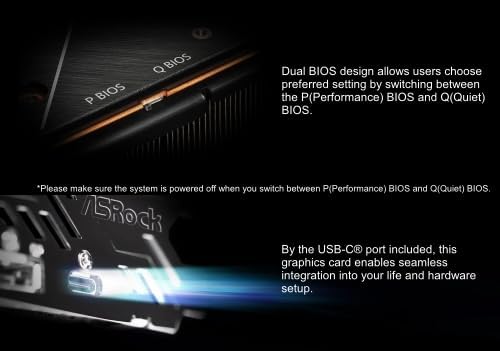
Figure 6: Detail showing the P BIOS / Q BIOS switch and the USB-C port for display output or connectivity.
Polychrome SYNC RGB Lighting:
Customize the integrated ARGB LEDs on your graphics card using ASRock Polychrome SYNC software. This allows you to create unique lighting effects and synchronize them with compatible ASRock motherboards.
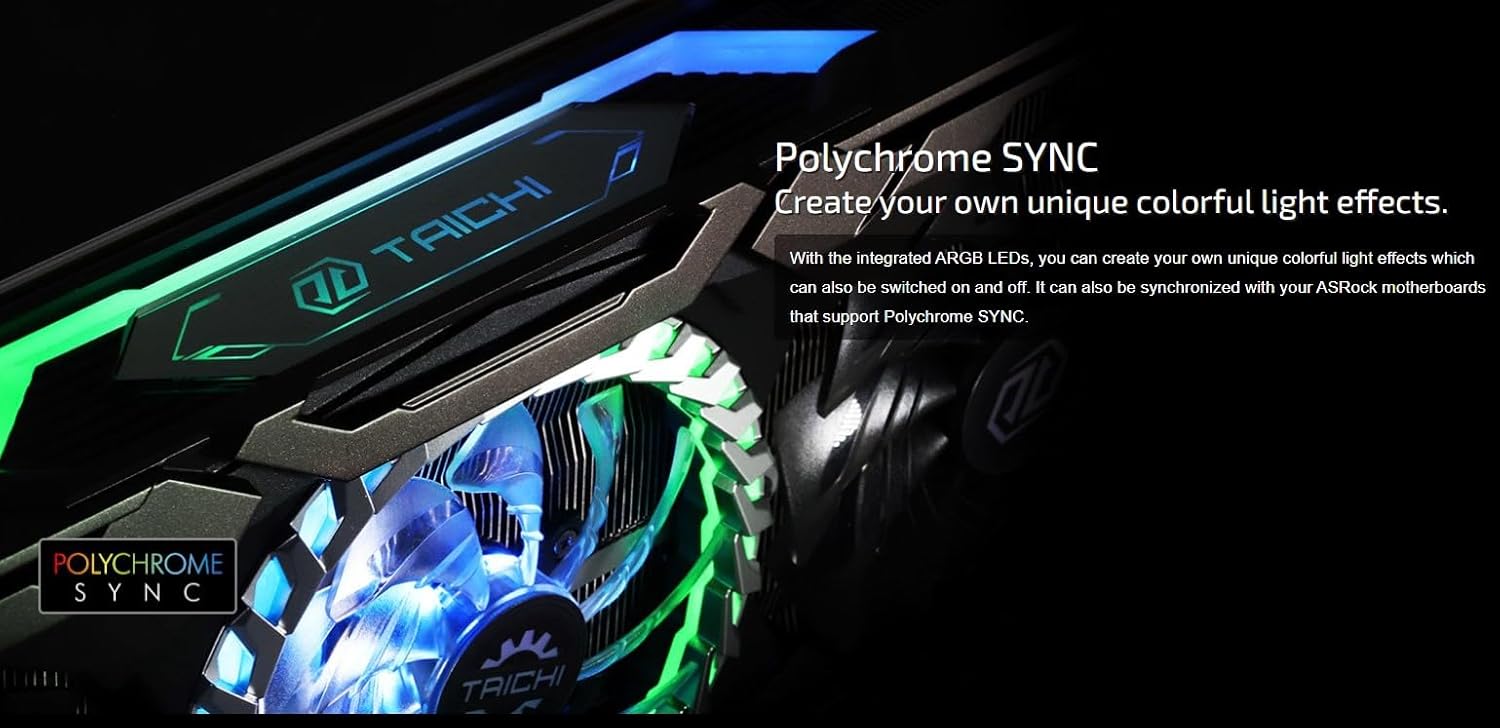
Figure 7: The graphics card showcasing its customizable Polychrome SYNC RGB lighting.
Maintenance
Proper maintenance ensures the longevity and optimal performance of your graphics card.
Cleaning:
- Regularly clean dust from the fans and heatsink using compressed air. Ensure the system is powered off and unplugged before cleaning.
- Hold the fan blades gently to prevent them from spinning rapidly during cleaning, which can damage the bearings.
- Wipe the exterior of the card with a soft, dry, anti-static cloth.
Temperature Monitoring:
Monitor the GPU temperature using software utilities (e.g., AMD Radeon Software) to ensure it stays within safe operating limits, especially during heavy loads. The Taichi 3X cooling system is designed to manage thermals effectively.

Figure 8: Diagram showing the airflow path through the Taichi 3X Cooling System, demonstrating efficient heat dissipation.
Troubleshooting
This section provides solutions to common issues you might encounter with your graphics card.
No Display Output:
- Ensure the monitor cable is securely connected to both the graphics card and the monitor.
- Verify that the graphics card is fully seated in the PCIe slot.
- Check that all 8-pin PCIe power connectors are properly plugged into the graphics card.
- Try connecting the monitor to a different display output on the card or to the integrated graphics (if available) to isolate the issue.
- Ensure your power supply meets the minimum wattage requirement (750W).
Driver Issues:
- If you experience crashes or performance issues, perform a clean installation of the graphics drivers. Use a utility like Display Driver Uninstaller (DDU) in Safe Mode to remove old drivers before installing the latest ones from AMD's official website.
- Ensure your operating system is up to date.
Overheating:
- Ensure adequate airflow within your PC case.
- Clean dust from the graphics card fans and heatsink.
- Verify that the fans are spinning under load.
- Consider improving case ventilation with additional fans.
Performance Issues:
- Ensure you are using the latest graphics drivers.
- Check if the Dual BIOS switch is set to the P (Performance) BIOS for maximum performance.
- Verify that your CPU and RAM are not bottlenecking the GPU.
- Close unnecessary background applications.
Specifications
| Feature | Specification |
|---|---|
| Graphics Processor | AMD Radeon RX 6800 XT |
| Boost Clock | Up to 2360 MHz |
| Video Memory | 16GB GDDR6 |
| Memory Interface | 256-bit |
| Memory Speed | 16 Gbps |
| PCI Express | PCIe 4.0 x16 |
| Display Outputs | 2 x DisplayPort 1.4 (DSC), 1 x HDMI 2.1 VRR, 1 x USB-C |
| Recommended PSU | 750W |
| Power Connectors | 3 x 8-pin |
| Dimensions (L x W x H) | 12.99 x 5.51 x 2.2 inches (330 x 140 x 56 mm) |
| Weight | 1.76 pounds (0.8 kg) |
| Model Number | 90-GA27ZZ-00UANF |
Support
For technical assistance, warranty information, or any questions regarding your ASRock Radeon RX 6800 XT Taichi X graphics card, please contact ASRock customer support. You can often find support resources, FAQs, and driver downloads on the official ASRock website.
If you have questions about the product, you may also contact the seller on Amazon.
ASRock Official Website: www.asrock.com