
1. Introduction
This manual provides detailed instructions for the setup, operation, maintenance, and troubleshooting of your Beelink SEi8 Mini PC. Please read this manual thoroughly before using the device to ensure optimal performance and longevity.
2. Product Overview
The Beelink SEi8 Mini PC is a compact yet powerful computer designed for various applications, from home entertainment to office work. It features an 8th Generation Intel Core i5-8279U processor, ample memory and storage, and versatile connectivity options.
2.1. Physical Features

Figure 2.1: Front-side view of the Beelink SEi8 Mini PC, highlighting its compact design and accessible ports.

Figure 2.2: Detailed view of the rich interface design, including USB 3.0, Type-C, HDMI, LAN, and DC input ports on both front and rear panels.
2.2. Key Components
- Processor: 8th Generation Intel Core i5-8279U (4 cores, 8 threads, up to 4.1GHz).
- Graphics: Intel Iris Plus Graphics 655, supporting 4K resolution.
- RAM: 16GB DDR4 (expandable up to 32GB).
- Storage: 500GB M.2 NVMe SSD (expandable up to 2TB, with additional 2.5-inch HDD slot).

Figure 2.3: Overview of the Intel Core i5-8279U processor and its capabilities.
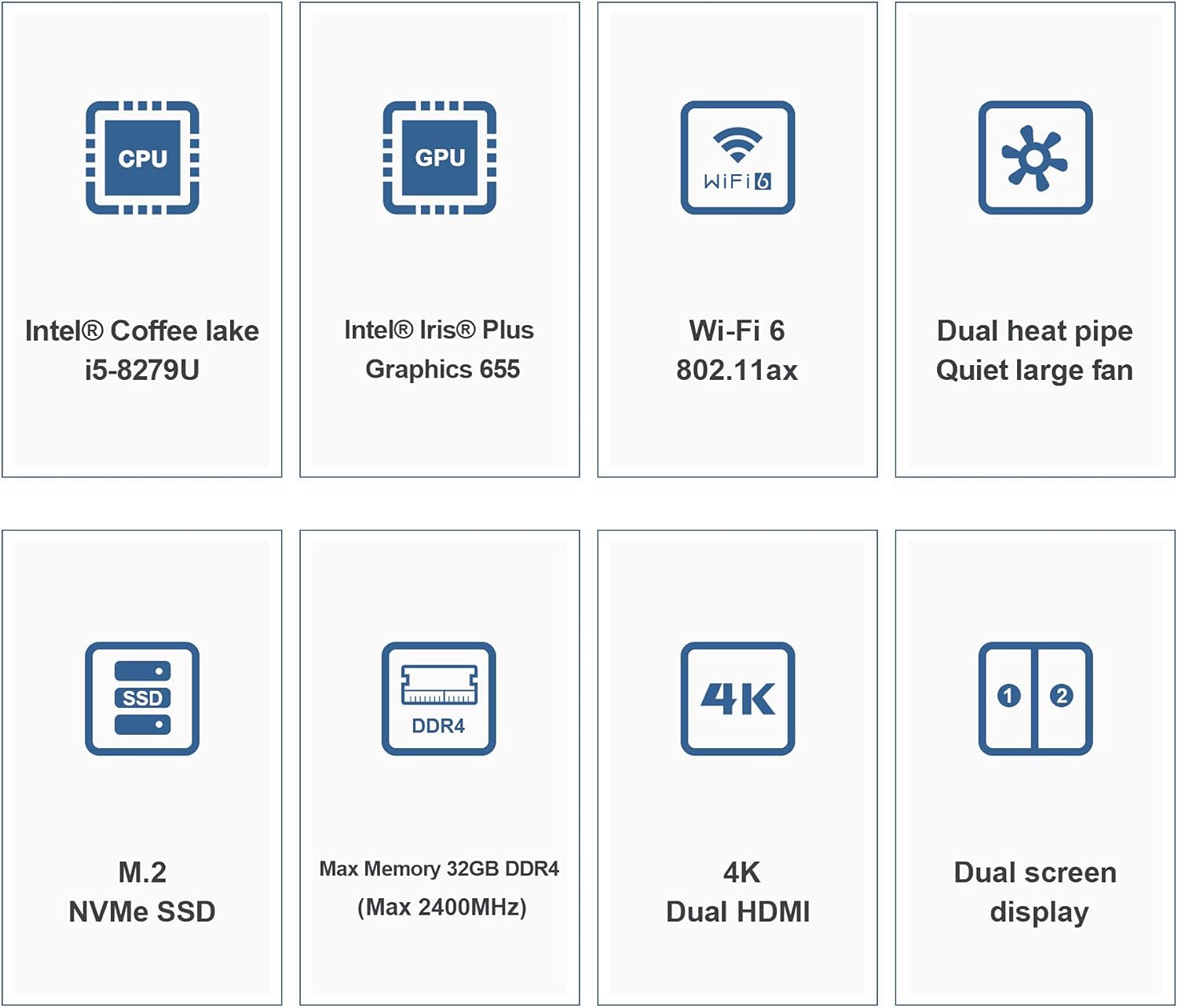
Figure 2.4: Visual representation of the Beelink SEi8's core features and components.
2.3. Connectivity
- Wireless: WiFi 5 (802.11ac) 2.4G+5GHz dual-band.
- Bluetooth: Bluetooth 5.0.
- Wired: Gigabit Ethernet.

Figure 2.5: Details on the integrated WiFi 5 (802.11ac) module, providing fast and reliable wireless connectivity.
2.4. Heat Dissipation
The Beelink SEi8 is equipped with an efficient heat dissipation system, featuring a quiet large fan and dual F6 heat pipes with a heat sink, ensuring stable performance even under load.

Figure 2.6: Illustration of the internal cooling system designed for optimal thermal management.
3. Setup Guide
3.1. Unboxing and Package Contents
Carefully unpack your Beelink SEi8 Mini PC. Verify that all components listed below are included:
- SEi8 I5 8279U Mini PC ×1
- Power adapter ×1
- Wall-mounted bracket ×1
- User manual ×1 (This document)
- HDMI cables (80CM & 20CM) ×2
3.2. Connecting Peripherals
- Connect your monitor(s) to the HDMI ports on the Mini PC using the provided HDMI cables.
- Connect your keyboard and mouse to the available USB ports.
- For wired network access, connect an Ethernet cable to the LAN port.
- Connect the power adapter to the DC input port on the Mini PC, then plug the adapter into a power outlet.
3.3. Wall-Mounted Installation
The Beelink SEi8 Mini PC can be conveniently mounted on the back of a compatible display using the included bracket.
- Fix the wall-mounted bracket to the Mini PC using the provided screws.
- Fix the bracket (with the Mini PC attached) to the back of your display using the appropriate screws.

Figure 3.1: Step-by-step guide for wall-mounted installation.
4. Operating Instructions
4.1. Power On/Off
- Power On: Press the power button located on the front of the Mini PC. The power LED will illuminate.
- Power Off: To safely shut down the system, go to the operating system's power options and select "Shut down." Avoid directly unplugging the power adapter during operation.
4.2. Dual Display Setup
The Beelink SEi8 supports dual 4K display output via its two HDMI ports, enhancing productivity and entertainment experiences.
- Connect both monitors to the HDMI ports on the Mini PC.
- Once the system boots, navigate to your operating system's display settings.
- Configure the display mode (e.g., Extend, Duplicate) according to your preference.

Figure 4.1: Dual HDMI display setup for enhanced visual workspace.
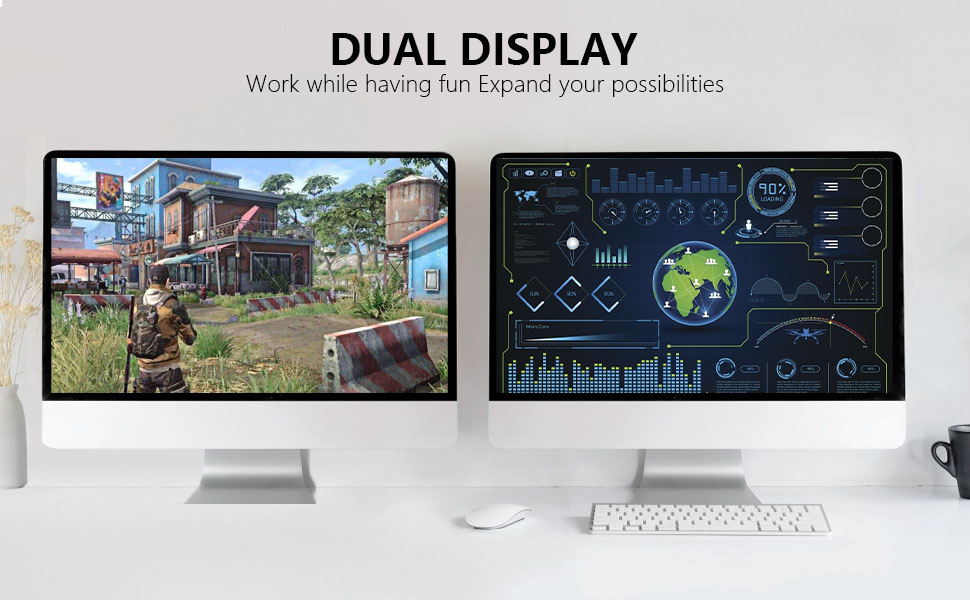
Figure 4.2: Example of dual display in action, expanding possibilities for work and entertainment.
4.3. Storage Expansion
The Mini PC supports storage expansion via an additional 2.5-inch 7mm HDD/SSD (up to 2TB) or by upgrading the M.2 NVMe SSD (up to 2TB). Refer to the detailed instructions for opening the chassis and installing the drive.
4.4. Usage Scenarios
The Beelink SEi8 Mini PC is versatile and suitable for various applications:
- Office & Business: Ideal for daily office tasks, presentations, and business applications.
- Home Entertainment: Perfect as a media center for 4K video streaming and casual gaming.
- Education: Suitable for e-learning and research.
- Commercial Applications: Can be used for digital signage or point-of-sale systems.
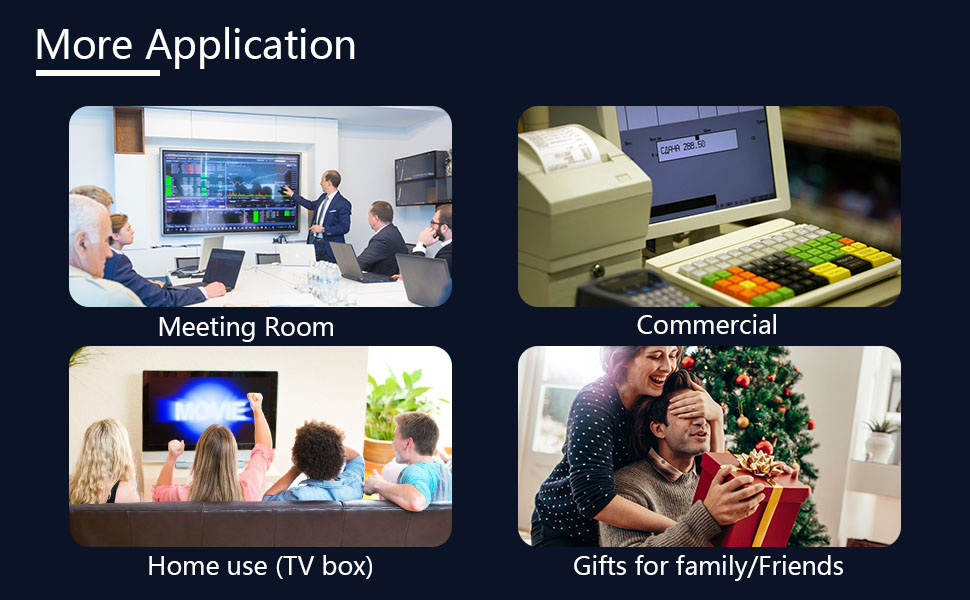
Figure 4.3: Diverse application scenarios for the Beelink SEi8 Mini PC.
5. Maintenance
5.1. General Care
- Keep the Mini PC in a well-ventilated area to prevent overheating.
- Avoid exposing the device to extreme temperatures, humidity, or direct sunlight.
- Do not place heavy objects on top of the Mini PC.
5.2. Cleaning
- Use a soft, dry cloth to clean the exterior of the Mini PC.
- For dust accumulation in vents, use compressed air, ensuring the device is powered off.
- Avoid using liquid cleaners or abrasive materials.
5.3. Software Updates
Regularly update your operating system and drivers to ensure optimal performance, security, and compatibility. Check the Beelink official website or your operating system's update settings for the latest versions.
6. Troubleshooting
This section addresses common issues you might encounter with your Beelink SEi8 Mini PC.
6.1. Common Issues and Solutions
| Problem | Possible Cause | Solution |
|---|---|---|
| No display output | Loose HDMI cable, incorrect input on monitor, power issue. | Check HDMI connections, ensure monitor is on correct input, verify power adapter is securely connected. |
| System freezing or slow performance | Overheating, too many applications running, outdated drivers, insufficient RAM/storage. | Ensure proper ventilation, close unnecessary programs, update drivers, consider RAM/storage upgrade if frequently occurring. |
| No Wi-Fi/Bluetooth connection | Drivers not installed, Wi-Fi/Bluetooth turned off, interference. | Check device manager for driver status, ensure wireless functions are enabled in OS settings, move away from interference sources. |
6.2. Frequently Asked Questions (FAQs)
- What should I do if there are problems with my mini computer during use?
Please contact our store staff first, and we will provide you with relevant solutions. - What if I want to set the auto power on function?
Please contact our support and provide a picture of the barcode on the bottom of the machine for a setup guide for the automatic power on function. - What if the system or key is lost?
Please contact our support and provide a barcode image at the bottom of the machine for obtaining system files and reinstallation instructions.
7. Specifications

Figure 7.1: Detailed product specifications table.
| Feature | Detail |
|---|---|
| Processor | Intel Core i5-8279U (2.4 GHz, up to 4.1 GHz, 4C/8T) |
| Graphics | Intel Iris Plus Graphics 655 |
| RAM | 16 GB DDR4 (2400 MHz), expandable to 32 GB |
| Storage | 500 GB M.2 NVMe SSD, expandable to 2 TB; supports 2.5-inch 7mm HDD up to 2 TB |
| Wireless Connectivity | WiFi 5 (802.11ac) 2.4G+5GHz, Bluetooth 5.0 |
| Wired Connectivity | Gigabit Ethernet (RJ45 1000M) |
| USB Ports | 4 x USB 3.0, 1 x Type-C |
| Video Output | 2 x HDMI (supports 4K HD Dual Display) |
| Audio | Audio Jack (HP&MIC) |
| Dimensions (LxWxH) | 4.96 x 4.44 x 1.65 inches (124 x 113 x 41 mm) |
| Weight | Approx. 2.44 pounds (1.1 kg) |
| Operating System | OS (Pre-installed) |
| Power Adapter | 19V-3A 57W Certification |
8. Warranty and Support
Beelink is committed to providing excellent customer service and support for your Mini PC.
8.1. Warranty Information
Your Beelink SEi8 Mini PC comes with a 1-Year Warranty Service from the date of purchase. This warranty covers manufacturing defects and hardware malfunctions under normal use. Please retain your proof of purchase for warranty claims.
8.2. Technical Support
We offer 7 Days/24 Hours serving and lifetime technical issue assistance. If you require pre-sales or after-sales support, please contact our customer service team. Our technical experts are available to assist you with any issues.

Figure 8.1: Overview of Beelink's comprehensive after-sales service and support.


