
SABRENT B08P682WSW
Sabrent USB 3.0 to SATA Dual Bay External Hard Drive Docking Station & 2.5-Inch Enclosure
Model: B08P682WSW - User Manual
Introduction
The SABRENT SATA Hard Drive Docking Station and 2.5-inch SATA to USB 3.0 Tool-Free External Hard Drive Enclosure provide versatile solutions for accessing and transferring data from 2.5-inch and 3.5-inch SATA hard drives or SSDs. This manual outlines the setup, operation, and key features of both components, including the offline cloning function of the docking station.

Image: The Sabrent USB 3.0 Dual Bay Docking Station and the 2.5-inch SATA to USB 3.0 Tool-Free External Hard Drive Enclosure, along with their respective USB 3.0 cables.
Key Features
- Supports Standard Desktop 2.5"/3.5" SATA Hard Drives or SSD.
- Tool-free design for easy installation.
- Plug and play functionality, no drivers needed.
- Optimized for SSD, supports UASP SATA III.
- Backwards-compatible with USB 2.0 or 1.1.
- Transfer Rates Up to 5 Gbps (USB 3.0), 480 Mbps (USB 2.0), 12 Mbps (USB 1.1).
- Includes Offline Clone Function for the docking station.
Setup and Installation
Both the docking station and the enclosure are designed for tool-free installation and plug-and-play operation.
Docking Station Setup:
- Connect the power adapter to the docking station and plug it into a power outlet.
- Connect the USB 3.0 cable from the docking station to an available USB 3.0 port on your computer.
- Insert your 2.5-inch or 3.5-inch SATA hard drive(s) or SSD(s) directly into the appropriate bays (Bay A and Bay B). Ensure they are seated firmly.
- Switch on the power button located at the back of the docking station. The device will be recognized by your operating system.

Image: Rear view of the docking station showing the USB 3.0 port, DC-12V power input, and ON/OFF switch, highlighting its easy setup.
2.5-Inch Enclosure Setup:
- Slide open the enclosure cover.
- Insert your 2.5-inch SATA hard drive or SSD into the enclosure, ensuring it connects properly to the internal SATA connector.
- Slide the cover back until it clicks into place.
- Connect the USB 3.0 cable from the enclosure to an available USB 3.0 port on your desktop or laptop. The device will be recognized by your operating system.
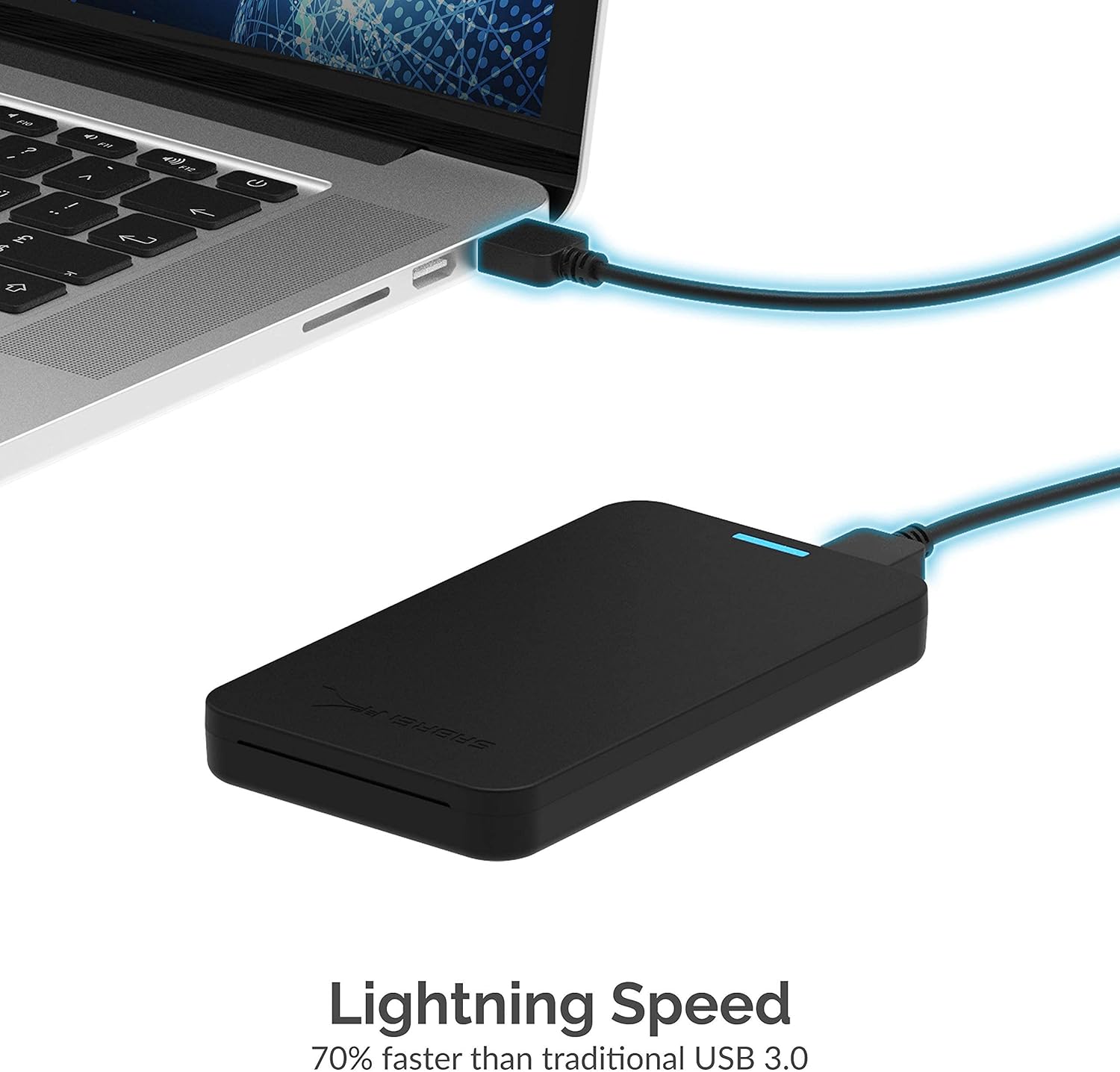
Image: An exploded view demonstrating how to install a 2.5-inch SSD into the tool-free external hard drive enclosure.
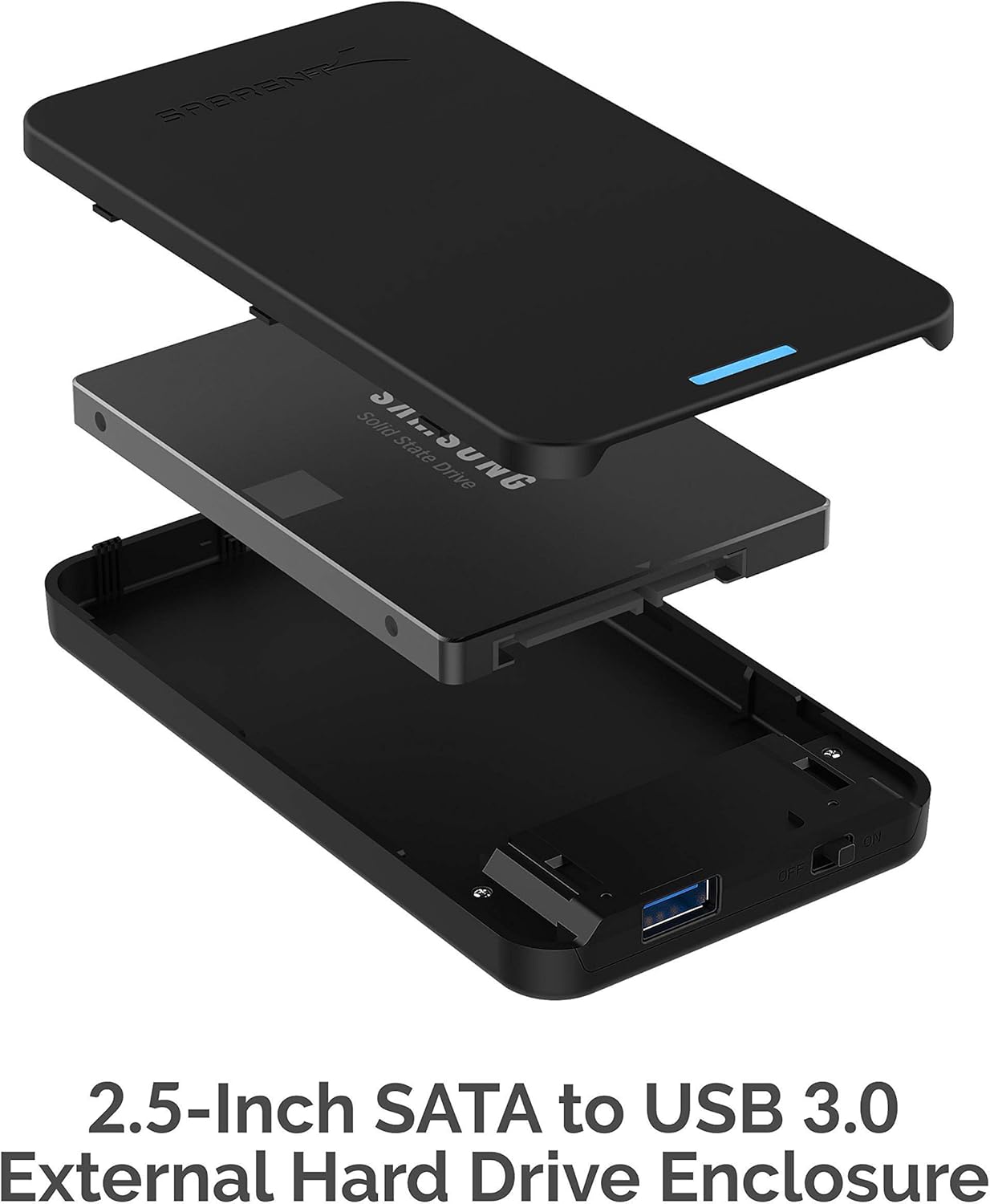
Image: The 2.5-inch enclosure connected to a laptop, illustrating its compact size and ease of use for data transfer.
Operating Instructions
Standard Data Transfer:
Once connected, both the docking station and the enclosure function as external storage devices. You can drag and drop files, copy, paste, and manage data as you would with any other external drive. For optimal performance, ensure you are connected to a USB 3.0 port.

Image: The docking station displaying compatibility with Windows, Apple (macOS), and Linux operating systems, emphasizing its wide-range compatibility.
Hard Drive Offline Clone Function (Docking Station Only):
The docking station supports an offline clone function, allowing you to duplicate a source disk to a target disk without connecting to a computer. Important: The target disk must be equal to or larger in capacity than the source disk. All data on the target disk will be erased during the cloning process.

Image: The Sabrent dual bay docking station with two hard drives inserted into its bays, ready for operation or cloning.
- Insert the Source Disk into hard drive bay A.
- Insert the Target Disk into hard drive bay B.
- Ensure that the USB cable is disconnected from your computer. The cloning process must be performed offline.
- Connect the power supply and switch on the power to the docking station.
- Hold down the CLONE button (usually located on the front or top panel). Release the button when you see a Blue LED illuminate.
- Quickly press the CLONE button again to confirm and start the cloning process.
- A Blue LED will flash at 25% to indicate that the cloning process has begun. Subsequent LEDs (50%, 75%, 100%) will illuminate as the process progresses.
- The cloning process is complete when ALL the lights (25%, 50%, 75%, 100%) turn solid Blue.
- Finally, press the power switch to the OFF position and safely eject your drives.
Maintenance
To ensure the longevity and optimal performance of your Sabrent devices:
- Keep the devices clean and free from dust. Use a soft, dry cloth for cleaning.
- Avoid exposing the devices to extreme temperatures, humidity, or direct sunlight.
- Always safely eject drives from your operating system before physically removing them from the docking station or enclosure when connected to a computer.
- Store the devices in a cool, dry place when not in use.
Troubleshooting
- Device not recognized by computer:
- Ensure all cables (USB and power) are securely connected.
- Try connecting to a different USB port on your computer.
- If using the docking station, ensure the power switch is in the ON position.
- Test with a different USB cable if available.
- Check Disk Management (Windows) or Disk Utility (macOS) to see if the drive is detected but unformatted or uninitialized.
- Cloning process fails or stops prematurely:
- Ensure the USB cable is disconnected from the computer during offline cloning.
- Verify that the target disk's capacity is equal to or larger than the source disk's capacity.
- Check both source and target drives for errors or bad sectors using disk utility software on a computer before cloning.
- Ensure the power supply is stable and sufficient.
- Slow data transfer speeds:
- Ensure you are connected to a USB 3.0 port on your computer. USB 2.0 ports will result in significantly slower speeds.
- Verify that your hard drive or SSD is functioning correctly.
- Check for other background processes that might be consuming system resources.
Specifications
| Feature | Specification |
|---|---|
| Compatible Devices | 2.5" and 3.5" SATA Hard Drives, SSD |
| Max Number of Supported Devices | 2 (Docking Station) |
| Data Transfer Rate | Up to 5 Gbps (USB 3.0) |
| Hardware Interface | USB 3.0 (Backward compatible with USB 2.0/1.1) |
| Brand | SABRENT |
| Color | Black |
| Material | Plastic |
| Power Source | AC Power Adapter (for Docking Station) / USB Powered (for Enclosure) |
Warranty and Support
SABRENT products are designed for quality and reliability. For warranty information, technical support, or further assistance, please visit the official SABRENT website or contact their customer service directly. Keep your purchase receipt for warranty claims.
For more information, visit: www.sabrent.com
Related Documents - B08P682WSW
 |
Sabrent 5-Bay USB-C Docking Station for 2.5" SATA HDDs and SSDs (DS-5R15) User Manual User manual for the Sabrent 5-Bay USB-C Docking Station (DS-5R15), featuring support for 2.5" SATA HDDs/SSDs up to 15mm, USB 3.2 Gen 2x1 (10Gbps) connectivity, and a built-in cooling fan. Includes setup, connection, and troubleshooting guides. |
 |
Sabrent DS-UBLK USB 3.0 SATA Hard Drive Docking Station User Manual User manual for the Sabrent DS-UBLK USB 3.0 SATA Hard Drive Docking Station. Provides technical data, features, parts identification, package contents, and step-by-step setup instructions for 2.5-inch and 3.5-inch SATA HDDs. |
 |
Sabrent EC-DFLT USB 3.0 SATA Docking Station User Manual User manual for the Sabrent EC-DFLT USB 3.0 to SATA External Hard Drive Docking Station, detailing technical specifications, features, parts, and setup instructions. |
 |
Sabrent USB 3.0 SATA Hard Drive Flat Docking Station User Manual User manual for the Sabrent USB 3.0 SATA Hard Drive Flat Docking Station, detailing technical specifications, features, package contents, and setup instructions for connecting 2.5" and 3.5" SATA HDDs. |
 |
Sabrent EC-CH2B USB Type-C SATA Dual Bay Hard Drive Docking Station User Manual User manual for the Sabrent EC-CH2B USB Type-C SATA 2.5" & 3.5" Dual Bay Hard Drive Docking Station. Covers setup, usage, offline cloning, and troubleshooting for Windows and macOS. |
 |
Sabrent EC-KSL3-EU USB 3.0 Tool-Free Enclosure User Manual User manual for the Sabrent EC-KSL3-EU USB 3.0 tool-free enclosure, detailing features, package contents, system requirements, connection, installation, and usage for 2.5-inch and 3.5-inch SATA hard drives. |
Ask a question about this manual
Ask about setup, troubleshooting, compatibility, parts, safety, or missing instructions. Manuals+ will review the question and use this page’s manual context to help answer it.