Introduction
This manual provides instructions for installing and operating the GINTOOYUN U.2 to PCIE Expansion Card (Model FQL20201121). This adapter allows you to connect 2.5-inch U.2 NVME SSDs or 2.5-inch SATA SSDs to your computer's PCI-E x4 slot, enhancing system performance and expanding internal storage.

Image: The GINTOOYUN U.2 to PCIE Expansion Card, shown with an Intel Optane SSD 900P installed, demonstrating its primary function.
Package Contents
Verify that all items are present in the package:
- 1 x U.2 (SFF-8639) to PCI-E x4 Conversion Card
- 1 x SATA 3.0 7-Pin Data Cable
- 1 x Screwdriver
- 4 x M3 Standard Screws

Image: A detailed view of the expansion card, highlighting its SATA 7PIN interface, PCI-E 3.0 x4 interface, and U.2 (SFF-8639) connector.
Setup Instructions
1. Preparation
- Power off your computer and disconnect all cables. Open the computer case.
- Discharge any static electricity by touching a grounded metal object before handling components.
2. Identify PCI-E Slot
Locate an available PCI-E x4, x8, or x16 slot on your motherboard. Do not use a standard PCI slot, as this can damage the motherboard, adapter, and SSD.
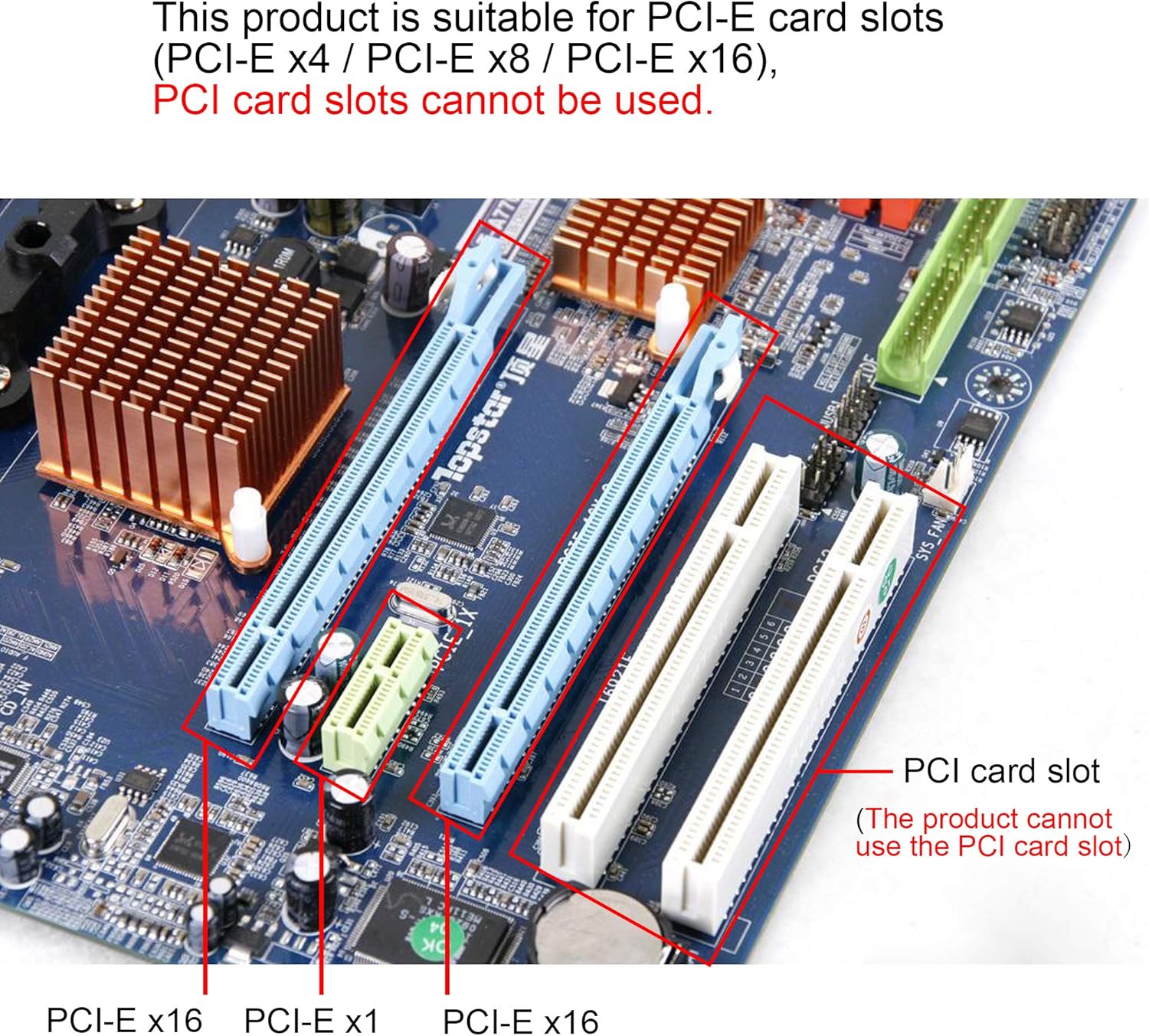
Image: A motherboard illustrating various expansion slots, including PCI-E x16, PCI-E x1, and PCI slots. Compatible PCI-E slots are highlighted, and the incompatible PCI slot is clearly marked.
3. Install SSD onto Adapter
- For 2.5-inch U.2 NVME SSD: Align your U.2 NVME SSD with the SFF-8639 connector on the expansion card and firmly insert it. No additional data cable is required for U.2 NVME SSDs.
- For 2.5-inch SATA SSD: Align your 2.5-inch SATA SSD with the SATA connector on the expansion card and firmly insert it. Connect the provided SATA 3.0 7-pin data cable from the expansion card's SATA port to an available SATA port on your motherboard.
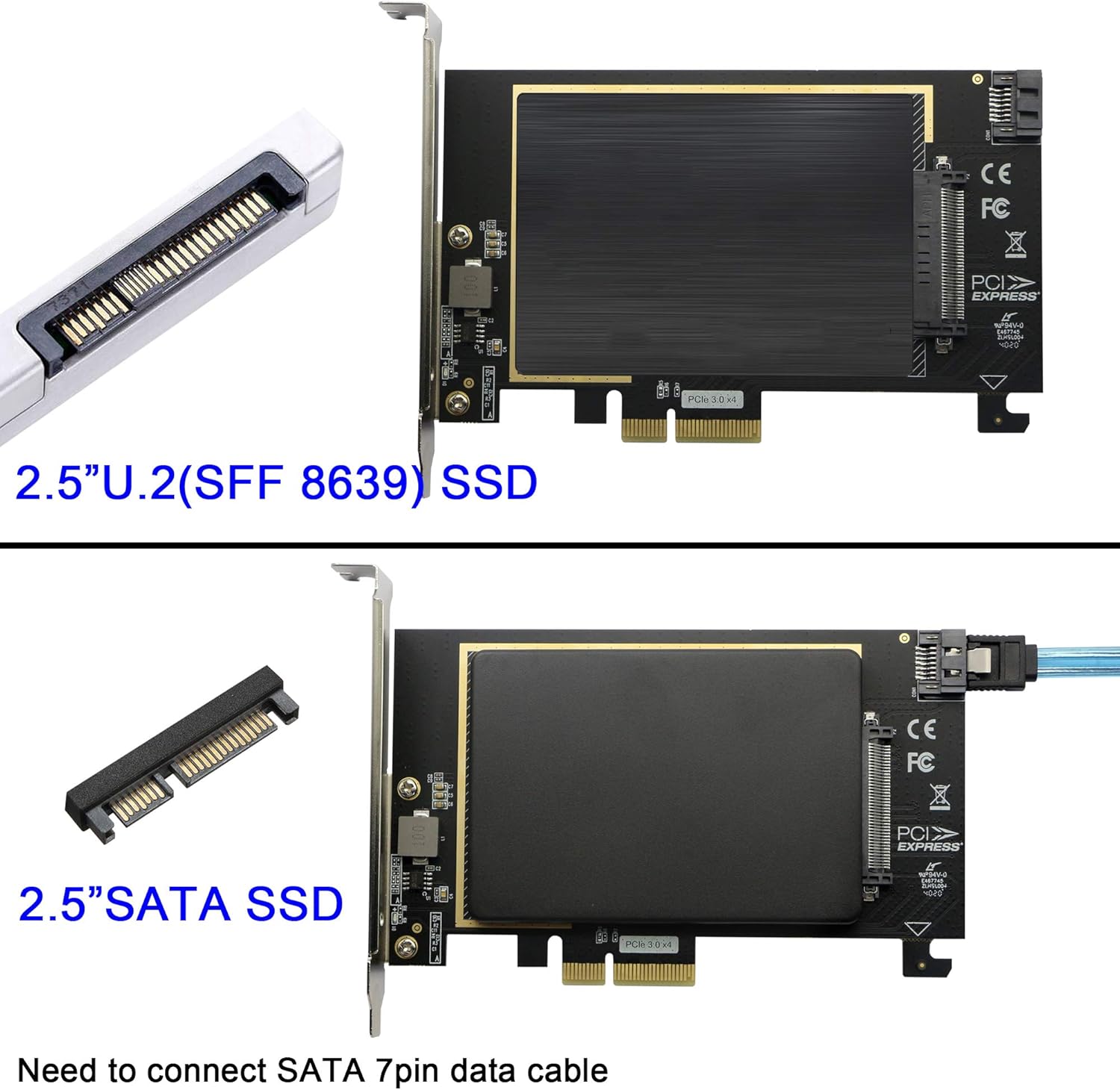
Image: This image demonstrates how to connect both a 2.5-inch U.2 (SFF-8639) SSD and a 2.5-inch SATA SSD to the expansion card. It shows that the U.2 SSD connects directly, while the SATA SSD requires a separate SATA 7-pin data cable.
4. Install Expansion Card
- Carefully insert the assembled expansion card into the identified PCI-E x4, x8, or x16 slot on your motherboard. Ensure it is seated firmly.
- Secure the expansion card to your computer case using the provided M3 screws.
5. Final Steps
- Close your computer case, reconnect all cables, and power on your computer.
Operating Instructions
Upon booting, your operating system (Windows 8/10, macOS, Linux) should automatically detect the newly installed SSD. If the SSD is new, it may need to be initialized and formatted through your operating system's disk management utility before use.
The card supports PCI-E 3.0 x4 for U.2 NVME SSDs, offering speeds up to 32 Gbit/s, and SATA 3.0 for SATA SSDs, offering speeds up to 6 Gbit/s. Actual speeds depend on the connected SSD and system configuration.
Important Note: If your motherboard does not natively support the NVME protocol, the U.2 NVME SSD connected via this card can only be used as a storage disk, not as a system boot disk.
Maintenance
To ensure optimal performance and longevity, keep your computer's interior clean and free of dust. Ensure adequate airflow around the expansion card to prevent overheating. Avoid physical shock or excessive force on the card.
Troubleshooting
SSD Not Detected:
- Verify the expansion card is correctly seated in a compatible PCI-E x4, x8, or x16 slot.
- Ensure the SSD is firmly connected to the expansion card.
- For SATA SSDs, confirm the SATA data cable is securely connected to both the card and the motherboard.
- Check your computer's BIOS/UEFI settings to ensure the PCI-E slot is enabled and the SSD is recognized.
- If using a new SSD, ensure it has been initialized and formatted in your operating system's disk management.
Slow Performance:
- Confirm the expansion card is installed in a PCI-E 3.0 x4 (or higher) slot for optimal NVME performance.
- Check the health and specifications of your SSD.
System Instability:
- Ensure all components are securely installed. If issues persist, temporarily remove the card to isolate the problem.
Specifications
| Brand | GINTOOYUN |
| Model Number | FQL20201121 |
| Interface 1 | U.2 (SFF-8639) |
| Interface 2 | PCI-E x4 |
| Interface 3 | SATA 7-pin |
| Max Transmission Speed (PCI-E 3.0) | 32 Gbit/s |
| Max Transmission Speed (SATA 3.0) | 6 Gbit/s |
| Compatible PCI-E Slots | X4, X8, X16 |
| Operating System Support | WIN8, WIN10 (32/64BIT), MAC, Linux |
| Product Dimensions (LxWxH) | 7.09 x 5.12 x 1.18 inches |
| Item Weight | 4.6 ounces |
| UPC | 723508506675 |

Image: A diagram showing the physical dimensions of the GINTOOYUN U.2 to PCIE Expansion Card, with measurements in both millimeters and inches.
Warranty Information
This product is covered by a limited warranty. For detailed warranty terms, conditions, and duration, please refer to the official GINTOOYUN website or contact your point of purchase.
Support
For technical assistance, product inquiries, or further support, please visit the official GINTOOYUN store online at GINTOOYUN Store.