
1. Setup
To begin using your T-Dagger T-TGM206 mouse, connect the USB cable to an available USB port on your computer. The mouse is designed for plug-and-play functionality, meaning it should be recognized by your operating system automatically without the need for additional driver installation for basic use.

The T-Dagger T-TGM206 mouse is compatible with various operating systems including Windows XP, Windows Vista, Windows 7, Windows 8, Mac, and Linux.
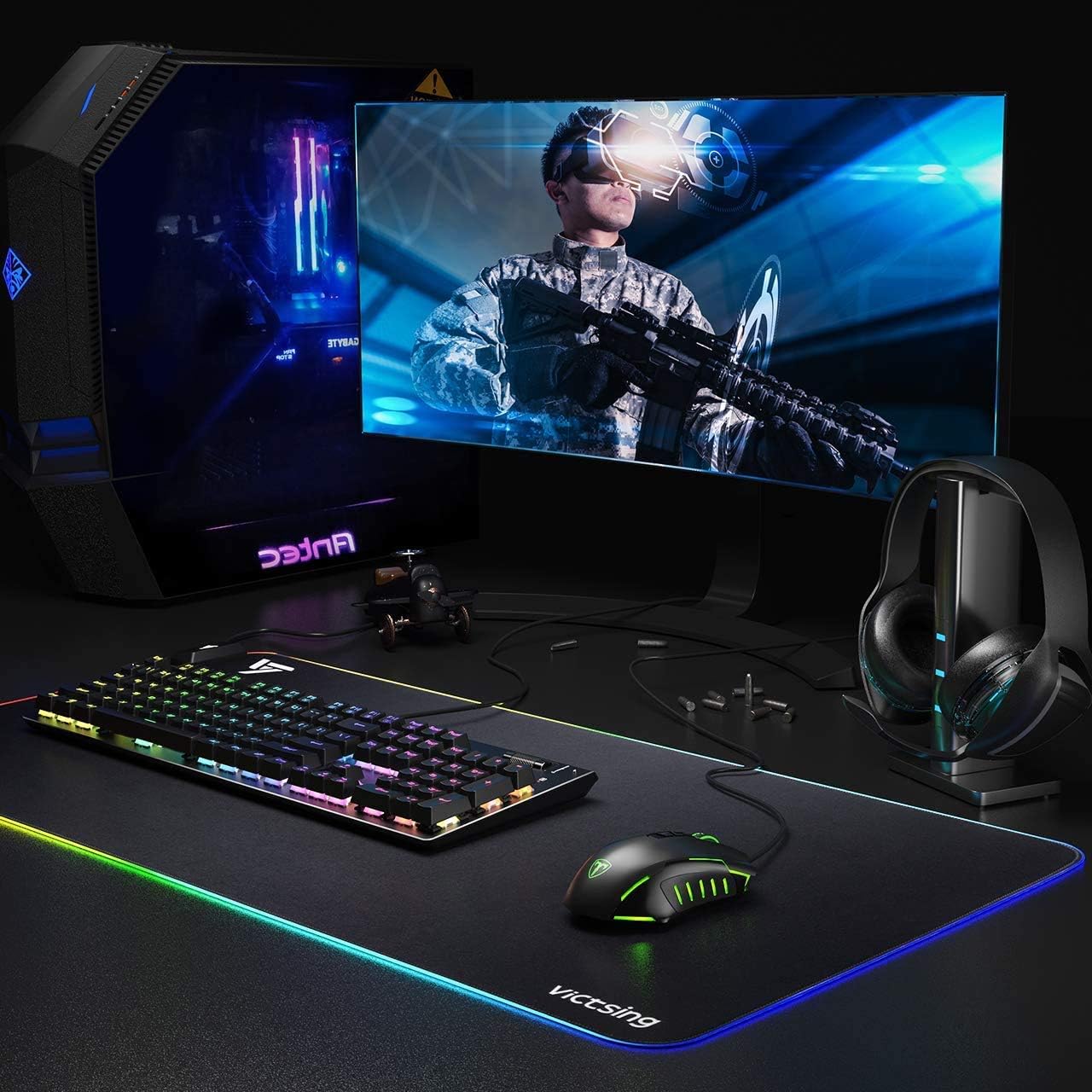
Typical setup of the T-Dagger T-TGM206 mouse alongside a computer, keyboard, and headset, ready for use.
2. Operating Instructions
2.1 DPI Adjustment
The T-TGM206 mouse features 5 adjustable DPI (Dots Per Inch) levels, allowing you to change cursor sensitivity on the fly. Use the dedicated DPI+ and DPI- buttons, typically located near the scroll wheel, to cycle through the available sensitivity settings.

Illustration showing the 5 adjustable DPI levels: 1200, 2400, 3500, 5500, and 7200. The DPI buttons are used to switch between these settings.
2.2 Programmable Buttons
The mouse is equipped with 7 programmable buttons, offering enhanced customization for various tasks and gaming scenarios. To customize these buttons, you will need to install and use the dedicated T-Dagger software. Refer to the software's instructions for detailed programming steps and profile management.

Diagram illustrating the location of the 7 programmable buttons on the T-TGM206 mouse, including left, right, middle, forward, backward, DPI+, and DPI- buttons. A sample software interface for key setting is also shown.
2.3 Ergonomic Design
The T-TGM206 mouse features a comfortable, symmetrical, and sweat-resistant ergonomic design. This design is intended to reduce hand fatigue during extended use and help maintain a stable grip, enhancing comfort and control.

An outline highlighting the comfortable ergonomic shape of the T-TGM206 mouse, designed for reduced hand fatigue and stable grip.
3. Maintenance
Proper maintenance ensures the longevity and optimal performance of your T-Dagger T-TGM206 mouse.
- Cleaning the Surface: Use a soft, dry cloth to gently wipe the surface of the mouse. For more persistent dirt, a slightly dampened cloth with water can be used. Avoid harsh chemicals, solvents, or abrasive materials, as these can damage the finish.
- Cleaning the Optical Sensor: Periodically clean the optical sensor located on the underside of the mouse. Use a cotton swab to carefully remove any dust or debris that may interfere with tracking accuracy.
- Storage: When not in use, store the mouse in a clean, dry environment. Avoid exposing it to extreme temperatures, direct sunlight, or high humidity.
4. Troubleshooting
If you encounter issues with your T-Dagger T-TGM206 mouse, refer to the following troubleshooting steps:
4.1 Mouse Not Responding
- Check USB Connection: Ensure the USB cable is securely plugged into a functioning USB port on your computer. Try plugging the mouse into a different USB port.
- Restart Computer: Sometimes, a simple computer restart can resolve connectivity issues.
- Test on Another Computer: If possible, test the mouse on a different computer to determine if the issue lies with the mouse itself or your computer's setup.
4.2 Tracking Issues
- Clean Sensor: Clean the optical sensor on the underside of the mouse as described in the Maintenance section.
- Check Surface: Ensure you are using the mouse on a suitable surface, such as a mouse pad. Highly reflective, transparent, or uneven surfaces can interfere with tracking.
- Adjust DPI: If the cursor movement is erratic or too fast, try adjusting the DPI settings to a lower value using the DPI- button.
4.3 Buttons Not Functioning
- Check Software Settings: If you are using the T-Dagger customization software, ensure that the buttons are correctly assigned and that no conflicting profiles are active.
- Reset to Default: If custom settings are causing issues, try resetting the mouse settings to their default configuration within the software.
5. Specifications
| Brand | T-Dagger |
| Model | T-TGM206 |
| Connectivity | USB (Wired) |
| Sensor Type | Optical |
| Number of Buttons | 7 (Programmable) |
| DPI Levels | 1200, 2400, 3500, 5500, 7200 |
| Design | Ergonomic, Symmetrical, Sweat-resistant |
| Hand Orientation | Ambidextrous |
| Weight | 220 grams |
| Compatible Operating Systems | Linux, Windows XP, Windows Vista, Windows 7, Windows 8, Mac |
| Recommended Use | Gaming |
| Color | Black |
6. Warranty and Support
Based on the provided product information, this T-Dagger T-TGM206 Programmable Gaming Mouse does not include a specified warranty. For technical support, software downloads, or further inquiries, please refer to the manufacturer's official website or contact their customer service department directly.