
1. Introduction
Welcome to the ALLDOCUBE iPlay 50 Mini T811 Tablet user manual. This guide provides essential information to help you set up, operate, and maintain your new tablet. Please read this manual thoroughly to ensure optimal performance and longevity of your device.
2. Product Overview
The ALLDOCUBE iPlay 50 Mini T811 is a compact and stylish tablet designed for versatile use. It features an 8.4-inch display, a powerful Octa-Core processor, and dual cameras, making it suitable for work, entertainment, and communication.

Image: The ALLDOCUBE iPlay 50 Mini T811 tablet, highlighting its compact and stylish design, 8.4-inch screen, and lightweight build. Dimensions are 202.7 x 126 x 7.5 mm, weighing 292g, and featuring high-quality materials in Space Gray color.
2.1 Physical Features
- Display: 8.4-inch IPS screen
- Cameras: Front and Rear 5MP cameras
- Ports: USB Type-C port, 3.5mm earphone port
- Card Slots: Dual Nano SIM card slots or one Nano SIM + one Micro SD card slot
- Buttons: Power button, Volume up/down buttons
3. Setup
3.1 Charging the Battery
Before first use, fully charge the tablet using the provided 5V/2A power adapter and USB Type-C cable. The tablet is equipped with a 3.8V/4000mAh non-detachable Li-Polymer battery. A full charge typically takes a few hours.
3.2 Installing SIM and Micro SD Cards
- Locate the SIM/Micro SD card tray on the side of the tablet.
- Insert the eject pin into the small hole next to the tray to open it.
- Carefully place your Nano SIM card(s) and/or Micro SD card (up to 512GB, not included) into the designated slots on the tray. Ensure the cards are correctly oriented.
- Gently push the tray back into the tablet until it clicks into place.
3.3 Initial Power On and Setup
Press and hold the Power button until the ALLDOCUBE logo appears. Follow the on-screen prompts to complete the initial setup, including selecting your language, connecting to a Wi-Fi network, and setting up your Google account. The tablet runs on Android 13.
3.4 Connecting to Networks
- Wi-Fi: Go to Settings > Network & internet > Wi-Fi to connect to available 2.4GHz or 5GHz Wi-Fi networks.
- Bluetooth: Go to Settings > Connected devices > Bluetooth to pair with Bluetooth devices like headphones or speakers (Bluetooth V5.0).
- Mobile Data (4G LTE): If a SIM card is installed, mobile data will be available. Check network settings under Settings > Network & internet > Mobile network. Supports GSM, WCDMA, FDD, and TDD bands.
- GPS: The tablet supports GPS for navigation and location services.
4. Operating Instructions
4.1 Display and Viewing Experience
The 8.4-inch IPS display offers a resolution of 1920x1200 pixels, providing a clear and vibrant viewing experience. It features In-Cell technology, 300 cd/m² brightness, 16 million colors, and a 1200:1 contrast ratio for enhanced visuals.

Image: The tablet's 8.4-inch screen with FHD+ resolution (1920x1200), showcasing its high contrast ratio, IPS panel, thin bezels, In-Cell technology, 300 cd/m² brightness, and 16 million colors for an enhanced viewing experience.
4.2 Capturing Photos and Videos
The iPlay 50 Mini T811 is equipped with two 5MP cameras. The front camera is ideal for selfies and video calls, while the rear camera features autofocus for clear photos and videos. Open the Camera app to access these functions.

Image: The tablet's dual 5MP cameras in action, demonstrating its capability for capturing memorable moments with a 5MP front camera for selfies and video calls, and a 5MP rear camera with autofocus.
4.3 Performance and Gaming
Powered by the UNISOC T606 Octa Core processor (2 x A75 1.6G + 6 x A55 1.6G) and Mali G57 GPU, the tablet delivers smooth and efficient performance for various tasks, including gaming, streaming, and multitasking.

Image: The tablet's smooth and efficient performance, highlighting the UNISOC T606 8-core processor and Mali G57 Graphics for enhanced enjoyment and smooth gameplay.
4.4 Entertainment Features
The iPlay 50 Mini T811 supports Widevine L1, enabling high-definition streaming from popular platforms such as YouTube, Hulu, Amazon Prime Video, and Disney+. This certification ensures DRM-protected content can be played in Full HD 1080p resolution without compromising video quality.
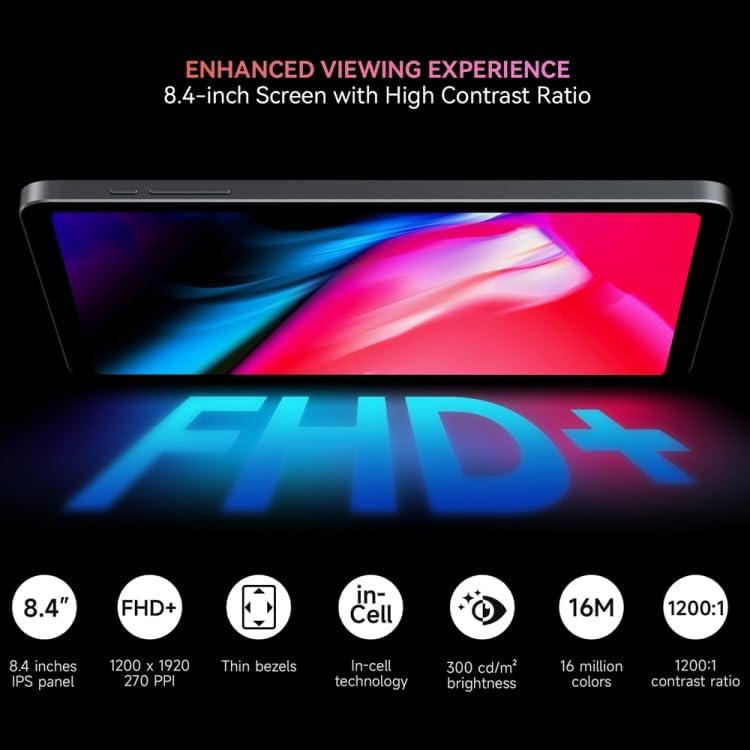
Image: The tablet's Widevine L1 support for HD streaming, illustrating the difference between L1 (1080p) and L3 (720p) and its compatibility with major streaming services like YouTube, Disney+, Prime Video, and Hulu.
5. Maintenance
- Cleaning: Use a soft, lint-free cloth to clean the screen and body of the tablet. Avoid using harsh chemicals or abrasive materials.
- Battery Care: To prolong battery life, avoid exposing the tablet to extreme temperatures. Do not let the battery fully discharge frequently.
- Software Updates: Keep your tablet's software updated to ensure optimal performance and security. Check for updates in Settings > System > System update.
- Storage Management: Regularly clear unnecessary files and apps to maintain sufficient storage space and performance.
6. Troubleshooting
6.1 Common Issues and Solutions
- Tablet not turning on: Ensure the battery is charged. Connect the charger and wait a few minutes before attempting to power on again.
- Screen unresponsive: Restart the tablet by holding the Power button for about 10 seconds.
- Wi-Fi connection issues: Restart your Wi-Fi router and the tablet. Forget the network in tablet settings and reconnect.
- Apps crashing: Clear the cache of the problematic app (Settings > Apps > [App Name] > Storage & cache > Clear cache). If the issue persists, reinstall the app.
- Slow performance: Close unused apps, clear cache, and ensure sufficient storage space. Consider a factory reset as a last resort (backup data first).
7. Specifications
| Feature | Specification |
|---|---|
| Model | ALLDOCUBE iPlay 50 Mini T811 |
| Operating System | Android 13 |
| Processor | UNISOC T606 Octa Core (2 x A75 1.6G + 6 x A55 1.6G) |
| GPU | Mali G57 |
| RAM | 4GB LPDDR4x |
| Internal Storage | 64GB UFS2.1 |
| Expandable Storage | Micro SD Card up to 512GB (not included) |
| Display Size | 8.4 inches |
| Display Resolution | 1920 x 1200 IPS Capacitive Screen |
| Front Camera | 5.0MP |
| Rear Camera | 5.0MP (Autofocus) |
| Wi-Fi | 2.4GHz/5GHz (802.11ac, 802.11n) |
| Bluetooth | V5.0 |
| Cellular Network | 4G LTE (Dual SIM Nano SIM Card) |
| GPS | Supported |
| Battery | 3.8V/4000mAh Li-Polymer |
| Power Adapter | 5V / 2A |
| Dimensions | 202.7 x 126 x 7.5mm |
| Weight | 292g |
| Interfaces | 1 x 3.5mm Earphone Port, 1 x Type-C, 2 x Nano SIM card or (1 x Nano SIM card + 1 x TF card) slots |
| Special Features | G-sensor, FM radio, Widevine L1 |
8. Warranty and Support
For warranty information and customer support, please refer to the documentation provided with your purchase or visit the official ALLDOCUBE website. Information regarding spare parts availability and software update guarantees is not available at this time. For technical assistance, please contact ALLDOCUBE customer service.


