
wifi smart camera ABQ-A8
Smart WiFi Security Camera ICSEE Full HD - ABQ-A8 User Manual
Model: ABQ-A8 | Brand: wifi smart camera
1. Introduction
The Smart WiFi Security Camera ABQ-A8 is a versatile and easy-to-install surveillance solution designed for both indoor and outdoor use. It offers full HD video capture, remote access via mobile devices, and advanced features like pan/tilt control and night vision, providing comprehensive monitoring for your home or business.
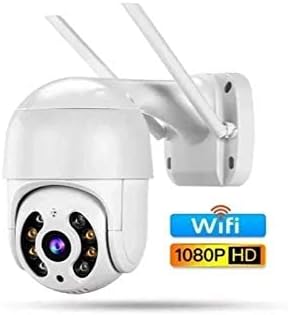
Image 1: The ABQ-A8 Smart WiFi Security Camera, featuring its dome design, dual antennas for enhanced connectivity, and a clear indication of WiFi and 1080P HD capabilities.
2. Product Features
- Full HD 1080p Resolution: Captures clear and detailed video footage.
- Remote Access: View live feed and recordings from anywhere in the world via your mobile phone.
- Pan & Tilt Functionality: Remotely control the camera's movement with 320° horizontal rotation and 110° vertical tilt.
- Dual Connectivity: Supports wireless WiFi connection and wired RJ45 Ethernet cable for stable network access.
- Night Vision: Equipped with infrared technology for clear monitoring up to 50 meters in low-light or no-light conditions.
- Storage Options: Supports local storage via an SD card slot (up to 128GB) and cloud recording via the ICSee application.
- Mobile Compatibility: Fully compatible with Android and iOS devices using the YOOUSEE or ICSee application.
- Easy Installation: Designed for DIY setup without the need for a DVR, DynDNS, or professional technician.
- Indoor/Outdoor Use: Durable design suitable for various environments.
3. Package Contents
Please check the package carefully to ensure all items are present:
- ABQ-A8 Smart WiFi Security Camera Body
- Mounting Accessories (screws, wall plugs)
- Power Adapter
- User Manual (this document)
4. Setup Guide
4.1 Initial Installation
- Choose a Location: Select a suitable indoor or outdoor location for the camera, ensuring it has a clear view and is within range of your WiFi network or near an Ethernet port.
- Mount the Camera: Use the provided mounting accessories to securely attach the camera to a wall or ceiling.
- Power On: Connect the power adapter to the camera and plug it into a power outlet. The camera will perform a self-test and its indicator light will turn on.
4.2 App Download and Connection
- Download App: Search for "ICSee" or "YOOUSEE" in your mobile app store (Google Play Store for Android or Apple App Store for iOS) and download the application.
- Register Account: Open the app and register a new account if you don't have one.
- Add Device: Tap the "+" icon or "Add Device" option in the app. Follow the on-screen instructions to connect your camera. This typically involves scanning a QR code on the camera or using a WiFi configuration method.
- Network Configuration: Select your 2.4GHz WiFi network and enter the password. Ensure your phone is connected to the same 2.4GHz network during setup.
- Completion: Once connected, you can name your camera and start viewing the live feed.
5. Operating Guide
5.1 Live View and Playback
- Access Live Feed: Open the ICSee/YOOUSEE app and select your camera from the device list to view the live video stream.
- Pan/Tilt Control: Use the directional controls on the app interface to remotely adjust the camera's viewing angle (320° horizontal, 110° vertical).
- Playback: Access recorded footage from the SD card or cloud storage through the playback option in the app.
5.2 Motion Detection and Alerts
- Enable Motion Detection: Navigate to the camera settings in the app and enable motion detection.
- Set Sensitivity: Adjust the motion detection sensitivity to minimize false alarms.
- Receive Alerts: Configure notification settings to receive alerts on your mobile device when motion is detected.
5.3 Night Vision
The camera automatically switches to infrared night vision mode in low-light conditions, providing clear black-and-white video. Ensure no obstructions are blocking the infrared LEDs for optimal performance.
6. Maintenance
- Cleaning: Gently wipe the camera lens and body with a soft, dry cloth. Do not use harsh chemicals or abrasive cleaners.
- Firmware Updates: Regularly check the ICSee/YOOUSEE app for available firmware updates to ensure optimal performance and security.
- SD Card Management: If using an SD card, periodically check its status and format it through the app if necessary to maintain recording efficiency.
- Power Supply: Ensure the power adapter and cable are not damaged and are securely connected.
7. Troubleshooting
| Problem | Possible Cause | Solution |
|---|---|---|
| Camera offline/Cannot connect to WiFi | Incorrect WiFi password; Camera too far from router; Router is 5GHz only; Network interference. | Verify WiFi password; Move camera closer to router; Ensure router supports 2.4GHz; Reduce interference by moving other devices. |
| No recording to SD card | SD card full or corrupted; SD card not inserted correctly; Recording settings not enabled. | Format or replace SD card; Reinsert SD card; Check recording settings in the app. |
| Poor video quality | Insufficient network bandwidth; Dirty lens; Low light conditions. | Check internet speed; Clean the camera lens; Ensure adequate lighting or rely on night vision. |
| Motion detection not working | Motion detection disabled; Sensitivity too low; Incorrect detection area set. | Enable motion detection in app settings; Increase sensitivity; Adjust detection zone. |
8. Technical Specifications
| Model | ABQ-A8 |
| Brand | wifi smart camera |
| Video Resolution | 1080p Full HD |
| Connectivity | Wi-Fi (2.4GHz), RJ45 Ethernet, ONVIF |
| Pan/Tilt Range | Horizontal 320°, Vertical 110° |
| Night Vision Range | Up to 50 meters (Infrared) |
| Storage | Micro SD Card (up to 128GB), Cloud Storage (via ICSee app) |
| Power Source | Wired Electric |
| Controller Type | Android, iOS (ICSee/YOOUSEE App) |
| Mounting Type | Wall Mount |
| Material | Plastic |
| Dimensions (L x W x H) | 17 x 10 x 10 cm |
| Weight | 900 g |
| Indoor/Outdoor Use | Yes |
| Special Features | Frame Rate Control, Night Vision |
9. Warranty and Support
For warranty information and technical support, please refer to the purchase documentation or contact your retailer. You can also visit the official website of "wifi smart camera" for further assistance and FAQs.
For app-related issues, please refer to the help section within the ICSee or YOOUSEE application.