
1. Introduction
Welcome to the Didar Blu-Ray DVD Player. This ultra-mini 1080P player is designed to provide a high-quality home theater experience, supporting all DVDs and Region A/1 Blu-Rays. It features versatile connectivity options including HDMI and AV output, and supports USB flash drives up to 128GB. This manual will guide you through the setup, operation, and maintenance of your new player.
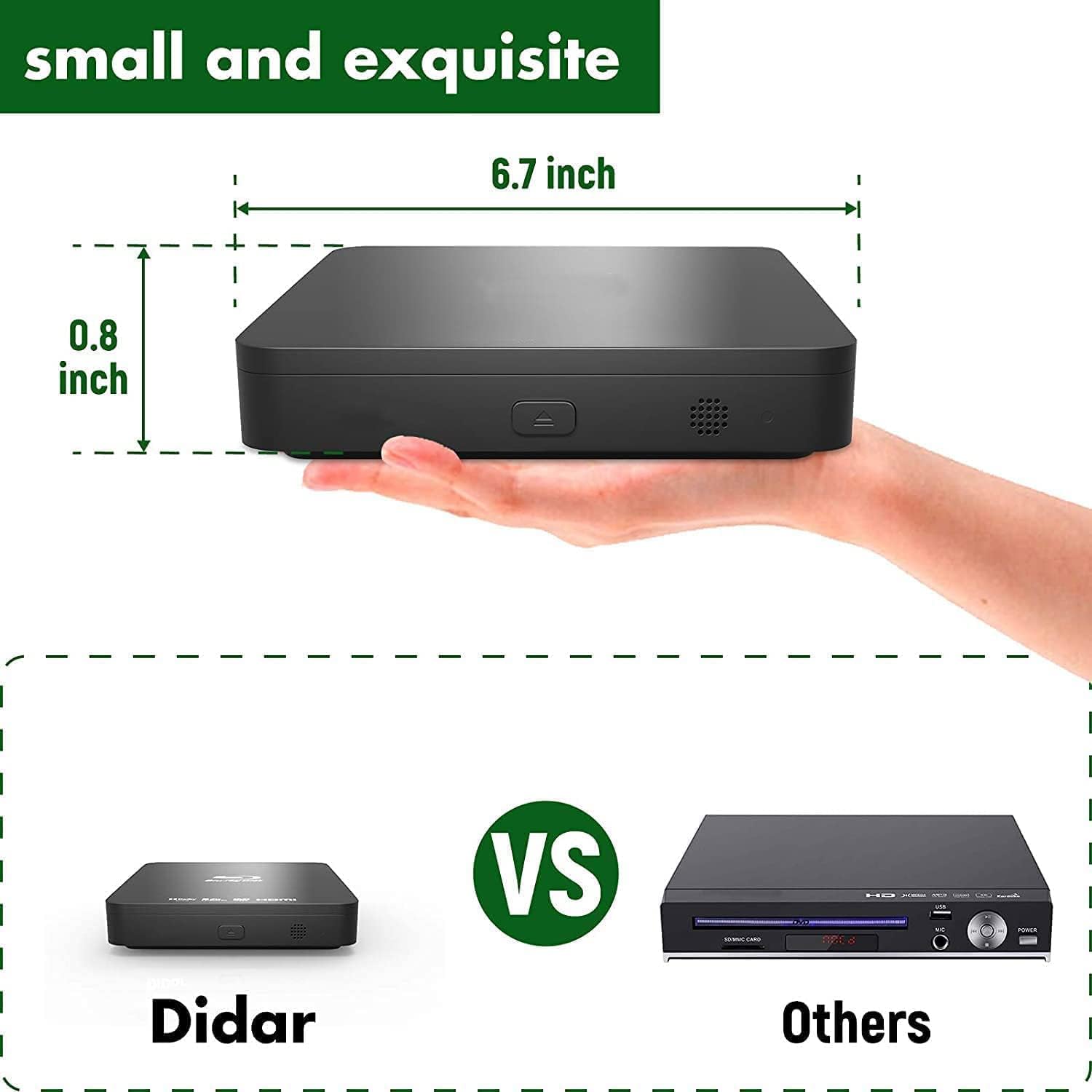
Image: The compact Didar Blu-Ray DVD Player, showcasing its sleek black design and small footprint, ideal for any entertainment setup.
2. Safety Information
- Power Supply: Use only the specified power adapter.
- Ventilation: Ensure adequate ventilation around the player to prevent overheating. Do not block ventilation openings.
- Liquid Exposure: Keep the player away from water or moisture.
- Cleaning: Disconnect from power before cleaning. Use a soft, dry cloth.
- Servicing: Do not attempt to service the player yourself. Refer all servicing to qualified personnel.
3. Package Contents
Please check the box for the following items:
- 1 x Didar Blu-Ray DVD Player (Model: EVP-203)
- 1 x Remote Control (Batteries not included)
- 1 x HDMI Cable (5 inch)
- 1 x AV Cable (3.3 inch)
- 1 x Power Adapter
- 1 x User Manual
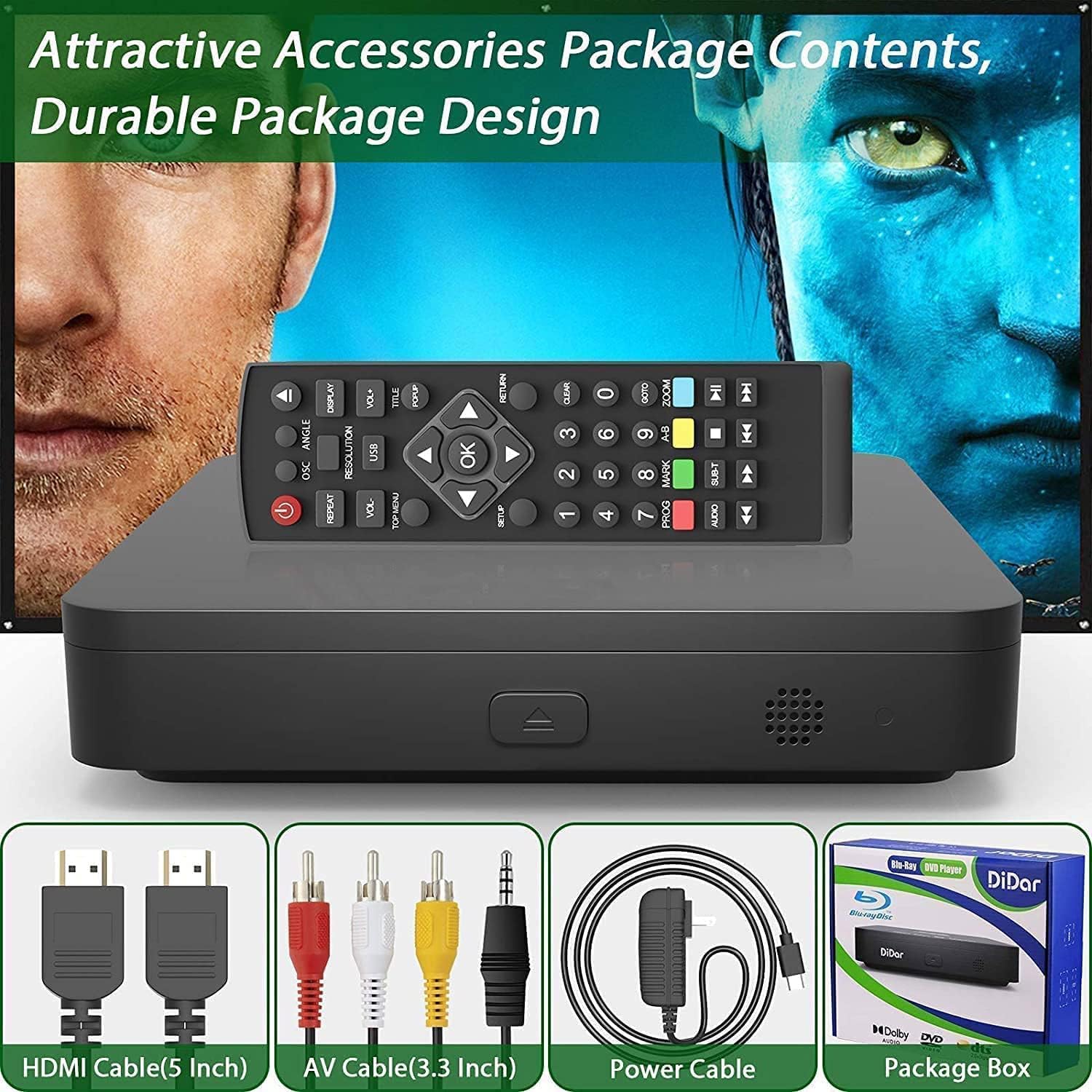
Image: A visual representation of the Didar Blu-Ray DVD Player and its included accessories: remote control, HDMI cable, AV cable, power adapter, and user manual.
4. Product Overview
4.1. Front Panel
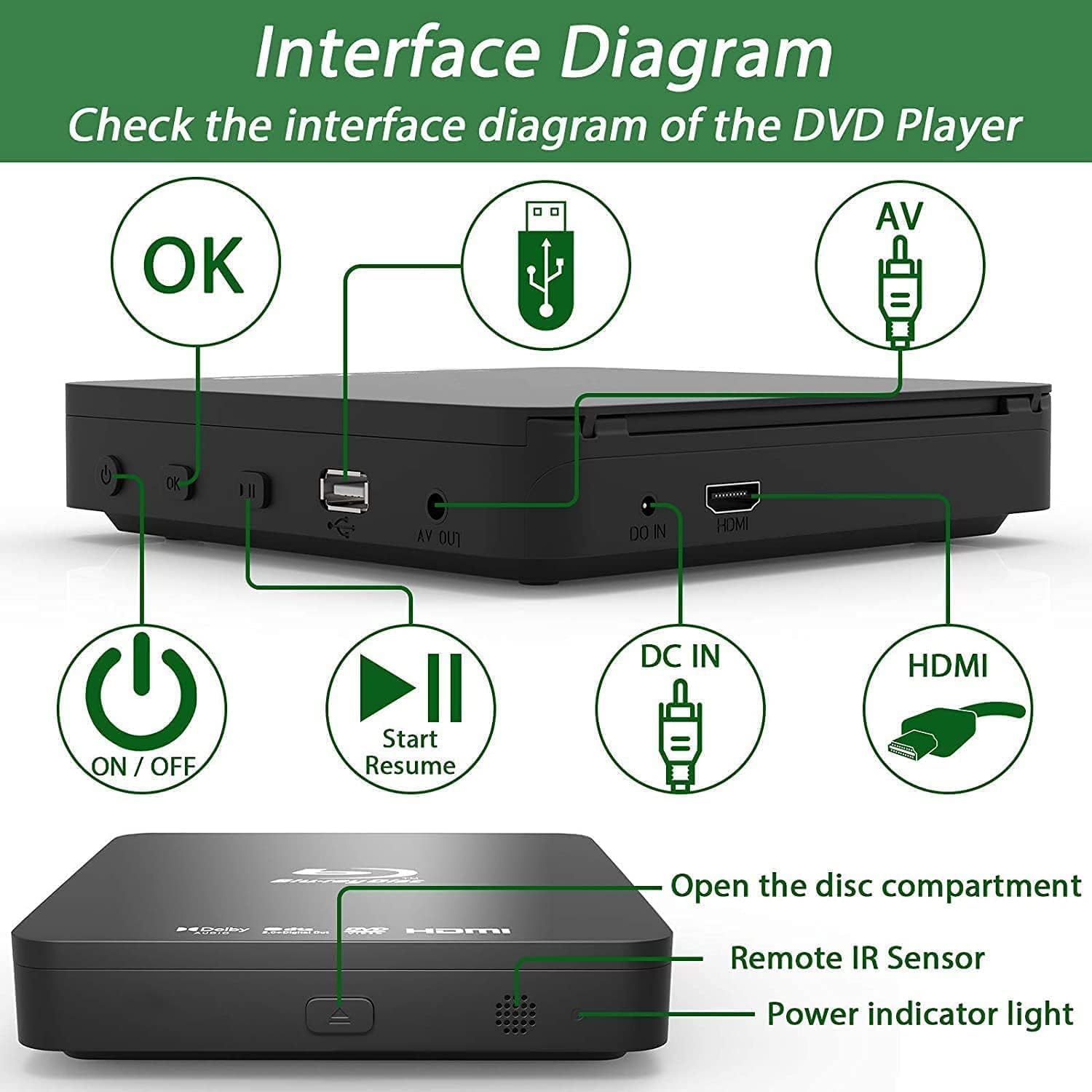
Image: A detailed diagram highlighting the front and rear panels of the Didar Blu-Ray DVD Player, showing buttons, ports, and indicators.
- Disc Compartment: Insert Blu-Ray or DVD discs here.
- Display Panel: Shows current status and time.
- Power Indicator Light: Indicates power status.
- ON/Turn off Button: Powers the unit on or off.
- Open/Close Button: Opens and closes the disc tray.
- Start/Resume/Pause Play Button: Controls playback.
- USB Port: For connecting USB flash drives (Max 128GB).
- Remote IR Sensor: Receives signals from the remote control.
4.2. Rear Panel
Refer to the image above for the rear panel layout.
- HDMI Output: Connects to a TV or projector for high-definition video and audio.
- AV Output (Video, Audio Left, Audio Right): Connects to older TVs or audio systems using RCA cables.
- DC IN: Power input port.
- Coaxial Digital Output: For digital audio connection to compatible audio receivers.
5. Setup
Follow these steps to set up your Didar Blu-Ray DVD Player:
- Connect Power: Plug the power adapter into the DC IN port on the player and then into a wall outlet.
- Connect to TV/Projector:
- HDMI Connection (Recommended for HD): Connect one end of the HDMI cable to the HDMI OUT port on the player and the other end to an HDMI input on your TV or projector.
- AV Connection (Standard Definition): Connect the AV cable to the corresponding Video (Yellow), Audio Left (White), and Audio Right (Red) ports on the player and to the AV input ports on your TV.

Image: The Didar Blu-Ray DVD Player connected to a projector via an HDMI cable, illustrating a typical home theater setup for an immersive viewing experience.
- Insert Remote Batteries: Open the battery compartment on the remote control and insert two AAA batteries (not included), ensuring correct polarity.
- Power On: Press the Power button on the player or the remote control to turn on the unit.
- Select Input: On your TV or projector, select the correct input source (e.g., HDMI 1, AV) that corresponds to the connection you made.
- Language Settings: After powering on, you may need to set the language. Navigate to the "Setting" option on the main interface. Under the first column, select the second option (Language), then change the right-side option to the first one (English) to set the interface to English. If you miss this step, you can adjust the language afterward by following these instructions.
Video: A demonstration of connecting the Blu-Ray DVD player to a TV and navigating the initial setup menu, including language selection.
Video: A comprehensive setup guide for the Giec G2805 Blu-ray DVD Player, showing power connection, HDMI connection, and initial language configuration steps.
6. Operating Instructions
6.1. Playing Discs
The player supports Blu-ray Discs (Region A/1) and all standard DVDs (Region Free), as well as CD, CD-R/RW, DVD-R/RW, DVD+R, DVD-Video, and VCD formats.

Image: An illustration detailing the wide range of disc formats compatible with the Didar Blu-Ray DVD Player, including Blu-ray (Region A) and standard DVDs (Region Free).
- Press the Open/Close button on the player or remote to open the disc tray.
- Place a disc gently onto the tray with the label side facing up.
- Press the Open/Close button again to close the tray.
- The player will automatically load and begin playback. If not, select "Disc" from the main menu.
6.2. USB Playback
You can play media files from a USB flash drive (up to 128GB).
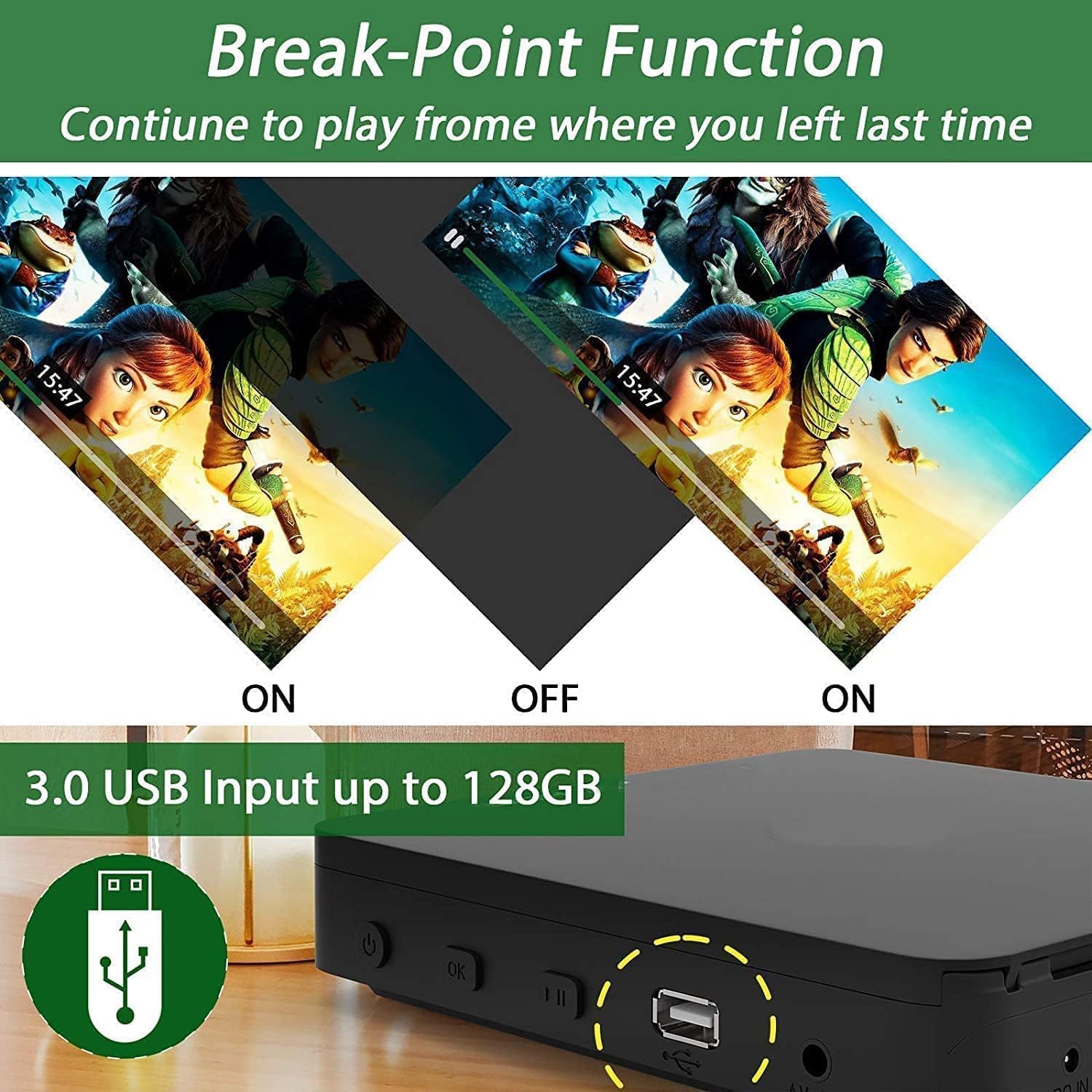
Image: The Didar Blu-Ray DVD Player highlighting its USB 3.0 input for media playback and demonstrating the Break-Point Function for resuming content.
- Insert your USB flash drive into the USB port on the front panel.
- Select "File Manager" from the main menu.
- Browse and select the desired media file (video, audio, or photo) to start playback.
6.3. Remote Control Functions

Image: The multi-functional remote control for the Didar Blu-Ray DVD Player, showing various buttons for easy navigation and function switching.
The remote control provides full functionality for navigating menus, controlling playback, and adjusting settings. Key functions include:
- Power: Turn the player on/off.
- Play/Pause/Stop: Control media playback.
- Fast Forward/Rewind: Navigate through content.
- Next/Previous: Skip tracks or chapters.
- Volume +/-: Adjust audio volume.
- Menu/Setup: Access player settings.
- Directional Buttons (Up/Down/Left/Right) & OK: Navigate menus and confirm selections.
- A-B Mode: Repeat a specific section of a disc.
- Repeat: Repeat a track, chapter, or entire disc.
- Zoom: Enlarge the picture.
- Subtitle: Select subtitle language.
- Audio: Select audio track.
- Display: Show playback information.
6.4. Break-Point Function
The player features a break-point function, allowing you to resume playback from where you left off. This function is typically automatic; simply power off the player or remove the disc, and upon re-inserting the disc or powering on, it will prompt you to resume.
7. BD/DVD Viewing Settings
Access the settings menu using the remote control to customize your viewing experience. Options include:
- Resolution: Adjust video output resolution (e.g., 1080p for Full HD).
- Aspect Ratio: Set the screen aspect ratio (e.g., 16:9 for widescreen).
- Audio Output: Configure audio settings, including Dolby Digital sound.
- Picture Settings: Adjust brightness, contrast, and color.

Image: A visual comparison demonstrating the enhanced clarity and detail of 1080P HD resolution provided by the Blu-Ray DVD Player versus standard 1080P.
8. Parental Control Settings
The player includes parental control features to restrict playback of certain discs based on rating. Access these settings through the main menu to set a password and adjust restriction levels.
9. System Settings
General system configurations can be found here, including software updates, accessibility options, and factory reset functionality. A factory reset will revert all settings to their default values.
10. Network Settings
If applicable, configure network settings for any online features or firmware updates. This model primarily focuses on disc and USB playback and does not feature extensive network connectivity for streaming services.
11. Maintenance
- Cleaning the Player: Use a soft, dry cloth to wipe the exterior of the player. Do not use liquid cleaners or abrasive materials.
- Cleaning Discs: Wipe discs from the center outwards with a soft, lint-free cloth. Avoid touching the playback surface.
- Storage: Store the player in a cool, dry place away from direct sunlight and extreme temperatures.
12. Troubleshooting
| Problem | Possible Cause | Solution |
|---|---|---|
| No power | Power cable not connected; power outlet faulty. | Ensure power cable is securely connected. Try a different outlet. |
| No picture on TV | Incorrect input selected on TV; HDMI/AV cable loose or faulty. | Select correct input source on TV. Check cable connections. Try a different cable. |
| No sound | TV/receiver volume too low; audio settings incorrect; audio cable loose or faulty. | Increase volume. Check audio settings on player and TV. Ensure audio cables are connected correctly. |
| Disc not playing/loading | Disc is dirty, scratched, or incompatible region/format. | Clean the disc. Check for scratches. Ensure disc is Region A/1 Blu-Ray or Region Free DVD. |
| Remote control not working | Batteries dead or incorrectly inserted; obstruction between remote and player. | Replace batteries. Ensure correct polarity. Remove obstructions. Point remote directly at player. |
13. Specifications
| Feature | Detail |
|---|---|
| Brand | DID A R |
| Model Name | EVP-203 |
| Product Dimensions | 7"L x 6.7"W x 0.8"H |
| Item Weight | 16 Ounces (1 pound) |
| Media Type | Blu-Ray Disc (Region A/1), CD, DVD (Region Free), VCD |
| Resolution | 1920x1080 (Full HD 1080P) |
| Connector Type | HDMI, AV (RCA), USB |
| Connectivity Technology | HDMI, USB |
| Audio Output Mode | Surround (Dolby Digital) |
| USB Support | Max 128G USB Flash Drive |
| Built-in | PAL/NTSC conversion |
14. Warranty and Support
Your Didar Blu-Ray DVD Player comes with an 18-month quality assurance and a 30-day worry-free return policy. For technical support or any inquiries, please refer to the contact information provided in your product packaging or on the official Didar website.