
1. Introduction
The DigitaLinx DL-USB-360MIC is a USB2.0 omnidirectional microphone designed to capture high-quality audio from all directions. This device is suitable for various applications such as conference meetings, gather spaces, podcasting, and live streaming. It features a compact design, a built-in mute button, and LED indicators for operational status.
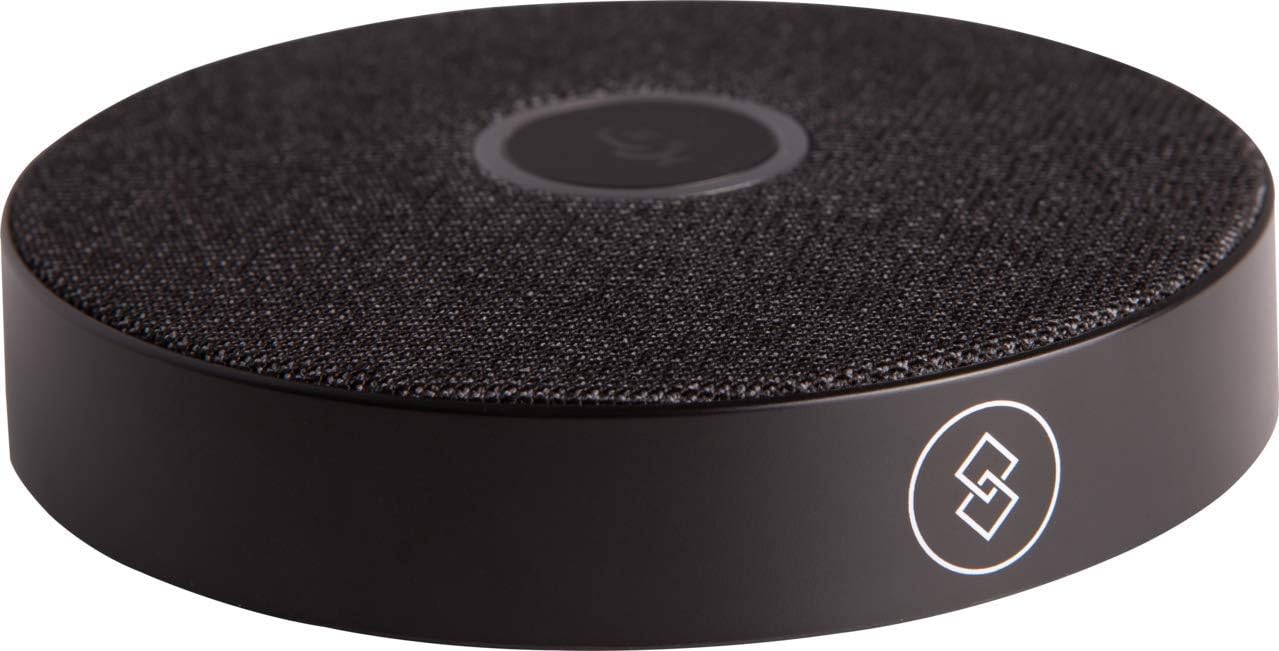
Image 1: The DigitaLinx DL-USB-360MIC omnidirectional microphone, showcasing its compact, circular design with a black fabric top and a subtle brand logo on the side.
2. Package Contents
Please verify that all items are present in the package:
- DigitaLinx DL-USB-360MIC Omnidirectional Microphone
- USB Cable
3. Product Features
- 360° Omnidirectional Pickup: Captures sound from all directions, providing comprehensive audio coverage.
- 4-Meter Capture Radius: Allows for flexible placement and movement during use.
- Integrated Mute Button: Easily mute or unmute the microphone with a single press.
- LED Status Indicator: Displays the current operational mode (working or muted).
- USB Connectivity: Simple plug-and-play connection to compatible devices.
- Compact Design: Portable and suitable for various environments.
4. Setup
Follow these steps to set up your DigitaLinx DL-USB-360MIC:
- Connect the USB Cable: Insert one end of the provided USB cable into the USB port on the microphone.
- Connect to Device: Plug the other end of the USB cable into an available USB 2.0 port on your computer (laptop or PC).
- Automatic Recognition: The microphone is plug-and-play and should be automatically recognized by your operating system without requiring additional drivers.
- Select as Input Device: In your computer's sound settings or communication software, select the DigitaLinx DL-USB-360MIC as your preferred audio input device.

Image 2: Side view of the DigitaLinx DL-USB-360MIC, showing the USB port for connecting the included USB cable.
5. Operating Instructions
Using your DigitaLinx DL-USB-360MIC is straightforward:
- Power On: The microphone powers on automatically when connected to a powered USB port.
- Mute/Unmute Function: Press the central 'mic' button on the top of the device to toggle between mute and unmute states.
- LED Indicator: Observe the LED light around the mute button for status indication:
- Green Light: Indicates the microphone is in working mode and actively capturing audio.
- Red Light: Indicates the microphone is in mute mode and not capturing audio.
- Optimal Placement: For best audio capture, place the microphone centrally within the desired recording area, ensuring it is not obstructed.

Image 3: Top view of the DigitaLinx DL-USB-360MIC, showing the central mute button illuminated with a green LED, indicating active recording.

Image 4: Top view of the DigitaLinx DL-USB-360MIC, showing the central mute button illuminated with a red LED, indicating the microphone is muted.
6. Maintenance
To ensure the longevity and optimal performance of your microphone:
- Cleaning: Gently wipe the exterior of the microphone with a soft, dry cloth. Avoid using liquid cleaners or abrasive materials.
- Storage: When not in use, store the microphone in a cool, dry place away from direct sunlight and extreme temperatures.
- Handling: Avoid dropping the device or subjecting it to strong impacts, as this may damage internal components.
7. Troubleshooting
If you encounter issues with your DigitaLinx DL-USB-360MIC, refer to the following common solutions:
- No Sound/Microphone Not Detected:
- Ensure the USB cable is securely connected to both the microphone and the computer.
- Try connecting the microphone to a different USB port on your computer.
- Verify that the microphone is selected as the default input device in your computer's sound settings and in any communication software you are using.
- Restart your computer.
- Mute Button Not Responding:
- Ensure the microphone is properly connected and powered on (green LED should be visible when unmuted).
- Disconnect and reconnect the USB cable.
- Poor Audio Quality:
- Ensure the microphone is placed on a stable surface and not obstructed.
- Check for excessive background noise in the environment.
- Adjust microphone input levels in your computer's sound settings.
8. Specifications
| Feature | Detail |
|---|---|
| Model Number | DL-USB-360MIC |
| Connectivity Technology | USB |
| Connector Type | USB |
| Polar Pattern | Omnidirectional |
| Compatible Devices | Laptop, PC |
| Power Source | Corded Electric (USB Powered) |
| Signal-to-Noise Ratio | 80 dB |
| Number of Channels | 1 |
| Item Weight | 2 pounds |
| Package Dimensions | 8 x 8 x 2 inches |
| Included Components | USB Cable |
| Special Feature | Battery Indicator Light (LED Status), USB |
9. Warranty and Support
Warranty Information: Specific warranty details for the DigitaLinx DL-USB-360MIC are typically provided at the point of purchase or by the manufacturer. Please refer to your purchase documentation or contact the seller for information regarding warranty coverage and terms.
Technical Support: For technical assistance, troubleshooting beyond this manual, or inquiries about your product, please contact the retailer from whom you purchased the device or visit the official DigitaLinx website for support resources.