
Introduction
This manual provides detailed instructions for the installation, operation, and maintenance of your Ossuret 10.1 inch Android Car Radio Navigation Stereo. This unit features a 10.1-inch HD touchscreen, Android 10 operating system, GPS navigation, Bluetooth, Wi-Fi, and support for various multimedia formats. Please read this manual thoroughly before using the product to ensure proper functionality and safety.
Product Compatibility
This car radio unit is designed for specific vehicle models and years. Ensure your vehicle matches the compatibility requirements before installation.
- Compatible Vehicles: Nissan Altima Teana
- Compatible Model Years: 2013, 2014, 2015, 2016, 2017, 2018
- Important Note: This unit is not compatible with vehicles equipped with a BOSE amplifier system.

Image: Vehicle Application. This image illustrates the compatible car models and years for the Ossuret car radio. It explicitly states compatibility with Nissan Altima Teana from 2013 to 2018 and notes incompatibility with BOSE amplifier systems.
Package Contents
Verify that all the following components are included in your package:

Image: Accessories. This image displays all the cables and components included with the Ossuret car radio, such as power harnesses, USB cables, GPS antenna, and RCA cables.
- Main Head Unit (10.1 inch display)
- Power Harness
- GPS Antenna
- USB Cables
- RCA Cables
- Radio Antenna Adapter
- Mounting Brackets (if applicable)
- User Manual (this document)
Installation Guide
Wiring Diagram
Refer to the wiring diagram below for proper connection of the unit. Incorrect wiring can damage the device or your vehicle's electrical system. Professional installation is recommended.

Image: Wiring Diagram. This image shows the rear view of the head unit with labels for the ISO Port, Fuse, RCA Port, USB Port, GPS Antenna, and Radio Antenna, indicating where each component should be connected.
- ISO Port: Connects to the vehicle's main power and speaker harness.
- Fuse: Integrated fuse for circuit protection.
- RCA Port: For external audio/video input/output, such as amplifiers, subwoofers, or auxiliary video sources.
- USB Port: Connect USB devices for media playback or data transfer.
- GPS Antenna: Connect the GPS antenna for navigation functionality. Position it in a location with a clear view of the sky.
- Radio Antenna: Connect the vehicle's radio antenna for FM/AM reception.
Panel Size
The dimensions of the unit are crucial for proper fitment into your vehicle's dashboard. Please verify the panel size before proceeding with installation.

Image: Panel Size. This image provides the exact measurements of the car radio's front panel, showing a width of 305mm at the top, 260mm at the bottom, and a height of 260mm, with the screen being 10.1 inches diagonally.
Basic Operation
Power On/Off
The unit typically powers on automatically when the vehicle's ignition is turned on. To manually power off or restart, press and hold the power button (usually located on the front panel) until the power options appear on the screen.
Home Screen Navigation
The home screen provides access to all main functions and applications. Swipe left or right to navigate through different pages of apps. Tap an icon to launch an application.
Bluetooth Function
The unit supports Bluetooth for hands-free calling and audio streaming (A2DP).

Image: Support Bluetooth Function. This image shows the Bluetooth interface on the car radio screen, demonstrating hands-free calling with a dial pad and contact list, and indicating support for Bluetooth music streaming.
Pairing a Bluetooth Device
- Go to the Bluetooth settings on the head unit.
- Enable Bluetooth on your mobile phone.
- Search for available devices on your phone and select the head unit (e.g., "CarBT").
- Confirm the pairing code on both devices if prompted.
- Once paired, you can make/receive calls and stream audio.
Hands-Free Calling
- Dialing: Use the on-screen dial pad or access your phonebook (after syncing) to make calls.
- Answering/Ending Calls: Use the on-screen buttons or steering wheel controls (if configured).
- Phonebook: Download your phone's contacts to the head unit for easy access.
- Call Records: View incoming, outgoing, and missed calls.
Bluetooth Music (A2DP)
Stream music wirelessly from your paired phone. Use the on-screen controls for play, pause, next, and previous tracks.
USB Connection
The unit supports USB connections for playing audio and video files from external storage devices.
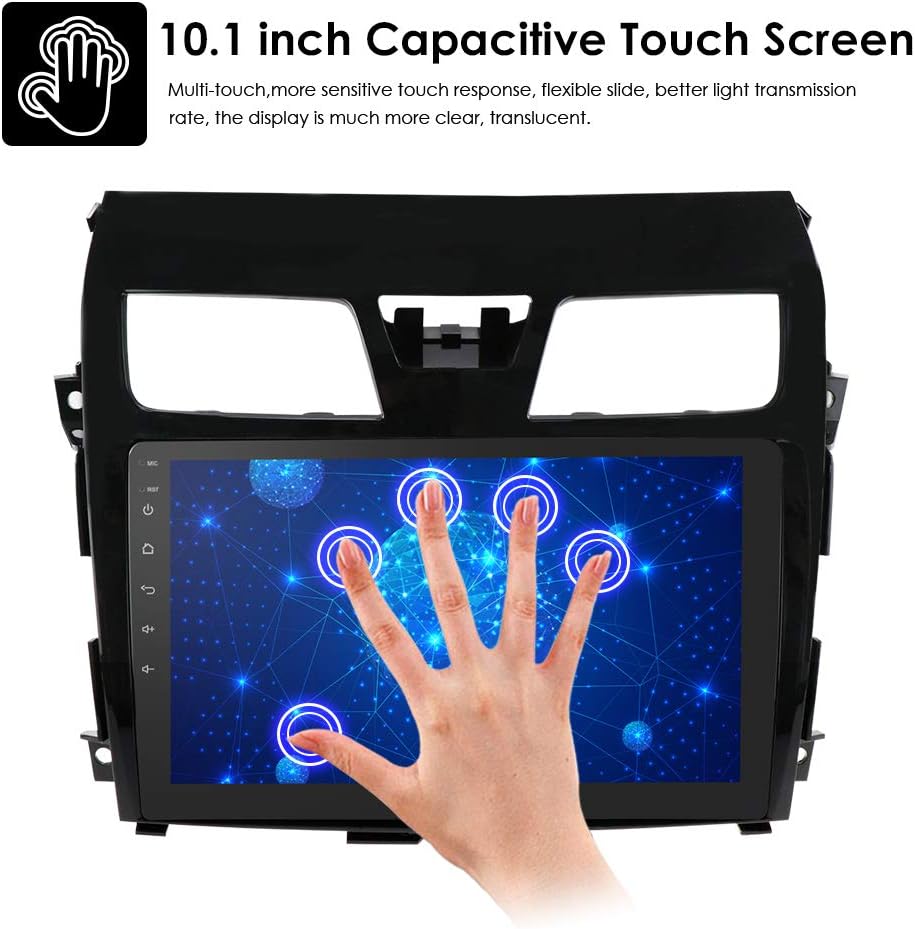
Image: Support USB Connection. This image shows a USB drive connected to the unit, with the screen displaying a music playlist, indicating the unit's capability to play media from external USB storage.
- Connect a USB flash drive or external hard drive (up to 2TB) to the USB port.
- The unit will automatically detect the device and allow you to browse and play supported media files.
Multimedia Playback
The Ossuret car radio supports a wide range of audio, video, and image formats.

Image: Support Multimedia Parameters. This image highlights the unit's multimedia capabilities, showing icons for video, images, and music, along with a list of supported formats for each type.
Supported Formats:
- Music Formats: MP3, WMA, MP2, OGG, AAC, MA4, FLAC, APE, WAV, RM, RMVB, etc.
- Video Formats: AVI (H.264, DIVX, XVID), RM, RMVB, MKV (H.264, DIVX, XVID), WMA, MOV, MP4 (H.264, MPEG, DIVX, XVID), DAT (VCD format), VOB (DVD format), PMP, MPEG, MPG, FLV (H.263, H.264), ASF, TS, TP, 3GP, etc. (supports 1080P video decoder).
- Picture Formats: JPG, BMP, PNG, GIF (supports 4096*4096 pixels).
Radio Function
The unit includes a built-in FM/AM radio tuner with support for DAB/DAB+ (DAB box optional).

Image: Support Radio Function. This image shows the radio interface, displaying the FM frequency (87.50 MHz) and preset stations. It also includes a separate section for equalizer (EQ) settings, allowing users to customize audio output.
FM/AM Tuning
- FM Tuning Range: 87.5-108 MHz (EU/US increments: 0.05 MHz/0.1 MHz).
- Automatic Search: Use the "AS" button to automatically scan and save strong stations.
- Manual Tuning: Use the arrow buttons to fine-tune frequencies.
- Presets: Save your favorite stations to preset buttons for quick access.
Equalizer (EQ)
Adjust audio output with the built-in equalizer. Choose from preset modes (e.g., Pop, Jazz, Classical) or customize your own settings.
Touch Screen Operation
The unit features a 10.1-inch capacitive multi-touch screen for intuitive control.
Image: 10.1 inch Capacitive Touch Screen. This image demonstrates the multi-touch capability of the screen, showing multiple finger touches registered simultaneously, highlighting its responsiveness and flexibility.
- Multi-touch: Supports multiple simultaneous touch inputs for gestures like pinch-to-zoom.
- Sensitive Response: Provides quick and accurate touch recognition.
- Flexible Slide: Allows smooth scrolling and swiping.
- Clear Display: High-definition screen with good light transmission for clear visuals.
Rearview Camera Input
The unit supports a rearview camera input, enhancing safety by providing a clear view of the area behind your vehicle when reversing.
Image: Support Rearview Camera Input. This image illustrates how a rearview camera system works, showing a car backing up with a cone behind it, and the car radio screen displaying the camera feed with parking guidelines, helping to avoid obstacles.
- Automatically displays the rearview camera feed when the vehicle is put into reverse gear (requires proper wiring to the reverse light trigger).
- Helps in identifying blind spots and obstacles behind the vehicle.
Specifications
| Feature | Specification |
|---|---|
| Operating System | Google Android 10 |
| Processor | ALLWINNER T3 1.6 GHz * 4 |
| RAM | 1 GB |
| Internal Storage (Flash) | 16 GB |
| Screen Size | 10.1 inch HD Capacitive Touchscreen |
| Resolution | 1024 * 600 |
| Connectivity | Bluetooth, USB, Wi-Fi, GPS, 4G (external modem required) |
| Radio Tuner | FM, AM, DAB/DAB+ (optional) |
| GPS Navigation | Supports Android maps, IGO, Sygic, Kudos, Google Maps online navigation |
| Video Decoder | 1080P |
| Output Power | 4 x 50 Watts |
| Control Method | Touch, Remote Control, Steering Wheel Control |
| Mirror Link | Airpin (PRO) for iPhone, Easy-Connect for Android phones |
| Part Number | T1ATM101001 |
Troubleshooting
If you encounter issues with your Ossuret car radio, refer to the following common problems and solutions:
- No Power:
- Check all power connections and ensure they are securely fastened.
- Verify the vehicle's fuse box and the unit's inline fuse (refer to Wiring Diagram).
- Ensure the ignition is on.
- No Sound:
- Check speaker connections.
- Verify volume levels and mute settings.
- Ensure the correct audio source is selected.
- If your car has a factory amplifier, ensure it is properly integrated or bypassed if necessary.
- GPS Not Working / Inaccurate:
- Ensure the GPS antenna is connected and placed in a location with a clear view of the sky (e.g., dashboard).
- Check GPS settings within the Android system.
- Verify that navigation apps are installed and updated.
- Bluetooth Connection Issues:
- Ensure Bluetooth is enabled on both the head unit and your mobile device.
- Delete previous pairings and try pairing again.
- Restart both devices.
- Steering Wheel Controls Not Working:
- Ensure the steering wheel control wires are correctly connected to the head unit.
- Access the steering wheel control learning function in the unit's settings and program the buttons.
- Touch Screen Unresponsive:
- Restart the unit.
- Ensure the screen is clean and free from debris.
Warranty and Support
Ossuret provides customer support for its products. For any questions regarding usage or installation, please contact customer service.
- Customer Service: Contact the seller or manufacturer for assistance.
- Warranty: The product typically comes with a warranty period. Refer to your purchase documentation for specific warranty terms and conditions.


