
Amaz247 3ce4a94e-6840-4f62-a2aa-8e1e46b4e7ee
Onn Roku TV Remote Instruction Manual
Model: 3ce4a94e-6840-4f62-a2aa-8e1e46b4e7ee | Brand: Amaz247
1. Product Overview
This instruction manual provides detailed information on how to set up, operate, and maintain your Amaz247 Onn Roku TV Remote. This remote is designed as a direct replacement for all Onn Roku TVs, offering immediate functionality without the need for pairing or programming.

Image: Front view of the Onn Roku TV Remote, showing all buttons including navigation, power, volume, and shortcut keys.
2. Setup
2.1 Battery Installation
The remote requires two AAA batteries (not included). Follow these steps to install them:
- Locate the battery compartment cover on the back of the remote.
- Slide the cover downwards to open the compartment.
- Insert two AAA batteries, ensuring the positive (+) and negative (-) terminals align correctly with the indicators inside the compartment.
- Slide the battery compartment cover back into place until it clicks securely.
Once batteries are installed, the remote is ready for immediate use with your Onn Roku TV. No pairing or programming is required.
Video: Demonstration of battery installation and initial use of the Onn Roku TV remote.
3. Operating Instructions
3.1 Remote Control Buttons
- Power Button (⬤): Turns your Onn Roku TV on or off.
- Back Button (←): Returns to the previous screen or menu.
- Home Button (⌂): Navigates to the Roku TV home screen.
- Directional Pad (Up, Down, Left, Right): Used to navigate through menus and content.
- OK Button: Confirms selections.
- Volume Up/Down Buttons: Adjusts the TV volume. Located on the side of the remote.
- Mute Button: Mutes or unmutes the TV audio. Located on the side of the remote.
- Instant Replay Button (↺): Jumps back a few seconds in video playback.
- Sleep Timer Button (🌛): Accesses sleep timer settings.
- Asterisk Button (*): Opens options menu within apps or content.
- Rewind, Play/Pause, Fast Forward Buttons: Controls media playback.
- Shortcut Buttons (Netflix, Amazon, Hulu, YouTube): Provides direct access to these popular streaming applications.

Image: Side view of the remote, highlighting the volume up, volume down, and mute buttons.
3.2 Basic Functions
To operate your Onn Roku TV with this remote:
- Power On/Off: Press the ⬤ button.
- Navigation: Use the directional pad to move the cursor on the screen.
- Selection: Press the OK button to select an item or confirm an action.
- Volume Control: Use the volume up/down buttons on the side of the remote.
- App Shortcuts: Press any of the dedicated shortcut buttons (Netflix, Amazon, Hulu, YouTube) to launch the respective application directly.
4. Compatibility
This remote is specifically designed to work with ALL Onn Roku Built-in TVs. It is a direct replacement and requires no pairing or programming.
Important Compatibility Notes:
- ❌ NOT for Roku Player (Box): This remote will not function with standalone Roku streaming boxes.
- ❌ NOT for Roku Stick: This remote is not compatible with Roku streaming sticks.
An Onn Roku TV is a smart television with the Roku operating system built directly into the TV itself, eliminating the need for an external Roku device.

Image: Visual guide illustrating the difference between Roku Box, Roku Stick (incompatible), and Roku TV (compatible).
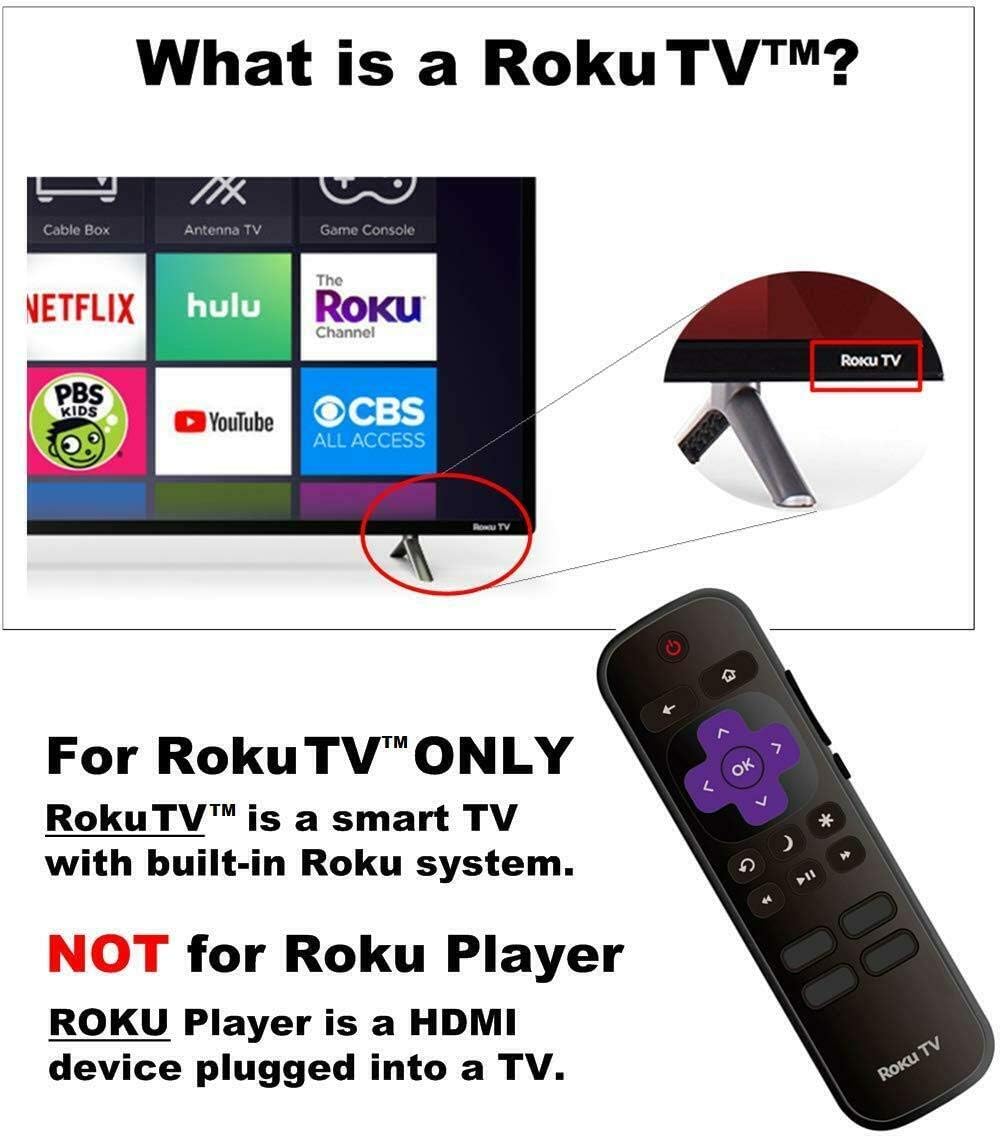
Image: Diagram clarifying that the remote is for Roku TV™ ONLY, which is a smart TV with a built-in Roku system, not for Roku Players.
5. Maintenance
5.1 Cleaning
To clean your remote control, gently wipe it with a soft, dry cloth. Do not use liquid cleaners, sprays, or abrasive materials, as these may damage the remote's surface or internal components.
5.2 Battery Care
- Replace batteries when the remote's response becomes sluggish or it stops functioning.
- Remove batteries if the remote will not be used for an extended period to prevent leakage and potential damage.
- Dispose of used batteries responsibly according to local regulations.
6. Troubleshooting
6.1 Common Issues and Solutions
| Issue | Possible Cause | Solution |
|---|---|---|
| Remote not responding | Dead or incorrectly inserted batteries. Obstruction between remote and TV. Remote out of range. | Replace batteries, ensuring correct polarity. Remove any obstructions. Ensure you are within 25 ft (7.6 meters) of the TV. |
| Buttons not working | Dirty contacts or internal malfunction. | Clean the remote. If issue persists, consider replacing the remote. |
| Remote works intermittently | Low battery power. Interference. | Replace batteries. Minimize electronic interference near the TV. |
| Remote does not control Roku Player/Stick | Incompatible device. | This remote is designed exclusively for Onn Roku TVs, not standalone Roku Players or Sticks. |
7. Specifications
| Feature | Detail |
|---|---|
| Brand | Amaz247 |
| Model Number | 3ce4a94e-6840-4f62-a2aa-8e1e46b4e7ee |
| Compatible Devices | All Onn Roku TVs |
| Power Source | 2 x AAA Batteries (not included) |
| Max Operation Distance | Up to 25 ft (7.6 meters) |
| TV Response Time | Less than 0.1 second |
| Material | First-class ABS and Silicon |
| Item Weight | 1.65 ounces (approx. 46.7 grams) |
| Package Dimensions | 5.63 x 1.65 x 0.83 inches (approx. 14.3 x 4.2 x 2.1 cm) |
8. Warranty and Support
8.1 Warranty Information
This product is covered by the manufacturer's standard warranty. Please refer to the product packaging or contact the seller for specific warranty terms and conditions.
8.2 Customer Support
For any questions, technical assistance, or support regarding your Amaz247 Onn Roku TV Remote, please contact the seller directly through the platform where the purchase was made. Provide your order details for faster service.
no relevant documents
Ask a question about this manual
Ask about setup, troubleshooting, compatibility, parts, safety, or missing instructions. Manuals+ will review the question and use this page’s manual context to help answer it.