
IVEOPPE Galaxy 10.9 inch Keyboard Case
IVEOPPE Keyboard Case User Manual
For Galaxy 10.9 inch with Multi-Touch Touchpad and Backlit Keyboard

Image Description: The IVEOPPE Keyboard Case in black, open and set up with a tablet inside. The tablet screen displays a vibrant, abstract wallpaper. The keyboard is backlit with red light, and a stylus is visible in the pen holder above the keyboard. The case itself has a textured finish.
Introduction
This manual provides detailed instructions for the setup, operation, and maintenance of your IVEOPPE Keyboard Case for Galaxy 10.9 inch. Please read this manual thoroughly before using the product to ensure optimal performance and longevity.
The IVEOPPE Keyboard Case combines a protective cover with a detachable Bluetooth keyboard and multi-touch touchpad, designed to enhance your tablet experience.
Compatibility
This IVEOPPE Keyboard Case is designed for the Galaxy 10.9 inch tablet. Please ensure your device matches this specification for proper fit and function.
To verify your tablet's model number, refer to the information typically found on the back of your device or in its settings menu. The image below provides an example of a compatibility notice, illustrating where to find model numbers, though the specific models listed in the image are for iPad devices and not for this product.

Image Description: An example compatibility chart titled "COMPATIBILITY NOTICE" showing various iPad models and their corresponding model numbers (e.g., iPad 9.7 2018 6th Generation A1893/A1954). An illustration of the back of an iPad indicates where to find the model number. Note: The specific models listed in this image are for iPad devices and are shown as an example of how to check compatibility, not as a direct compatibility list for this product.
The keyboard itself supports 3 operating systems: Windows, Android, and iOS, allowing for versatile use with other Bluetooth-enabled devices.
Setup Instructions
1. Charging the Keyboard
- Connect the provided USB charging cable to the keyboard's charging port.
- Connect the other end of the cable to a USB power adapter (not included) or a computer's USB port.
- The charging indicator light will illuminate. Once fully charged, the light will change or turn off.
- Allow approximately 2-3 hours for a full charge.
2. Attaching Your Tablet to the Case
Carefully insert your tablet into the protective case. Ensure all ports, buttons, and the camera align with the case's precise cutouts.

Image Description: An image illustrating the tablet securely fitted into the case, highlighting the precise cutouts for the camera hole, power button, volume buttons, and lightning connector. A stylus is shown in the built-in pencil holder.
3. Pairing the Keyboard via Bluetooth
- Turn on the keyboard by sliding the power switch to the "ON" position. The Bluetooth indicator light will flash.
- On your tablet, go to Settings > Bluetooth.
- Ensure Bluetooth is turned on.
- Your tablet will search for available devices. Select "Bluetooth Keyboard" (or similar name) from the list.
- If prompted, enter the pairing code displayed on your tablet using the keyboard and press Enter.
- Once paired, the Bluetooth indicator light on the keyboard will stop flashing and remain solid or turn off, indicating a successful connection.
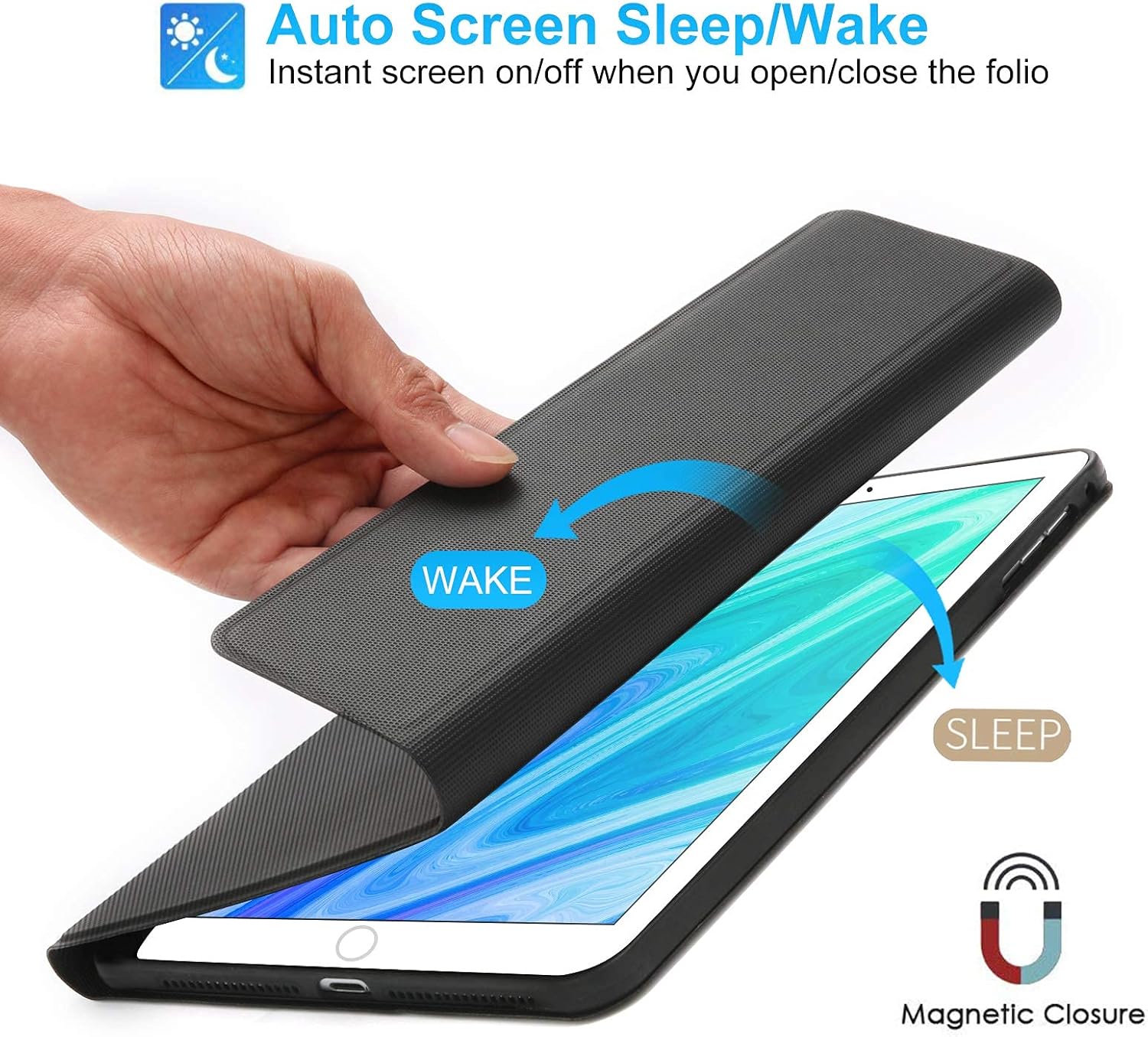
Image Description: An image showing the detachable wireless Bluetooth keyboard. It illustrates the keyboard's magnetic attachment to the case and its compatibility with various devices including tablets, laptops, phones, and PCs (with Bluetooth adapter). The keyboard features backlit keys and indicates support for Windows, Android, and iOS systems.
Operating Instructions
Keyboard Functions
- Backlight Control: Press the light bulb icon key to cycle through 7 different backlight colors. Press the Fn + light bulb icon key to adjust the brightness levels (three levels available).
- Special Function Keys: The top row of keys provides quick access to various tablet functions (e.g., Home, Search, Volume, Play/Pause). Refer to the keyboard layout for specific functions.

Image Description: A visual representation of the keyboard with its 7-color backlight selection and three brightness settings. The image shows the keyboard illuminated in a teal color, with indicators pointing to the light bulb key for color cycling and the Fn key for brightness adjustment.
Touchpad Usage
The integrated multi-touch touchpad allows for precise navigation and gesture control.
- Enabling Touchpad: For iPad users, navigate to Settings > Accessibility > Touch > AssistiveTouch and turn it ON to enable full touchpad functionality.
- Turning Touchpad On/Off: Use the dedicated touchpad toggle button on the keyboard to activate or deactivate the touchpad.

Image Description: An image highlighting the keyboard's touchpad functionality. It provides instructions on how to enable the assistive touch function on an iPad via accessibility settings and shows the dedicated button to turn the touchpad on or off.
Adjusting Viewing Angles
The case features 3 anti-slip grooves, allowing you to adjust your tablet to various comfortable viewing angles.
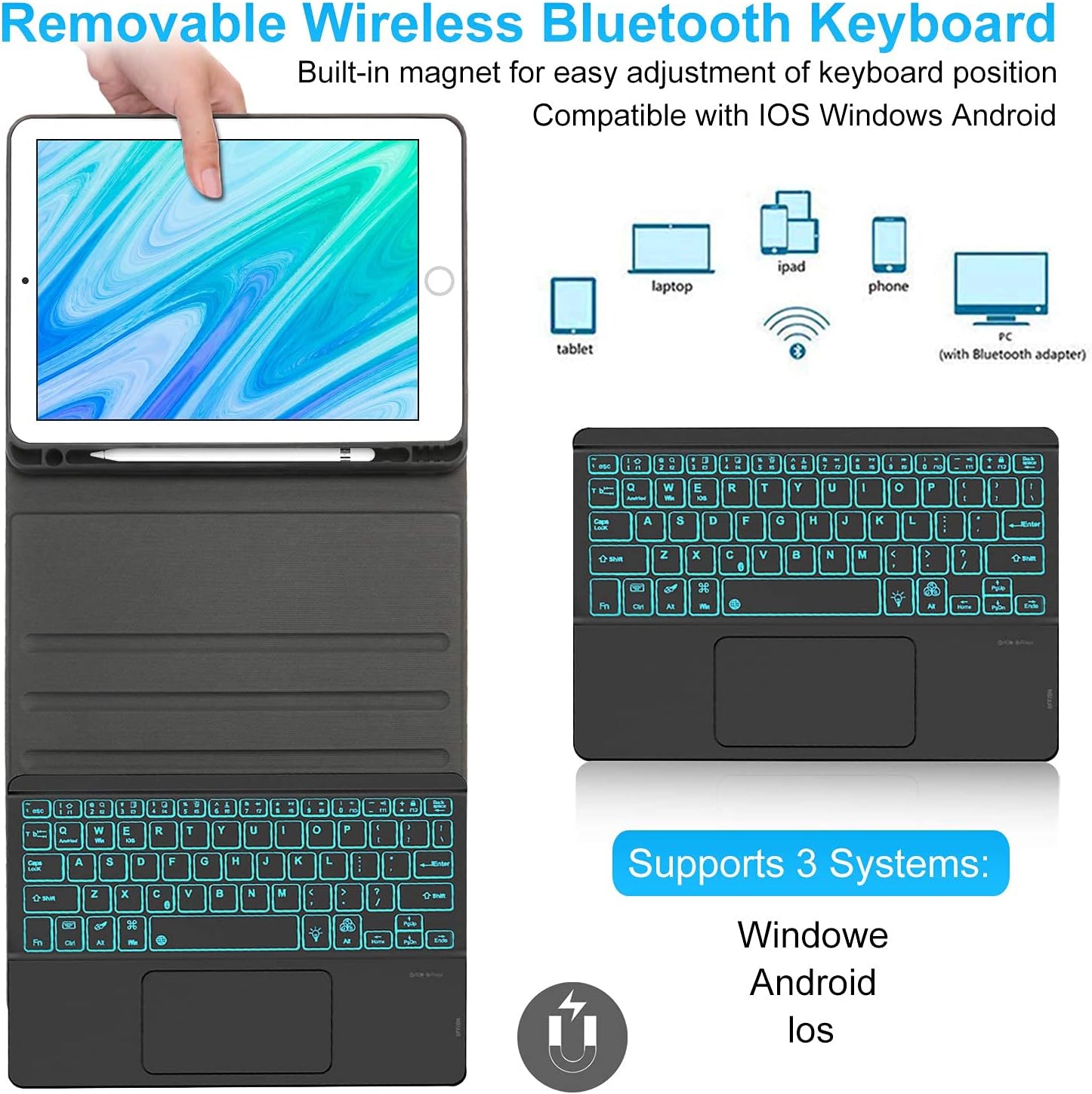
Image Description: An illustration demonstrating the adjustable viewing angles of the keyboard case. It shows the tablet propped up in three different positions using the anti-slip grooves, indicating how to achieve an ergonomic "eye level" and comfortable viewing angle.
Auto Sleep/Wake Function
The case supports an auto sleep/wake feature. Opening the folio will instantly wake your tablet, and closing it will put your tablet to sleep, conserving battery life.

Image Description: An image depicting the auto screen sleep/wake function of the case. A hand is shown opening the cover to "WAKE" the tablet and closing it to put it to "SLEEP," with an icon indicating magnetic closure.
Maintenance
- Cleaning: Use a soft, dry, lint-free cloth to clean the keyboard and case. For stubborn dirt, slightly dampen the cloth with water or a mild cleaning solution. Avoid harsh chemicals or abrasive materials.
- Storage: When not in use for extended periods, ensure the keyboard is turned off to conserve battery. Store the case in a cool, dry place away from direct sunlight and extreme temperatures.
- Battery Care: To maintain battery health, avoid fully discharging the keyboard frequently. Charge the keyboard regularly, even if not in constant use.
Troubleshooting
Keyboard Not Connecting via Bluetooth
- Ensure the keyboard is turned on and fully charged.
- Make sure Bluetooth is enabled on your tablet.
- Try unpairing and re-pairing the keyboard: Go to your tablet's Bluetooth settings, forget the "Bluetooth Keyboard" device, then repeat the pairing steps.
- Restart both your tablet and the keyboard.
- Ensure the keyboard is within the effective Bluetooth range (typically 10 meters).
Touchpad Not Responding
- Verify that the touchpad is enabled using the dedicated toggle button on the keyboard.
- For iPad users, confirm that AssistiveTouch is enabled in Settings > Accessibility > Touch.
- Ensure the keyboard is properly connected via Bluetooth.
- Clean the touchpad surface to remove any dirt or debris.
Backlight Not Working
- Check if the keyboard battery is low. Charge the keyboard.
- Press the light bulb icon key to cycle through colors and ensure it's not set to off.
- Press Fn + light bulb icon key to adjust brightness.
Specifications
| Brand | IVEOPPE |
| Compatible Devices | Tablet (Specifically Galaxy 10.9 inch) |
| Connectivity Technology | Bluetooth |
| Keyboard Description | Ergonomic |
| Special Features | Magnetic, Multi-Touch Touchpad, 7-Color Backlight, Auto Sleep/Wake, Built-in Pencil Holder |
| Style | Modern |
| Material | Faux Leather, Plastic, Rubber |
| Hand Orientation | Ambidextrous |
| Number of Buttons | 78 |
| Item Weight | 1.68 pounds |
| Package Dimensions | 11.06 x 7.87 x 1.26 inches |
Warranty Information
Specific warranty details are not provided in this manual. Please refer to the product packaging or contact IVEOPPE customer support for warranty information.
Customer Support
For further assistance, technical support, or inquiries, please visit the official IVEOPPE website or contact their customer service department. Contact information may be available on the product packaging or the brand's official online store.
You can visit the IVEOPPE Store on Amazon: IVEOPPE Store
Ask a question about this manual
Ask about setup, troubleshooting, compatibility, parts, safety, or missing instructions. Manuals+ will review the question and use this page’s manual context to help answer it.