
Veetop USB Microphone
Veetop USB Microphone User Manual
Model: USB Microphone
1. Introduction
This manual provides detailed instructions for the setup, operation, and maintenance of your Veetop USB Microphone. Please read this manual thoroughly to ensure optimal performance and longevity of your device.

Image 1.1: The Veetop USB Microphone, featuring a flexible gooseneck, a stable base with an on/off switch, a USB cable, and an included foam windscreen.
Key Features:
- Omnidirectional Sound Capture: Designed to pick up sound from all directions, ensuring comprehensive audio coverage.
- Intelligent Noise Reduction: Equipped with a chip to minimize background noise and echo for clear sound.
- Plug & Play USB Connectivity: No drivers required for most operating systems (Windows, Linux, Mac OS, PS4).
- One-Button On/Off Switch: Convenient control directly on the microphone base.
- 360-Degree Flexible Gooseneck: Allows for easy adjustment of microphone position.
- Portable and Durable Design: Made from environment-friendly PVC and plastic with an anti-slip base.
2. Package Contents
Please verify that all items are present in your package:
- Veetop USB Microphone
- Foam Windscreen
- User Manual (this document)
- Warranty Card
3. Setup Instructions
3.1 Connecting the Microphone
- Unpack the Veetop USB Microphone and its components.
- Insert the foam windscreen onto the microphone head.
- Connect the USB cable of the microphone to an available USB port on your computer (PC, laptop, Mac) or compatible device (e.g., PS4).

Image 3.1: The Veetop USB Microphone connected to a laptop via its USB cable, illustrating the plug-and-play setup.
3.2 Initial System Configuration
The microphone is designed for plug-and-play functionality, requiring no additional software installation for most operating systems. However, it is important to verify and adjust audio settings:
- After connecting, your operating system should automatically detect the microphone.
- For Windows: Go to 'Sound Settings' > 'Input' and select the Veetop USB Microphone as your input device. Adjust the input volume as needed.
- For Mac OS: Go to 'System Preferences' > 'Sound' > 'Input' and select the Veetop USB Microphone. Adjust the input volume.
- For PS4: Navigate to 'Settings' > 'Devices' > 'Audio Devices' and select the microphone.
- It is recommended to adjust the microphone volume in your computer's settings upon first use or after a system restart to ensure optimal sound levels.
4. Operating Instructions
4.1 Powering On/Off
The microphone features an independent on/off switch located on its base. Press the button to toggle the microphone on or off. An LED indicator light will show the operating status.
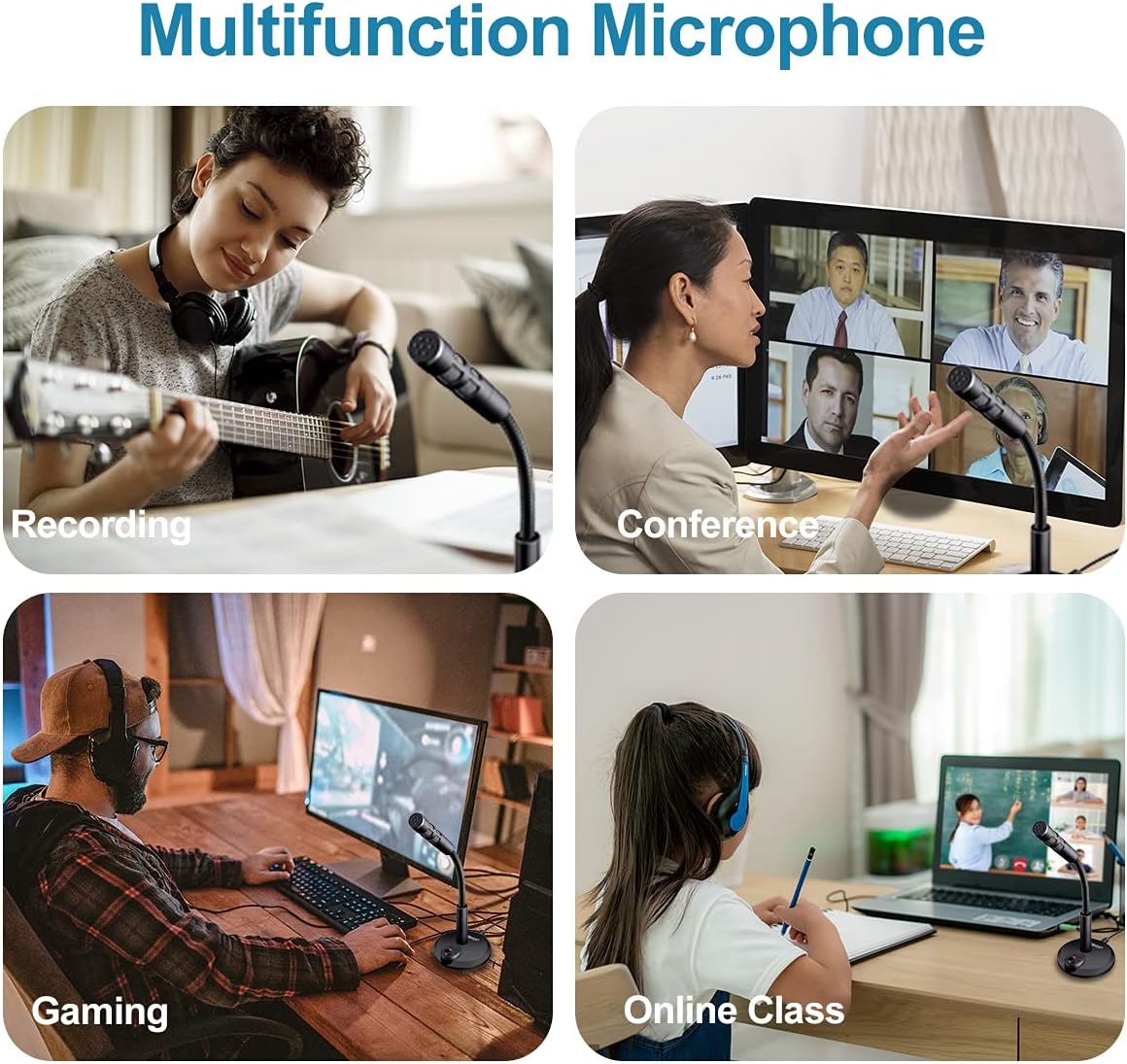
Image 4.1: A close-up view of the 'ON/OFF' switch and its LED indicator light on the microphone's base, showing its operational status.
4.2 Adjusting Microphone Position
The microphone is equipped with a 360-degree flexible gooseneck. Adjust the gooseneck to position the microphone optimally for your voice, ensuring clear sound capture.
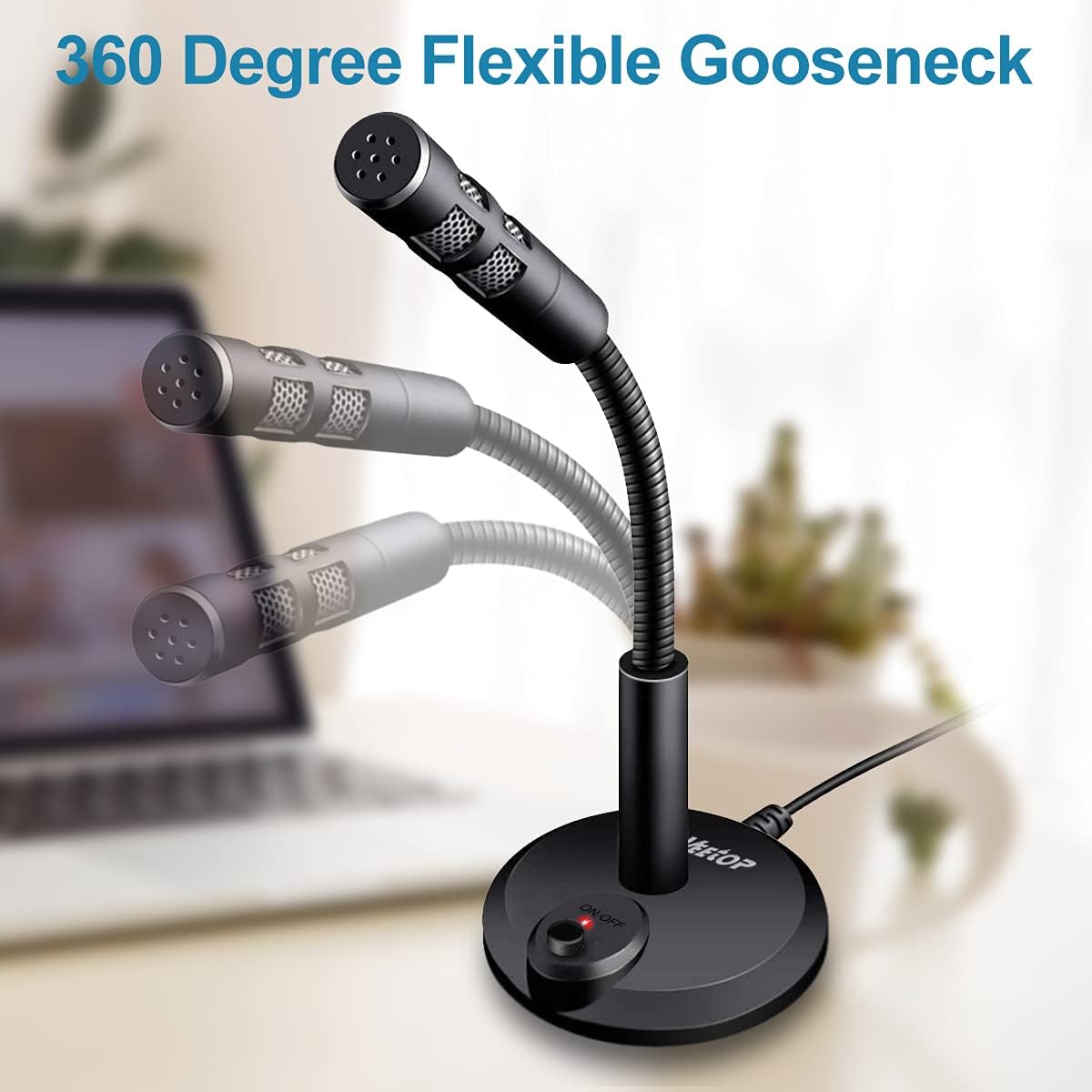
Image 4.2: The flexible gooseneck of the Veetop USB Microphone being adjusted, demonstrating its 360-degree rotation capability for optimal positioning.
4.3 Omnidirectional Sound Pickup
The Veetop USB Microphone utilizes omnidirectional technology, allowing it to capture sound from all directions around the microphone. This design is suitable for various applications such as conferences, online classes, and group discussions.

Image 4.3: A visual representation of the microphone's omnidirectional sound capture, showing sound waves emanating from all directions towards the microphone head.
4.4 Noise Reduction Functionality
The integrated intelligent noise reduction chip helps to filter out ambient background noise and reduce echo, contributing to clearer audio output. The included foam windscreen further protects against air bursts and plosives.
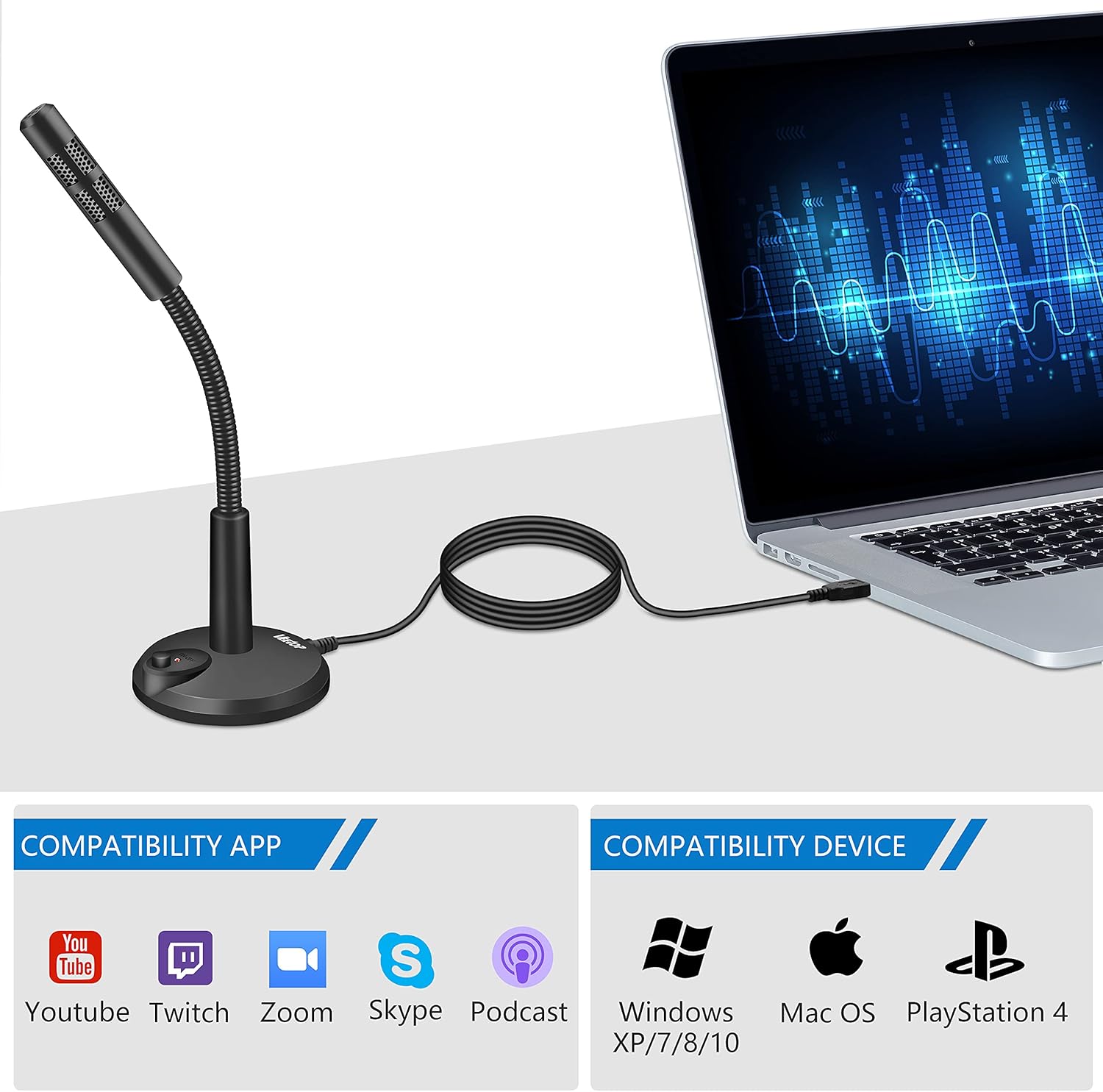
Image 4.4: An illustration depicting the internal noise reduction chip and its effect on sound quality, showing a 'before' and 'after' waveform for clarity.
5. Maintenance
5.1 Cleaning
- Ensure the microphone is disconnected from its power source before cleaning.
- Wipe the microphone's exterior with a soft, dry cloth.
- Do not use liquid cleaners, aerosols, or solvents, as these may damage the device.
- The foam windscreen can be gently removed and cleaned if necessary. Allow it to air dry completely before reattaching.
5.2 Storage
- Store the microphone in a cool, dry place away from direct sunlight and extreme temperatures.
- Avoid placing heavy objects on the microphone or its cable.
6. Troubleshooting
If you encounter issues with your Veetop USB Microphone, please refer to the following common solutions:
| Problem | Possible Cause | Solution |
|---|---|---|
| No sound input / Microphone not detected | Microphone not properly connected; System audio settings incorrect; Microphone is off. |
|
| Low volume / Muffled sound | Input volume too low; Microphone positioned incorrectly; Obstruction. |
|
| Background noise / Echo | Environmental noise; Room acoustics; Software settings. |
|
7. Specifications
| Feature | Detail |
|---|---|
| Brand | Veetop |
| Model | USB Microphone |
| Connectivity Technology | USB |
| Connector Type | USB |
| Polar Pattern | Omnidirectional |
| Material | Plastic |
| Signal-to-Noise Ratio | 58 dB |
| Frequency Response | 16000 Hz |
| Audio Sensitivity | 58 Decibels |
| Microphone Form Factor | Gooseneck |
| Compatible Devices | Laptop, Personal Computer (PC), PS4 |
| Item Weight | 9.6 ounces |
| Cable Length | 4.75 ft (1.45m) |
8. Warranty and Customer Support
8.1 Warranty Information
The Veetop USB Microphone comes with a 12-month warranty from the date of purchase. This warranty covers manufacturing defects and issues arising from normal use. Please retain your proof of purchase for warranty claims.
8.2 Customer Support
For any questions, technical assistance, or warranty inquiries, please do not hesitate to contact our dedicated customer service team. Refer to the contact information provided on your warranty card or the official Veetop website.
Ask a question about this manual
Ask about setup, troubleshooting, compatibility, parts, safety, or missing instructions. Manuals+ will review the question and use this page’s manual context to help answer it.