
Xinmeng N520
Xinmeng N520 Wireless Keyboard and Mouse Set User Manual
Model: N520
Introduction
Thank you for choosing the Xinmeng N520 Wireless Keyboard and Mouse Set. This product is designed to provide a comfortable and efficient input experience for office and business use, featuring a unique punk mechanical feel and reliable wireless connectivity. This manual will guide you through the setup, operation, and maintenance of your new device.
Setup
Package Contents
- Xinmeng N520 Wireless Keyboard
- Xinmeng Wireless Mouse
- USB Receiver (located in the mouse battery compartment)
- User Manual (this document)
Battery Installation
- Keyboard: Locate the battery compartment on the underside of the keyboard. Insert the required batteries (typically 2x AAA, not included) ensuring correct polarity (+/-).
- Mouse: Locate the battery compartment on the underside of the mouse. Insert the required battery (typically 1x AA, not included) ensuring correct polarity (+/-). The USB receiver is stored inside this compartment.
Connecting the USB Receiver
- Remove the USB receiver from the mouse battery compartment.
- Plug the USB receiver into an available USB port on your computer.
- The system will automatically detect and install the necessary drivers. This may take a few moments.
Initial Connection
Once the USB receiver is plugged in and batteries are installed, the keyboard and mouse should automatically connect to your computer. No manual pairing is typically required. If connection issues occur, refer to the Troubleshooting section.

Image: The Xinmeng N520 wireless keyboard and mouse set, showcasing the black color variant.
Operating
Keyboard Functions
The N520 keyboard features a standard 104-key layout with a unique 'punk mechanical feel' for comfortable typing. It includes a full numeric keypad and standard function keys (F1-F12).
- Typing: Use the keys as you would a standard keyboard. The round keycaps provide a distinct tactile experience.
- Function Keys: Standard F1-F12 keys are available. Some keys may have secondary functions accessible via the 'Fn' key, depending on your operating system and software.
- Power Saving: The keyboard is designed with intelligent power-saving features to extend battery life. It will enter a sleep mode after a period of inactivity. Press any key to wake it up.
Mouse Functions
The accompanying wireless mouse is a compact and ergonomic design, suitable for daily use.
- Buttons: Left-click, right-click, and scroll wheel button.
- Scroll Wheel: Used for vertical scrolling in documents and web pages.
- Power Saving: The mouse also features intelligent power management. It will enter a sleep mode when not in use. Move the mouse or click a button to wake it up.
Wireless Range
The Xinmeng N520 set operates on a 2.4GHz wireless frequency, providing a stable connection up to approximately 10 meters (33 feet) from the USB receiver. Performance may vary depending on environmental factors and obstacles.
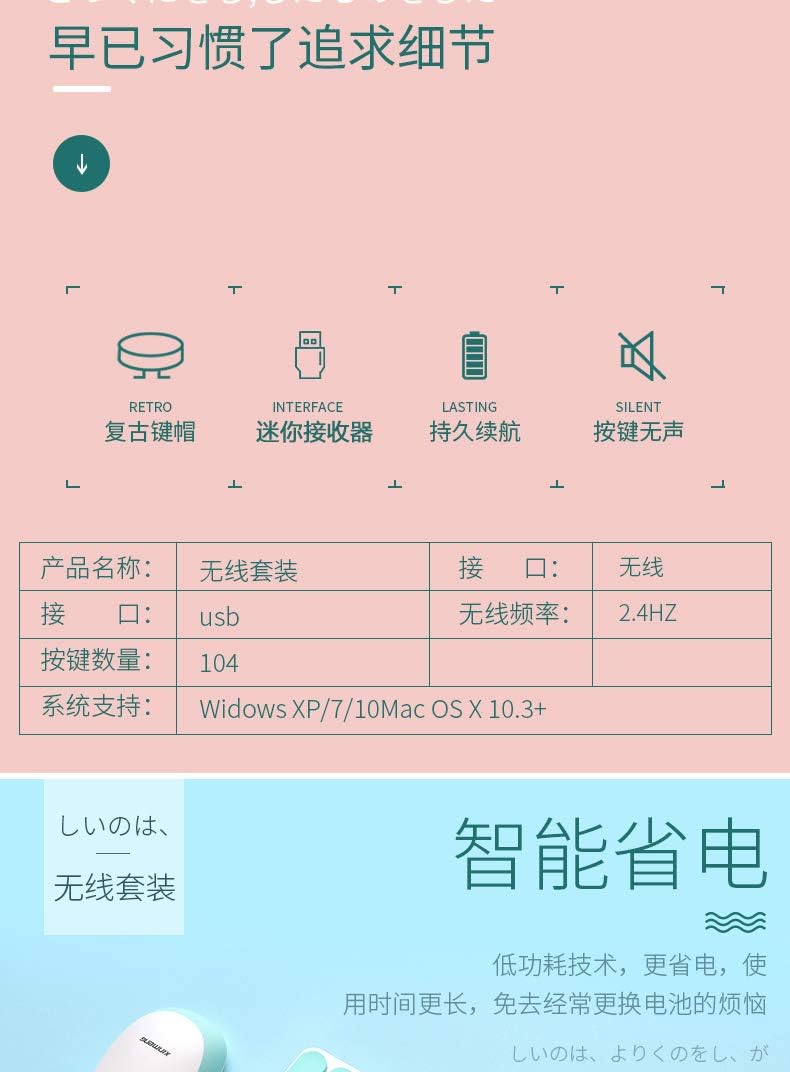
Image: The black Xinmeng N520 keyboard and mouse set in an office environment, demonstrating its use.

Image: The pink Xinmeng N520 keyboard and mouse set in an office environment, highlighting its aesthetic.
Maintenance
Cleaning
- Use a soft, dry cloth to wipe down the surfaces of the keyboard and mouse.
- For stubborn dirt, slightly dampen the cloth with water or a mild, non-abrasive cleaner. Avoid excessive moisture.
- Do not use harsh chemicals, solvents, or abrasive materials, as these can damage the finish.
- For cleaning between keys, use compressed air to remove dust and debris.
Battery Replacement
When the keyboard or mouse performance degrades (e.g., delayed response, intermittent connection), it may be time to replace the batteries. Follow the battery installation steps outlined in the Setup section.
Storage
When not in use for extended periods, it is recommended to remove the batteries to prevent leakage. Store the keyboard and mouse in a cool, dry place away from direct sunlight and extreme temperatures.
Troubleshooting
No Connection / Device Not Responding
- Check Batteries: Ensure batteries are correctly installed and have sufficient charge. Replace if necessary.
- Check USB Receiver: Make sure the USB receiver is securely plugged into a working USB port on your computer. Try a different USB port.
- Proximity: Ensure the keyboard and mouse are within the effective wireless range (approx. 10 meters) of the USB receiver.
- Interference: Move the devices away from other wireless devices (e.g., Wi-Fi routers, cordless phones) that might cause interference.
- Restart: Restart your computer.
Keys Not Responding / Mouse Cursor Jumps
- Clean Devices: Dust or debris under keys or mouse sensor can cause issues. Refer to the Maintenance section for cleaning instructions.
- Surface (Mouse): Ensure the mouse is used on a clean, non-reflective surface.
- Battery Level: Low battery can cause erratic behavior. Replace batteries.
Lag or Delay
- Distance/Obstacles: Reduce the distance between the devices and the receiver, and remove any large metallic objects that might block the signal.
- USB Port: Try plugging the receiver into a USB port on the front of your computer or a USB hub to improve signal strength.
- Interference: Minimize other 2.4GHz wireless devices operating nearby.
Specifications
| Feature | Description |
|---|---|
| Brand | Xinmeng |
| Model | N520 |
| Connectivity | 2.4GHz Wireless |
| Interface | USB Receiver |
| Keyboard Key Count | 104 Keys |
| Wireless Range | Up to 10 meters (33 feet) |
| System Compatibility | Windows XP/7/10, Mac OS X 10.3+ |
| Color | Black (other colors may be available) |
| Manufacturer | Shenzhen Junxingcheng Electronic Technology Co., Ltd. |
| UPC | 046432672125 |
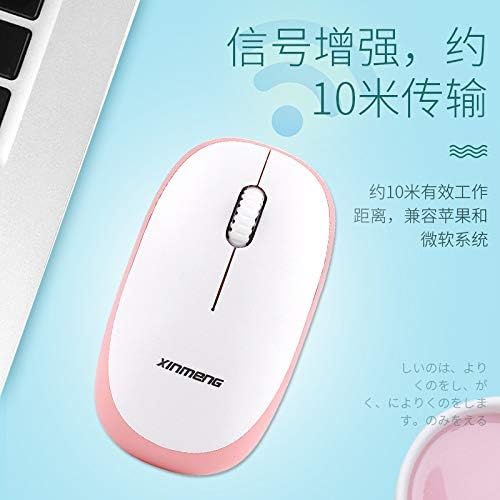
Image: A diagram illustrating key features such as retro keys, mini receiver, lasting battery, silent keys, and a table of specifications for the wireless set.
Warranty and Support
For information regarding warranty coverage, terms, and conditions, please refer to the documentation provided at the time of purchase or contact your retailer. For technical support or further assistance, please reach out to the manufacturer or seller through their official support channels.
Manufacturer: Shenzhen Junxingcheng Electronic Technology Co., Ltd.
Related Documents - N520
 |
Xinmeng XM-RF87 Wireless Bluetooth Mechanical Keyboard User Manual User manual for the Xinmeng XM-RF87 wireless Bluetooth mechanical keyboard, detailing its features, connection methods (Bluetooth, 2.4G wireless, wired), FN key functions, and important usage notes. |
 |
Xinmeng X75 Mechanical Keyboard - High Transparency PC Design Discover the Xinmeng X75, a premium mechanical keyboard featuring a high-transparency PC case, low-profile switches, and customizable RGB lighting. Engineered for performance and aesthetics, it offers a superior typing experience for gamers and professionals. |
 |
XinMeng Montessori Kindergarten: Wandering in the Woods Architectural Design Explore the architectural design of XinMeng Montessori Kindergarten, a project transforming a former liner-like structure into a vibrant, light-filled educational space inspired by nature and Montessori principles. Details on design, layout, and materials. |
 |
Cisco NCS 520 Series Ethernet Access Device Release Notes - Cisco IOS XE Fuji 16.9.x Release notes detailing new features, hardware support, limitations, restrictions, and resolved/open caveats for the Cisco NCS 520 Series Ethernet Access Device running Cisco IOS XE Fuji 16.9.x. |
 |
Dongguan Zhidaming Electronics N520/N52 FCC Compliance and RF Exposure Information Details FCC compliance and Radio Frequency (RF) exposure guidelines for Dongguan Zhidaming Electronics N520 and N52 devices, outlining operational conditions and methods to resolve potential interference. |
 |
Attack Shark M71 Wireless Keyboard User Manual Comprehensive user manual for the Attack Shark M71 wireless keyboard, detailing specifications, operation, connectivity, and troubleshooting for 2.4G, Bluetooth, and wired modes. Includes information on RGB lighting and hot-swappable switches. |