
XP-PEN Artist15.6 Pro
XP-PEN Artist15.6 Pro Drawing Pen Display & AC18 Stand User Manual
Model: Artist15.6 Pro
1. Introduction
The XP-PEN Artist15.6 Pro is a 15.6-inch drawing pen display designed for digital artists and creative professionals. It features full-laminated technology for a seamless drawing experience, 8192 levels of pressure sensitivity, and 60 degrees of tilt function for natural brush effects. This product bundle also includes the AC18 Multifunctional Metal Stand, providing ergonomic support for your display. This manual provides essential information for setting up, operating, maintaining, and troubleshooting your device.

Figure 1.1: XP-PEN Artist15.6 Pro Drawing Pen Display with AC18 Stand.
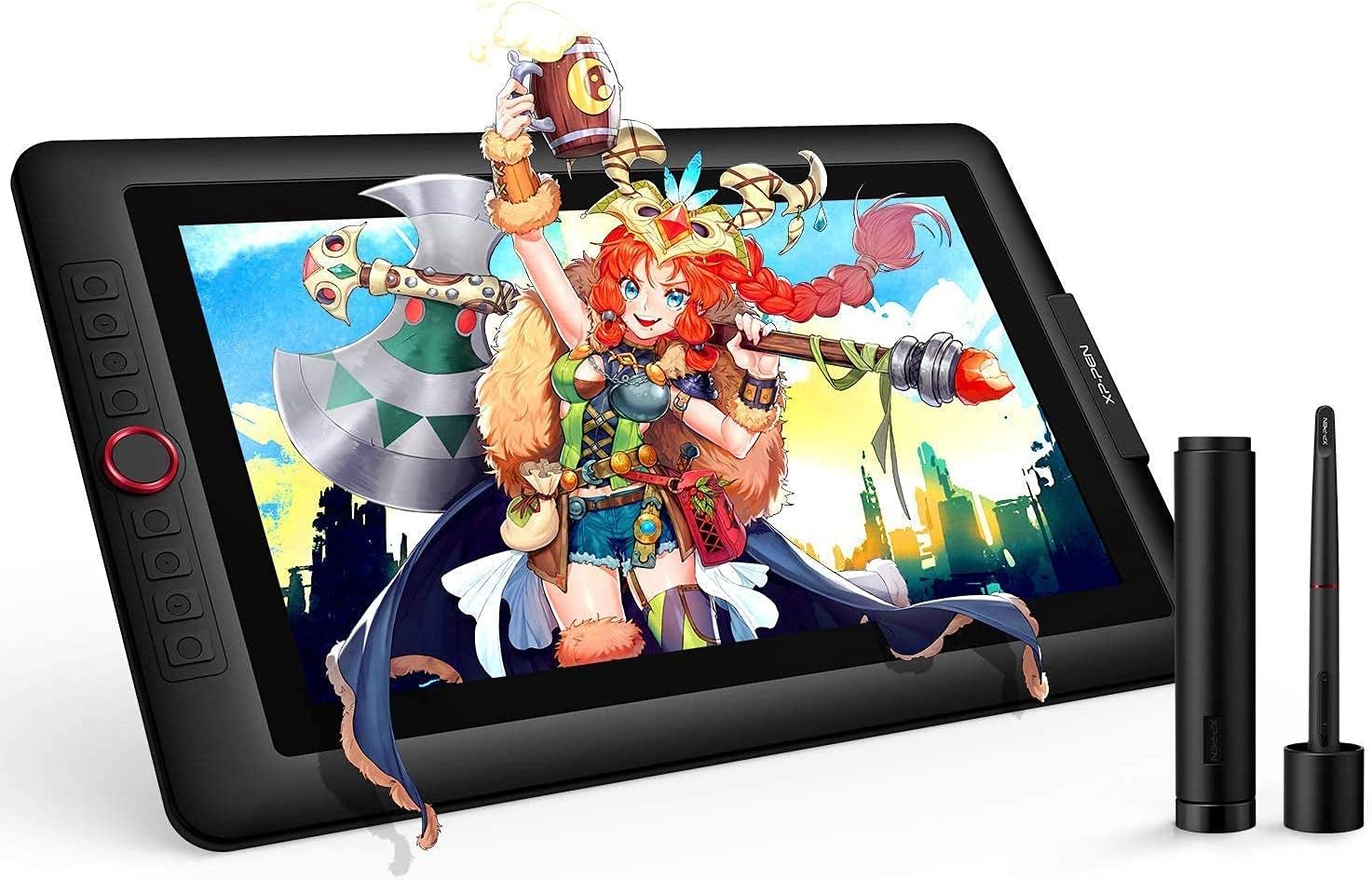
Figure 1.2: The Artist15.6 Pro display shown with its accompanying P05R Battery-free Stylus and pen holder.
2. Setup Guide
2.1 Important Pre-Installation Notes
The Artist15.6 Pro drawing tablet is not a standalone product. It requires connection to a laptop or computer to function. It is compatible with Windows 10/8/7 (32/64bit) and Mac OS X version 10.10 or later.
2.2 Protective Film
The XP-PEN Artist15.6 Pro comes with protective covers (plastic layer) to prevent surface damage from hand grease, scratches, etc. Please peel off these protective covers before use. The actual protective film is located underneath this initial plastic layer.
2.3 Connection Tips
- Your computer must have available HDMI and USB ports for connection. If not, an adapter will be required.
- Ensure the Black USB Cable and the HDMI Cable are fully plugged into your computer.
- For the Red USB Cable, if your computer cannot supply sufficient power, connect it to a wall outlet using a suitable power adapter (not included).
- If your computer only has Type-C ports, a Type-C to HDMI and USB adapter is necessary for connection.
- After connecting all cables correctly, allow approximately 30 seconds to 1 minute for the USB Hardware driver to load successfully.
2.4 Driver Download and Installation
Drivers are regularly updated. Always download the newest driver from the official XP-PEN website for optimal performance.
2.4.1 Before Driver Installation
Before installing the XP-PEN driver, remove any other brand's tablet drivers from your computer and reboot. Failure to do so may result in driver conflicts.
2.4.2 For Windows Users
Close all drawing programs and run the driver installer as an Administrator during installation. This is crucial for proper setup.
2.4.3 For Mac Mojave (10.14), Catalina (10.15) and above OS Users
After installing the XP-PEN Driver, you must add "PenTabletSetting" and "PenTabletDriverUX" to the accessibility list. Refer to the FAQ section on the XP-PEN website for detailed steps. Due to security upgrades in Mac Mojave (10.14) and above, newly downloaded programs need to be added to the accessibility list for normal operation.
2.5 AC18 Multifunctional Metal Stand Setup
The AC18 stand is designed to provide stable and adjustable support for your Artist15.6 Pro display, preventing shaking or sliding and promoting ergonomic posture.

Figure 2.1: Dimensions of the AC18 Multifunctional Metal Stand.

Figure 2.2: The AC18 stand allows adjustment of the display's viewing angle from 0° to 65° in 1° increments for personalized comfort.
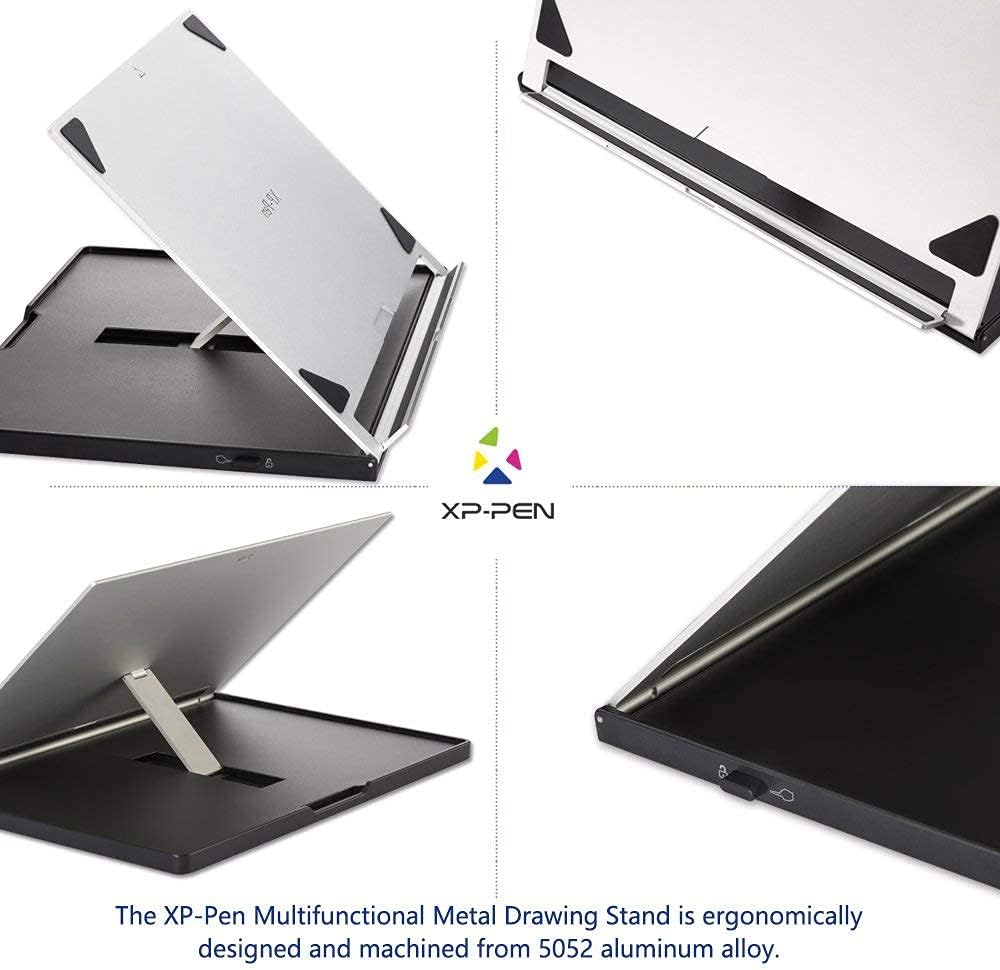
Figure 2.3: The AC18 stand is constructed from durable 5052 aluminum alloy, mechanically polished, sand-blasted, and anodized for a light, stable, and portable design.
3. Operation
3.1 Display Technology
The Artist15.6 Pro features full-laminated technology, which seamlessly combines the glass and the screen. This design minimizes parallax and creates a distraction-free working environment that is also easy on the eyes. It offers a superb color accuracy of 120% sRGB with a 178-degree visual angle, delivering rich colors, vivid images, and dazzling details.

Figure 3.1: Illustration of the difference between common laminated and full-laminated display technologies, highlighting reduced reflection and improved visual clarity with full lamination.

Figure 3.2: The display boasts 88% NTSC (120% sRGB) color gamut and a 1080P IPS panel with a wide 178° viewing angle.
3.2 Stylus Features
The P05R Battery-free Stylus supports 60 degrees of tilt function, allowing it to accurately sense gesture movement for a realistic tilting brush effect, resulting in smoother and more natural transitions between lines and strokes. With 8192 levels of pressure sensitivity, it provides increased accuracy, control, and fluidity for fine details and broad strokes.

Figure 3.3: The stylus offers virtually no lag, presents lines of variable thickness, and supports 60° tilt for sensitive shading.
3.3 Red Dial and Shortcut Keys
The innovative Red Dial interface provides optimal efficiency and fits comfortably in your hand. It can be programmed for various functions such as zooming in/out on your canvas, scrolling up/down, and more. The Artist15.6 Pro also features 8 fully customizable shortcut keys, offering more customization options to optimize your workflow and express ideas faster.

Figure 3.4: Overview of the Artist15.6 Pro, highlighting the Red Dial, 8 customizable shortcut keys, and brightness adjustment buttons.
3.4 Brightness Adjustment
The Artist 15.6 Pro features easily accessible brightness adjustment buttons, allowing you to quickly set your preferred brightness level for comfortable drawing in various lighting conditions.
4. Maintenance
To ensure the longevity and optimal performance of your XP-PEN Artist15.6 Pro, follow these maintenance guidelines:
- Screen Cleaning: The display comes with an anti-reflective coating that helps reduce glare. To clean the screen, use a soft, lint-free cloth. For stubborn smudges, slightly dampen the cloth with water or a screen-safe cleaner. Avoid harsh chemicals or abrasive materials.
- General Cleaning: Wipe the body of the tablet and stand with a dry or slightly damp cloth. Ensure no liquid enters the ports or buttons.
- Storage: When not in use, store the tablet and stylus in a clean, dry place away from direct sunlight and extreme temperatures.
- Stylus Care: Avoid dropping the stylus. Replace pen nibs as they wear down to maintain drawing precision.
5. Troubleshooting
5.1 Common Issues and Solutions
- No Display/Signal:
- Ensure all cables (HDMI, USB) are securely connected to both the tablet and your computer.
- Verify that the Red USB cable is connected to a power source if your computer's USB ports do not provide enough power.
- Check your computer's display settings to ensure the Artist15.6 Pro is detected and configured as an extended or mirrored display.
- Stylus Not Working/No Pressure Sensitivity:
- Confirm that the XP-PEN driver is correctly installed and running.
- Remove any other tablet drivers from your system and reboot to avoid conflicts.
- For Mac users (Mojave 10.14+), ensure "PenTabletSetting" and "PenTabletDriverUX" are added to the Accessibility list in System Preferences > Security & Privacy.
- Try restarting your computer and the drawing application.
- Check if the pen nib is worn out and replace it if necessary.
- Driver Conflict Problems:
- Always uninstall all previous tablet drivers (from XP-PEN or other brands) before installing a new XP-PEN driver.
- Reboot your computer after uninstalling old drivers and before installing new ones.
- Lag or Performance Issues:
- Ensure your computer meets the minimum system requirements for your drawing software.
- Close unnecessary background applications to free up system resources.
- Update your graphics card drivers.
6. Specifications
| Feature | Specification |
|---|---|
| Brand | XP-PEN |
| Series | Artist15.6 Pro |
| Item Model Number | Artist15.6 Pro |
| Standing Screen Display Size | 15.6 inches |
| Screen Resolution | 1920x1080 |
| Color | Red |
| Connectivity Technology | Interface, HDMI, USB |
| Pressure Sensitivity | 8192 Levels |
| Special Feature | Portable, Durable |
| ASIN | B08MCB1YVN |
| Date First Available | October 31, 2020 |
7. Warranty and Support
XP-PEN provides a 1-year protection plan and lifetime service for the Artist15.6 Pro. For driver updates, FAQs, and further assistance, please visit the official XP-PEN website. You can also find support resources and contact information through the XP-PEN Store on Amazon.
Ask a question about this manual
Ask about setup, troubleshooting, compatibility, parts, safety, or missing instructions. Manuals+ will review the question and use this page’s manual context to help answer it.