
1. Introduction
The MikroTik CSS610-8G-2S+IN is a Cloud Smart Switch designed for efficient network management. It features eight 1 Gigabit Ethernet ports and two 10 Gigabit SFP+ ports, offering versatile connectivity options for various network environments. This device operates on SwOS, a lightweight operating system optimized for switch functionality, providing an intuitive web-based interface for configuration and management. This manual provides essential information for the proper setup, operation, and maintenance of your CSS610-8G-2S+IN switch.
2. Safety Information
- Always disconnect the power adapter before cleaning or servicing the device.
- Ensure proper ventilation to prevent overheating. Do not block ventilation openings.
- Use only the power adapter supplied with the device or a compatible replacement specified by MikroTik.
- Avoid exposing the device to water, moisture, or extreme temperatures.
- This device is intended for indoor use only.
- Do not attempt to open or repair the device yourself. Refer all servicing to qualified personnel.
3. Package Contents
Verify that all items are present in your package:
- MikroTik CSS610-8G-2S+IN Cloud Smart Switch
- Power Adapter (12-57V DC)
- Quick Start Guide
4. Hardware Overview
The CSS610-8G-2S+IN features a compact desktop case design with various ports and indicators for network connectivity and status monitoring.

Figure 4.1: Angled front view of the MikroTik CSS610-8G-2S+IN Cloud Smart Switch, showing the eight Gigabit Ethernet ports, two SFP+ ports, power input, and reset button.
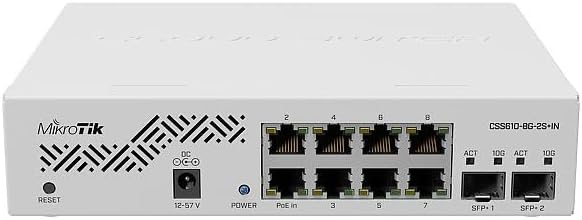
Figure 4.2: Top view of the MikroTik CSS610-8G-2S+IN Cloud Smart Switch, highlighting the ventilation patterns and the MikroTik logo.

Figure 4.3: Rear view of the MikroTik CSS610-8G-2S+IN Cloud Smart Switch, showing the Kensington lock slot and additional ventilation.
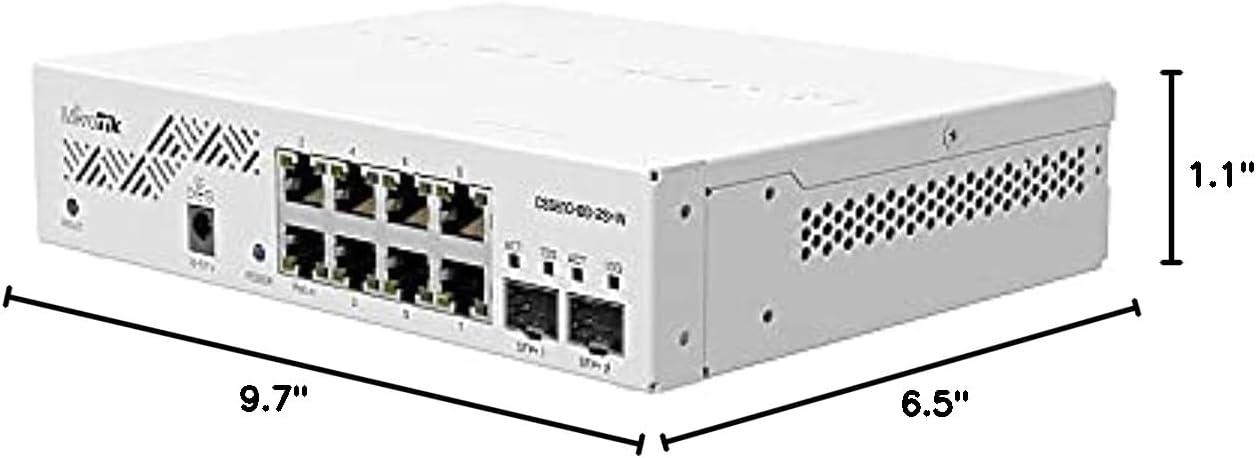
Figure 4.4: Dimensional view of the MikroTik CSS610-8G-2S+IN Cloud Smart Switch, indicating approximate measurements of 9.7 inches (length), 6.5 inches (width), and 1.1 inches (height).
4.1. Front Panel
- Ethernet Ports (1-8): Eight 1 Gigabit Ethernet ports for connecting network devices. Each port has an associated LED indicator for link/activity status.
- SFP+ Ports (SFP+1, SFP+2): Two 10 Gigabit SFP+ cages for fiber optic or DAC cable connections. Each port has an associated LED indicator for link/activity status.
- Power LED: Indicates the power status of the device.
- DC Input: Power jack for connecting the external power adapter.
- Reset Button: Used to reset the device to factory defaults or enter bootloader mode.
5. Setup
5.1. Physical Connection
- Connect your network devices (computers, servers, other switches) to the 1 Gigabit Ethernet ports (1-8) using standard Ethernet cables.
- For 10 Gigabit connectivity, insert compatible SFP or SFP+ modules (not included) into the SFP+1 and SFP+2 cages, then connect appropriate fiber optic or DAC cables.
- Connect the provided power adapter to the DC input jack on the switch and then plug the adapter into a power outlet. The Power LED will illuminate.
5.2. Initial Configuration (SwOS)
The CSS610-8G-2S+IN uses SwOS for management, which is accessible via a web browser.
- Ensure your computer is connected to one of the switch's Ethernet ports.
- By default, the switch attempts to obtain an IP address via DHCP. If no DHCP server is available, it will fall back to a static IP address of
192.168.88.1. - Open a web browser (e.g., Chrome, Firefox) and navigate to the switch's IP address. If using the fallback IP, enter
http://192.168.88.1. - The default username is
adminand there is no password initially. Leave the password field blank and click 'Login'. - Upon first login, it is highly recommended to set a strong password for security.
5.3. Firmware Update
Regularly updating the firmware ensures optimal performance and security. It is recommended to update the firmware upon initial setup.
- Download the latest SwOS firmware for the CSS610-8G-2S+IN from the official MikroTik website (mikrotik.com/download).
- Access the SwOS web interface as described in Section 5.2.
- Navigate to the 'Upgrade' tab.
- Upload the downloaded firmware file and follow the on-screen instructions to initiate the update process. The switch will reboot after the update.
6. Operating
The SwOS interface provides comprehensive control over the switch's functions.
6.1. Basic Switch Functions
Through the SwOS web interface, you can configure various Layer 2 (L2) network features:
- Port-to-Port Forwarding: Control traffic flow between specific ports.
- Broadcast Storm Control: Prevent network congestion caused by excessive broadcast traffic.
- MAC Filters: Allow or deny network access based on MAC addresses.
- VLAN Configuration: Create and manage Virtual Local Area Networks for network segmentation.
- Traffic Mirroring: Duplicate network traffic from one port to another for monitoring and analysis.
- Bandwidth Limitation: Control the maximum data transfer rate for individual ports.
- MAC and IP Header Fields Adjustment: Advanced configuration options for network packets.
6.2. SwOS Interface Navigation
The SwOS interface is organized into several tabs, each dedicated to specific functionalities:
- Link: Displays current link status, speed, and duplex mode for all ports.
- VLAN: Manages VLAN configurations, including VLAN ID, port membership, and tagging.
- Forwarding: Configures port isolation, broadcast storm control, and other forwarding rules.
- ACL: Access Control List for advanced traffic filtering.
- System: General system settings, firmware upgrade, and device reboot options.
7. Maintenance
7.1. Cleaning
To maintain optimal performance, periodically clean the device:
- Ensure the device is powered off and disconnected from all cables.
- Use a soft, dry cloth to wipe the exterior of the switch.
- For ventilation openings, use compressed air to remove dust buildup.
- Do not use liquid cleaners or abrasive materials.
7.2. Firmware Updates
As mentioned in Section 5.3, regularly check the MikroTik website for new firmware versions to benefit from bug fixes, performance improvements, and new features.
7.3. Environmental Considerations
Operate the switch within its specified temperature and humidity ranges to ensure longevity and stable performance. Avoid placing the device near heat sources or in direct sunlight.
8. Troubleshooting
8.1. Common Issues
- No Power: Ensure the power adapter is securely connected to both the switch and a working power outlet. Check the Power LED.
- "Network cable unplugged" error: Verify that Ethernet cables are properly seated in both the switch and the connected device. Check the link/activity LEDs on the switch ports. Ensure the connected device's network adapter is enabled and drivers are up to date. An outdated switch firmware can also cause this; refer to Section 5.3 for firmware update instructions.
- Cannot access SwOS web interface: Confirm your computer's IP address is in the same subnet as the switch (e.g., if switch is 192.168.88.1, your computer should be 192.168.88.x, excluding .1). Try clearing your browser's cache or using an incognito window.
- Slow network performance: Check for excessive broadcast traffic (use SwOS monitoring tools), ensure correct duplex settings, and verify cable integrity.
8.2. Resetting to Factory Defaults
If you encounter persistent issues or forget the login password, you can reset the switch to its factory default settings:
- With the device powered on, press and hold the Reset button.
- Continue holding the button until the Power LED starts flashing.
- Release the button. The device will reboot with factory default settings.
9. Specifications
| Feature | Specification |
|---|---|
| Model Number | CSS610-8G-2S+IN |
| Ethernet Ports | 8 x 1 Gigabit Ethernet |
| SFP+ Ports | 2 x 10 Gigabit SFP+ |
| Switching Capacity | 12 Gigabits Per Second (Data Transfer Rate) |
| Operating System | SwOS |
| Power Input | 12-57V DC |
| Dimensions (L x W x H) | 9.7" x 6.5" x 1.1" |
| Item Weight | 10.6 ounces (300 Grams) |
| Case Material | Plastic |
| Operating Temperature | 60 Degrees Celsius (Upper Temperature Rating) |
10. Warranty and Support
MikroTik products are covered by a limited warranty. For detailed warranty information, technical support, and additional resources, please visit the official MikroTik website:
When contacting support, please have your device's model number (CSS610-8G-2S+IN) and serial number ready.


