
M0607462157251
QS-WIFI-S03 Smart Wi-Fi Switch Module User Manual
Model: M0607462157251
Brand: Generic
1. Introduction
This user manual provides comprehensive instructions for the installation, operation, and maintenance of the QS-WIFI-S03 Smart Wi-Fi Switch Module. This module is designed to transform traditional switches into smart Wi-Fi controlled devices, allowing for remote control of lights or compatible appliances via the "Smart Life" or "Tuya Smart" application. It supports various program options for precise timing control.
2. Safety Information
Please read all safety warnings and installation instructions carefully before installing or operating this device. Failure to follow these instructions may result in electric shock, fire, or other injuries.
- Ensure the power supply is completely disconnected before any installation or wiring work.
- Installation should only be performed by a qualified electrician or a person with a thorough understanding of electrical systems.
- Do not exceed the maximum load rating of 2300W.
- This device is designed for indoor use only.
- Keep the device away from water, moisture, and high temperatures.
- Do not attempt to disassemble or repair the device yourself. Contact qualified personnel for service.
3. Product Overview
3.1 Package Contents
- 1 x QS-WIFI-S03 Smart Wi-Fi Switch Module
- 1 x User Manual (this document)
3.2 Product Features
- Remote control via "Smart Life" or "Tuya Smart" app.
- Scheduling and timer functions for automated control.
- Voice control compatibility with Amazon Alexa and Google Home.
- Compact design for easy integration into existing switch boxes.
- Supports 2.4GHz Wi-Fi (802.11 b/g/n).
3.3 Component Identification
The QS-WIFI-S03 module features clearly labeled terminals for easy wiring and an indicator light for status feedback.

Figure 3.1: Front view of the QS-WIFI-S03 Smart Wi-Fi Switch Module, showing the Wi-Fi Switch Module label and electrical specifications.

Figure 3.2: Side view of the module, clearly showing the input and output terminals: L (Live input), L_OUT (Load Live output), L1 (Switched Live input), L (Live input), and N (Neutral input/output).
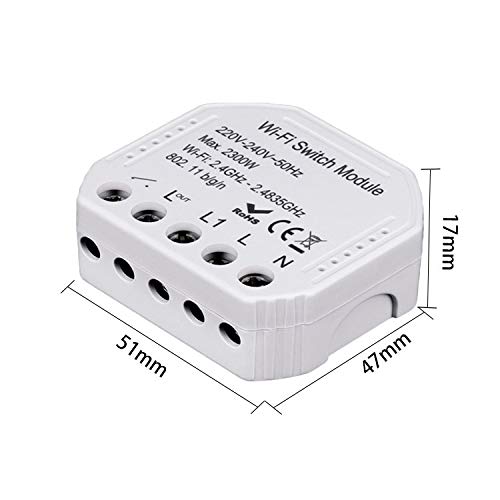
Figure 3.3: Dimensions of the QS-WIFI-S03 module, measuring approximately 51mm x 47mm x 17mm.
4. Setup and Installation
4.1 Before You Begin
- Ensure your Wi-Fi network is 2.4GHz. This module does not support 5GHz Wi-Fi.
- Download the "Smart Life" or "Tuya Smart" app from your smartphone's app store (available for iOS and Android).
- Have basic electrical wiring knowledge or consult a professional.
4.2 Wiring Diagram
WARNING: Ensure the main power supply is turned OFF at the circuit breaker before attempting any wiring. Incorrect wiring can cause damage to the device or lead to electric shock.
The module is designed to be wired into your existing electrical circuit. The terminals are labeled as follows:
- L: Live input from the main power supply.
- N: Neutral input from the main power supply.
- L1: Switched Live input from your traditional wall switch.
- L_OUT: Live output to the load (e.g., light fixture).
- N: Neutral output to the load (shared with Neutral input).
Connect the wires according to the labels. For a single-way switch, connect the live wire from the power source to 'L', the neutral wire to 'N'. Connect the live wire from your traditional switch to 'L1'. Connect the live wire going to your light fixture or appliance to 'L_OUT' and the neutral wire to 'N'.
4.3 App Installation and Pairing
- Download App: Search for "Smart Life" or "Tuya Smart" in the App Store (iOS) or Google Play Store (Android) and install it.
- Register/Login: Open the app and register a new account or log in with an existing one.
- Enter Pairing Mode: After wiring the module and restoring power, the indicator light on the module should blink rapidly (EZ Mode). If it doesn't, press and hold the reset button (or the connected physical switch if configured) for 5-10 seconds until it blinks rapidly.
- Add Device: In the app, tap the "+" icon in the top right corner to add a device. Select "Electrical Switch" or "Switch (Wi-Fi)" from the device list.
- Connect to Wi-Fi: Confirm the indicator light is blinking rapidly. Enter your 2.4GHz Wi-Fi network name and password.
- Pairing: The app will begin searching for the device. Once found, it will be added to your device list. You can then rename the device for easier identification.
5. Operation
5.1 Basic On/Off Control
Once paired, you can control the connected appliance or light directly from the Smart Life/Tuya Smart app. Simply tap the device icon to toggle its power state (on/off).
5.2 Scheduling and Timers
The app allows you to set up various automation rules:
- Schedule: Set specific times for the device to turn on or off daily or on selected days of the week.
- Timer: Set a countdown timer for the device to turn off after a specified duration.
- Circulate: Set the device to cycle on and off repeatedly for specific intervals.
- Random: Turn the device on or off randomly within a set time frame, useful for simulating occupancy.
5.3 Voice Control Integration
The QS-WIFI-S03 module is compatible with popular voice assistants, allowing for hands-free control.
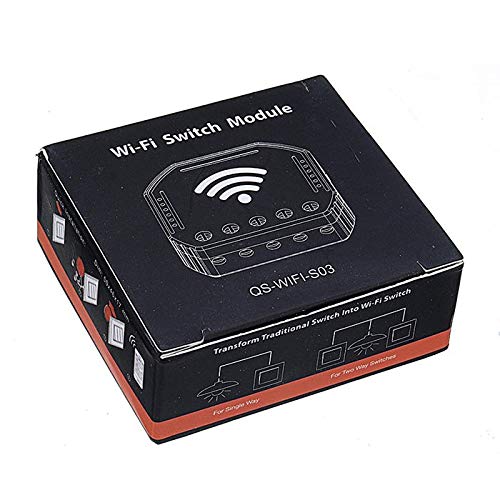
Figure 5.1: The module supports integration with Google Home and Amazon Alexa for voice control, along with schedule timer and Wi-Fi control features.
- Amazon Alexa: Link your Smart Life/Tuya Smart account in the Alexa app. Once linked, you can use commands like "Alexa, turn on [Device Name]" or "Alexa, turn off [Device Name]".
- Google Home: Link your Smart Life/Tuya Smart account in the Google Home app. Use commands such as "Hey Google, turn on [Device Name]" or "Hey Google, turn off [Device Name]".
6. Maintenance
The QS-WIFI-S03 Smart Wi-Fi Switch Module requires minimal maintenance. Follow these guidelines to ensure optimal performance:
- Cleaning: Disconnect power before cleaning. Wipe the exterior with a soft, dry cloth. Do not use harsh chemicals or abrasive cleaners.
- Firmware Updates: The Smart Life/Tuya Smart app may occasionally prompt you for firmware updates. It is recommended to perform these updates to ensure the device has the latest features and security patches.
- Environmental Conditions: Ensure the module is installed in a dry environment, away from direct sunlight and extreme temperatures.
7. Troubleshooting
If you encounter issues with your QS-WIFI-S03 module, refer to the table below for common problems and solutions.
| Problem | Possible Cause | Solution |
|---|---|---|
| Device not connecting to Wi-Fi / Indicator light not blinking. | Incorrect Wi-Fi password; 5GHz Wi-Fi network; Device not in pairing mode; Weak Wi-Fi signal. | Ensure correct 2.4GHz Wi-Fi password. Confirm router is 2.4GHz compatible. Press and hold reset button for 5-10 seconds until light blinks rapidly. Move device closer to router. |
| Device offline in app. | Power outage; Wi-Fi network change; Router issues. | Check power supply to the module. Verify Wi-Fi network is active. Restart your Wi-Fi router. Re-pair the device if network settings changed. |
| Connected appliance/light not responding. | Incorrect wiring; Overload; Faulty appliance. | Turn off power and re-check wiring according to Section 4.2. Ensure load does not exceed 2300W. Test the appliance directly to confirm it is working. |
| Voice control not working. | Account not linked; Incorrect device name; Internet connectivity issues. | Ensure Smart Life/Tuya Smart account is correctly linked in Alexa/Google Home app. Use the exact device name configured in the app. Check internet connection. |
8. Technical Specifications
| Specification | Value |
|---|---|
| Model | QS-WIFI-S03 |
| Dimensions | 50*46*17mm |
| Voltage | 220-240V AC, 50Hz |
| Max. Wattage | 2300W |
| Wi-Fi Standard | 2.4GHz-2.483GHz 802.11 b/g/n |
| Security Type | WEP64/WPA-PSK/WPA2-PSK |
| Operation Mode | ON-OFF |
| Contact Type | Normally Open |
| Terminal Type | Screw |
| Controller Type | iOS, Android |
| Control Method | App |
| Connectivity Protocol | Wi-Fi |
| Colour | Black |
| Material | Copper, Brass, Stainless Steel |
9. Warranty and Support
This product comes with a standard manufacturer's warranty. Please refer to your purchase documentation for specific warranty terms and conditions.
For technical support, troubleshooting assistance, or warranty claims, please contact the retailer or manufacturer from whom you purchased the product. Keep your purchase receipt as proof of purchase.
Related documentsM0607462157251

Ask a question about this manual
Ask about setup, troubleshooting, compatibility, parts, safety, or missing instructions. Manuals+ will review the question and use this page’s manual context to help answer it.