
1. Introduction
Thank you for purchasing the AROMA TDX-16S Electronic Drum Kit. This compact and versatile electronic drum set is designed to provide a realistic drumming experience while allowing for quiet practice in various environments. Whether you are practicing at home, in an apartment, or performing live, the TDX-16S offers a rich set of features to enhance your musical journey. This manual will guide you through the setup, operation, and maintenance of your new electronic drum kit.
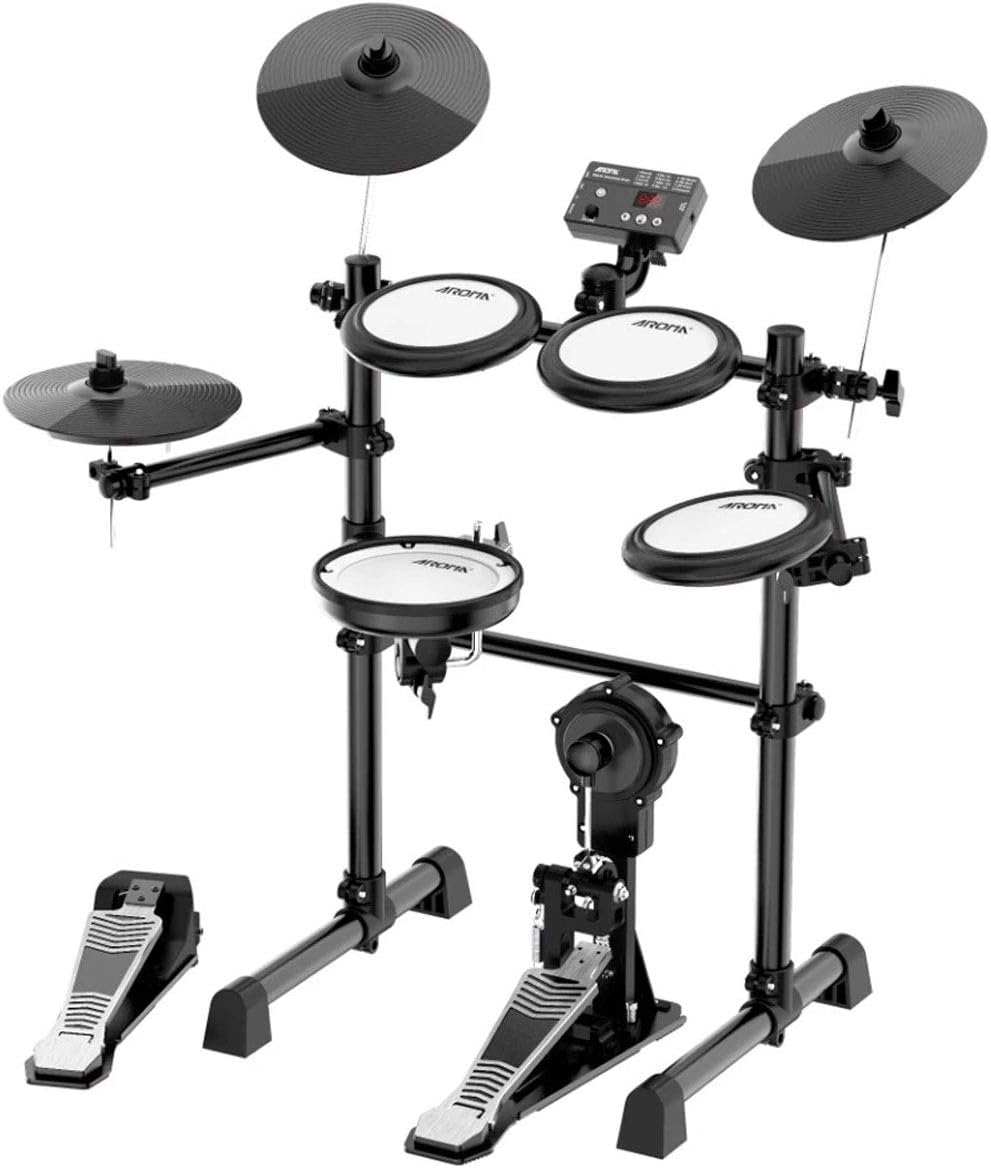
Figure 1: AROMA TDX-16S Electronic Drum Kit assembled.
2. Key Features
- Mesh Heads: All drum pads (snare and tom pads) are equipped with mesh heads, offering excellent quietness and a realistic rebound for comfortable playability.
- Simple Control Panel: The intuitive control panel features a volume knob, drum sound kit selection button, and metronome button, making it easy for beginners to navigate.
- Velocity-Sensitive Snare: The snare drum pad responds to striking force, allowing for dynamic expression from soft to loud hits.
- Diverse Cymbal Sounds: Cymbals offer multi-zone playability. Striking the center produces a bell sound, while striking the edge produces a ride sound. Cymbals can also be muted by pressing the dark part of the pad after striking.
- Hi-Hat Pedal Function: The hi-hat pedal allows for open hi-hat sounds, adding realism to your drumming.
- AUX IN Connectivity: Connect your smartphone or music player via the AUX IN port to play along with your favorite songs, making practice and jamming more enjoyable.
- USB MIDI Port: Connect to your synthesizer or computer to utilize MIDI sound sources, expanding your creative possibilities.
- Realistic Drum Kick Pedal: The drum kick pedal features a similar structure to acoustic drum pedals, providing a realistic attack feel.
- Snare Rimshot Function: The snare drum supports rimshot sounds by striking the rim of the pad.
- 12 Selectable Drum Sound Kits: Choose from a variety of pre-set drum kits to suit different musical genres and styles:
- Rock Kit
- Jazz Kit
- Funk Kit
- Metal Kit
- Elec Kit
- Rock Live
- Metal Live
- Elec Live
- GM Standard
- GM Room
- GM Power
- Percussion
3. Package Contents
Please check that all the following items are included in your package:
- Mesh Pads × 4 (Snare Pad × 1 / Tom Pads × 3)
- Cymbal Pads × 3 (Ride / Crash / Hi-Hat)
- Pedals × 2 (Hi-Hat / Bass Drum)
- Pad-Control Connection Cables
- Power Adapter (DC9V)
4. Setup Guide
4.1. Assembly
Follow the assembly instructions provided in the separate assembly guide or diagram to set up the drum rack, attach the drum and cymbal pads, and position the pedals. Ensure all components are securely fastened.
4.2. Connecting Components
- Connect each drum pad and cymbal pad to the main control module using the provided connection cables. Match the cable labels to the corresponding input jacks on the module.
- Connect the Hi-Hat pedal and Bass Drum pedal to their respective inputs on the control module.
- Plug the DC9V power adapter into the power input jack on the control module, then plug the adapter into a standard electrical outlet.
4.3. Audio Output Connection
- Headphones: For quiet practice, connect your headphones to the headphone output jack on the control module.
- Amplifier: For live performance or louder practice, connect the audio output of the control module to a drum amplifier or PA system using an appropriate audio cable.
5. Operating Instructions
5.1. Power On/Off
Press the Power button on the control module to turn the unit on. Press it again to turn it off.
5.2. Volume Adjustment
Use the Volume knob on the control panel to adjust the overall output volume of the drum kit.
5.3. Selecting Drum Kits
Press the Drum Sound button to cycle through the 12 available drum sound kits. Each press will select the next kit in the sequence.
5.4. Using the Metronome
Press the Metronome button to activate or deactivate the built-in metronome. The metronome helps you practice with precise timing.
5.5. Playing Techniques
- Snare Drum: Strike the center for a standard snare sound. Strike the rim for a rimshot sound. The snare is velocity-sensitive, so vary your striking force for dynamic expression.
- Cymbals: Strike the center of the cymbal pad for a bell sound. Strike the edge for a ride sound. To mute a cymbal sound, strike the cymbal and then immediately press the dark, thick part of the cymbal pad.
- Hi-Hat Pedal: Press the hi-hat pedal to produce an open hi-hat sound.
5.6. AUX IN Function
Connect an external audio device (e.g., smartphone, MP3 player) to the AUX IN jack using a 3.5mm stereo audio cable. You can then play along with your favorite music through the drum kit's audio output.
5.7. USB MIDI Function
Connect the control module to a computer or MIDI device using a USB cable. This allows you to use the TDX-16S as a MIDI controller to trigger sounds from software synthesizers or record MIDI data in a DAW (Digital Audio Workstation).
6. Maintenance
To ensure the longevity and optimal performance of your AROMA TDX-16S Electronic Drum Kit, follow these maintenance guidelines:
- Cleaning: Wipe the surfaces of the pads, module, and frame with a soft, dry cloth. For stubborn dirt, use a slightly damp cloth and then dry thoroughly. Avoid using abrasive cleaners, solvents, or waxes.
- Storage: When not in use for extended periods, store the drum kit in a clean, dry place away from direct sunlight, extreme temperatures, and high humidity.
- Cable Care: Avoid bending or twisting cables excessively. Disconnect cables by pulling the plug, not the cable itself.
- Pad Care: While mesh heads are durable, avoid striking them with excessive force or sharp objects, which could damage the mesh or sensors.
7. Troubleshooting
If you encounter any issues with your AROMA TDX-16S, please refer to the following common problems and solutions:
| Problem | Possible Cause | Solution |
|---|---|---|
| No sound from pads | Loose cable connection, low volume, headphones/amp not connected | Check all cable connections. Increase the volume. Ensure headphones or amplifier are properly connected and powered on. |
| Distorted sound | Volume too high, faulty cable, external interference | Lower the volume. Try a different audio cable. Move away from other electronic devices. |
| Pad not responding consistently | Loose pad connection, sensor issue | Ensure the pad's cable is securely connected to the module. If the issue persists, contact customer support. |
| Metronome not working | Metronome function is off | Press the Metronome button to turn it on. |
| No power | Power adapter not connected, power outlet issue | Check if the power adapter is securely plugged into the module and the wall outlet. Try a different outlet. |
8. Specifications
- Model: TDX-16S
- Brand: AROMA
- ASIN: B08M5MBSZX
- Included Components: Cables, Snare (as part of the kit)
- Power Supply: DC9V Power Adapter
- Connectivity: Headphone Out, Amplifier Out, AUX IN, USB MIDI
- Drum Kits: 12 pre-set kits
- Pad Type: Mesh Heads for all drum pads
9. Warranty and Support
The AROMA TDX-16S Electronic Drum Kit comes with a 3-month manufacturer's warranty from the date of purchase. This warranty covers defects in materials and workmanship under normal use.
For warranty claims, technical support, or any inquiries regarding your product, please contact your retailer or the AROMA customer service department with your purchase receipt and product details.