
Product Overview
The Inkbird ITC-306T WiFi Temperature Controller is a smart device designed for precise temperature regulation. It features dual outlets for connecting two heating devices, digital displays for measured and set temperatures, and WiFi connectivity for remote monitoring and control via the INKBIRD app. This controller is suitable for various applications requiring stable temperature environments, such as reptile enclosures, heat mats, and fermentation processes.

Image: The Inkbird ITC-306T WiFi Temperature Controller, showing the main unit with digital displays, two heating outlets, a temperature probe, and the power plug.
Safety Information
- Read all instructions carefully before use.
- Ensure the power supply matches the device's requirements (100-240VAC, 50/60Hz).
- Do not immerse the controller unit in water or expose it to excessive moisture. The temperature probe is waterproof, but the main unit is not.
- Do not exceed the maximum output load of 1200W (10A) for the heating outlets.
- Keep the device out of reach of children.
- Disconnect power before cleaning or performing any maintenance.
Package Contents
Verify that all items are present in the package:
- 1 x Inkbird ITC-306T WiFi Temperature Controller
- 1 x Temperature Probe
- 1 x User Manual (this document)
Product Diagram
Familiarize yourself with the components and controls of your Inkbird ITC-306T WiFi Temperature Controller:

Image: A detailed diagram labeling the digital displays for Measured Value (PV) and Set Value (SV), the WORK indicator light, the SET button, and the Increase/Decrease buttons on the controller unit.
- PV (Measured Value): Displays the current temperature detected by the probe.
- SV (Set Value): Displays the target temperature.
- WORK Indicator: Illuminates when the heating output is active.
- SET Button: Used to enter and confirm settings.
- Increase Button (Up Arrow): Used to increase values or navigate menus.
- Decrease Button (Down Arrow): Used to decrease values or navigate menus.
- WiFi Button: Used for WiFi pairing and status.
Setup Instructions
1. Download the INKBIRD App
Search for "INKBIRD" in your device's app store (App Store for iOS, Google Play for Android) or scan the QR code provided in the product packaging. Alternatively, visit inkbird.com/pages/app-download to download the app.
Register or log in to your INKBIRD account.
2. Connect to Power and Pair with WiFi
Plug the Inkbird ITC-306T into a standard power outlet. The device will power on.
Open the INKBIRD app. Tap "+" or "add device" on the home page to begin the pairing process. Follow the on-screen instructions to select your 2.4GHz Wi-Fi network and enter the password. The device only supports 2.4GHz Wi-Fi routers. If connection fails, refer to the troubleshooting section or the app's AP mode connection guide.

Image: A visual guide illustrating the steps for connecting the Inkbird ITC-306T to the INKBIRD mobile application, from app download to successful device connection.
3. Connect Heating Devices
Plug your heating devices (e.g., heat mats, heat lamps) into the two available outlets on the controller. Ensure the total wattage does not exceed 1200W (10A).
4. Position the Temperature Probe
Place the stainless steel temperature probe in the area where you need to monitor and control the temperature. Ensure it is securely positioned and not directly exposed to heating elements if possible, to get an accurate ambient reading.
Operating Instructions
The Inkbird ITC-306T offers both manual control via the device buttons and remote control through the INKBIRD app.
Basic Temperature Setting (Manual)
- Press the SET button once. The SV (Set Value) display will flash.
- Use the Up or Down arrow buttons to adjust the target temperature.
- Press the SET button again to confirm the setting.
Advanced Settings via INKBIRD App
Once connected to the app, you can access a wider range of features:
- Temperature Graphs: View historical temperature data.
- Alarms: Set high and low temperature alarms to receive notifications.
- Celsius/Fahrenheit Switch: Easily switch between temperature units.
- 2-Cycle Timer: Program two distinct temperature cycles within a 24-hour period. For example, set a specific temperature (TS1) and differential (DS1) for a period (Time A to Time B), and another temperature (TS2) and differential (DS2) for the remaining period (Time B to Time A). This is useful for simulating day/night cycles or different growth stages.
- Heating Differential Value: Adjust the temperature range within which the heating element will activate and deactivate to maintain the set temperature. For example, if TS1=25.0°C and DS1=3.0°C, heating turns on at ≤22°C (TS1-DS1) and off at ≥25°C (TS1).
All settings made through the app are saved permanently, even during power outages.
Maintenance
- Cleaning: Wipe the controller unit with a dry, soft cloth. Do not use abrasive cleaners or immerse the unit in water.
- Probe Care: Ensure the temperature probe is clean and free from debris for accurate readings. The probe is waterproof and can be cleaned with a damp cloth.
- Storage: When not in use, store the controller in a cool, dry place. The integrated hook design allows for convenient storage.

Image: The top of the Inkbird ITC-306T controller, highlighting its hook design for easy mounting or storage.
Troubleshooting
- Device not connecting to WiFi:
Ensure your router is operating on a 2.4GHz frequency. The ITC-306T does not support 5GHz networks. Check your Wi-Fi password and ensure the device is within range of your router. If issues persist, try restarting your router and the controller. The INKBIRD app may also offer an "AP mode" connection method for difficult connections.
- "Err" displayed on screen:
This typically indicates a problem with the temperature probe. Check if the probe is securely connected to the controller. If it is, the probe may be damaged and require replacement. Disconnect and reconnect the probe, then restart the device.
- Temperature readings are inaccurate:
Ensure the probe is correctly positioned and not directly touching a heating element or a surface that might give a localized, unrepresentative reading. Calibrate the temperature through the INKBIRD app if necessary.
- Heating element not turning on/off:
Verify that the heating element is properly plugged into the controller's outlet and is functional. Check the set temperature (SV) and the heating differential value (DS) in the app to ensure they are configured correctly for your desired operation. The WORK indicator light should be on when heating is active.
Specifications
| Parameter | Value |
|---|---|
| Model | ITC-306T |
| Input Voltage | 100-240VAC, 50/60Hz |
| Output Voltage | 100-240VAC, 50/60Hz |
| Max Current | 10A |
| Max Output Load | 1200W (at 120V) |
| Temperature Control Range | -50°C to 99°C (-58°F to 210°F) |
| Connectivity | Wi-Fi (2.4GHz only) |
| Item Weight | 1.76 pounds (0.8 kg) |
| Product Dimensions | 7.56 x 3.46 x 4.17 inches |
| Probe Cable Length | 2m / 78 inches |
| Power Plug Cable Length | 1.5m / 59 inches |
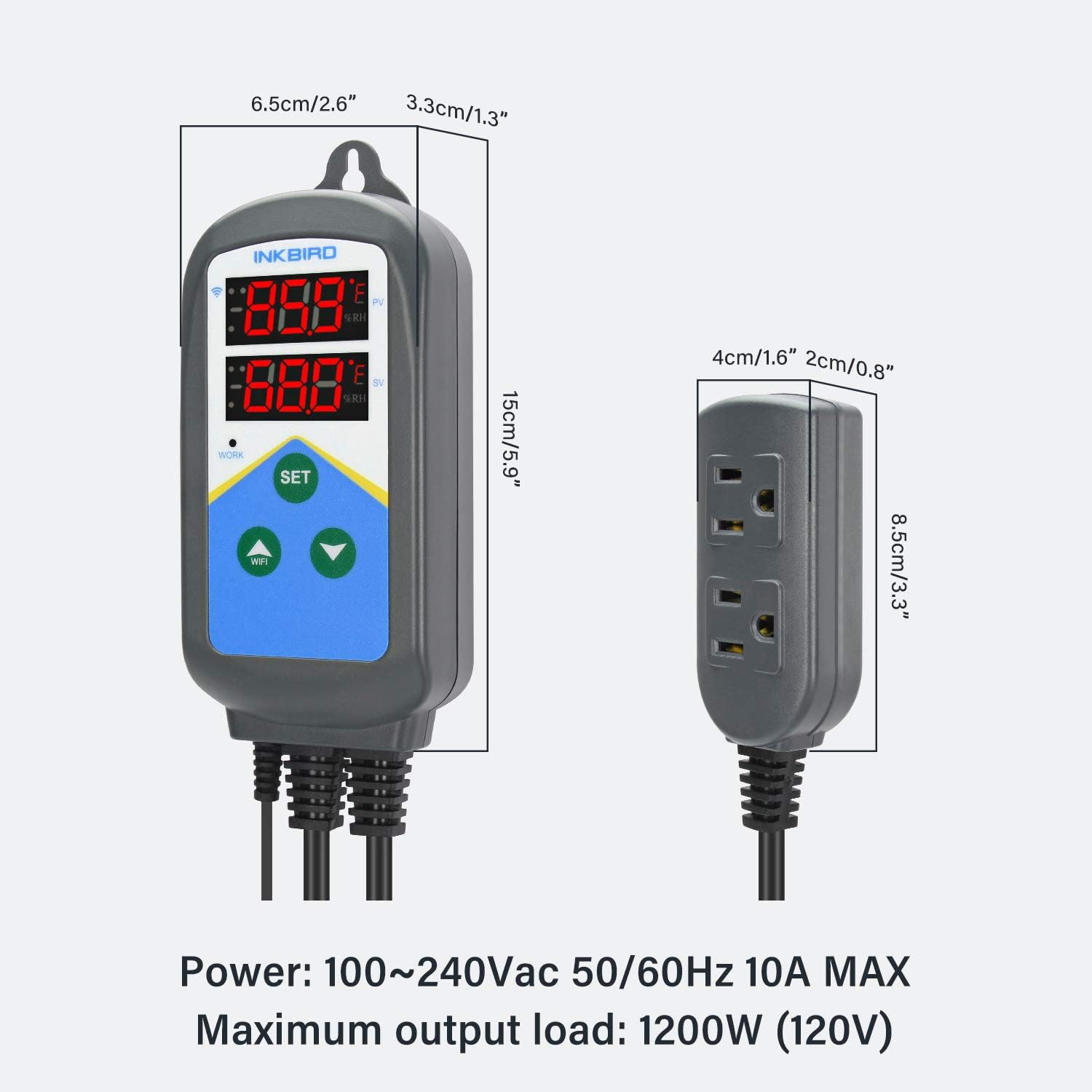
Image: Visual representation of the controller's dimensions, including its length, width, and height.

Image: The power plug and temperature sensor cable, indicating their respective lengths.
Warranty and Support
Inkbird products typically come with a manufacturer's warranty. For specific warranty details, please refer to the warranty card included in your product packaging or visit the official Inkbird website. For technical support, troubleshooting assistance, or warranty claims, please contact Inkbird customer service through their official website or the INKBIRD app.