
1. Introduction
The OLLGEN USB Double Foot Switch Pedal Control (Model FS2016USB2A) is a versatile input device designed to enhance efficiency and control across various applications. It allows users to assign keyboard functions, mouse clicks, multimedia controls, or custom key combinations to foot pedal actions. This manual provides comprehensive instructions for setting up and operating your foot switch.

Figure 1: Top view of the OLLGEN USB Double Foot Switch Pedal Control.
2. Features
- Dual Pedal Design: Features two distinct pedals for assigning separate functions, offering more control than a single pedal unit.
- Customizable Functions: Program the pedals to emulate any keyboard key, shortcut, hotkey, mouse click, or multimedia command.
- Wide Compatibility: Compatible with Windows, Mac, Linux, Android, and DOS operating systems.
- Plug and Play (after configuration): Once configured using the provided software, the settings are stored on the device, allowing it to be used on other computers without re-installation of the software.
- Anti-Slip Base: Equipped with 4 TPU rubber feet to prevent slipping on hard surfaces, ensuring stability during use.
- Durable Construction: Designed for longevity with an internal switch lifetime exceeding 100,000 operations.

Figure 2: The foot switch can be programmed for various functions including keyboard, mouse, multimedia, gaming, and specialized equipment control.
3. Package Contents
Verify that all items are present in your package:
- 1x OLLGEN USB Double Foot Switch Pedal Control
- 1x User Manual (this document)
- 1x Software CD (for "Elfkey" programming software)
4. Specifications
| Attribute | Specification |
|---|---|
| Model | FS2016USB2A |
| Material | Plastic |
| Connectivity | USB |
| USB Voltage/Current | 5V@10mA |
| Internal Switch Rating | 5A, 250VAC |
| Lifetime | Over 100,000 times |
| Color | Grey |
| Cable Length | 2m / 78.7in |
| Dimensions (L x W x H) | 14 x 13.1 x 3.4 cm / 5.5 x 5.2 x 1.3 in |
| Weight | Approx. 285g / 10.1oz |
| Compatible Operating Systems | Windows, Mac, Linux, Android, DOS |
5. Setup Instructions
Follow these steps to set up and program your OLLGEN USB Double Foot Switch Pedal Control:
- Download Software: Obtain the "Elfkey" programming software. This software is typically provided on the included CD or can be downloaded from the manufacturer's website. Ensure you download the version compatible with your operating system (Windows, Mac, Linux, Android).
- Connect Foot Pedal: Plug the USB cable of the foot pedal into an available USB port on your computer.
- Install and Run Software: Install the "Elfkey" software on your computer and launch it.
- Program Functions: Within the "Elfkey" software interface, select the desired function for each pedal from the list of available options. You can assign single keys, key combinations, mouse clicks, or multimedia controls.
- Save Settings: After configuring the pedals, click the "Save" button within the software to store the settings onto the foot pedal's internal memory.
Note: Once the foot switch is configured and settings are saved, it can be moved to a different computer and used without the "Elfkey" software, as the programmed functions are stored directly on the device. Multiple foot pedals can be connected to one PC, but each must be programmed individually.

Figure 3: Connect the foot pedal via its USB cable to your computer.
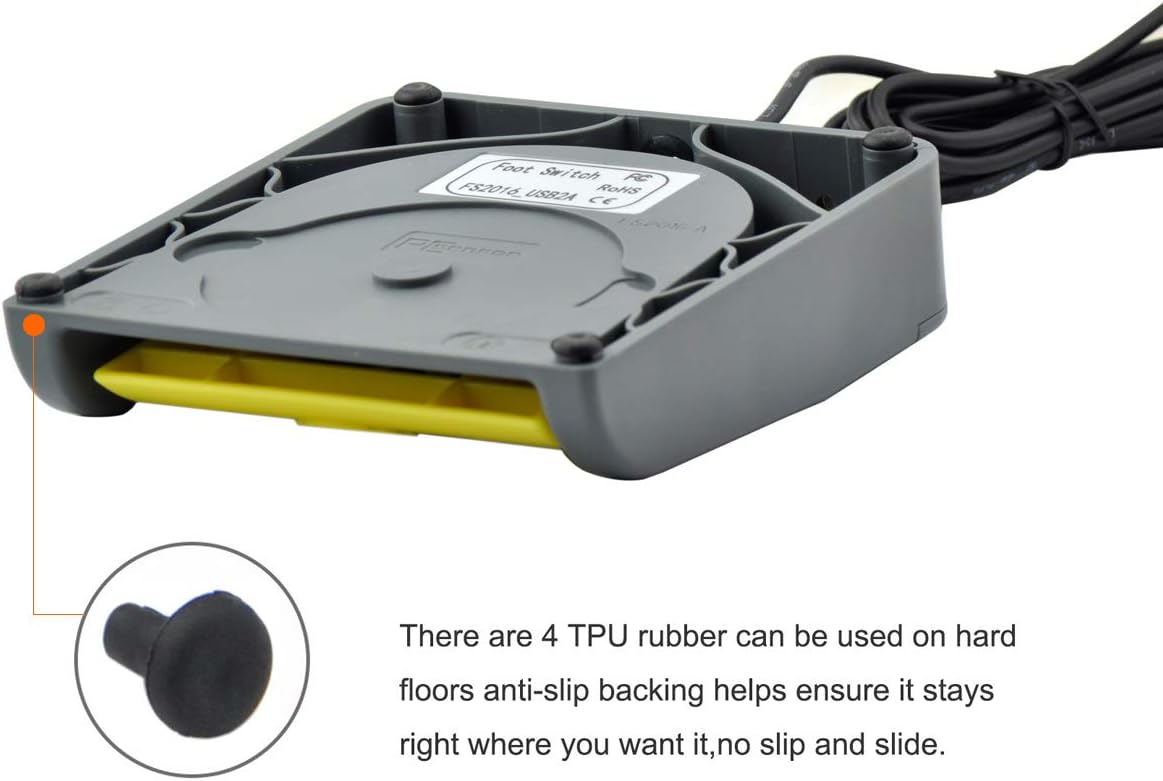
Figure 4: The foot pedal features anti-slip rubber feet for stable placement.
6. Operating Instructions
After successful setup and programming, operating the foot switch is straightforward:
- Placement: Position the foot switch on the floor in a comfortable and accessible location. The anti-slip feet will help keep it in place.
- Activation: Gently press down on either of the two pedals with your foot to activate its assigned function. The pedal will return to its original position when released.
- Applications: Use the foot switch for tasks such as:
- Gaming (e.g., activating abilities, push-to-talk)
- Transcription or dictation (e.g., play/pause audio)
- Software control (e.g., shortcuts in design software, CAD)
- Medical equipment control (e.g., image capture)
- Multimedia playback (e.g., volume control, track skip)
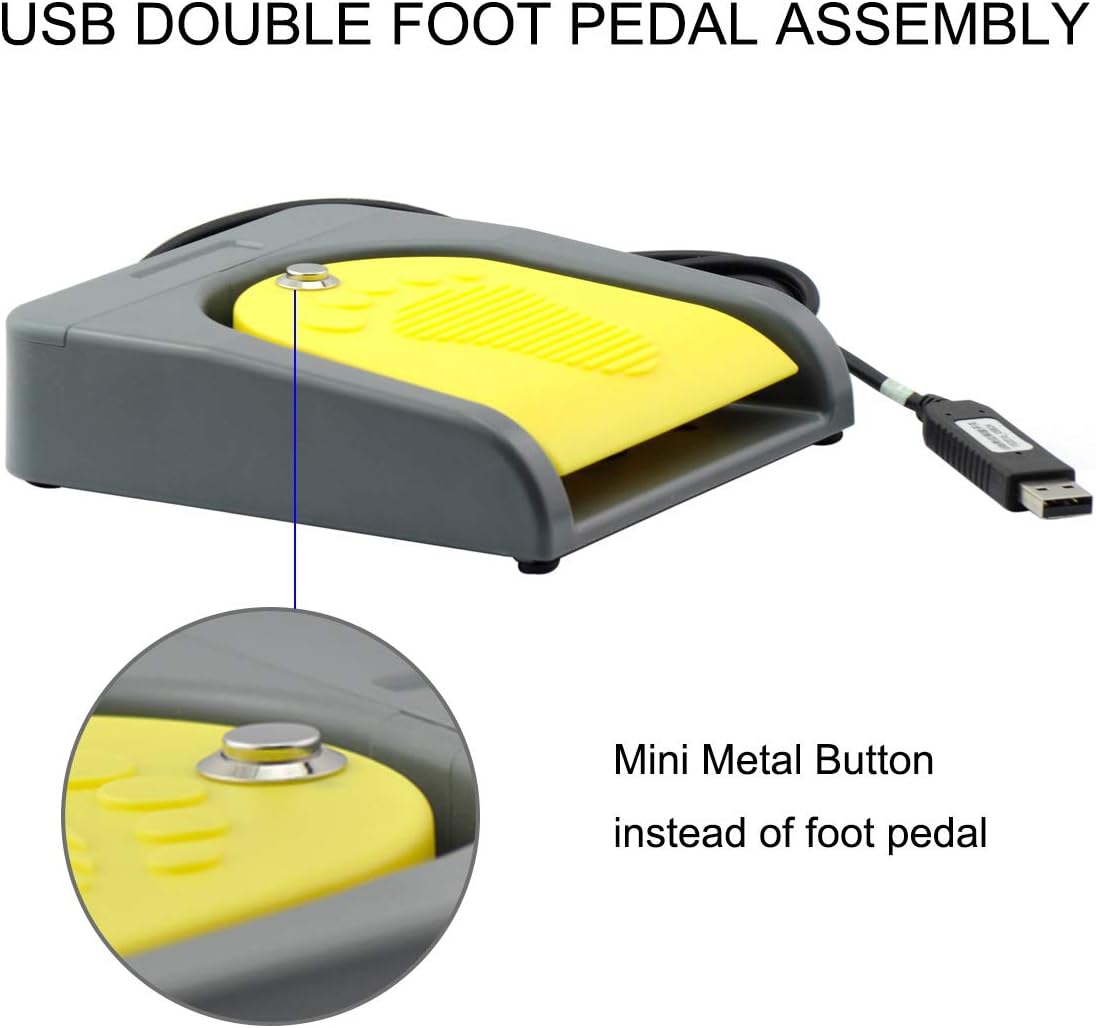
Figure 5: The durable metal button mechanism ensures reliable activation.
7. Troubleshooting
- Foot switch not responding:
- Ensure the USB cable is securely connected to both the foot switch and the computer.
- Try plugging the foot switch into a different USB port on your computer.
- Restart your computer.
- Verify that the "Elfkey" software was used to save the desired settings to the foot switch. If not, re-program and save.
- Foot switch performs incorrect action:
- Re-open the "Elfkey" software and check the assigned functions for each pedal. Correct any errors and save the settings again.
- Ensure no other software or operating system settings are overriding the foot switch's programmed functions.
- "Elfkey" software not installing or running:
- Check your operating system's compatibility with the software version.
- Temporarily disable antivirus or firewall software during installation, then re-enable it.
- Download the latest version of the "Elfkey" software from the official OLLGEN support page if available.
8. Maintenance
To ensure the longevity and proper functioning of your foot switch:
- Cleaning: Wipe the exterior of the foot switch with a soft, dry cloth. Avoid using harsh chemicals or abrasive cleaners.
- Storage: Store the device in a cool, dry place away from direct sunlight and extreme temperatures when not in use.
- Cable Care: Avoid bending or kinking the USB cable excessively. Do not pull the cable to disconnect the device; always grasp the USB connector.
9. Warranty and Support
For warranty information or technical support, please refer to the documentation included with your purchase or visit the official OLLGEN website. Contact information for customer service can typically be found on the product packaging or the manufacturer's support pages.