
1. Introduction
The MAIWO K3016P is a dual-bay M.2 NVMe docking station designed for efficient data management and cloning of M.2 PCIe NVMe SSDs. It supports various SSD sizes (2242, 2260, 2280, 22110) and offers high-speed data transfer via USB-C 3.1 Gen2 (10Gbps). This device also features a convenient one-key offline cloning function, allowing you to duplicate drives without a computer connection. It is compatible with Windows, macOS, and Linux operating systems.
1.1 What's in the Box
- MAIWO K3016P Dual-Bay M.2 NVMe Docking Station
- USB-C to USB-C Cable
- USB-C to USB-A Cable
- Power Adapter
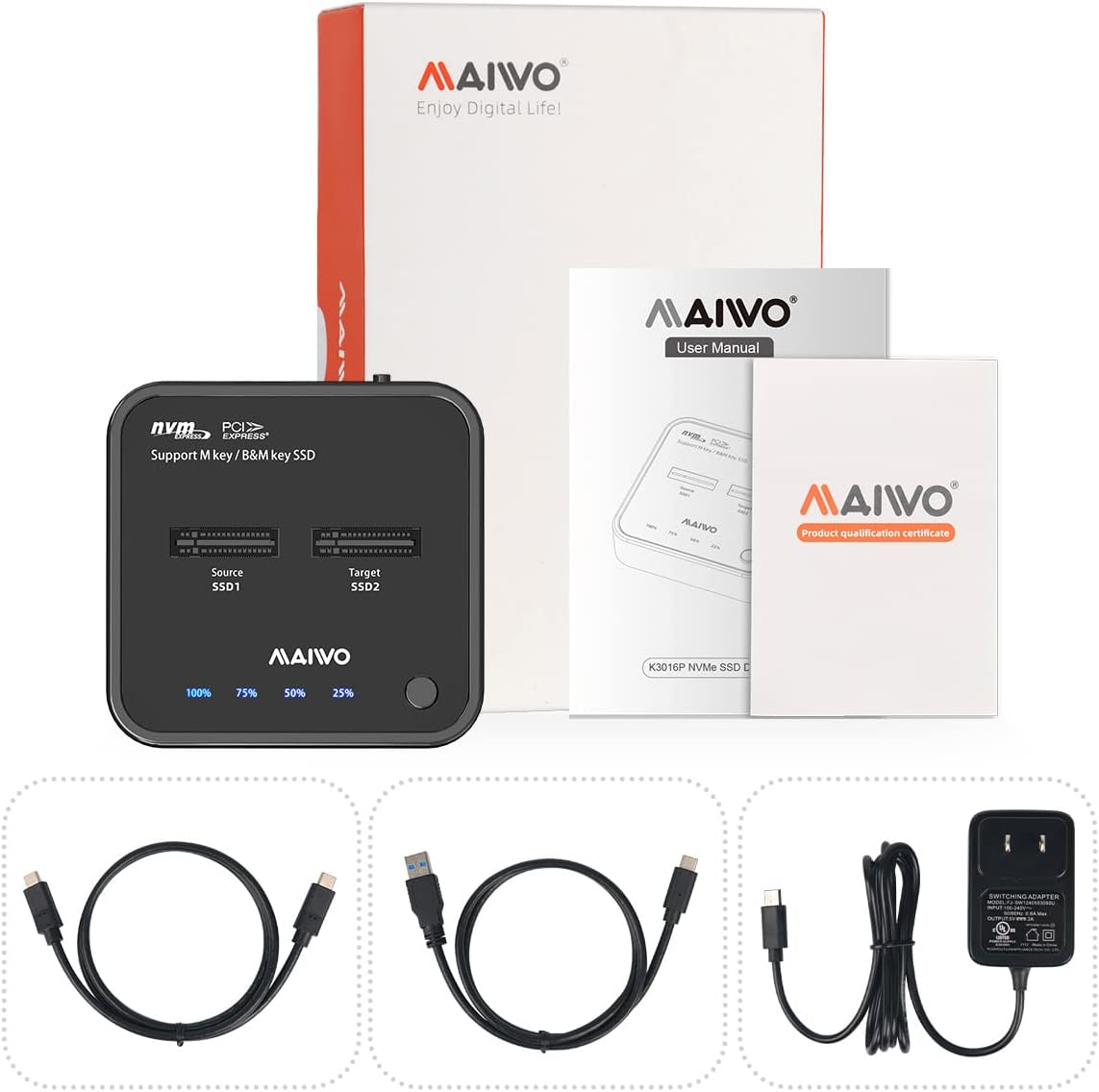
Image 1.1: Package contents including the docking station, cables, and power adapter.
2. Setup Instructions
2.1 SSD Installation
- Ensure the docking station is disconnected from power and your computer.
- Carefully insert your M.2 NVMe SSD(s) into the designated slots (SSD1 for Source, SSD2 for Target). The docking station supports M-Key NVMe SSDs of sizes 2242, 2260, 2280, and 22110.
- Gently push the SSD down until it clicks into place. No tools are required for installation.

Image 2.1: Proper insertion of M.2 NVMe SSDs into the docking station slots.

Image 2.2: Supported M.2 NVMe SSD form factors and M-Key compatibility.
2.2 Connecting the Docking Station
- Connect the provided power adapter to the DC IN port on the docking station and plug it into a power outlet.
- For data transfer, connect the docking station to your computer using either the USB-C to USB-C cable or the USB-C to USB-A cable.
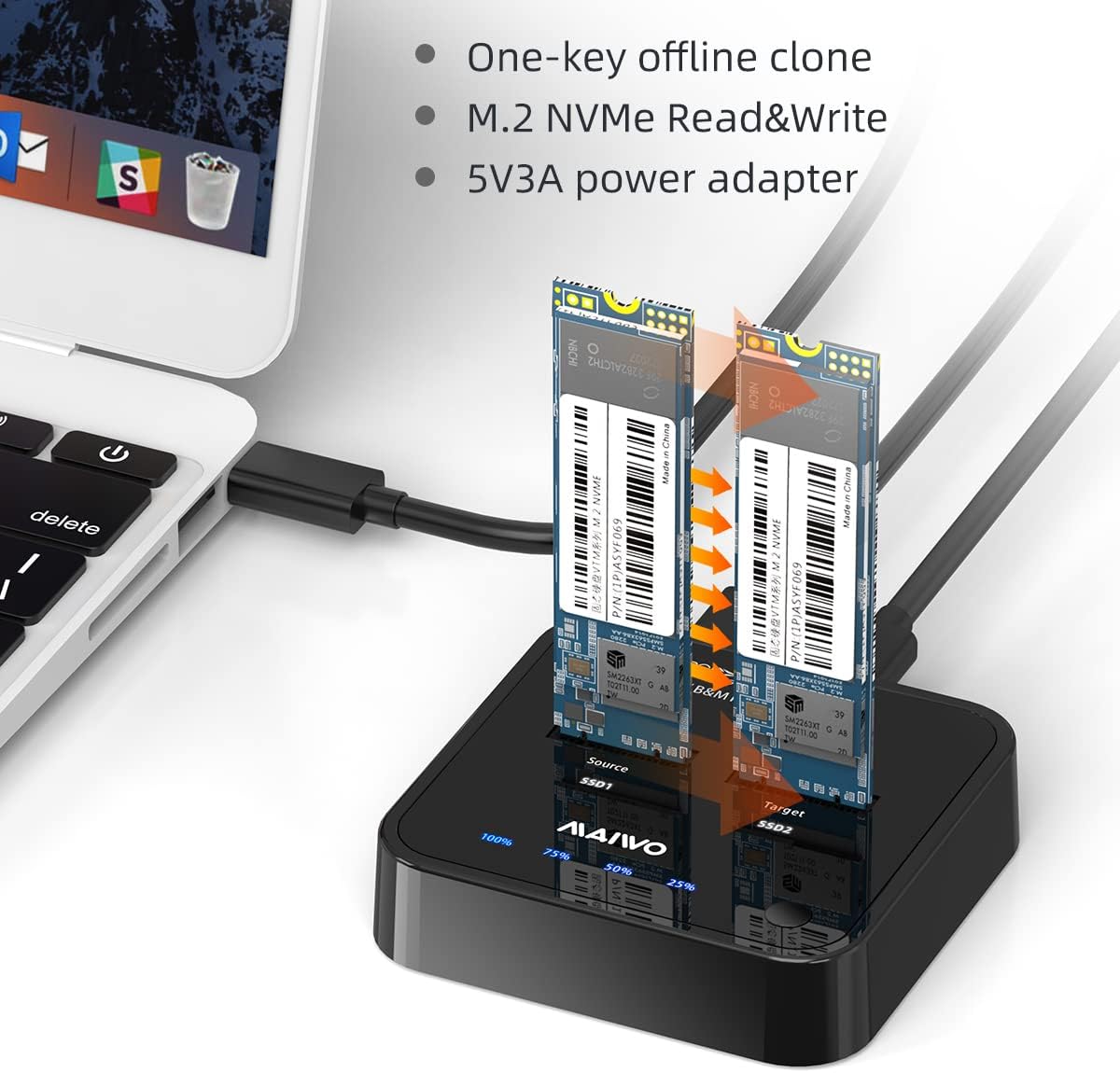
Image 2.3: Docking station connected to a laptop, ready for use.
3. Operating Instructions
3.1 Data Transfer Mode (Connected to Computer)
When connected to a computer, the MAIWO K3016P functions as an external dual-bay SSD enclosure. Both inserted NVMe SSDs will be recognized by your operating system as separate drives.
- Ensure the docking station is powered on and connected to your computer via USB.
- Your computer's operating system (Windows, macOS, Linux) should automatically detect the drives. If a new SSD is inserted, it may need to be initialized and formatted through Disk Management (Windows) or Disk Utility (macOS) before use.
- You can now read from and write to the SSDs at speeds up to 10Gbps (USB 3.1 Gen2), depending on your computer's USB port capabilities and the SSDs' performance.

Image 3.1: High-speed data transfer via USB-C 3.1 Gen2.
3.2 Offline Clone Function
The offline clone function allows you to duplicate an SSD without connecting the docking station to a computer.
- Preparation: Ensure the docking station is disconnected from your computer. Insert the Source M.2 NVMe SSD into the SSD1 slot and the Target M.2 NVMe SSD into the SSD2 slot.
- Important: The capacity of the target SSD must be equal to or greater than the capacity of the source SSD. All data on the target SSD will be overwritten during the cloning process.
- Initiate Clone: Press and hold the clone button (usually located on the side or front of the device) for approximately 3-5 seconds until the LED indicators begin to flash.
- Monitor Progress: The LED indicators (25%, 50%, 75%, 100%) will illuminate sequentially to show the cloning progress.
- Completion: Once all LEDs are solid, the cloning process is complete. You can then safely remove the SSDs.

Image 3.2: Offline cloning in progress without a computer connection.
Image 3.3: Reminder for target disk capacity requirement during cloning.
4. Maintenance
- Keep the docking station clean and free from dust. Use a soft, dry cloth for cleaning.
- Avoid exposing the device to extreme temperatures, humidity, or direct sunlight.
- Do not attempt to disassemble or repair the device yourself. Refer to qualified service personnel if issues arise.
- Ensure proper ventilation around the device during operation to prevent overheating.
5. Troubleshooting
5.1 General Issues
- Device not recognized: Ensure all cables (power and USB) are securely connected. Try a different USB port on your computer or a different USB cable. Verify the power adapter is functioning.
- SSD not detected: Ensure the M.2 NVMe SSD is correctly seated in its slot. For new SSDs, they may need to be initialized and formatted in your operating system's disk management utility.
- Slow transfer speeds: Ensure you are using a USB 3.1 Gen2 compatible port on your computer. Older USB 2.0 or 3.0 ports will result in lower speeds. The performance of the SSD itself also affects transfer rates.
5.2 Cloning Specific Issues
- Cloning fails or incomplete data: Verify that the target SSD's capacity is equal to or larger than the source SSD's capacity. Ensure both SSDs are M-Key NVMe type. Some operating systems or specific disk configurations may require the target disk to be unallocated or initialized before cloning for optimal results.
- LED indicators blinking unexpectedly: Refer to the product's official support resources for specific LED error codes or patterns. Generally, continuous blinking may indicate an error during the cloning process.
- M&B Key SSD compatibility: This docking station is designed for M.2 NVMe PCIe SSDs (M-Key). While some B+M Key NVMe SSDs may function, B+M Key SATA SSDs are not supported. Ensure your SSD is an M-Key NVMe type for proper operation and cloning.
6. Specifications
| Brand | MAIWO |
| Model Number | K3016P |
| Product Dimensions | 3 x 2.9 x 0.74 inches (7.62 x 7.37 x 1.88 cm) |
| Item Weight | 5.3 ounces (150 grams) |
| Hardware Interface | USB 3.2 Gen 2 (USB-C) |
| Data Transfer Speed | Up to 10Gbps |
| Compatible Devices | Laptops, PCs, Smart TVs, Gaming Consoles, Routers |
| Supported SSDs | M.2 NVMe PCIe SSDs (M-Key) |
| Supported SSD Sizes | 2242, 2260, 2280, 22110 |
| Operating Systems | Windows, macOS, Linux |
| Input Voltage | 5 Volts |
| Wattage | 15 watts |

Image 6.1: Broad compatibility with multiple devices and operating systems.
7. Warranty and Support
For warranty information, technical support, or service inquiries, please refer to the official MAIWO website or contact their customer support directly. Details regarding specific warranty periods and support channels are typically provided with your product purchase or on the manufacturer's official resources.