
Introduction
Thank you for choosing the Anivia Y-901B-M 7.1 Surround Sound Gaming Headset. This manual provides detailed instructions for setting up, operating, and maintaining your headset to ensure optimal performance and an immersive audio experience. Please read this manual thoroughly before using the product.

Image: Front view of the Anivia Y-901B-M Gaming Headset, showcasing its design with blue accents and the adjustable microphone.
Package Contents
Verify that all items are present in your package:
- Anivia Y-901B-M PC Gaming Headset
- User Manual
Product Overview
Headset Components
- Adjustable Headband: For a comfortable and secure fit.
- Soft Memory Foam Earcups: Designed for extended wear and improved air permeability.
- Noise-Canceling Microphone: Flexible and adjustable for clear voice communication.
- In-line Controller: For volume adjustment, microphone on/off, and LED light control.
- USB Connector: For power and audio signal transmission.
- LED Lighting: Integrated blue LED lights on earcups for aesthetic appeal.
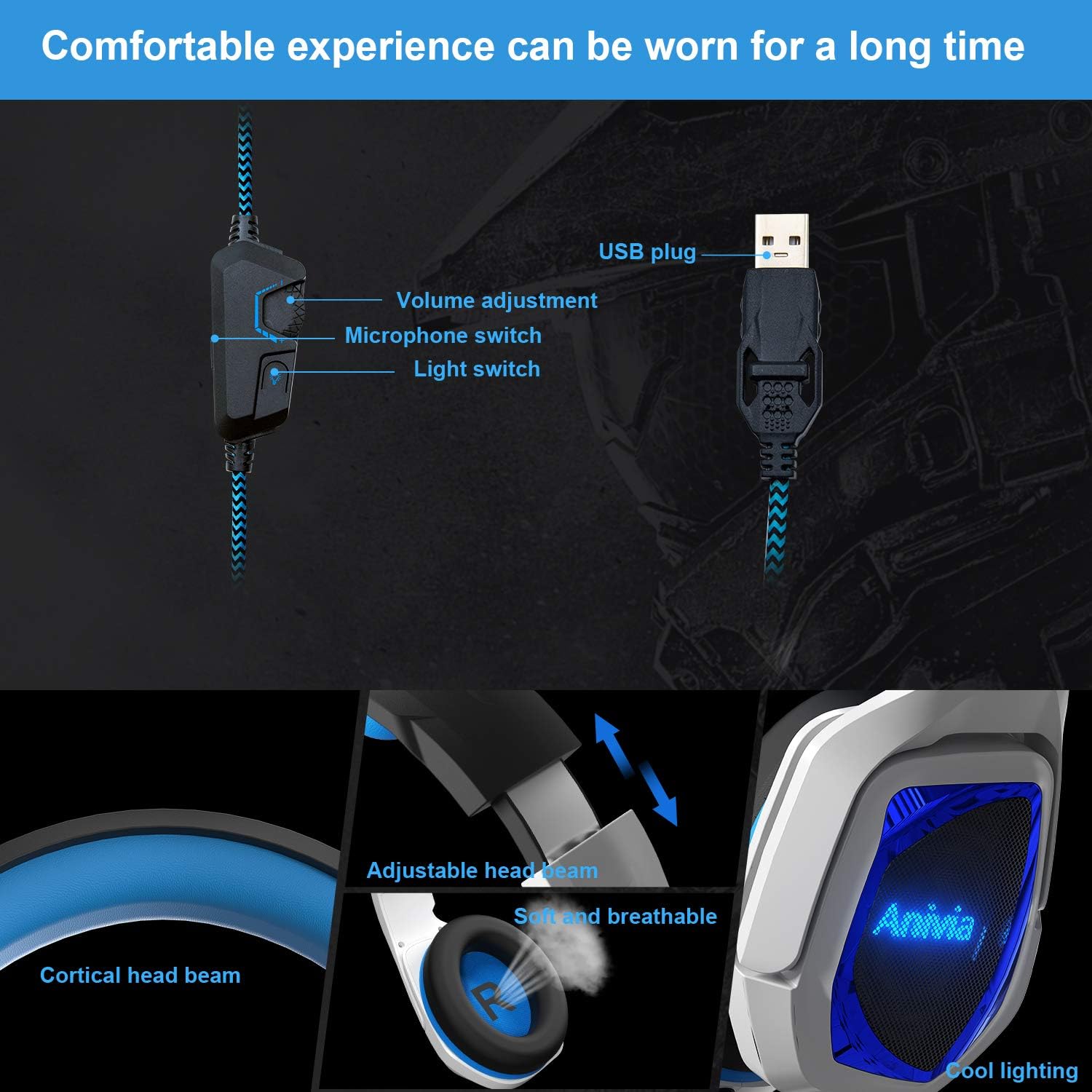
Image: Detailed view of the headset's in-line controls, adjustable headband, soft earcups, and LED lighting.
Setup Instructions
Connecting to Your Device
- Locate an available USB port on your PC, laptop, or compatible gaming console (e.g., PS4/PS5).
- Insert the USB connector of the Anivia Y-901B-M headset firmly into the USB port.
- For most operating systems (Windows 7/8/8.1/10/XP), the headset will be recognized automatically, and necessary drivers will be installed.
- Once connected, the LED lights on the earcups should illuminate, indicating power.

Image: Illustration of connecting the USB headset to various devices including a PlayStation, laptop, and desktop PC.
Initial Configuration (PC/Laptop)
- Windows Sound Settings: Right-click the speaker icon in your system tray and select "Sound Settings" or "Playback devices."
- Set as Default: Ensure the Anivia Y-901B-M headset is selected as the default playback and recording device.
- Microphone Level: Go to the "Recording" tab, select the headset microphone, click "Properties," and adjust the microphone level as needed.
- 7.1 Surround Sound: For 7.1 virtual surround sound, ensure your operating system's sound settings are configured for 7.1 audio output if applicable. Some games or applications may require specific in-game audio settings.
Operating Instructions
Volume Control
Use the scroll wheel on the in-line controller to adjust the headset's volume. Scroll up to increase volume and down to decrease it.
Microphone Usage
The flexible microphone can be adjusted to your preferred position for clear voice pickup. Use the switch on the in-line controller to toggle the microphone on or off. When the microphone is off, the LED indicator on the microphone tip may change color or turn off (if applicable).
LED Lighting
The headset features integrated blue LED lights on the earcups. A dedicated switch on the in-line controller allows you to turn these lights on or off according to your preference.
7.1 Virtual Surround Sound
The Anivia Y-901B-M headset delivers an immersive 7.1 virtual surround sound experience through its high-precision 50mm neodymium audio drivers. This feature enhances spatial awareness in games, allowing you to pinpoint sound sources like footsteps or gunshots from various directions.

Image: Visual representation of 7.1 channel audio, showing how different sound effects are perceived from various directions.
Comfort and Fit
The headset is designed for comfort during extended use. The headband is adjustable to fit various head sizes. Gently slide the earcups up or down along the headband until you achieve a snug yet comfortable fit. The soft memory foam earcups provide cushioning and breathability.

Image: Features emphasizing the headset's adjustable headband and soft, breathable earcups for comfortable wear.
Maintenance
Proper care will extend the life of your headset.
- Cleaning: Use a soft, dry cloth to wipe the earcups and headband. Do not use harsh chemicals or abrasive cleaners.
- Storage: Store the headset in a cool, dry place away from direct sunlight and extreme temperatures. Avoid placing heavy objects on the headset.
- Cable Care: Avoid sharp bends or excessive pulling on the USB cable to prevent damage.
Troubleshooting
| Issue | Possible Solution |
|---|---|
| No sound from headset |
|
| Microphone not working |
|
| LED lights are off |
|
| Sound is distorted or unclear |
|
Specifications
| Feature | Detail |
|---|---|
| Model Number | Y-901B-M |
| Connectivity Technology | Wired (USB) |
| Headphones Jack | USB |
| Speaker Diameter | 50mm |
| Speaker Impedance | 16Ω ± 15% |
| Speaker Sensitivity | 100 ± 3dB (at 1kHz) |
| Speaker Frequency Response | 20Hz ∼ 20KHz |
| Microphone | Noise-Canceling, 360° Adjustable |
| Control Type | In-line Volume Control, Mic On/Off, Light Switch |
| Cable Length | 2.2M |
| Item Weight | 1.06 pounds (approx. 480g) |
| Product Dimensions | 7.87 x 3.94 x 6.3 inches |
| Compatible Devices | Desktops, Laptops, PC, PS4/PS5 Console |
| Material | Plastic, Skin-friendly Leather (earpads) |
| Special Features | Lightweight, Microphone Included, Noise Cancellation, LED Lighting |
Warranty and Support
Anivia products are manufactured to high quality standards. For warranty information or technical support, please refer to the documentation included with your purchase or contact Anivia customer service through their official website or the retailer where the product was purchased. Please retain your proof of purchase for warranty claims.