
1. Product Overview
The Giveet Wireless Gaming Headset Set (Model BTWH-Gamekit) provides a seamless audio experience for gaming across multiple platforms, including Nintendo Switch Lite, PS4, and PC. This set includes a Bluetooth headphone with a rotatable mini microphone and a USB-C audio transmitter, designed for plug-and-play functionality and low audio delay.
The headset features FastStream technology for minimal audio delay, ensuring synchronized sound and visuals during gameplay. The included microphone supports in-game voice chat, enhancing communication with teammates. The design prioritizes comfort and ease of use, making it suitable for extended gaming sessions.

Image 1.1: The Giveet Wireless Gaming Headset and USB-C transmitter in use, illustrating minimal audio delay for synchronized sound and visuals.
2. Package Contents
Please check the package for the following items:
- Giveet Wireless Gaming Headset (Z702)
- USB Type-C Wireless Audio Transmitter (GameKit)
- USB-C to USB-A Cable
- Mini Microphone
- USB Charging Cable
- Ear Caps (various sizes)
- User Manual 1 (for Transmitter)
- User Manual 2 (for Headset)
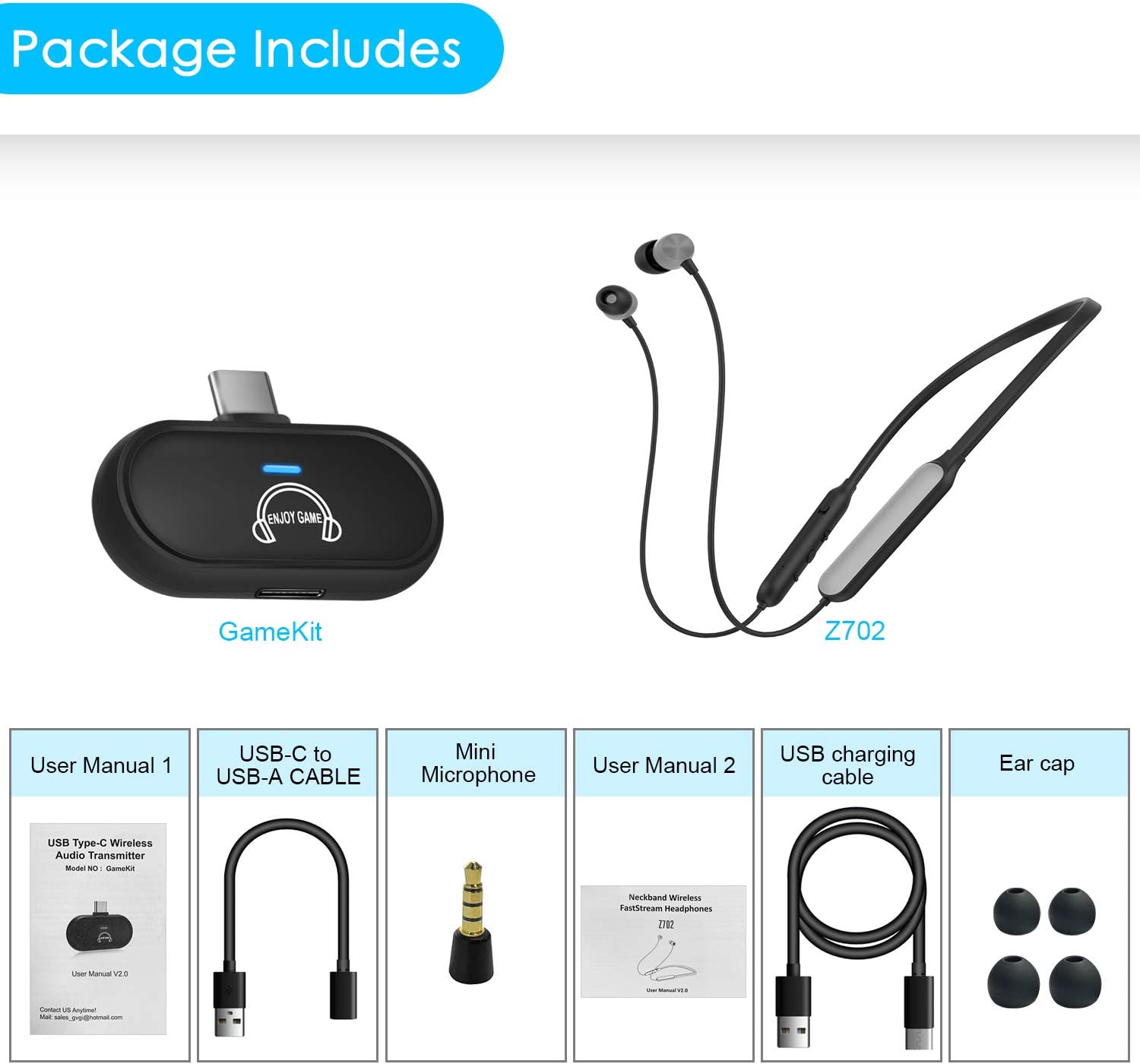
Image 2.1: Visual representation of all items included in the Giveet Wireless Gaming Headset Set package.
3. Product Components
3.1. Wireless Gaming Headset (Z702)
The headset features an in-ear design with a neckband for comfortable wear. It includes integrated controls for volume and playback, and a port for the detachable mini microphone.
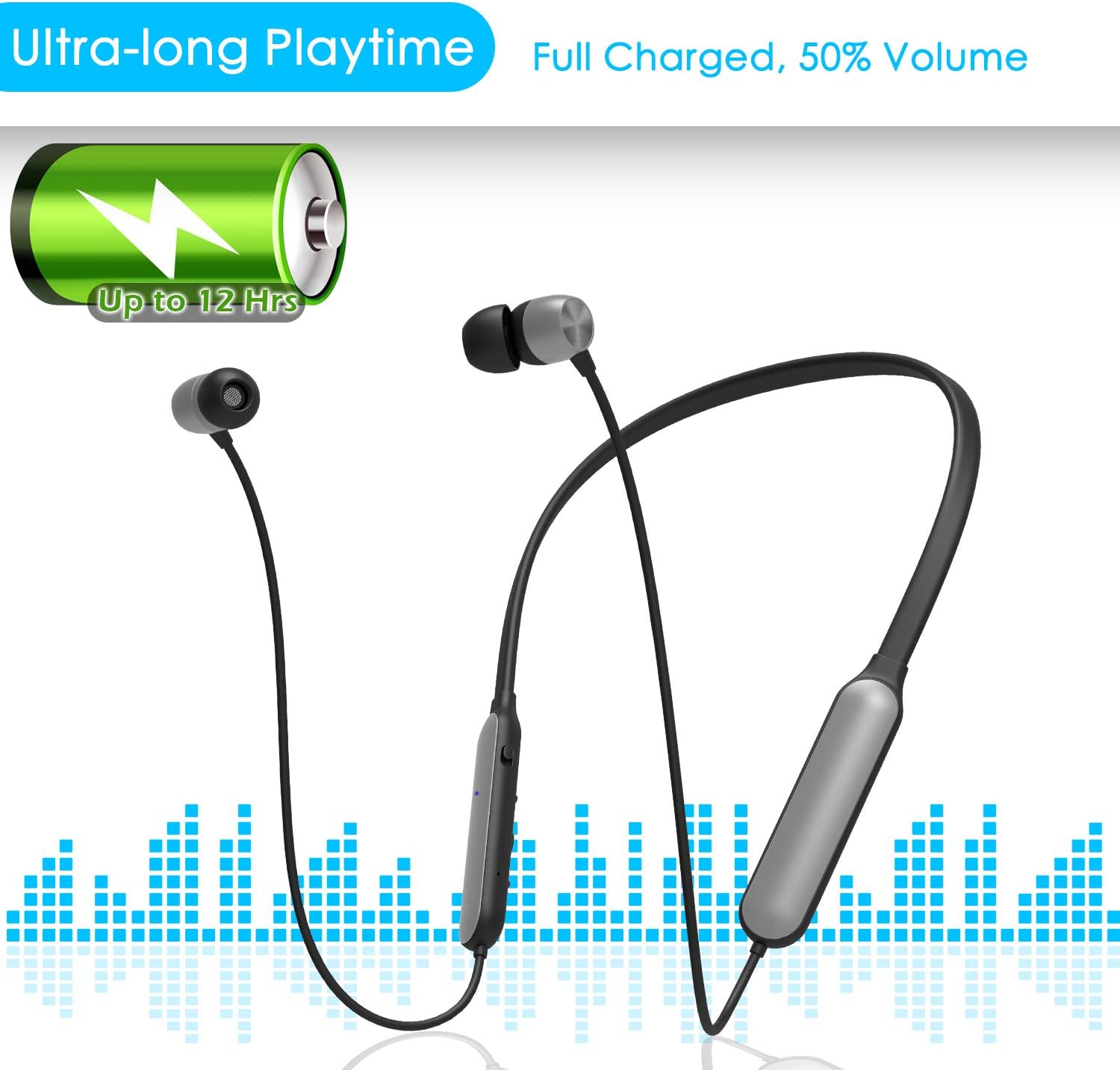
Image 3.1: The Giveet Wireless Gaming Headset (Z702) highlighting its design and up to 12 hours of playtime.
3.2. USB-C Audio Transmitter (GameKit)
This compact transmitter plugs into your gaming device's USB-C port to enable wireless audio and voice chat. It features an LED indicator for connection status and a 3.5mm jack for the mini microphone.

Image 3.2: The USB-C Audio Transmitter (GameKit) shown connected to a Nintendo Switch Lite, with an illustration of the mini microphone input.
4. Setup Guide
4.1. Charging the Headset
- Connect the provided USB charging cable to the charging port on the headset.
- Plug the other end of the USB charging cable into a USB power source (e.g., computer USB port, USB wall adapter).
- The LED indicator on the headset will show charging status. A full charge typically takes a few hours.
4.2. Connecting the USB-C Audio Transmitter
- For Nintendo Switch/Switch Lite: Insert the USB-C Audio Transmitter directly into the USB-C port at the bottom of your console.
- For PS4/PC (using USB-A port): Use the provided USB-C to USB-A adapter. Plug the USB-C Audio Transmitter into the adapter, then plug the adapter into an available USB-A port on your PS4 or PC.
- Once connected, the transmitter's LED indicator will flash, indicating it is searching for a headset.
4.3. Pairing the Headset with the Transmitter
- Ensure the headset is charged and powered off.
- Press and hold the Multi-function Button on the headset for approximately 3 seconds until the LED indicator flashes red and blue alternately, indicating pairing mode.
- Ensure the USB-C Audio Transmitter is plugged into your device and its LED is flashing.
- The headset and transmitter will automatically pair. Once paired, the LED indicators on both devices will turn solid blue.
- If pairing fails, power off both devices and repeat the steps.
4.4. Attaching the Mini Microphone
- Locate the 3.5mm microphone jack on the USB-C Audio Transmitter.
- Insert the mini microphone into this jack. Ensure it is fully seated for proper voice chat functionality.

Image 4.1: Multiple users enjoying the plug-and-play setup of the Giveet Wireless Gaming Headset and transmitter for group gaming.
5. Operating Instructions
5.1. Power On/Off
- Power On: Press and hold the Multi-function Button on the headset for approximately 3 seconds until the LED indicator flashes blue.
- Power Off: Press and hold the Multi-function Button on the headset for approximately 5 seconds until the LED indicator flashes red and then turns off.
5.2. Volume Control
- Use the Volume Up (+) and Volume Down (-) buttons on the headset to adjust the audio level.
- You may also need to adjust the volume settings on your connected gaming console or PC.
5.3. Microphone Usage (In-Game Voice Chat)
- Ensure the mini microphone is securely plugged into the USB-C Audio Transmitter.
- The microphone is automatically active when connected.
- Mute/Unmute: The headset may have a dedicated microphone mute button or a function accessible via the Multi-function Button (refer to the specific headset manual for details).
- Adjust microphone sensitivity through your console or PC settings if needed.
5.4. Using the Headset Separately (Bluetooth Mode)
The headset can also be used independently as a standard Bluetooth headphone with other Bluetooth-enabled devices (e.g., smartphones, laptops) without the USB-C transmitter.
- Ensure the headset is powered off.
- Press and hold the Multi-function Button until the LED flashes red and blue alternately to enter Bluetooth pairing mode.
- On your device, enable Bluetooth and search for "Giveet Z702" (or similar name).
- Select the headset to pair. Once connected, the LED will flash blue periodically.

Image 5.1: Illustration of the Giveet USB-C transmitter and headset being used independently with various devices, showcasing versatile connectivity options.
6. Device Compatibility
The Giveet Wireless Gaming Headset Set is designed for broad compatibility with popular gaming platforms and devices.
6.1. Compatible Devices
- Nintendo Switch
- Nintendo Switch Lite
- PlayStation 4 (PS4)
- PC (Windows/macOS)
- Other devices with USB-C or USB-A ports that support audio output via a USB audio adapter.
- The headset alone is compatible with any Bluetooth-enabled device (e.g., smartphones, tablets, laptops).
6.2. Non-Compatible Devices
The USB-C Audio Transmitter may not be compatible with all devices. Examples of devices typically not supported include:
- Devices without USB-C or USB-A audio output capabilities.
- Specific gaming consoles or devices that require proprietary audio solutions.

Image 6.1: A visual guide to compatible devices (e.g., Switch, PS4, PC) and non-compatible devices (e.g., guitar, TV) for the Giveet USB-C Audio Transmitter.
7. Care and Maintenance
- Cleaning: Use a soft, dry cloth to clean the headset and transmitter. Do not use abrasive cleaners or solvents.
- Storage: Store the device in a cool, dry place away from direct sunlight and extreme temperatures.
- Avoid Water: The device is not waterproof. Avoid exposure to water or excessive moisture.
- Charging: Charge the headset regularly, even if not in use, to maintain battery health.
- Handling: Handle the headset and transmitter with care to prevent damage from drops or impacts.
8. Troubleshooting
8.1. No Sound from Headset
- Check Power: Ensure the headset is powered on and charged.
- Check Pairing: Verify that the headset and transmitter are successfully paired (solid blue LED). If not, re-pair them.
- Check Volume: Adjust the volume on both the headset and the connected device (console/PC).
- Transmitter Connection: Ensure the USB-C Audio Transmitter is securely plugged into the device's port.
- Device Audio Settings: On your console or PC, ensure the audio output is set to the USB audio device (the transmitter).
8.2. Microphone Not Working
- Microphone Connection: Ensure the mini microphone is fully inserted into the transmitter's 3.5mm jack.
- Mute Status: Check if the microphone is muted on the headset or in your device's settings.
- Device Audio Settings: On your console or PC, ensure the microphone input is set to the USB audio device (the transmitter).
- Game/Application Settings: Some games or chat applications have their own microphone settings; verify these are correctly configured.
8.3. Pairing Issues
- Reset: Power off both the headset and the transmitter. Then, restart them and attempt pairing again.
- Distance: Ensure the headset and transmitter are within close proximity during pairing.
- Interference: Move away from other wireless devices that might cause interference.
8.4. Audio Delay
- The headset uses FastStream technology for low latency. If you experience significant delay, ensure no other Bluetooth devices are actively connected to the headset or interfering with the transmitter.
- Ensure the transmitter is directly connected to the console/PC and not through a hub if possible.
9. Product Specifications
| Feature | Detail |
|---|---|
| Brand | Giveet |
| Model Number | BTWH-Gamekit |
| Form Factor | In Ear (Headset) |
| Connectivity Technology | Wireless (Bluetooth) |
| Wireless Communication Technology | Bluetooth |
| Headphones Jack | 3.5 mm Jack (for Mini Mic on Transmitter) |
| Additional Features | Microphone Included, Low Audio Delay (FastStream) |
| Cable Features | Without Cable (Wireless Operation) |
| Control Type | Volume Control |
| Control Method | Buttons (on headset) |
| Age Range Description | Adult |
| UPC | 190065965793 |
| GTIN | 190065965793 |
10. Warranty and Customer Support
Giveet products are designed for reliability and performance. For specific warranty information, please refer to the warranty card included in your product packaging or visit the official Giveet website.
If you encounter any issues or have questions regarding your Giveet Wireless Gaming Headset Set, please contact Giveet customer support. Contact details are typically available on the product packaging or the official brand website.
Please retain your proof of purchase for warranty claims.