
Introduction
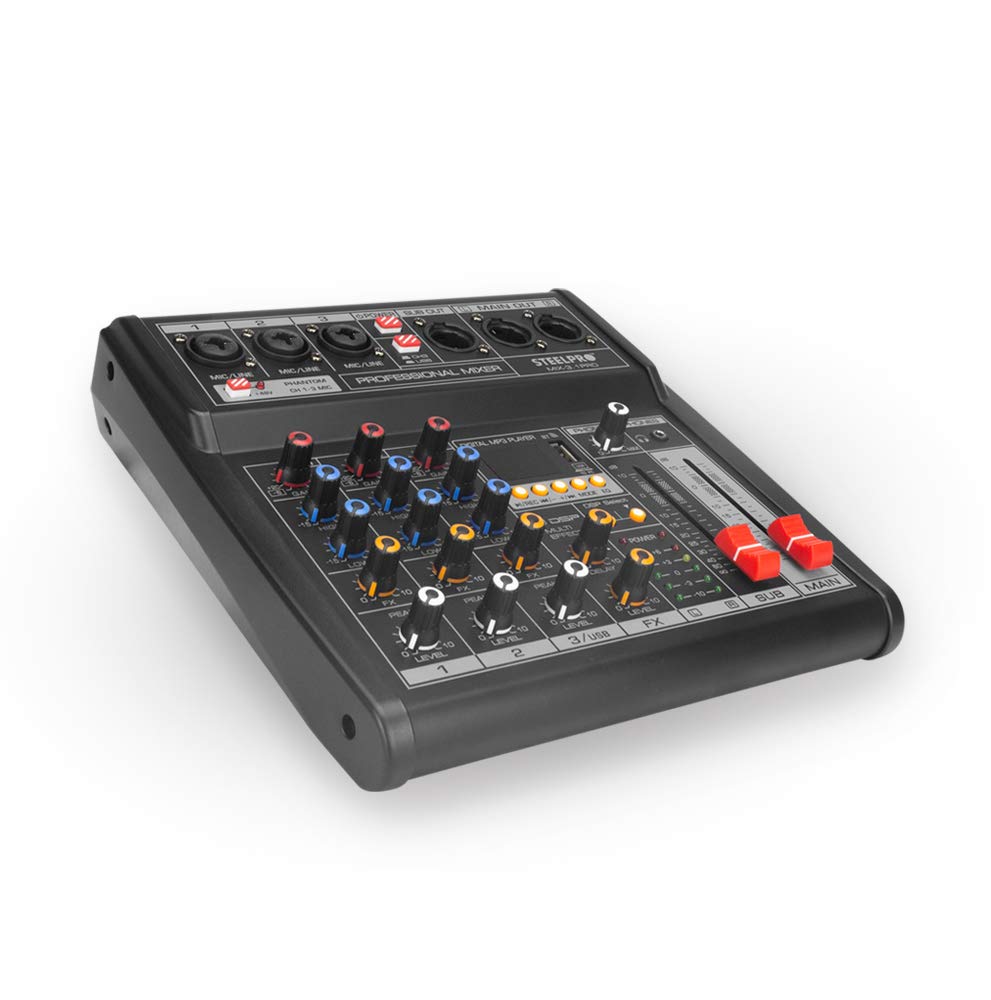
The STEELPRO MIX-3.1PRO is a versatile 3-channel audio mixer designed for music production and live sound applications. It features an independent subwoofer channel with frequency cut, an integrated audio interface, Bluetooth connectivity, and 16 DSP delay effects. This mixer allows direct connection to a computer via USB for both audio recording and playback. Each input channel supports both XLR (Canon) and 6.3mm (1/4 inch) plug connections, offering flexibility for various microphones and instruments. The MIX-3.1PRO combines precision with a user-friendly interface, making it suitable for a range of audio tasks.
Key Features
- 3 Input Channels + 1 Independent Subwoofer Channel
- Integrated USB Audio Interface for PC Recording and Playback
- Bluetooth Connectivity for Wireless Audio Streaming
- 16 Digital Signal Processing (DSP) Delay Effects
- XLR/6.3mm Combo Jacks on Each Channel
- Independent Gain, Bass, and Treble Control per Channel
- Effect and Delay Control
- MP3 USB Playback Module with Independent Volume
- Pre-programmed Equalizer (5 Presets: Jazz, Rock, Classical, Country, Normal)
- Master Control and 48V Phantom Power for 3 Channels
- LED Display
Setup Instructions
1. Power Connection
Connect the provided AC adapter to the mixer's power input and then to a suitable power outlet. Ensure the mixer's power switch is in the OFF position before connecting.
2. Input Connections
Connect your microphones, instruments (e.g., guitar), or other audio sources to the MIC/LINE combo jacks (1, 2, 3) using XLR or 6.3mm (1/4 inch) cables. For condenser microphones requiring power, activate the Phantom (48V) switch for the respective channels.
3. Output Connections
- Main Output: Connect your powered monitor speakers or amplifier to the MAIN OUT (L/R) XLR jacks.
- Subwoofer Output: Connect your subwoofer to the SUB OUT XLR jack.
- Headphones: Connect headphones to the PHONES output jack.
4. Computer Connection (USB Audio Interface)
Connect the mixer to your computer using a USB cable. The mixer will be recognized as an audio device. You can select the MIX-3.1PRO as your input/output device in your computer's sound settings to send or receive audio.

This image illustrates the various connection points on the STEELPRO MIX-3.1PRO mixer, including inputs for microphones (XLR/6.3mm combo jacks), a guitar input, subwoofer output, and main outputs for powered monitor speakers. Headphone outputs and PC connection for recording/playback are also shown.
This image focuses on the digital connectivity features of the MIX-3.1PRO, showing how to connect the mixer to a computer via USB for audio recording and playback, and the Bluetooth connection for wireless audio streaming.
5. Initial Power On
Once all connections are secure, turn on the mixer's power switch. Gradually raise the MAIN fader and individual channel levels to avoid sudden loud noises.
Operating Instructions
1. Channel Controls
- GAIN: Adjusts the input sensitivity for each channel. Set this to achieve a strong signal without clipping (indicated by the PEAK LED).
- HIGH/LOW (EQ): Adjusts the treble and bass frequencies for each channel.
- FX: Controls the amount of signal sent to the internal DSP effects processor.
- LEVEL: Adjusts the output volume of each individual channel.
2. DSP Effects
The mixer includes 16 DSP delay effects. Use the DSP Select knob to choose an effect. Adjust the DELAY knob to control the delay time and the FX knob on each channel to send audio to the effects processor. The overall effect level can be adjusted with the dedicated FX level control.

This image details specific features: the Phantom power switch for channels 1-3, the DSP section with 16 delay effects, and the independent subwoofer output, each with a descriptive label.
3. Bluetooth Connectivity
To connect a Bluetooth device:
- Ensure Bluetooth is enabled on your device.
- On the mixer's digital MP3 player section, select the Bluetooth mode.
- Search for the mixer (usually named "MIX-3.1PRO" or similar) on your device and pair.
- Once paired, you can stream audio wirelessly to the mixer. Adjust the volume using the MP3/USB channel level control.
4. USB MP3 Playback
Insert a USB drive containing MP3 audio files into the USB port. Use the controls on the digital MP3 player section to navigate and play tracks. Adjust the playback volume using the MP3/USB channel level control.
5. Subwoofer Control
The MIX-3.1PRO features an independent subwoofer channel. Adjust the SUB level control to set the output volume for the subwoofer. This channel also includes a frequency cut for optimized bass response.
6. Master Output
The MAIN fader controls the overall output volume of the mixer. Adjust this to the desired listening level for your main speakers.
Maintenance
- Cleaning: Use a soft, dry cloth to clean the mixer's surface. Avoid using liquid cleaners or solvents, as they may damage the finish or internal components.
- Storage: Store the mixer in a cool, dry place away from direct sunlight and extreme temperatures. If storing for extended periods, cover it to protect against dust.
- Handling: Avoid dropping or subjecting the mixer to strong impacts. Do not place heavy objects on top of the unit.
- Ventilation: Ensure proper ventilation around the mixer to prevent overheating. Do not block any ventilation openings.
Troubleshooting
No Sound Output
- Check all power connections and ensure the mixer is turned on.
- Verify that the MAIN fader and individual channel LEVEL controls are raised.
- Ensure your speakers or headphones are properly connected and powered on, with their volume levels adjusted.
- Check input source connections and ensure they are active.
No Microphone Sound
- Ensure the microphone is properly connected to the correct input channel.
- For condenser microphones, verify that Phantom (48V) power is activated for the corresponding channel.
- Adjust the GAIN knob for the microphone channel.
Bluetooth Connection Issues
- Ensure the mixer is in Bluetooth mode and discoverable.
- Check that Bluetooth is enabled on your device and it is within range of the mixer.
- Try unpairing and re-pairing the device.
Subwoofer Output Not Functioning as Expected
- Verify the subwoofer is properly connected to the SUB OUT jack and powered on.
- Ensure the SUB level control on the mixer is raised.
- Check the subwoofer's own volume and crossover settings. If the subwoofer output does not provide the expected low-frequency signal, contact customer support for further assistance.
Specifications
| Model Number | MIX-3.1PRO |
| Channels | 3 + 1 Subwoofer Channel |
| Connectivity Technology | Bluetooth, USB |
| Output Connector Type | XLR |
| Power Source | AC Adapter |
| Phantom Power | 48V (for 3 channels) |
| DSP Effects | 16 Delay Effects |
| Dimensions (L x W x H) | 22.5 x 23 x 6 cm |
| Weight | 1.67 Kilograms |

This image provides the physical dimensions of the STEELPRO MIX-3.1PRO mixer, indicating its length (22.5 cm), width (23 cm), and height (6 cm).
Warranty Information
For detailed warranty terms and conditions, please refer to the warranty card included with your product or contact STEELPRO customer support directly. Keep your proof of purchase for any warranty claims.
Customer Support
STEELPRO offers technical support and installation advice at no additional cost. If you encounter any issues or have questions regarding your MIX-3.1PRO mixer, please contact our support team.
Support Hours:
- Monday to Friday: 9:00 AM - 6:00 PM
- Saturday: 9:00 AM - 2:30 PM
Contact information can typically be found on the STEELPRO official website or on the product packaging.