
HP 5SE47A
HP Envy Pro 6452e Wireless All-in-One Printer User Manual
Model: 5SE47A
Introduction
The HP Envy Pro 6452e is a versatile all-in-one printer designed for home and small office use. It offers printing, copying, and scanning capabilities, along with wireless connectivity for seamless integration with your devices. This manual provides essential information to help you set up, operate, and maintain your printer.

Figure 1: HP Envy Pro 6452e All-in-One Printer, a compact and stylish device for printing, scanning, and copying.
Setup
Unboxing and Initial Placement
Carefully remove the printer from its packaging. Ensure all protective tapes and packing materials are removed from the exterior and interior of the printer. Place the printer on a stable, flat surface with adequate space for paper trays and output.
Power Connection
Connect the power cord to the printer and then to a wall outlet. The printer will power on automatically or can be turned on using the power button.
Ink Cartridge Installation
Open the ink cartridge access door. Wait for the print carriage to move to the center. Install the black and color ink cartridges into their respective slots. Close the access door. The printer will perform an alignment process.
Wireless Setup
The HP Envy Pro 6452e supports wireless connectivity. Follow the on-screen prompts or use the HP Smart app to connect your printer to your Wi-Fi network. The printer features self-healing dual-band Wi-Fi for reliable connection.

Figure 2: Overview of HP Envy Pro 6452e features, including self-healing dual-band Wi-Fi, 35-sheet auto document feeder, flatbed scanner, 80-sheet input tray, and smart contextual UI buttons.
Operating the Printer
Printing Documents and Photos
Load paper into the 80-sheet input tray. You can print from your computer or mobile device using the HP Smart app. The printer supports automatic two-sided printing to save paper.
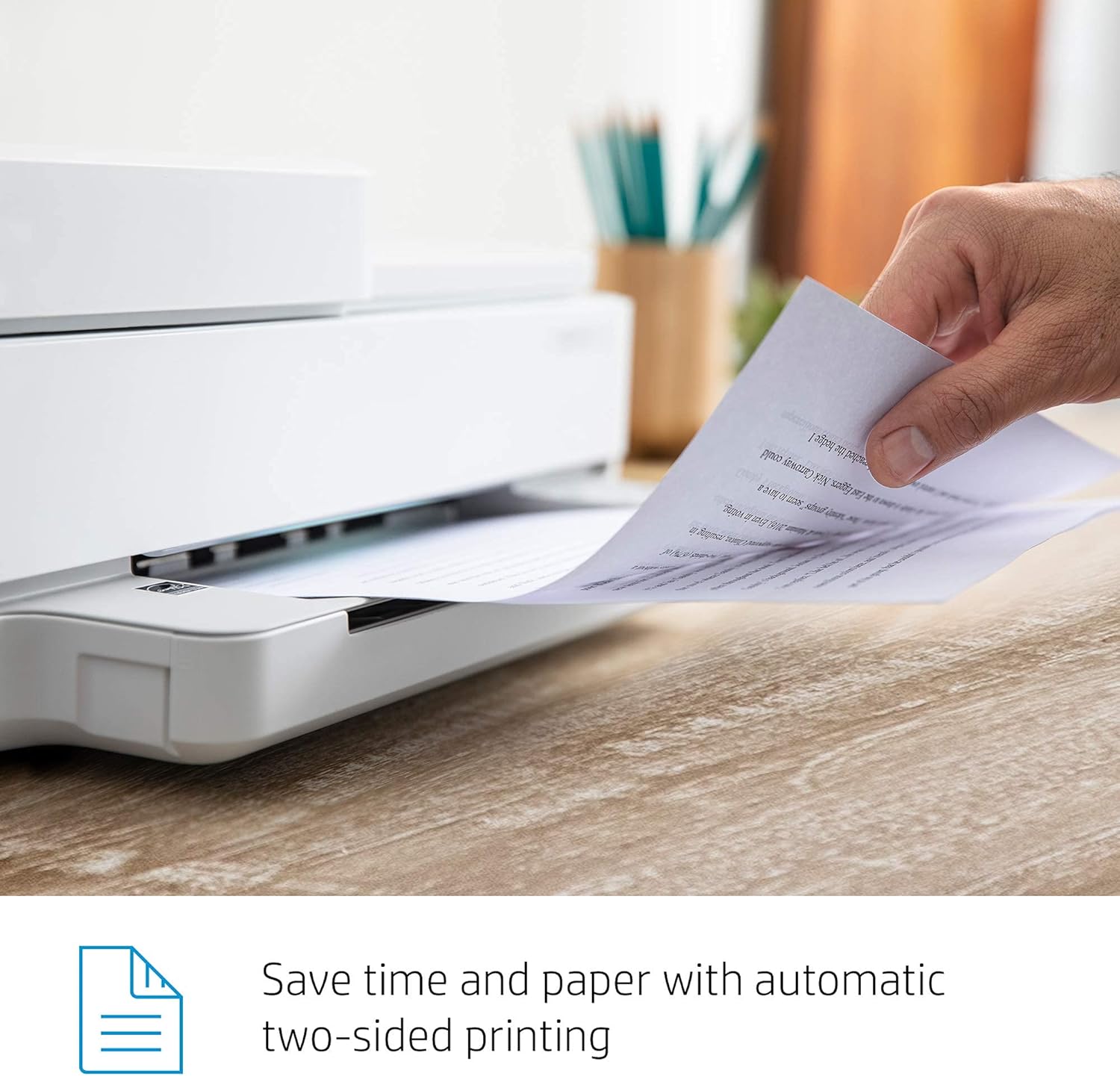
Figure 3: Automatic two-sided printing feature, allowing for efficient paper usage.
Scanning Documents
The printer features both a flatbed scanner and a 35-sheet automatic document feeder (ADF) for multi-page scanning. Place single pages on the flatbed or multiple pages in the ADF. Use the HP Smart app to initiate scans and save them to your desired location.

Figure 4: Fast, multi-page scanning using the 35-page automatic document feeder.
Copying
Place the document you wish to copy on the scanner glass or in the ADF. Use the control panel buttons or the HP Smart app to select copy options (e.g., color/black & white, number of copies) and start the copying process.
Mobile Fax
Send secure mobile faxes directly from your smartphone, tablet, or PC using the HP Smart app. This feature is available for 12 months.
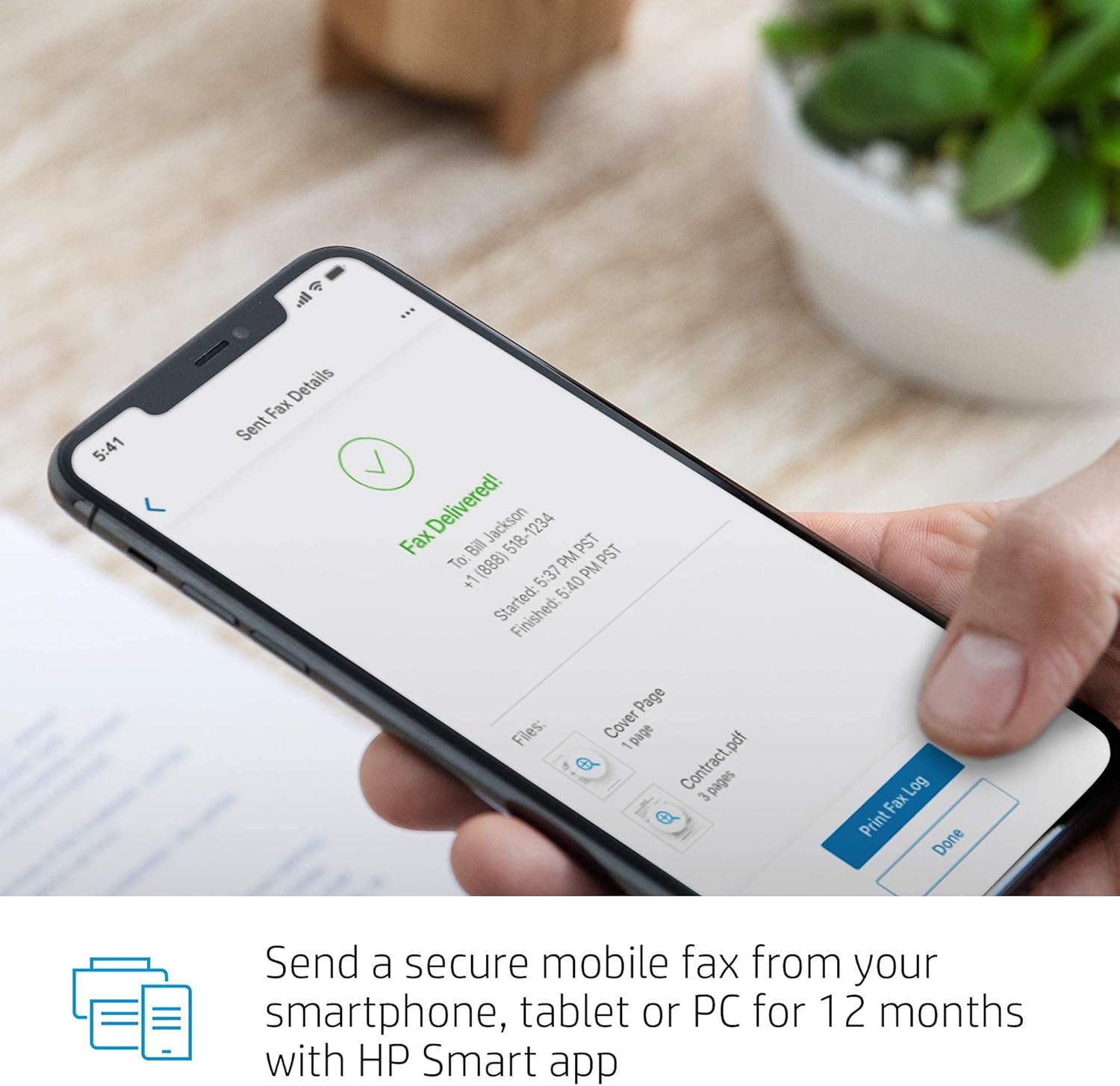
Figure 5: Send a secure mobile fax from your smartphone, tablet, or PC using the HP Smart app.
HP Smart App Integration
The HP Smart app provides comprehensive control over your printer, including ink level monitoring, Smart Tasks for quick workflows (Scan, Save, Print), remote printing, and camera scan features.

Figure 6: HP Smart app interface showing features like ink level monitoring, Smart Tasks, mobile fax, remote printing, and various scanning options.
Maintenance
Ink Management with Instant Ink
The printer is compatible with HP's Instant Ink service, which monitors your ink levels and automatically orders and delivers replacement cartridges to your door when you're running low. This ensures you never run out of ink unexpectedly.
Paper Tray Management
The printer features an 80-sheet input tray. Ensure paper is loaded correctly and adjust guides to prevent jams. The output tray extends to catch printed pages.
Troubleshooting
Connectivity Issues
If you experience Wi-Fi connectivity problems, ensure your router is functioning correctly. The printer features self-healing dual-band Wi-Fi, which can help resolve minor connection issues automatically. For persistent issues, try restarting both your printer and router. Refer to the HP Smart app for guided troubleshooting steps.
Print Quality Problems
If print quality is poor (e.g., streaks, faded colors), check ink levels via the HP Smart app. Perform a print head cleaning or alignment from the printer's maintenance settings or through the app.
Paper Jams
If a paper jam occurs, follow the instructions displayed on the printer's control panel or in the HP Smart app to clear the jam. Always pull paper gently to avoid tearing.
Control Panel Indicators
The smart contextual control panel buttons light up only when needed, providing visual cues for status and errors. Consult the HP Smart app or the printer's documentation for specific indicator meanings.

Figure 7: Smart contextual control panel buttons illuminate to indicate status or required actions.
Specifications
| Feature | Specification |
|---|---|
| Brand | HP |
| Model Name | 5SE47A (Envy Pro) |
| Connectivity Technology | USB, Wireless (Bluetooth 5) |
| Printing Technology | Inkjet |
| Special Feature | Wireless, All-in-One |
| Printer Output | Color |
| Product Dimensions | 17.02"W x 14.21"D x 6.8"H |
| Item Weight | 16.07 pounds |
| Max Input Sheet Capacity | 80 sheets (main tray), 35 sheets (ADF) |
| Duplex Printing | Automatic |
| Scanner Type | Sheetfed, Flatbed |
| Max Color Print Resolution | 600 x 1200 dpi |
| Compatible Devices | Smartphones, PC, Laptops |

Figure 8: Product dimensions of the HP Envy Pro 6452e, with input tray extended.
Warranty and Support
For product support, troubleshooting, and warranty information, please refer to the official HP website or use the HP Smart app. The HP Smart app provides a comprehensive help and support section, including guides and diagnostic tools to assist you with any issues.
Related documents5SE47A


Ask a question about this manual
Ask about setup, troubleshooting, compatibility, parts, safety, or missing instructions. Manuals+ will review the question and use this page’s manual context to help answer it.