
1. Introduction
This manual provides detailed instructions for the setup, operation, and maintenance of your HAYEAR 4K HDMI Microscope Camera Kit HY-5299L. This kit is designed for various applications including machine soldering, phone repair, jewelry appraisal, industrial inspection, school teaching, and laboratory analysis. It features a 12MP CMOS 1/2.33' IMX 4K sensor, offering high-resolution video output and PC software with measuring functions.
Key Features:
- 12MP CMOS 1/2.33' IMX 4K SENSOR
- Video output: 4K/2K/1080P FHD (HDMI only)
- Storage: TF Card, Max 256GB (no lag between hand movements and monitor image)
- Resolution: 3840×2160@60FPS (4K); 1920x1080P 120@FPS; 720P 240@FPS
- Support for Windows / Mac / Linux Systems
- PC Software with Measuring Function
2. Setup and Assembly
Follow these steps to assemble your microscope camera kit. Ensure all components are present before beginning assembly.
- Insert the vertical pole into the base plate and secure it.
- Attach the horizontal arm to the vertical pole at the desired height and tighten the locking mechanism.
- Mount the focus bracket onto the horizontal arm.
- Carefully attach the 180X C-Mount lens to the focus bracket.
- Screw the HAYEAR 4K HDMI Microscope Camera onto the C-Mount lens.
- Connect the 144 LED Ring Light to the lens and plug it into the camera's power source or a separate adapter if provided.
- Connect the camera to a compatible monitor via HDMI or to a computer via USB for PC software functionality.


Video: Assembly and Initial Setup
Video 2.1: This video demonstrates the assembly process of the HAYEAR 4K HDMI Microscope Camera Kit and shows various samples under magnification.
3. Operating Instructions
This section details how to operate your HAYEAR microscope camera for various viewing and recording tasks.
3.1 Powering On and Basic Controls
Connect the DC 12V power adapter to the camera. Press the 'ON/OFF' button to power on the device. Use the included remote control or the buttons on the camera for navigation and settings adjustments. The 'MENU' button accesses camera settings, 'UP/DOWN' for navigation, and 'OK' to confirm selections.


3.2 Adjusting Magnification and Focus
The 180X C-Mount lens allows for variable magnification. Rotate the zoom ring on the lens to adjust the magnification level. Use the focus knob on the microscope stand to achieve a clear image on your connected monitor. The 144 LED ring light provides adjustable illumination; rotate its control knob to change brightness.
3.3 Using the PC Software
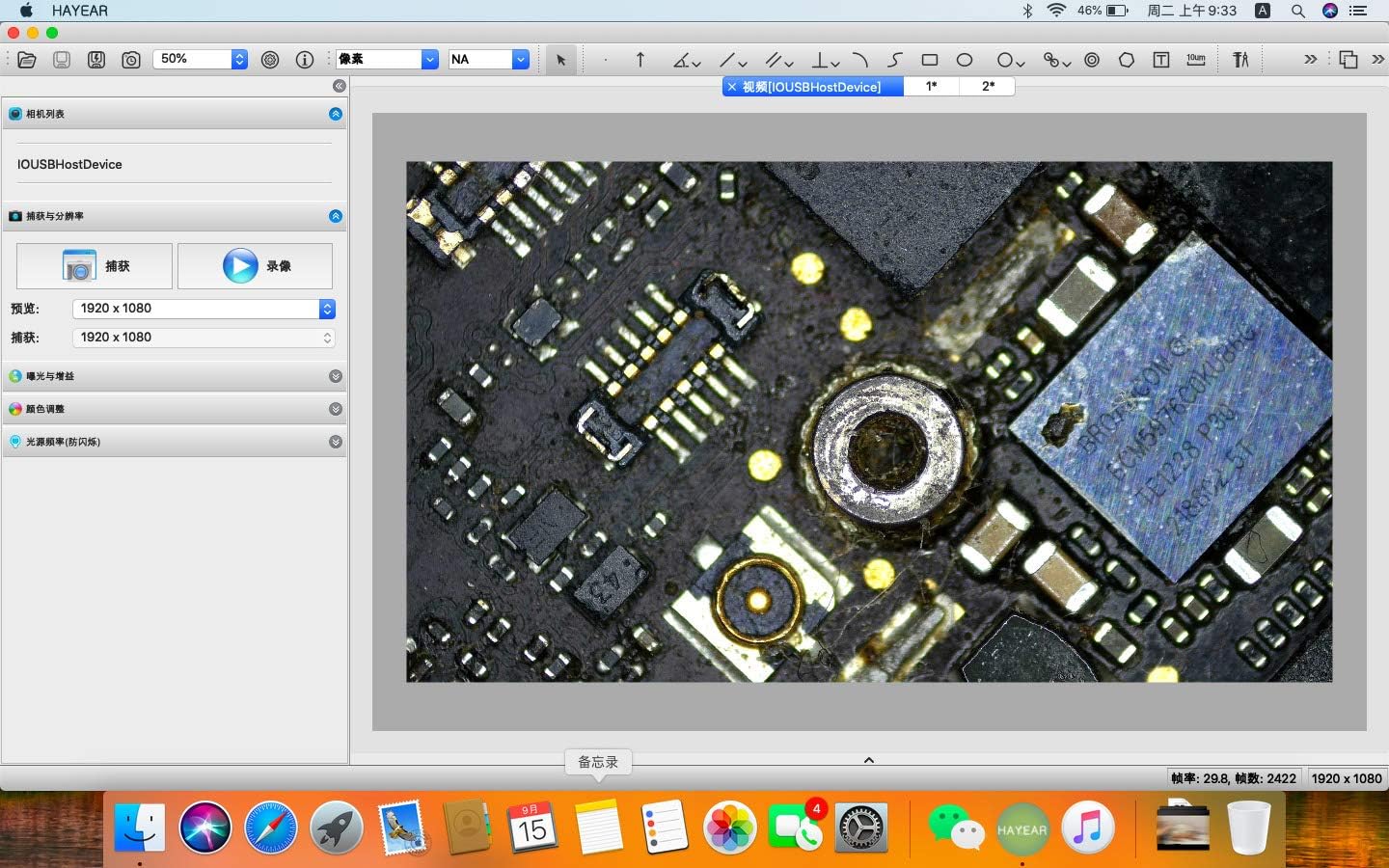
For advanced features like measurement and image capture on a computer, connect the camera via USB. Install the provided PC software (compatible with Windows, Mac, and Linux). The software interface allows for live viewing, image/video capture, and precise measurements of objects under the microscope.

3.4 Recording and Storage
The camera supports recording directly to a TF card (up to 256GB). Insert the TF card into the designated slot. Use the remote control or camera buttons to start and stop video recording or capture still images. The camera outputs 4K video at 60FPS via HDMI, ensuring high-quality recordings.
Video: Operating the Microscope Camera
Video 3.1: This video demonstrates the operation of the HAYEAR 4K HDMI Microscope Camera Kit, showcasing its capabilities with various samples.
Video 3.2: This video highlights the HAYEAR 4K UHD HDMI USB Industrial Microscope Camera in action, focusing on industrial applications like PCB inspection.
3.5 Sample Applications
- PCB Inspection: Examine circuit boards for defects, solder joints, and component placement.
- Biological Observation: View prepared slides of biological samples.
- Coin and Jewelry Appraisal: Inspect fine details on coins, stamps, and jewelry.


4. Maintenance
Proper maintenance ensures the longevity and optimal performance of your microscope camera kit.
- Cleaning the Lens: Use a soft, lint-free cloth and a specialized lens cleaning solution to gently wipe the lens surfaces. Avoid abrasive materials that can scratch the lens.
- Cleaning the Camera Body and Stand: Wipe the camera body and stand with a dry or slightly damp cloth. Do not use harsh chemicals or solvents.
- Storage: When not in use, store the microscope in a clean, dry environment, preferably covered to protect it from dust.
- Cable Management: Ensure all cables are neatly arranged and not kinked or strained to prevent damage.
5. Troubleshooting
If you encounter issues with your microscope camera kit, refer to the following common problems and solutions.
- No Image on Monitor:
- Ensure the camera is powered on and the power adapter is securely connected.
- Check the HDMI or USB cable connections between the camera and the monitor/PC.
- Verify the monitor input source is correctly selected (e.g., HDMI 1, HDMI 2).
- If using PC software, ensure the software is running and the camera is selected as the input device.
- Blurry Image:
- Adjust the focus knob on the microscope stand.
- Ensure the sample is properly positioned under the lens.
- Clean the lens if there is any dust or smudges.
- No Power to LED Ring Light:
- Check the power connection to the ring light.
- Ensure the brightness control knob is not set to minimum.
- PC Software Not Detecting Camera:
- Ensure the USB cable is securely connected to both the camera and the PC.
- Try a different USB port on your computer.
- Restart the PC software and/or your computer.
- Verify that the necessary drivers are installed (if applicable).
6. Specifications
| Feature | Specification |
|---|---|
| Product Dimensions | 2.95 x 2.36 x 1.54 inches |
| Item Weight | 10.72 pounds |
| Item Model Number | HY-5299L |
| Manufacturer | HAYEAR |
| Light Source Type | LED |
| Material | Metal |
| Color | White |
| Real Angle of View | 45 Degrees |
| Magnification Maximum | 180.00 |
| Voltage | 12 Volts |
| Compatible Devices | Personal Computer |
7. Warranty and Support
For warranty information and technical support, please refer to the documentation included with your purchase or visit the official HAYEAR website. Specific warranty terms and support contacts may vary by region.